XP-142E System Reference-SYS-XP142-2.0E.pdf.pdf - 第209页
16. Select the inspection line display mode, then draw seek lines at the required points. After drawing the seek lines, repeat the edge position correction operation (see above). 17. Select the image position correction …
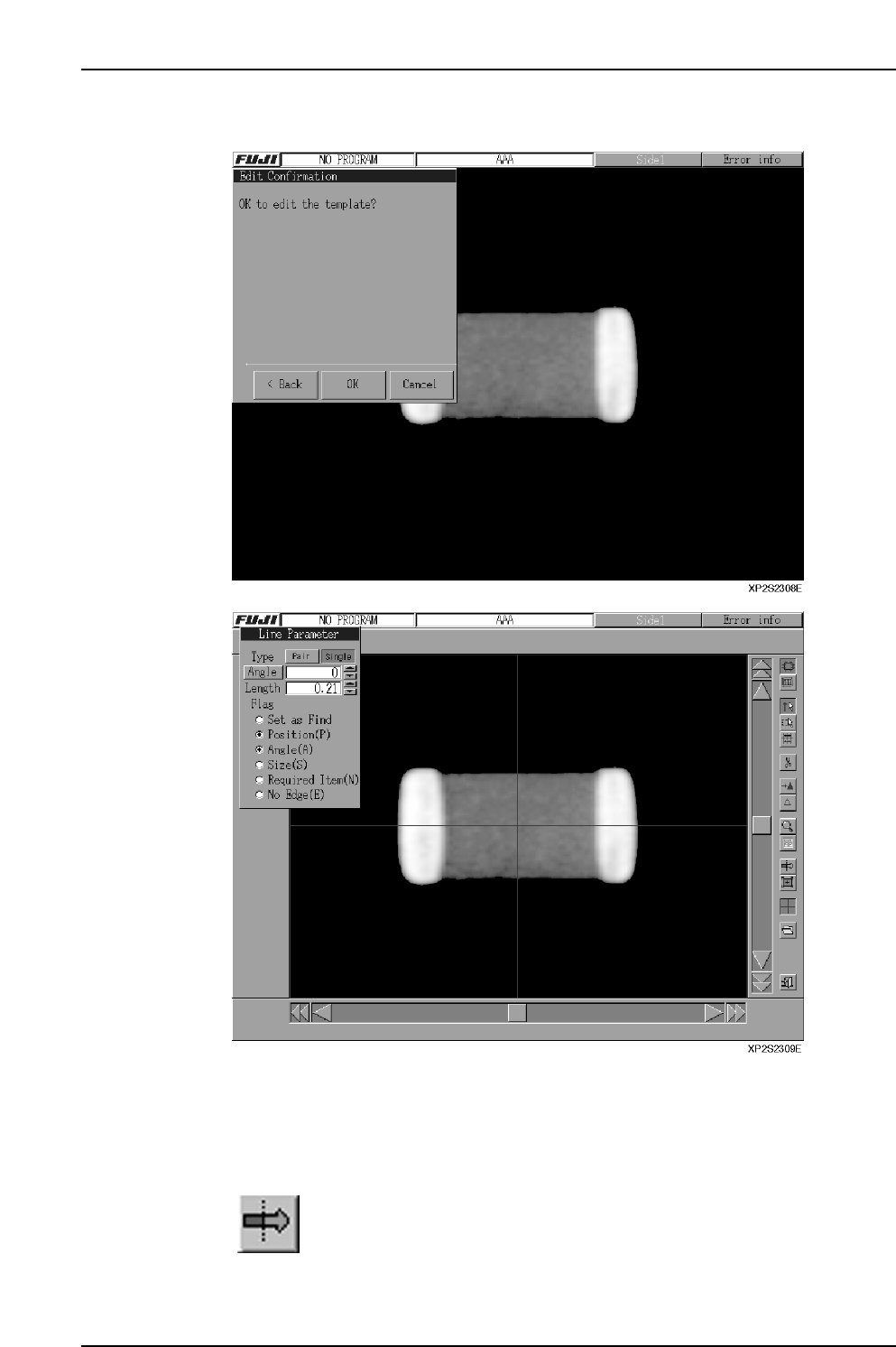
13. Press [OK] to proceed to the template editor screen.
Note: The buttons on the template creation screen are explained later.
14. Display the seek lines by selecting the required points. Refer to Part 2 (Template
Reference) of the MS Algorithm Vision Processing Reference manual for
information about drawing seek lines for representative part types.
15.
Select the edge position correction function, then correct the position
so that the edge is at the seek line center point. A triangle mark
displays at seek lines selected by the "Find Set" operation.
Part 4 Chapter 2 Creating a Template From Existing Part Data
Edition 2.0 4-2-6 XP-142E System Reference
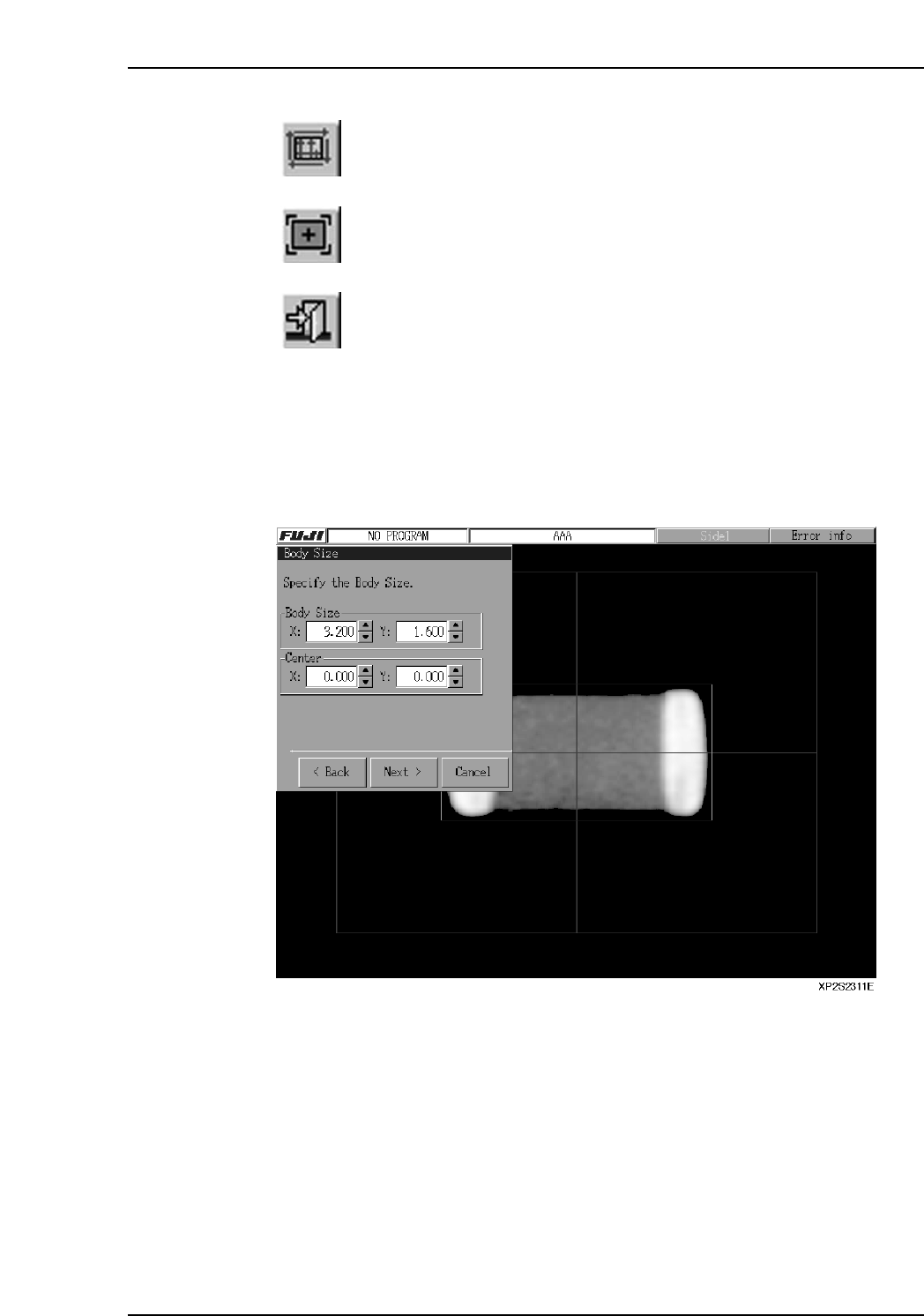
16.
Select the inspection line display mode, then draw seek lines at the
required points. After drawing the seek lines, repeat the edge position
correction operation (see above).
17.
Select the image position correction function to correct the image
center position and angle.
18.
Select "Close".
19. Select "End Generation" at the dialog box.
20. Displayed lines can be moved by dragging them, by entering the coordinates in
the [Body Size] textbox, or by pressing the arrow buttons beside the textbox. Align
the blue and green lines with the part's top, bottom, left, and right sides, then press
[Next].
Part 4 Chapter 2 Creating a Template From Existing Part Data
Edition 2.0 4-2-7 XP-142E System Reference
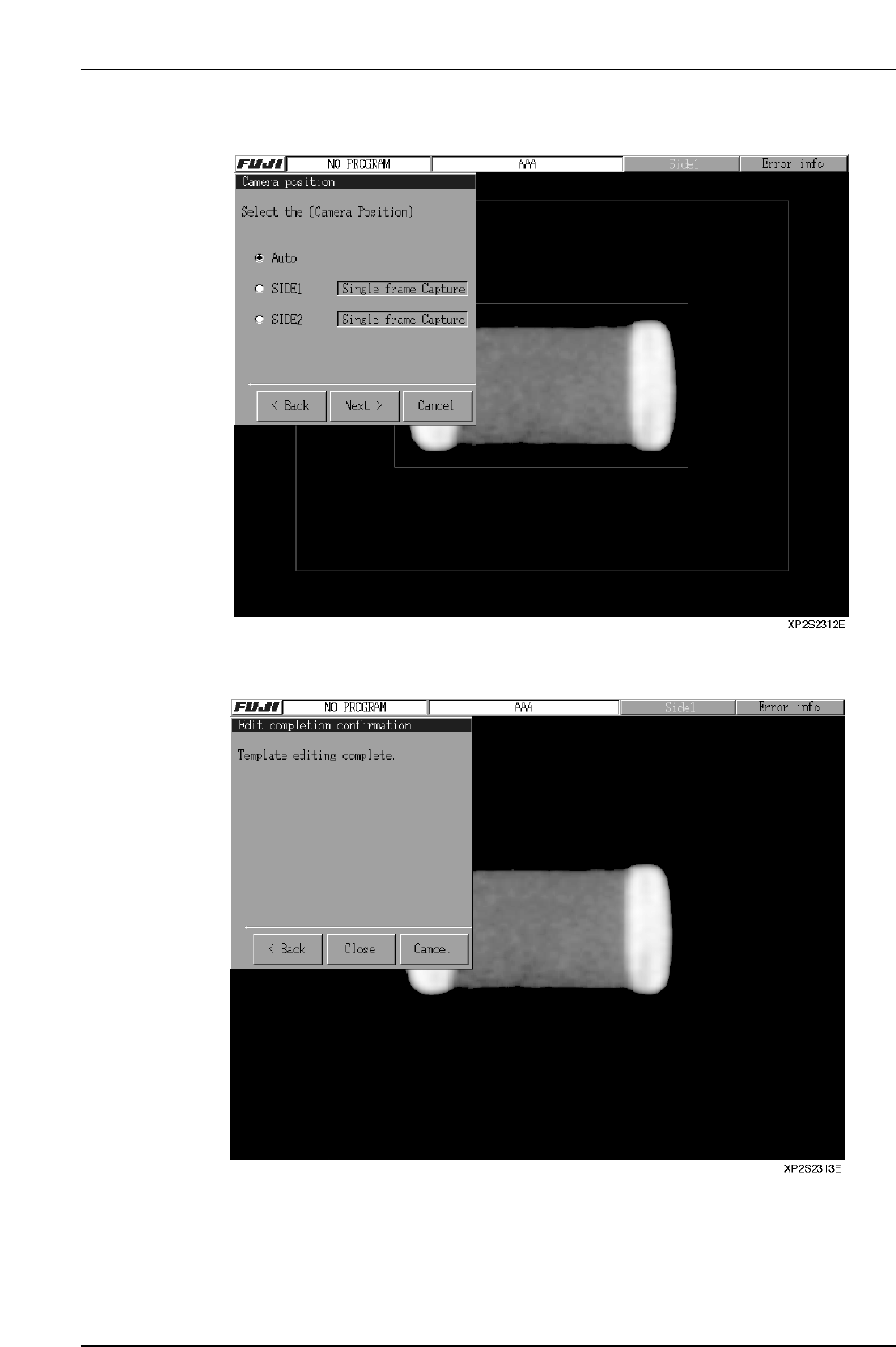
21. Specify the camera position, then press [Next].
22. Press [Close] to end the editing operation.
Part 4 Chapter 2 Creating a Template From Existing Part Data
Edition 2.0 4-2-8 XP-142E System Reference