XP-142E System Reference-SYS-XP142-2.0E.pdf.pdf - 第178页
3.6 Part Editing (ESR0708h) The part editor is used to specify part information. There are 3 types of part information: Part Number, Part Type, Packaging. Part information can be saved to a file in part units. Operation …
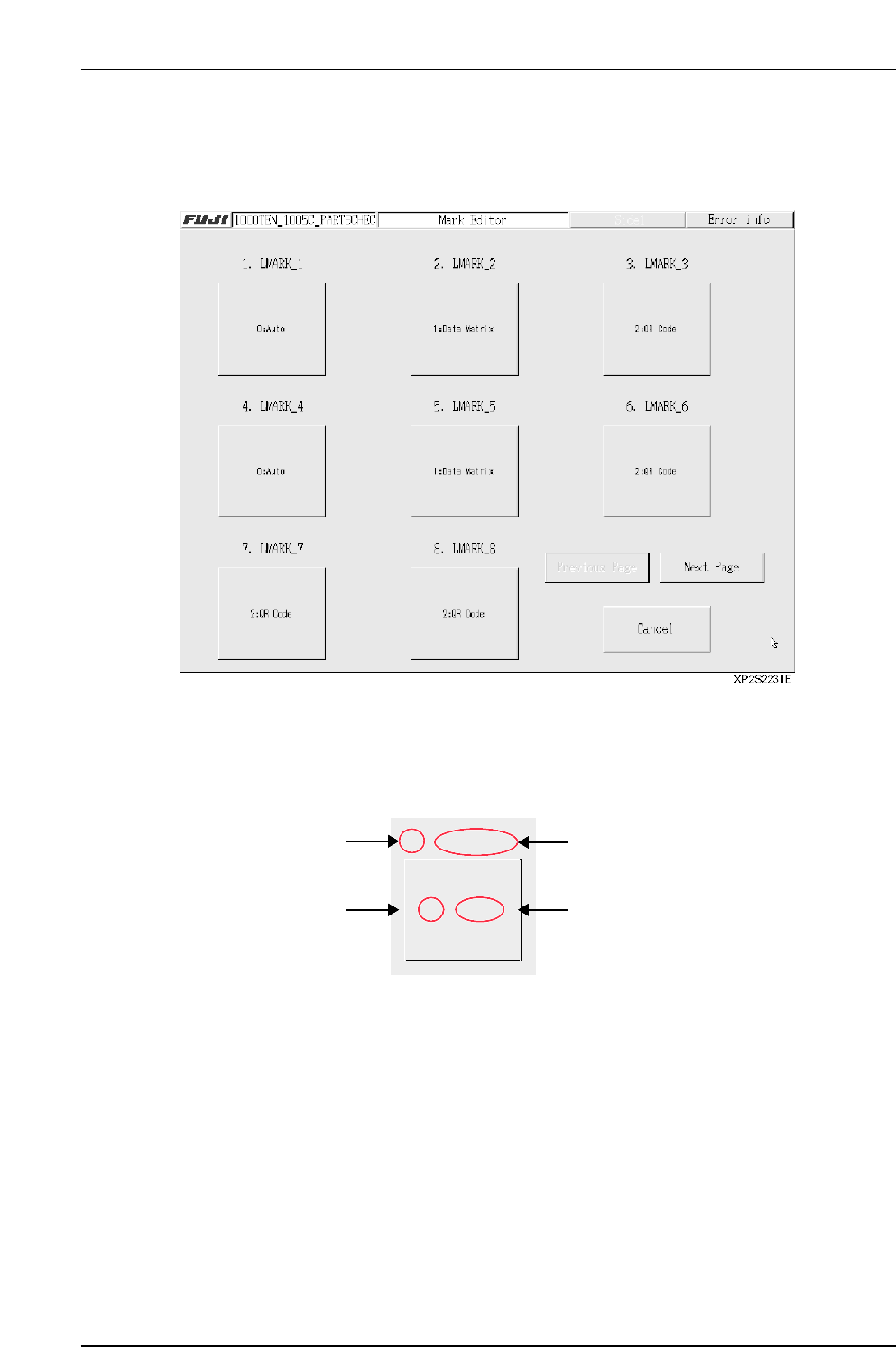
■ Panel ID List Screen
A list of panel IDs which are registered in the data being edited displays at this screen.
[Example]
• Editing panel ID display
The panel ID, code type, and name are displayed.
Press the button where editing is desired in order to edit that panel ID at the mark
editor screen.
• [Cancel] button
Closes this screen.
• [Previous page] / [Next Page] buttons
Press to switch display screens. If all the mark data is contained on a single screen,
these buttons do not display.
XP2S2232E
1. LMARK_1
No.
0 Auto
Code type
Panel ID
Code type name
Part 3 Chapter 3 Editor
Edition 2.0 3-3-22 XP-142E System Reference
3.6 Part Editing
(ESR0708h)
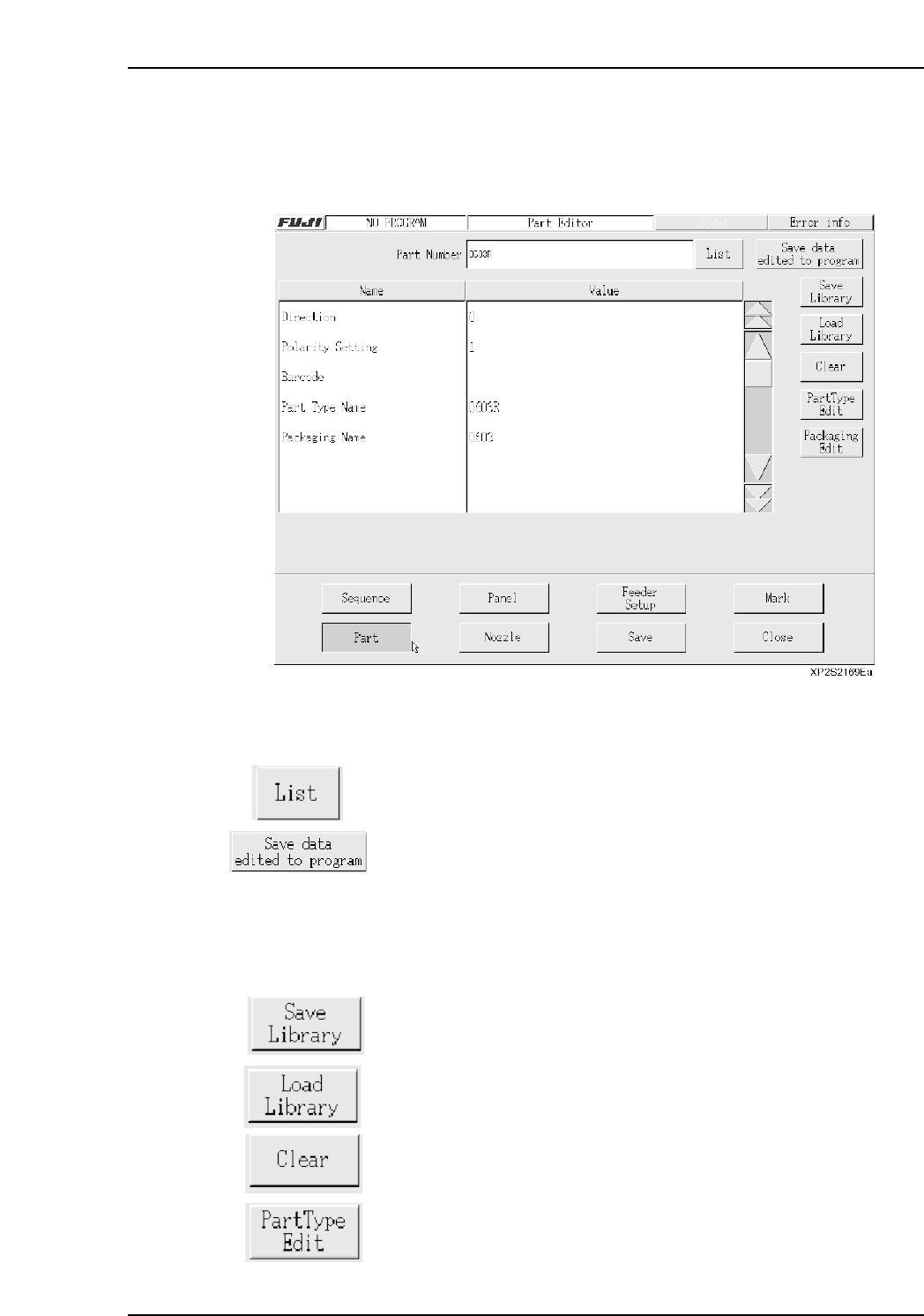
The part editor is used to specify part information. There are 3 types of part information:
Part Number, Part Type, Packaging. Part information can be saved to a file in part units.
Operation Button Explanations
PDisplays a list of part numbers used by the production program
which is currently opened in the editor.
After a confirmation message, the part number, part type, and
packaging data in the production program currently being edited are
saved to the program.
Note: Even though this data is saved to the program being edited, it is not
written to the production program file. The data is only saved to the
currently loaded program. The data must therefore be saved to a file
at the “save production program” screen.
After a confirmation message, the part number is saved to the library.
Loads a part number which is saved in the library.
Clears the specified data.
Press to edit a part type data.
Part 3 Chapter 3 Editor
Edition 2.0 3-3-23 XP-142E System Reference
Press to edit a packaging data.
Setting Item Explanations
Part Number
Specifies the part number (max. of 30 characters).
Note: The following characters may not be used in file names: ( : \ / ; * ? “ < > | ) Also, characters
(˜ .) may not be used at the beginning of the file names.
Direction
This setting changes the direction of a part in part data relative to the part supply
direction. If the supply direction of a part changes after part data is created, specify the
degree of counterclockwise rotation the part must be rotated. (The default setting when
part data is created is 0 degrees.)
Specify “1” for +90 degree rotation from direction 0.
Specify “2” for +180 degree rotation from direction 0.
Specify “3” for +270 degree rotation from direction 0.
Polarity Setting
This setting specifies (from a drop-down list) whether a created production program is to
be a standardized program (supports polarity function) or not. A standardized program
need not be changed even if the part supply direction is changed. The “conventional
program” method requires a program change when the part supply direction is changed.
Refer to the following explanation of “Polarity Function” for more detail.
0: Not use “Conventional program” method (Presently not supported)
1: Yes “Standardized program” method (with polarity)
2: No “Standardized program” method (without polarity)
(Presently not supported)
Polarity Function
For F4G and FUJICAM
XP machines support only production programs created by the standardized program
method (polarity method). Both the “Polarity Yes” and “Polarity No” settings are both
processed as “Polarity Yes”.
Standardized Program Method
Parts which are mounted at the same angle as the angle specified when the part data was
created, have a placement angle of 0-degrees. Therefore, even if the part supply
direction is different (when direction is different; when part supply direction is
different), the part can always be placed at the same angle.
Program Data Check
An error occurs at data checks when a loaded program has “No” specified at the panel
data’s “Program Polarity” item, or “Not Use” specified at the part data’s “Polarity
Setting” item.
Program Polarity
Yes
No
Not Use
All
Polarity setting of "Not Use" is not supported.
Program polarity setting of "No" is not supported.
Polarity Setting Error Display
XP2S2233E
Part 3 Chapter 3 Editor
Edition 2.0 3-3-24 XP-142E System Reference