XP-142E System Reference-SYS-XP142-2.0E.pdf.pdf - 第85页
Part 2 Chapter 5 Stopping and Resuming Production Edition 2.0 2-5-3 XP-142E System Reference (2) Mark Editing Screen The components of the mark editing screen are as follows. Display: Buttons: *: The reset caliper widths…
5.3 Mark Editing Function
(ESR0240c)
5.3.1 Mark Editing Function Overview
If a fiducial mark error occurs during automatic operation, mark reading support allows
you to show the machine where the center of the mark is.
Guidance lines display at the machine monitor that can be positioned using the mouse to
adjust the center coordinates of the mark. This adjustment is only possible when the
mark appears within the image shown at the screen. There may be a slight misalignment
of one pixel (approx. 16 µm) since the finest unit of adjustment is a pixel.
5.3.2 Mark Editing Function Screen
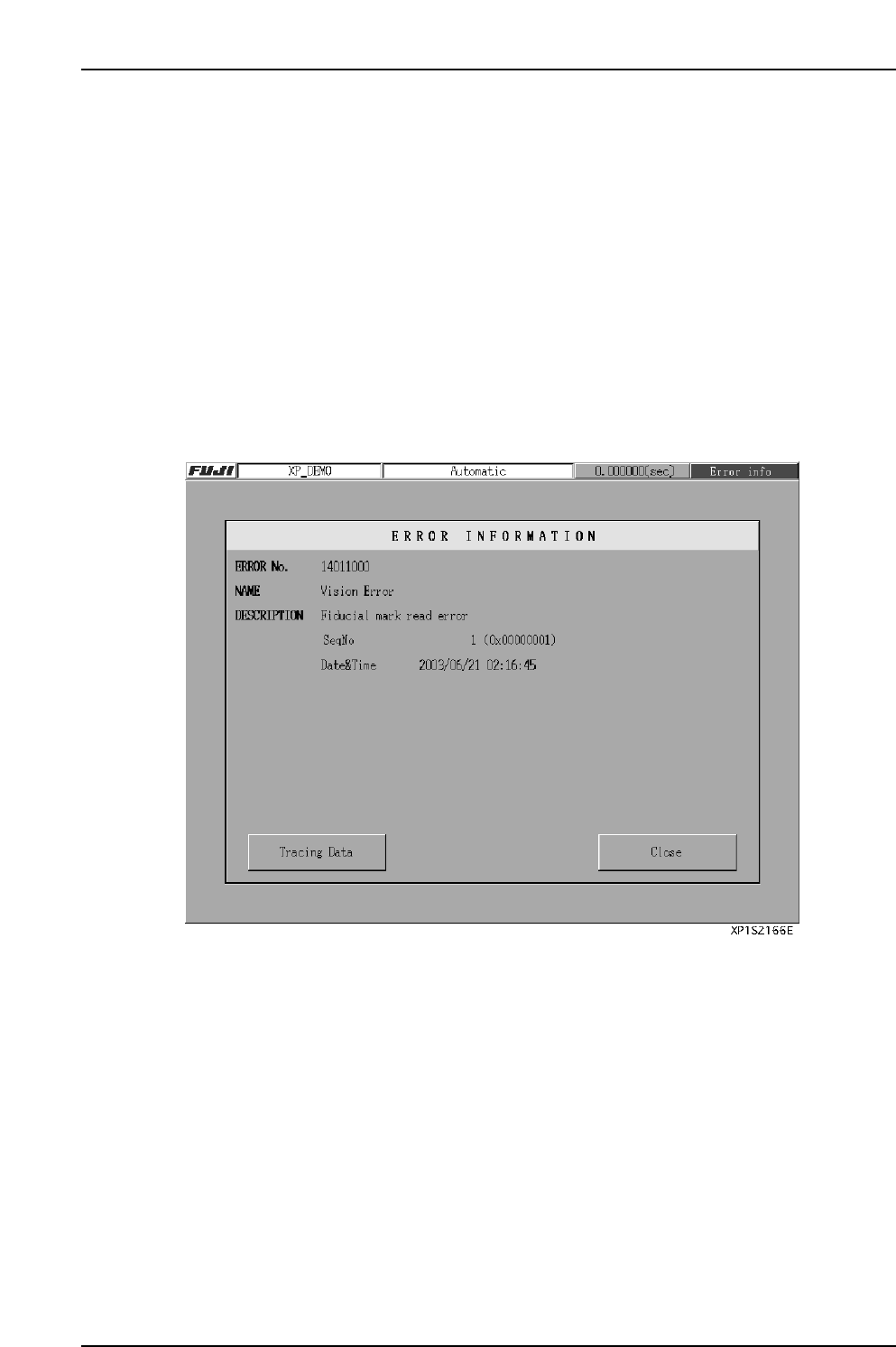
(1) Error Information Screen
When a fiducial mark read error occurs, press [Error info] to display the error
information screen. Press [Close] to display the mark editor screen.
Part 2 Chapter 5 Stopping and Resuming Production
Edition 2.0 2-5-2 XP-142E System Reference
Part 2 Chapter 5 Stopping and Resuming Production
Edition 2.0 2-5-3 XP-142E System Reference
(2) Mark Editing Screen
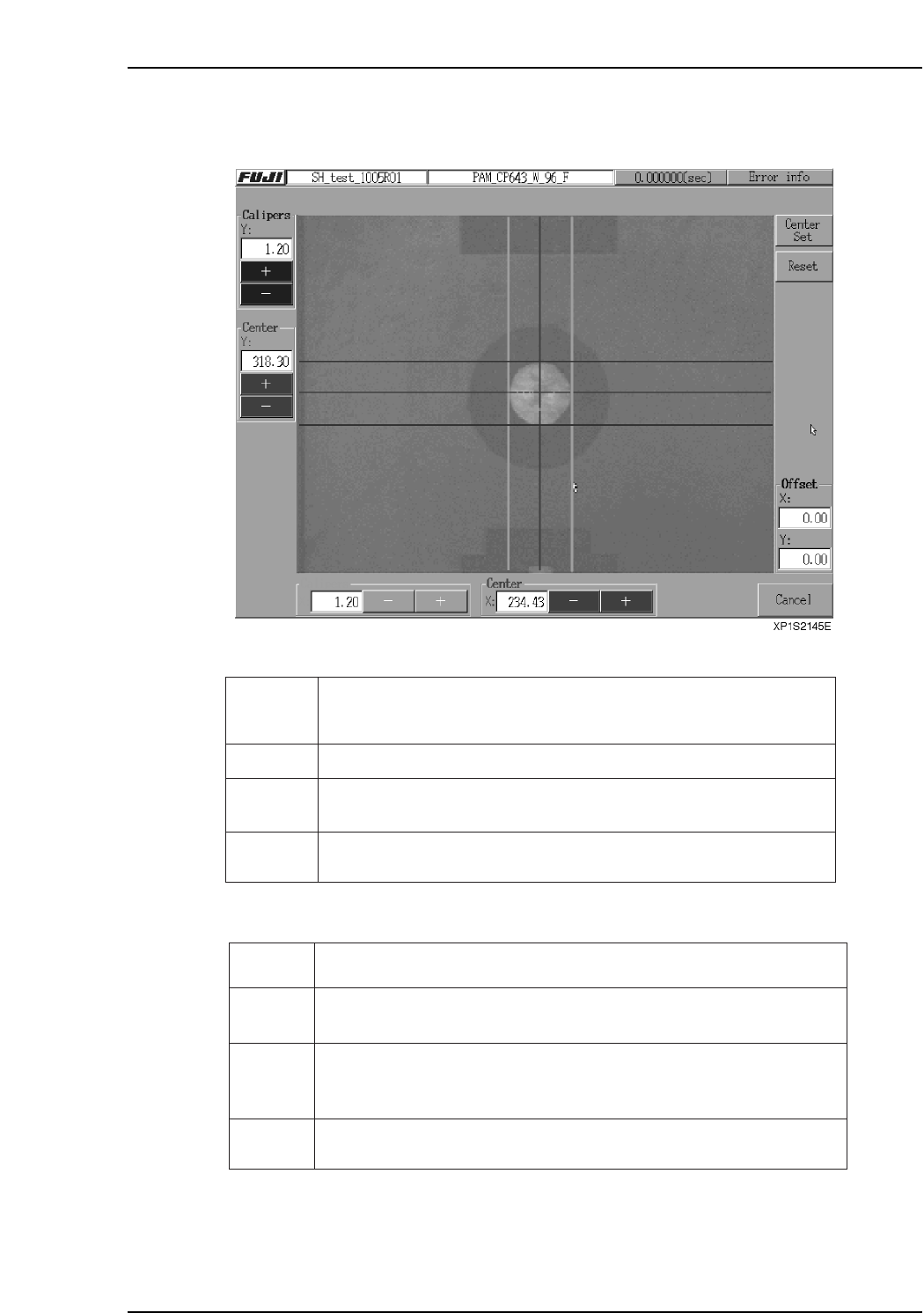
The components of the mark editing screen are as follows.
Display:
Buttons:
*: The reset caliper widths are the previously measured values.
Center Set
Reset Press to reset* the position of the caliper lines, and the values at [Calipers],
[Center] and [Offset].
+, - Press the [+] and [-] buttons to adjust the values in increments of 0.01. Keep
the buttons pressed down to consecutively increase the values. Adjusting
these values moves the associated calipers on the screen.
Cancel Press to close the mark editor screen without saving the caliper measurement
data.
Press to set the measured offset and continue production.
XP1S2147E
Mark image
Calipers Indicates the width of the calipers. Units are in millimeters.
Center Indicates the center coordinates measured from the position of the calipers.
Units are in millimeters.
Offset Indicates the difference between the existing coordinates and measured
mark center position. Units are in millimeters.
Adjust the green (caliper width X), blue (caliper width Y) and the red (mark
center position) lines offset the current mark position setting. The [Calipers]
and [Center] buttons can also be used to adjust the lines.
XP1S2146Ea
5.3.3 Setting the Mark Position
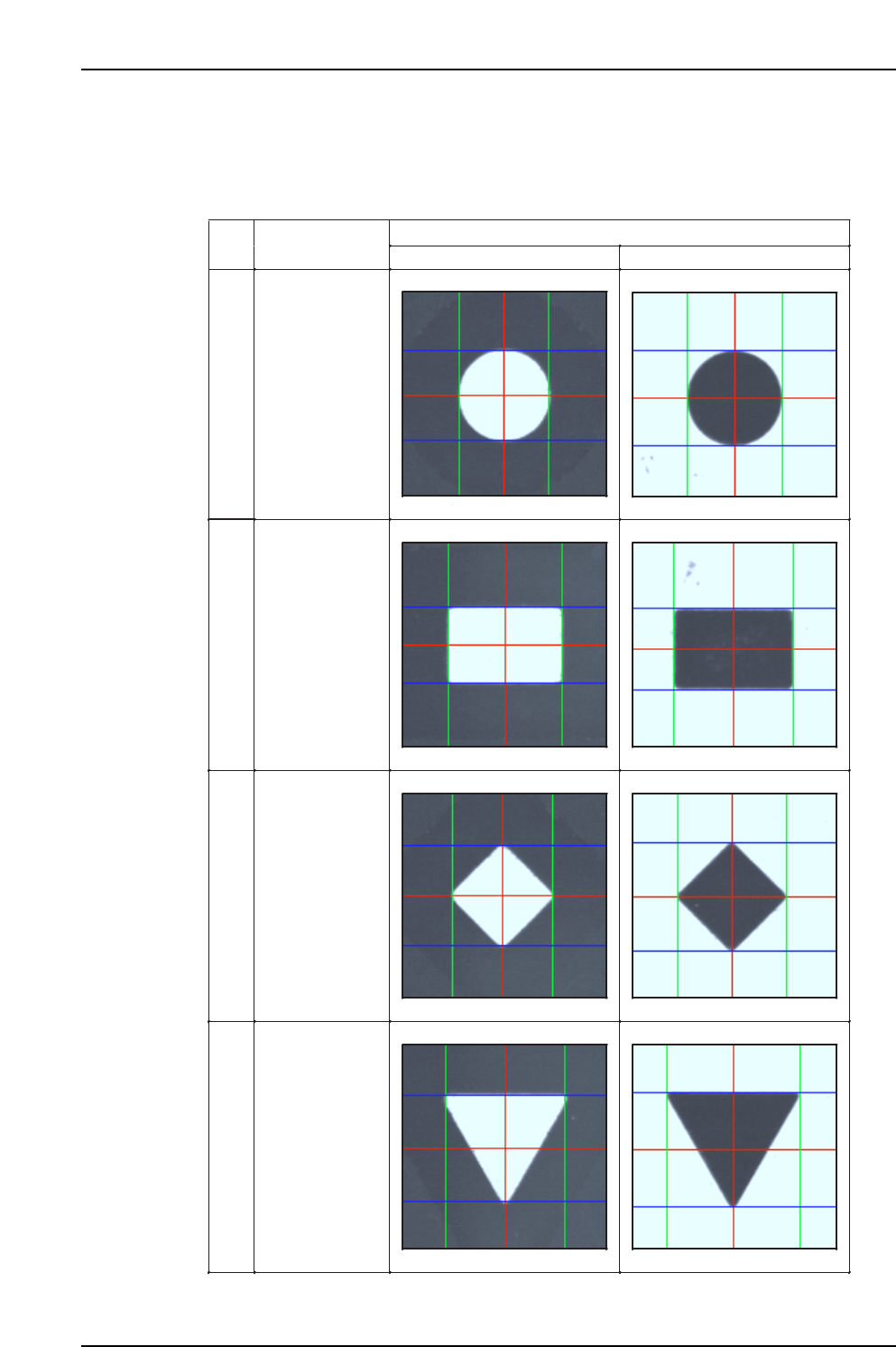
Drag the calipers using the mouse in line with the outer edges of the mark, to set the
center of the mark. The following table shows how the calipers should be aligned with
each mark type.
Mark
Ptn
Shape
White Black
0
Circular
1
Rectangular
2
Diamond
3
Downward
triangle
XP1S2151E
Part 2 Chapter 5 Stopping and Resuming Production
Edition 2.0 2-5-4 XP-142E System Reference