XP-142E System Reference-SYS-XP142-2.0E.pdf.pdf - 第162页
3.2.2 T eaching Press [Teach] at the sequence data editing window to display the image acquired from the mark camera at the touch screen. Teaching is performed by actually moving the machine axes to the desired positions…
3.2.1 Position Offset
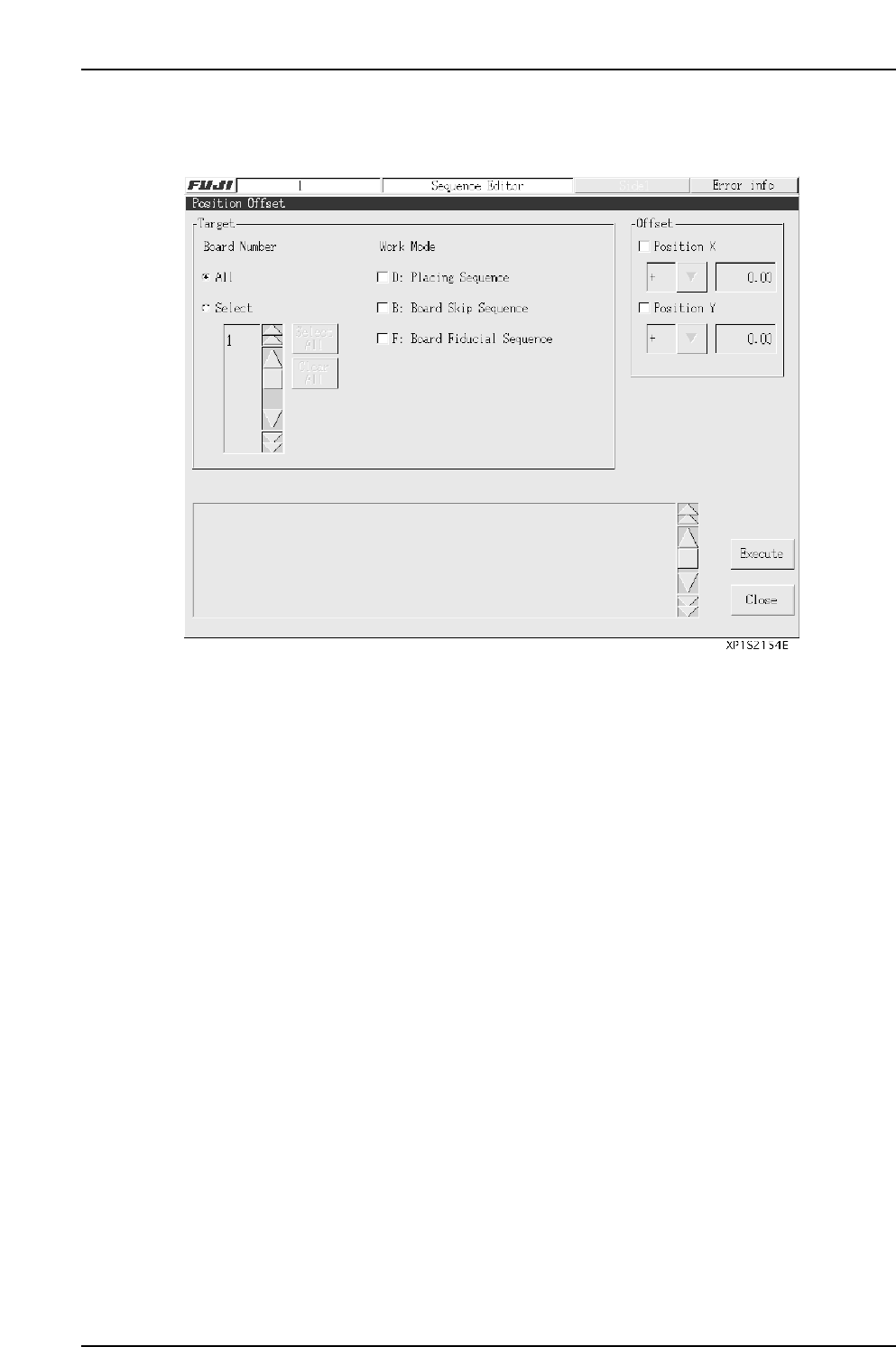
Use this function to offset coordinate settings for single boards.
Board Number
Specify the number of the board whose coordinates will be offset.
All: Position offset will apply to all boards on a panel.
Select: Specify single boards whose position will be offset.
Work Mode
Specify the type of coordinate to offset.
D: Part placement coordinates
B: Board skip mark coordinates
F: Board fiducial mark coordinates
Offset
Specify the offset axis, direction (+ or –), and distance.
(Input range: 0.00 - 650.00 mm)
Execute A confirmation message is displayed.
[Yes]: Execute the offset and return to the [Position Offset] screen.
[No]: Return to the [Position Offset] screen without executing the offset.
[Close]: Close the [Position Offset] screen to return to the [Sequence Editor]
screen.
Note: The above offset conditions are saved when an offset is executed successfully.
Part 3 Chapter 3 Editor
Edition 2.0 3-3-6 XP-142E System Reference
3.2.2 Teaching
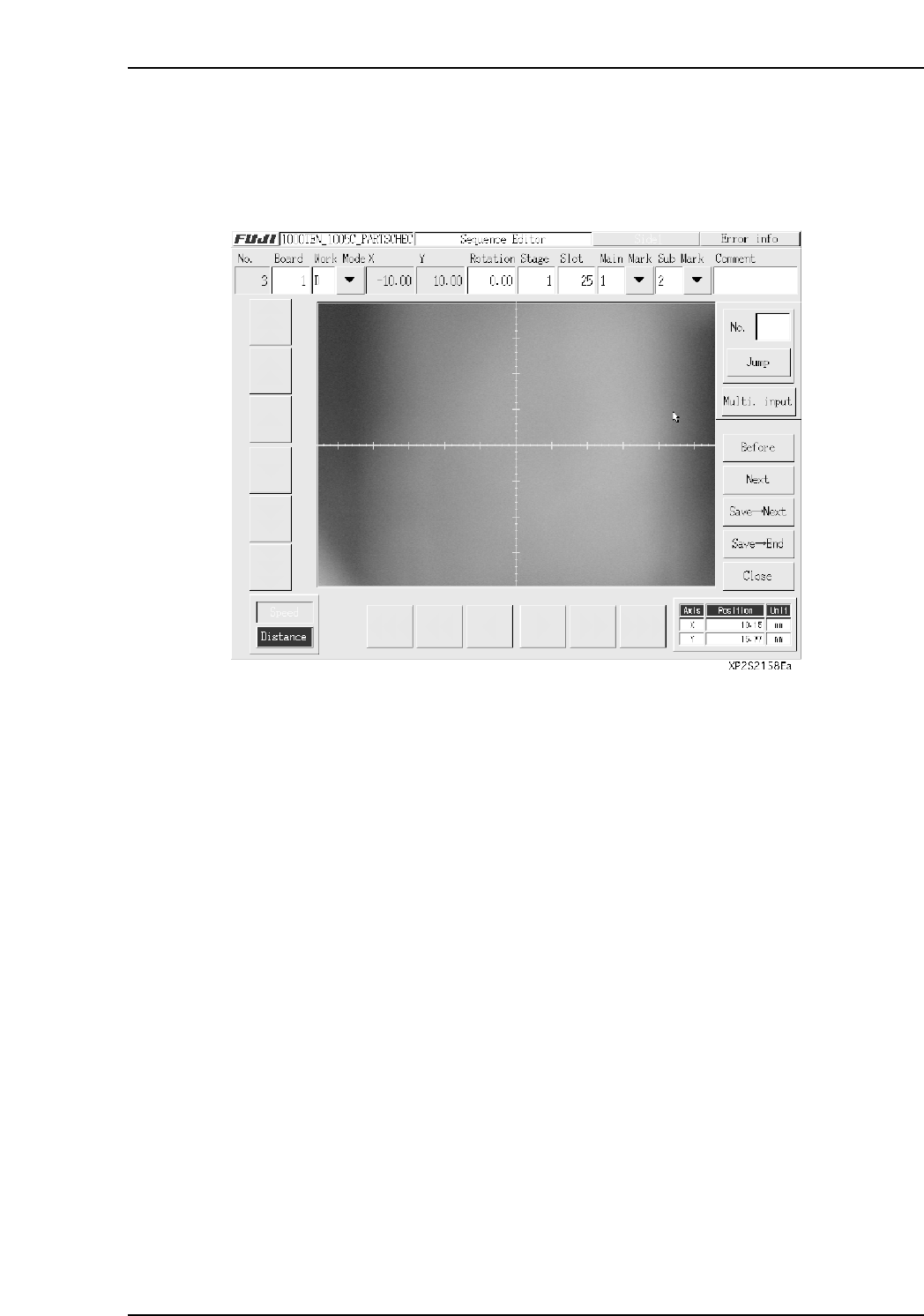
Press [Teach] at the sequence data editing window to display the image acquired from
the mark camera at the touch screen. Teaching is performed by actually moving the
machine axes to the desired positions, with these positions becoming the sequence data’s
X and Y coordinates.
When the above window displays, all fiducial marks are identified and coordinate
correction values are obtained. These coordinate correction values are used to convert
the machine X,Y coordinates to panel X,Y coordinates. Once these coordinate correction
values are obtained, they are saved until program editing is completed, or until the F-
mark sequence is changed. When in the Overwrite mode, the servo axis is positioned in
accordance with the specified sequence data’s X,Y coordinates.
Part 3 Chapter 3 Editor
Edition 2.0 3-3-7 XP-142E System Reference
Operation Button Explanations
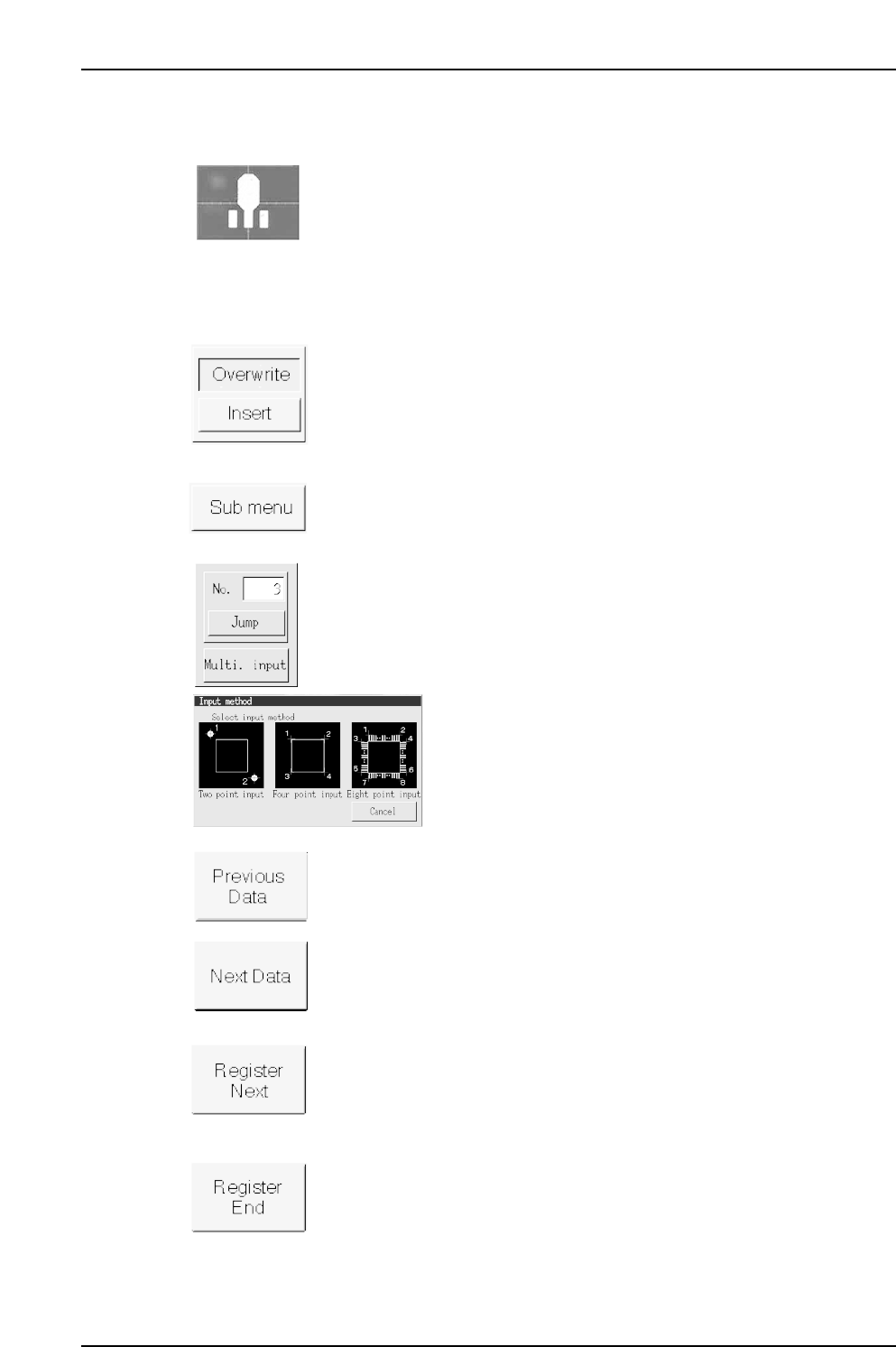
When in the [Speed] travel mode, the travel speed of the X,Y-axes
varies according to the distance from the cross-mark center (the
further away, the faster the speed). To perform low-speed travel, click
near the center of the cross-mark. Axis travel continues as long as the
screen is being clicked. When in the [Distance] travel mode, X,Y-axes
travel is performed so that the clicked image coordinates display at
the center of the cross-mark.
Selects the editing method used in the teaching operation.
[Overwrite]: Overwrites new data over the existing data.
[Insert]: Inserts new data at the specified sequence number.
Press to display sub menu.
The sequence number to be edited can be changed by selecting [Jump]
after inputting number in [No.].
Use Multi-Point Input to specify the X and Y
coordinates or angle of parts that exceed the camera
field of view.
Press a Multi-Point Input itemto display the multi-point
input selection screen. Select 2-, 4-, or 8-point input,
and then enter the points one at a time.
Enables editing of the data prior to the currently displayed sequence
number.
Enables editing of the data which follows the currently displayed
sequence number.
Registers the edited data and the current X,Y coordinates, then
enables editing of the next data. When in the [Insert] mode, the next
“new data” displays. When in the [Overwrite] mode, the existing
“next data” displays (if present), and axis travel occurs accordingly.
If there is no existing “next data”, then “new data” displays.
Registers the edited data and the current X,Y coordinates, then ends
the teaching operation.
Part 3 Chapter 3 Editor
Edition 2.0 3-3-8 XP-142E System Reference