XP-142E System Reference-SYS-XP142-2.0E.pdf.pdf - 第170页
3.5 Mark Editing (ESR0707c) This editor is used to measure the various mark types. The Mark Editor consists of “Fiducial Mark Editor” and “Panel ID (2D Code) Editor” screens. As the editor items vary according to the mar…
Setting Item Explanations
Selection Area (Stage-slot No.)
Displays the stage-slot number.
If the feeder skip setting in sequence data is set to [1], then the stage-slot number is
displayed in red.
Part Number
Specifies the part name. No more than 30 characters may be used in the name.
Next Slot No.
This setting specifies the next slot to be used in supplying parts. This setting prevents
frequent machine stops due to parts-out conditions by specifying in advance another slot
(next slot) from which the same part type can be supplied.
Note: In order to use this function, a loop type setting must be specified as shown below.
Note: A “next slot” setting which includes two different stages is not possible.
(Ex.) 1-14
→
2-15
→
1-14
Feeder Name (Presently not supported)
Specifies the name of the feeder to be used. This feeder name may contain no more than
20 characters.
Comment
A feeder comment can be entered, using up to 30 characters. The stage and slot numbers
display together with the comment when an error occurs during production.
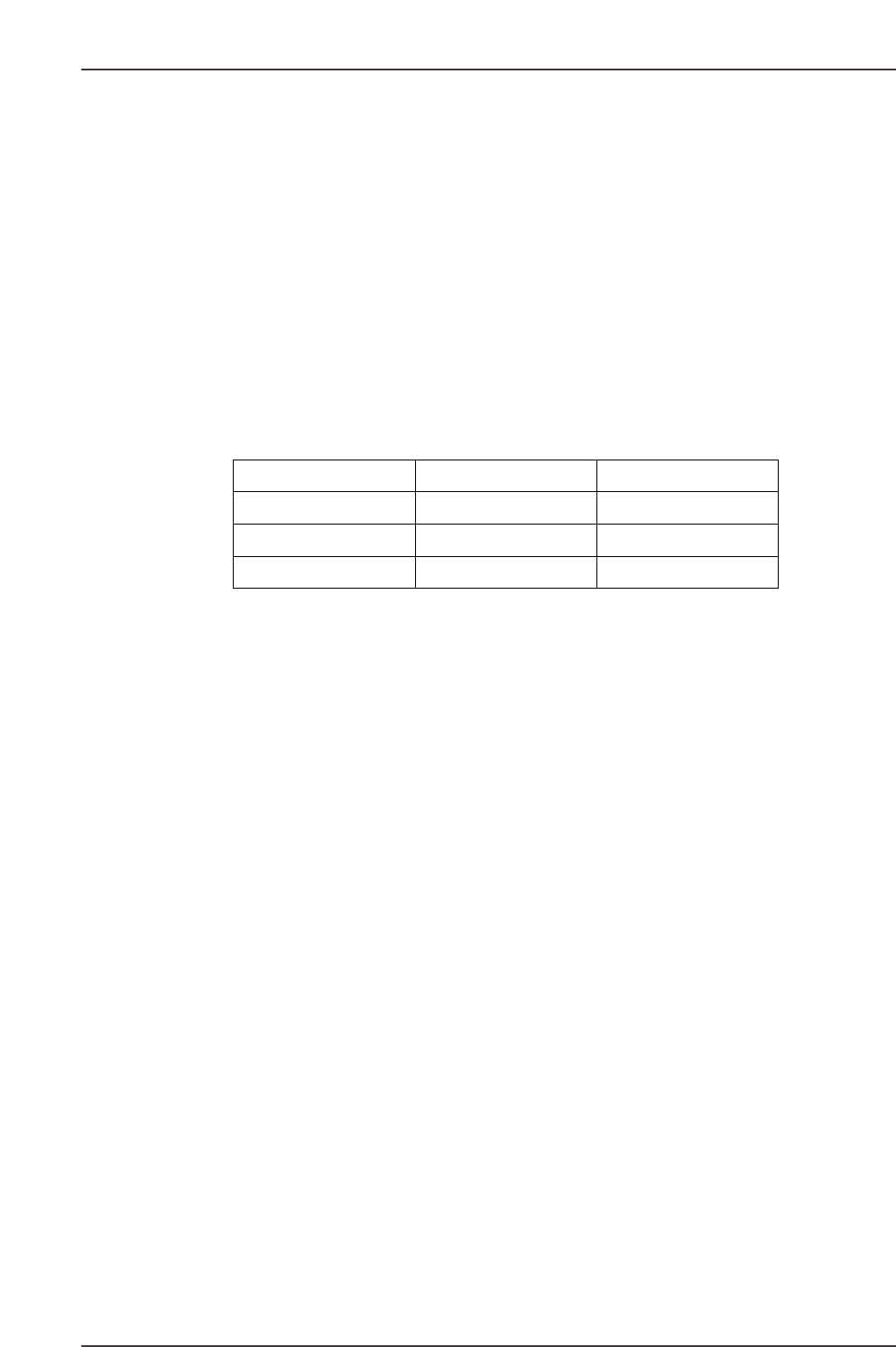
(Example) 1-14 → 1-15 → 1-16 → 1-14
XP2S2164E
Part Number Next Slot No.
AAA
AAA
AAA
15
16
14
1-14
1-15
1-16
Part 3 Chapter 3 Editor
Edition 2.0 3-3-14 XP-142E System Reference
3.5 Mark Editing
(ESR0707c)
This editor is used to measure the various mark types.
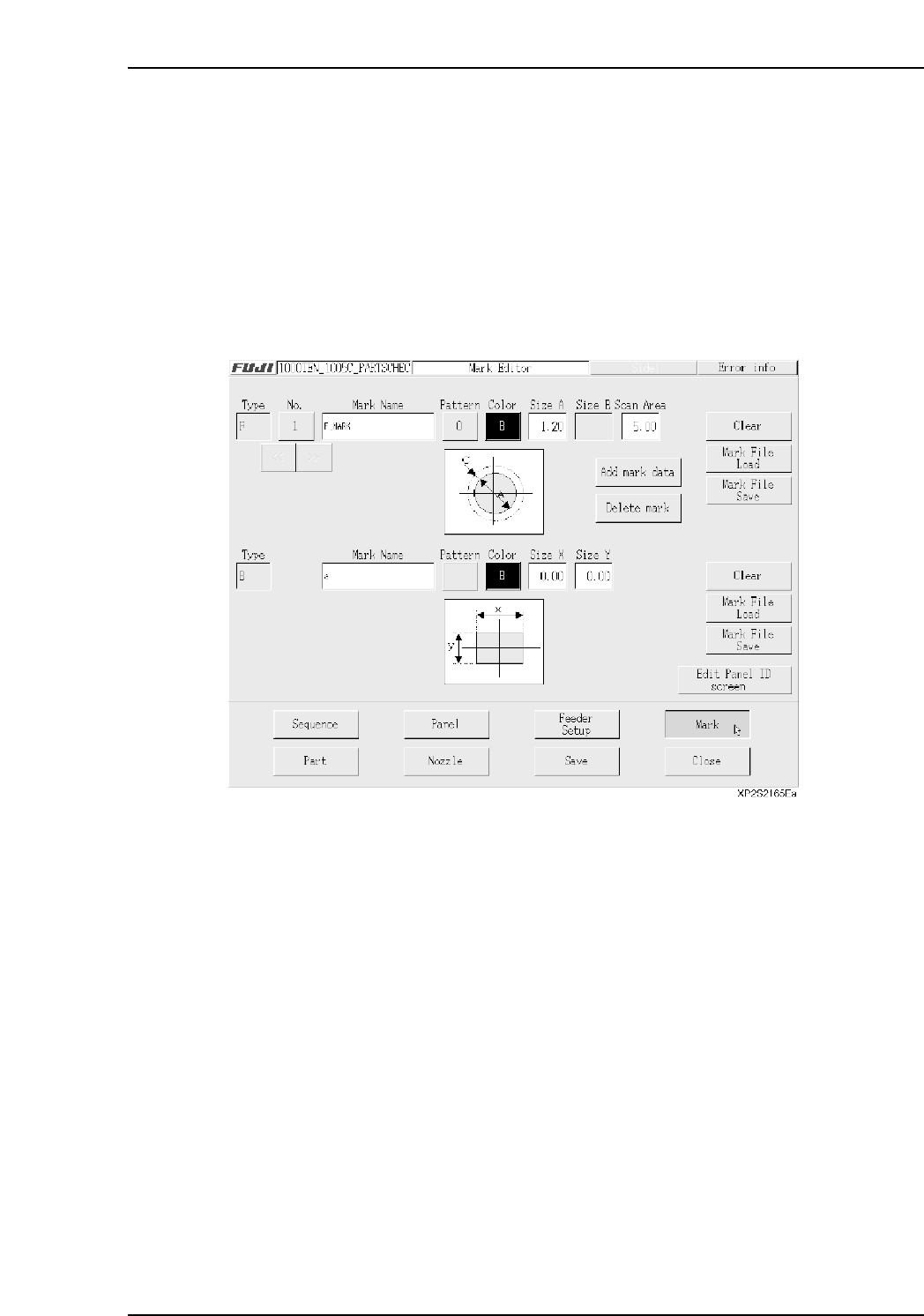
The Mark Editor consists of “Fiducial Mark Editor” and “Panel ID (2D Code) Editor”
screens. As the editor items vary according to the mark type, the required items must be
specified. Mark data settings can be saved and read, and registered data can be reused.
Up to 16 mark data can be registered.
3.5.1 Fiducial Mark Editor Screen
The upper part of this screen is the fiducial mark editing area for correcting placing
coordinates, and the lower part is the board skip mark editing area.
<Fiducial Mark Editing Area>
• [No.] button
Indicates the fiducial mark number. Press this button to display the fiducial mark list
screen. (Refer to “■ Fiducial Mark Editor Screen”).
Note: This number is used only at the mark editor screen. It is not registered in the
production program.
• [Mark Name] textbox
Enter the mark name in this textbox. (Max. 23 characters)
Note: The following characters cannot be used in the mark name: (:¥/;*?”<>|). Also, a tilde (~)
cannot be used as the first character of the name.
• [Pattern] button
Press to display the shape graphic where the mark shape can be selected.
• [Color] button
Press to select the mark color.
W: white
B: black
Part 3 Chapter 3 Editor
Edition 2.0 3-3-15 XP-142E System Reference
• [Size A] textbox
Enter the Size A dimension in this textbox. (Input range: 0.20 ~ 3.50 mm)
• [Size B] textbox
Enter the Size B dimension in this textbox. (Input range: 0.20 ~ 3.50 mm)
This textbox is disabled when not required for the specified mark pattern.
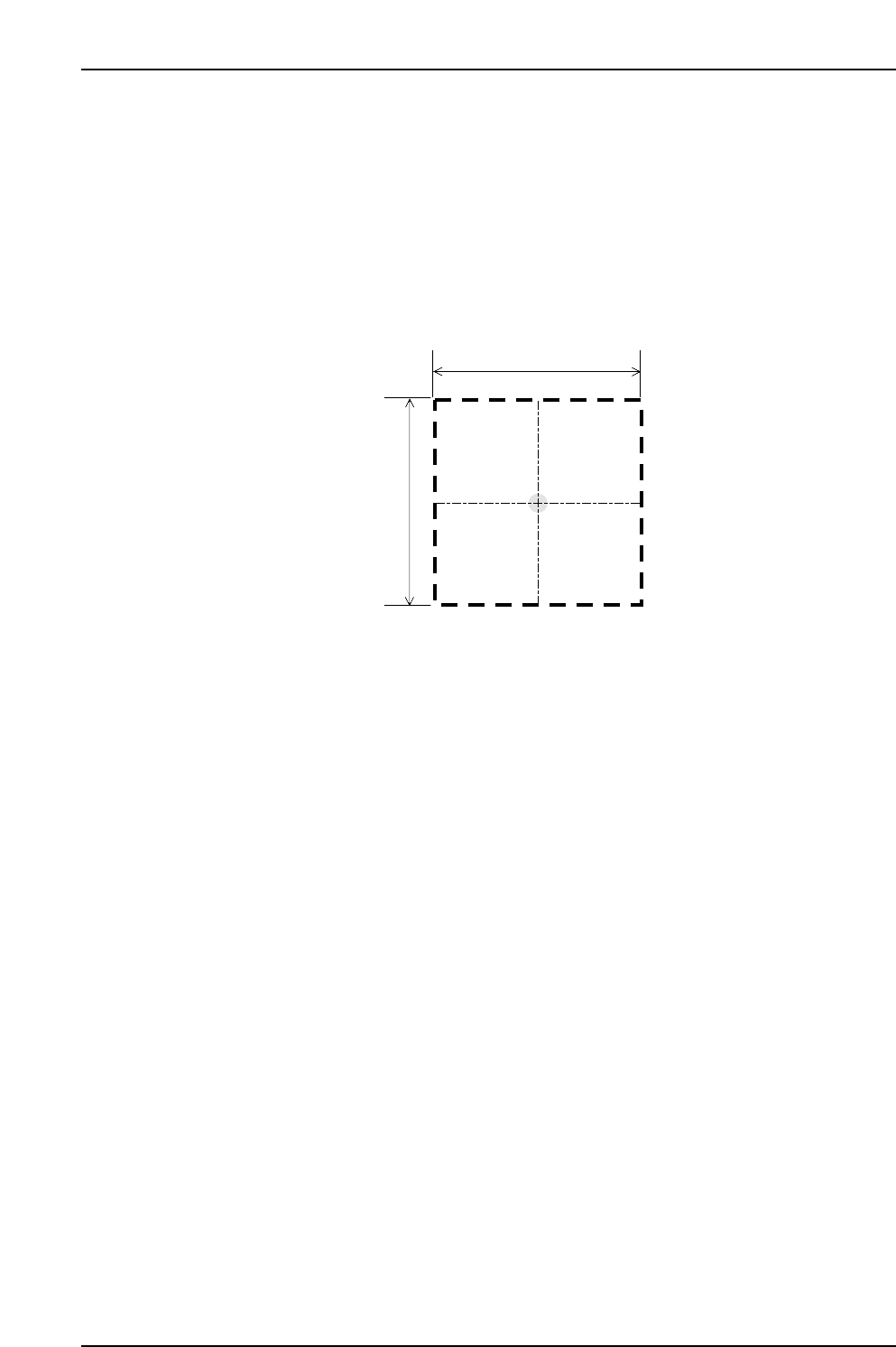
• [Scan Area]
Enter the area where the camera is to search for the mark.
(Input range: 0.00 ~ 12.50 mm)
• [>>] button
Displays the next mark data specified in the data being edited.
• [<<] button
Displays the previous mark data specified in the data being edited.
• [Add mark data] button
When this button is pressed, one vacant fiducial mark data area is added after the
final existing fiducial mark data.
• [Delete mark] button
Deletes the currently displayed fiducial mark data. After the deletion, the next mark
data displays.
• [Clear] button
Clears the currently displayed fiducial mark data. When the editor screen is closed,
the cleared mark data is deleted. (Cleared mark data cannot be saved at the
production program.)
• [Mark File Load] button
Loads a saved mark file from the library.
• [Mark File Save] button
Saves the currently displayed mark data to the library.
"Scan Area" setting value
"Scan Area" setting value
XP1S2155E
Part 3 Chapter 3 Editor
Edition 2.0 3-3-16 XP-142E System Reference