XP-142E System Reference-SYS-XP142-2.0E.pdf.pdf - 第195页
3.8 Options When Ending Editor Operation (ESR0716a) The following editor ending options are available when the editor [Close] button is pressed after editing a program. Program name: The name under the which the edited p…
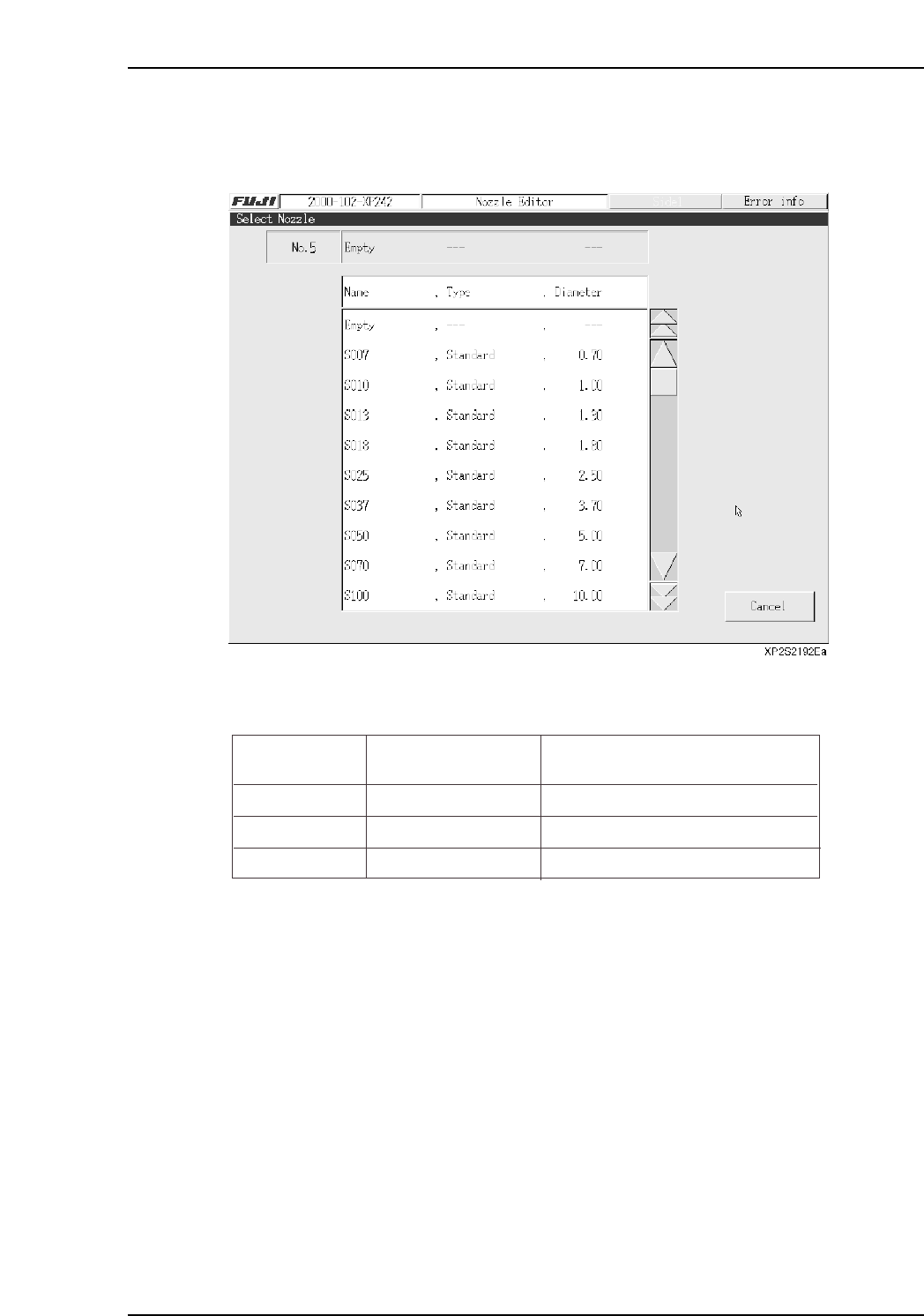
To perform editing, press the number of the nozzle station where editing is desired, then
select 1 nozzle from the nozzle selection screen which then displays. Continue in the
same manner to edit nozzles in other nozzle stations.
The nozzle position where pickup is possible varies according to the part size. Edit the
data so that the pickup nozzle is positioned correctly.
Notes:
1. The part size includes the leads.
2. This applies when the “Direction”, “Pickup Point Offset X,Y”, and “Scan Area X,Y” items are
all set to “0”.
3. The nozzle “Name” appears as “Empty” when no nozzle selection is made.
Name
Max. Part Size
Nozzle Positions Where Pickup
is Possible
Small parts
Medium parts
Large parts
5.00 X 6.20 (mm)
10.00 X 10.00 (mm)
20.00 X 20.00 (mm)
1, 2, 3, 4, 5, 6, 7, 8, 9, 10, 11, 12
1, 4, 7, 10
4, 10
XP1S2156E
Part 3 Chapter 3 Editor
Edition 2.0 3-3-39 XP-142E System Reference

3.8 Options When Ending Editor Operation
(ESR0716a)
The following editor ending options are available when the editor [Close] button is
pressed after editing a program.
Program name: The name under the which the edited production program file
is to be saved can be entered using the keyboard which
displays when this textbox is selected.
Data check: The edited production program is checked to verify that its
data is appropriate.
Save to file and Close: The edited production program is saved to the file.
Close without saving: The edited content of the production program file is
abandoned (cleared), and the file is saved in its original pre-
edited form.
Cancel: Cancels the “Close editing” command, and returns to an
editing status.
Part 3 Chapter 3 Editor
Edition 2.0 3-3-40 XP-142E System Reference
4. Expander
(ESR0710a)
The expander is used to expand an loaded program so that multiple boards (max. of 255) can be
created on a single panel. Because these data settings are not saved, the data must be re-entered if the
program is expanded again.
Expansion Conditions
The base program’s board number “0” must remain as it is (this block is not part of the
expansion).
If the only board number in the base program is “Block No. 0”, that program cannot be
expanded.
Expansion cannot be performed at base program board numbers other than “1”
(excluding “0”).
The “Offset Q” item at the 1st line must be “0 degrees”. Any other setting is ignored.
There is no error display even if the expansion result exceeds the panel size.
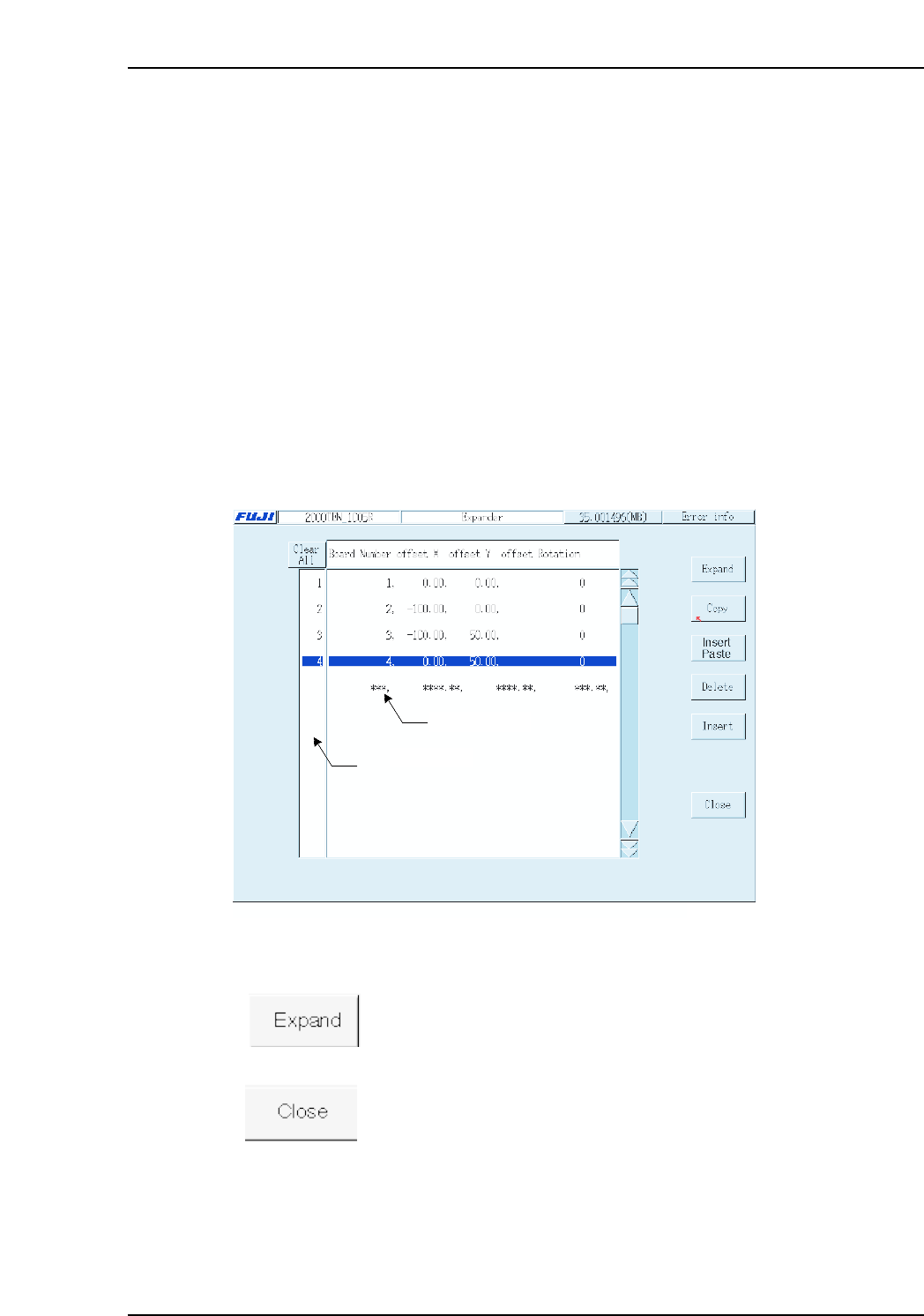
The Expander screen layout is shown below.
Operation Buttons
Expands the base program to create a multi-board program based on
the specified board data.
Press this button when expansion is completed, to display
confirmation messages regarding how the expansion result is to be
saved. The first message inquires if the expansion result is to be
saved to memory, and the next message inquires if the expansion
result is to be saved to a file.
Data input line
Selecting area
XP2S2193Ea
Part 3 Chapter 4 Expander
Edition 2.0 3-4-1 XP-142E System Reference