XP-142E System Reference-SYS-XP142-2.0E.pdf.pdf - 第204页
8. Press [Auto Pick Up] at the top of the screen, then press [START] to pick up the part from the stage and slot indicated at the upper left of the screen. (This pickup operation will not occur if no packaging name has b…
2. Creating a Template From Existing Part Data
(ESR0803d)
The procedure for creating a template from existing part data (with Vision Type 18) is explained
below.
Procedure
1. From the [Production] or the [Program] screen, load (read) the production
program which contains the part data to be edited.
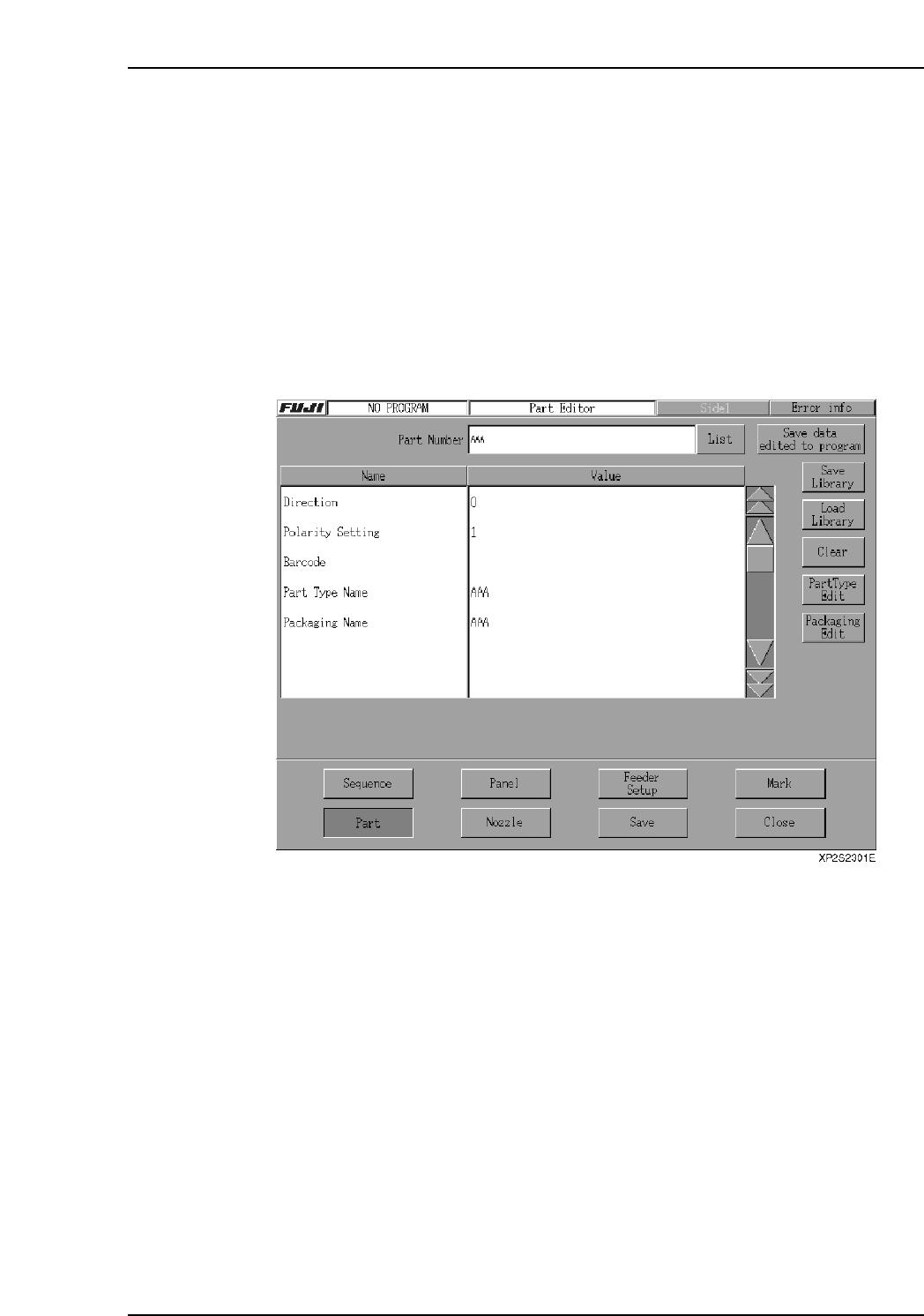
2. From the [Main] screen, press [Program], [Editor], [Parts] to display the [Part
Editor] screen.
3. Press the [List] button beside the [Part Number] textbox, then select the desired
part number from the list which displays.
4. Press [Part Type Edit] to display the [Part Type Editor] screen.
5. Use the [Item Search] function at the [Part Type Editor] screen to search for the
desired Vision Type.
6. Press [Vision Type] to display the selectable Vision Types, then select #18.
7. Select [Template] to display the template creation screen.
Part 4 Chapter 2 Creating a Template From Existing Part Data
Edition 2.0 4-2-1 XP-142E System Reference
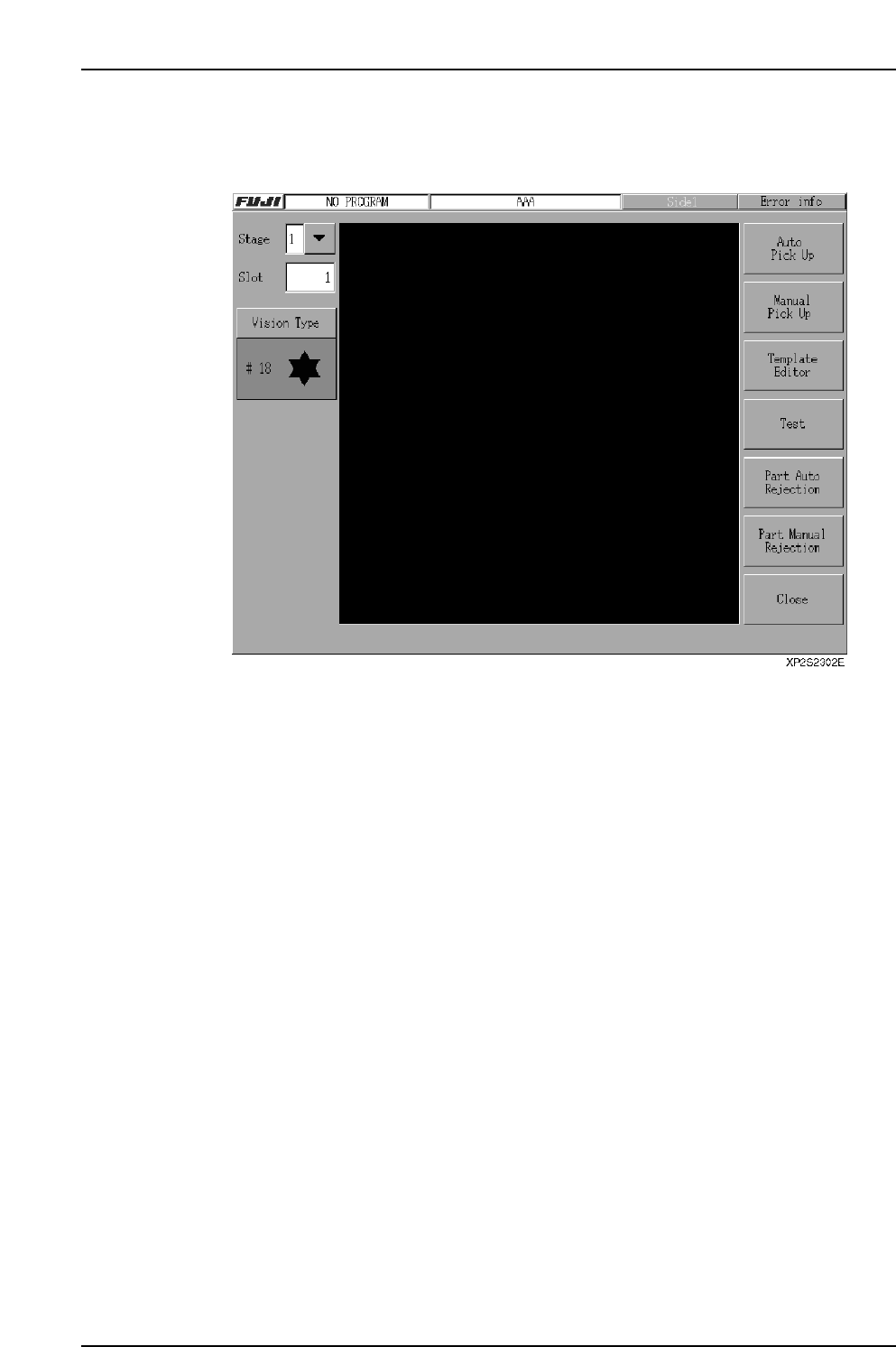
8. Press [Auto Pick Up] at the top of the screen, then press [START] to pick up the
part from the stage and slot indicated at the upper left of the screen. (This pickup
operation will not occur if no packaging name has been specified.)
Note: The buttons on the template creation screen are explained later.
Part 4 Chapter 2 Creating a Template From Existing Part Data
Edition 2.0 4-2-2 XP-142E System Reference
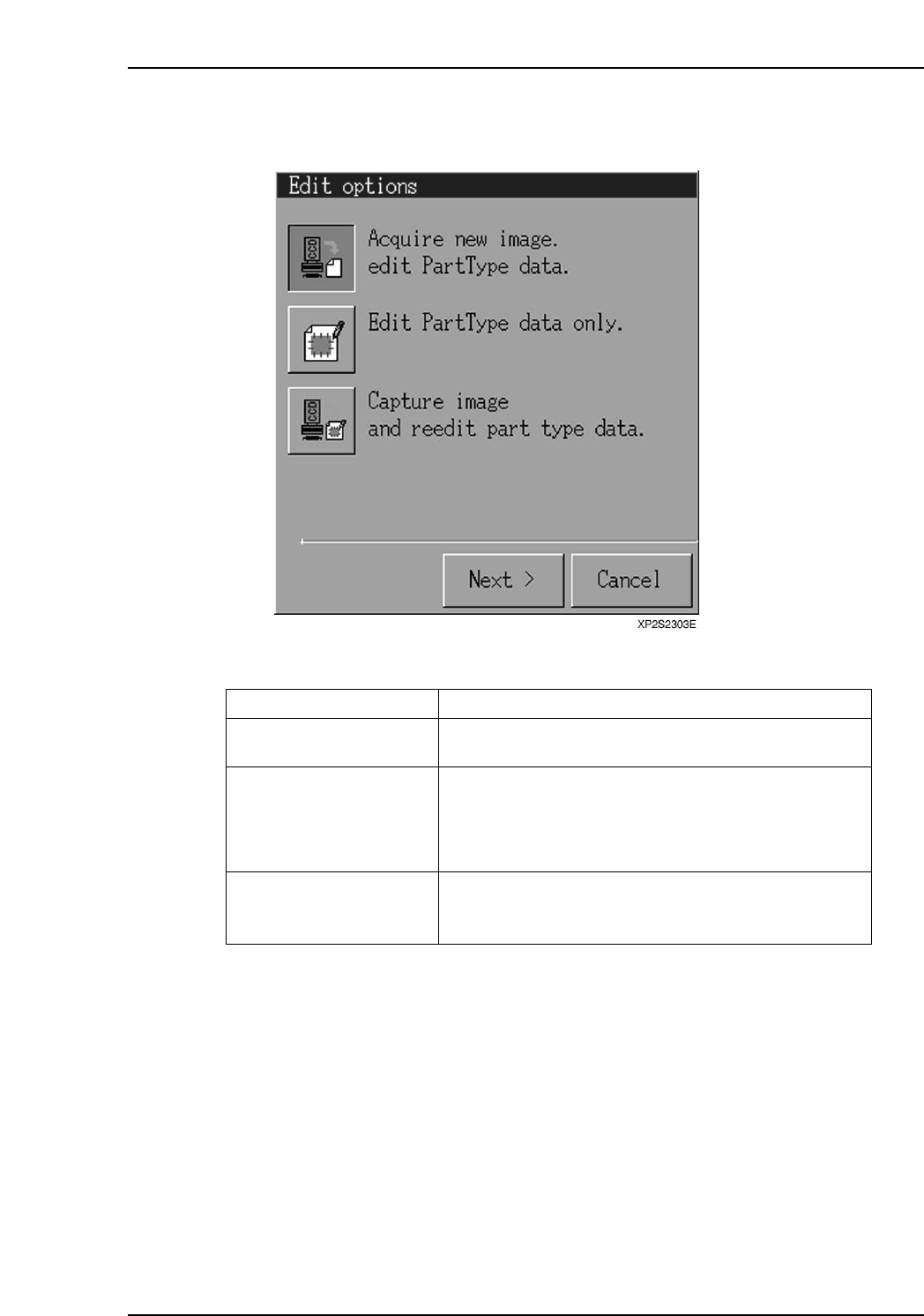
9. Press [Template Editor] to open the [Edit Options] dialog box. Select "Acquire
new image and edit PartType data", then press [Next].
Operation Button Explanations
Acquire new image and edit
PartType data.
Edit PartType data only.
Capture image and reedit
part type data.
Creates a new template based on the acquired image or
the specified image file.
Re-edits an existing template using a previously created
image file. This function is only operative when there is
an image file with the same name as the PartTypeName
or PartNumber being edited, when editable template data
exists, or when no template data exists.
Re-edits a template based on the acquired image or the
specified image file. This function is only operative
when editable template data exists.
XP1S2316E
Display Function
Part 4 Chapter 2 Creating a Template From Existing Part Data
Edition 2.0 4-2-3 XP-142E System Reference