XP-142E System Reference-SYS-XP142-2.0E.pdf.pdf - 第83页
5. Stopping and Resuming Production 5.1 Cycle Stop and Resuming Production (ESR0210a) • Press the CYCLE STOP button. The machine stops at the end of the current cycle. Pressing CYCLE STOP does not cut the 200V power. • P…

Data Reset Conditions
Auto reset: Reset occurs automatically during automatic operation preparation after
switching production programs or editing data. Nozzle and slot data
where changes occurred are initialized at that time. (Changed data are
initialized when the automatic operation screen is opened.)
Manual reset: Reset is possible by pressing the [Data Clear] button at the [Statistical
info] screen.
Caution Processing
1. The signal tower lights.
2. Relevant nozzles and slots display in yellow at the [M/C stat info] screen.
3. Relevant data displays in red at the [Statistical info] screen.
Count processing does not occur, however, when the following conditions apply:
• When in the Idle mode.
• When in the Pass mode.
• When in the Error Pass mode.
Cycle Stop Processing
At caution processing operations, the following occurs in addition to items 1~3 above.
(The same applies under “no-check” conditions.) The following message displays at the
status bar, and a cycle stop occurs: “Please correct the cycle stop cause detected by
statistical processing.”
Signal Tower Processing
• When a warning condition occurs, the signal tower lights in accordance with its
settings.
• The warning status remains in effect until a reset occurs.
• If the warning status is cleared, the signal tower lamp remains on if other
statistical warning causes remain uncorrected.
Part 2 Chapter 4 Starting the Production
Edition 2.0 2-4-10 XP-142E System Reference

5. Stopping and Resuming Production
5.1 Cycle Stop and Resuming Production
(ESR0210a)
• Press the CYCLE STOP button.
The machine stops at the end of the current cycle. Pressing CYCLE STOP does not
cut the 200V power.
• Push START to resume operation.
5.2 Adding Parts When a Slot Runs Out of Parts
(ESR0259a)
If a [Parts shortage] or [Vision error] occurs during automatic production, then the [Error
info.] screen is displayed. After the error information screen is closed, then parts can be
added to the slot that is out of parts (perform device check) and automatic production
restarted.
To perform device check, at the screen displayed during production, select [Set
complete], then [Set all] to reset the parts set status.
The conditions required for device check can be specified in the Proper data item
_DeviceSetChkUse.
0: Device check is not performed. When the error screen is closed all slots are
automatically returned to parts set status.
1, 2: Device check is performed for the slot where the parts shortage or pickup miss
occurred. If a vision error occurred then the slot is automatically returned to
the parts set status.
3: Device check is performed for the slot where the parts shortage, pickup miss, or
vision error occurred.
Part 2 Chapter 5 Stopping and Resuming Production
Edition 2.0 2-5-1 XP-142E System Reference
5.3 Mark Editing Function
(ESR0240c)
5.3.1 Mark Editing Function Overview
If a fiducial mark error occurs during automatic operation, mark reading support allows
you to show the machine where the center of the mark is.
Guidance lines display at the machine monitor that can be positioned using the mouse to
adjust the center coordinates of the mark. This adjustment is only possible when the
mark appears within the image shown at the screen. There may be a slight misalignment
of one pixel (approx. 16 µm) since the finest unit of adjustment is a pixel.
5.3.2 Mark Editing Function Screen
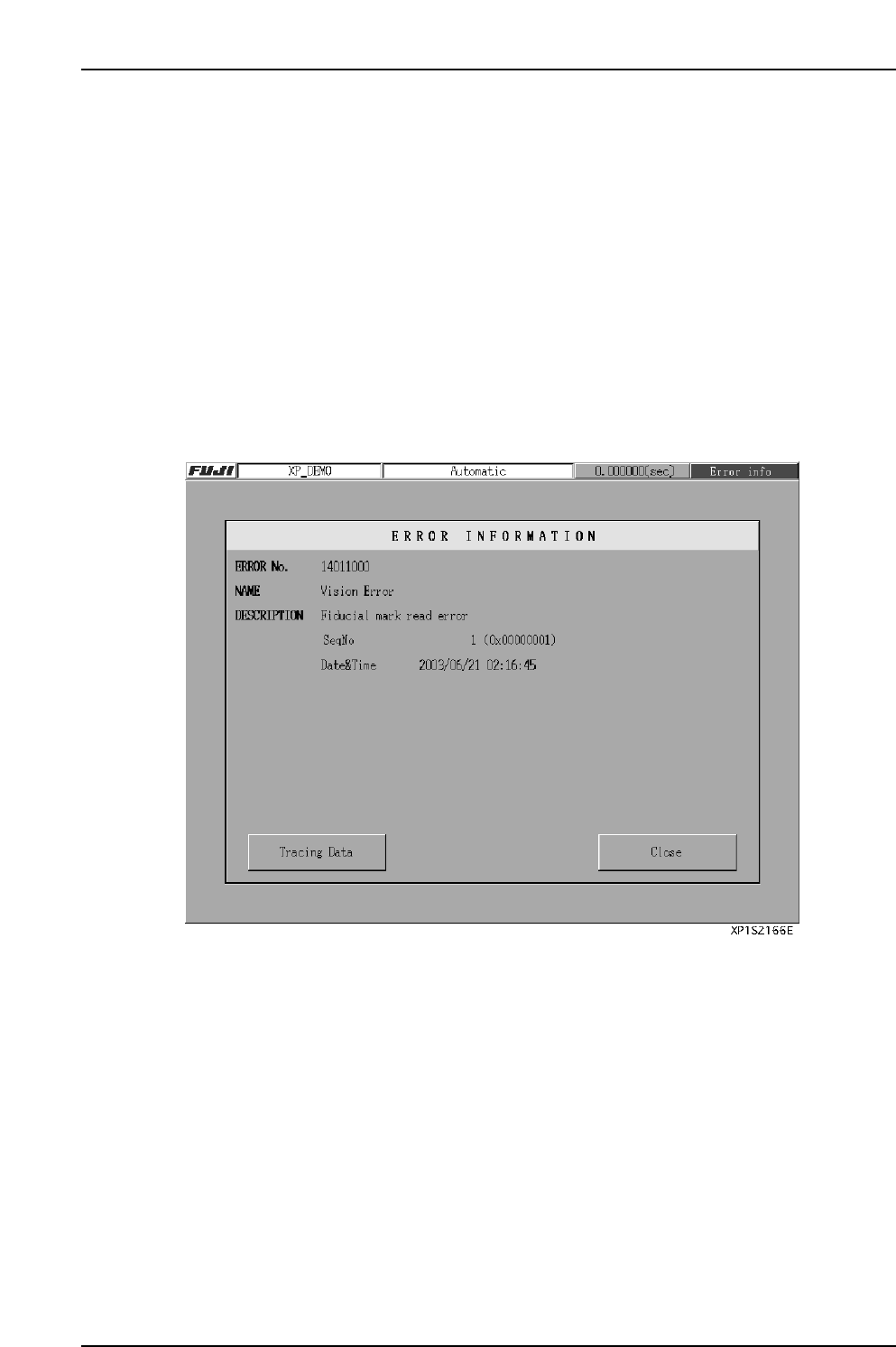
(1) Error Information Screen
When a fiducial mark read error occurs, press [Error info] to display the error
information screen. Press [Close] to display the mark editor screen.
Part 2 Chapter 5 Stopping and Resuming Production
Edition 2.0 2-5-2 XP-142E System Reference