XP-142E System Reference-SYS-XP142-2.0E.pdf.pdf - 第147页
9.3 T race Bit Settings A trace can be used to display individual steps of the seeklines used by the MS Algorithm vision processing results. The details of each step are explained separately in the MS Algorithm Vision Pr…
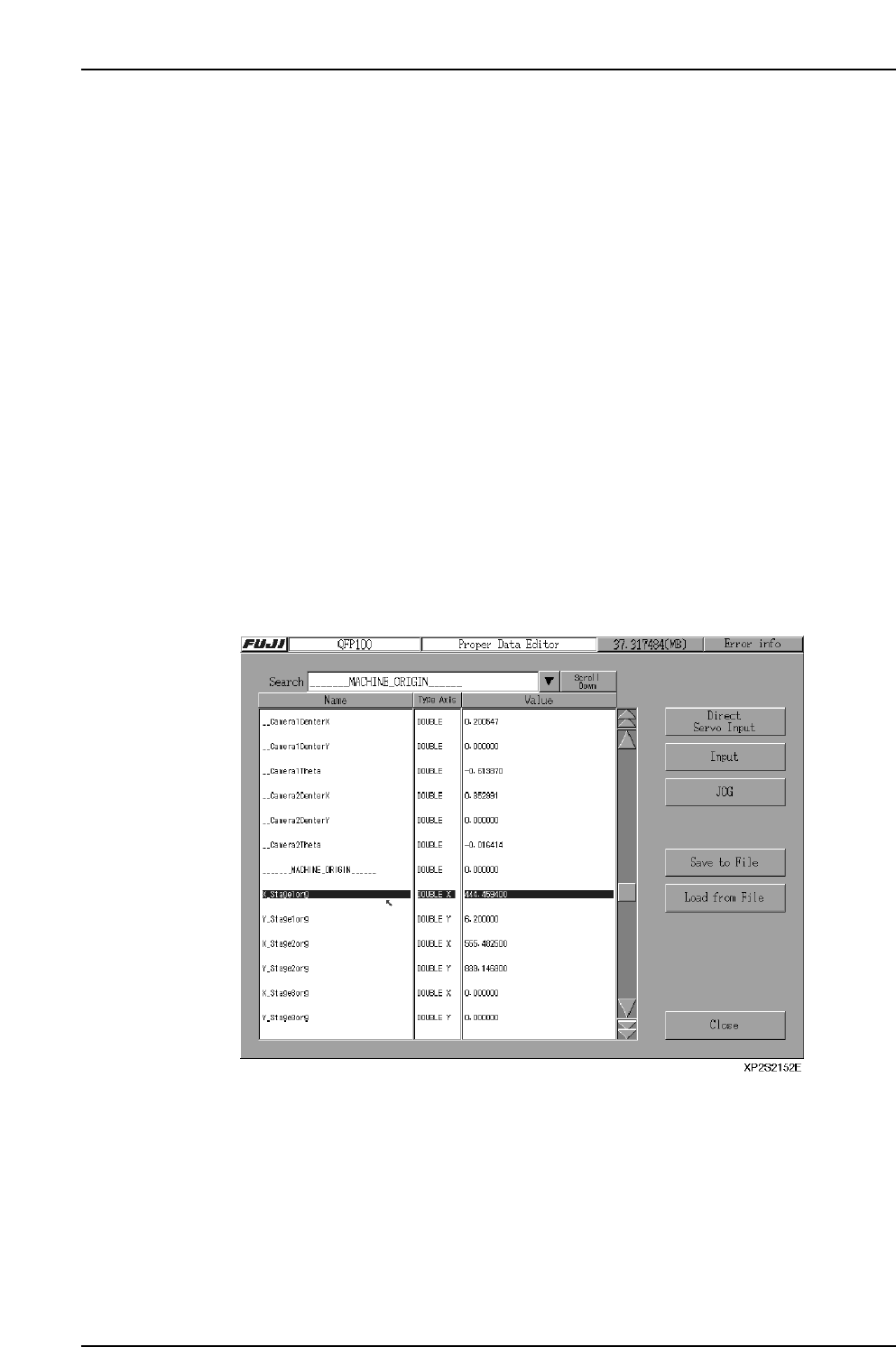
9.2 Proper Data Editor
(ESR0229)
This is the Proper data editing screen. Only qualified maintenance personnel should
make changes in this data, as an incorrect setting could result in an erroneous machine
operation. Use caution when editing the Proper data.
Procedure
1. At the [Main] screen, press [Maintenance C] then [Proper Data Editor].
2. Select the data item to be changed.
3. Press the [Input] button, or press the [Value] item twice in rapid succession to
display a numeric keypad. Enter the desired value, then press [CR] to register it.
4. Press [JOG Operation] to display the screen where a JOG operation can be
performed.
5. Press [Save to Disk] to save the data to a floppy disk. Press [Load from Disk] to
read the data from a floppy disk.
6. Searches can be performed by “title” or by “name”. The “title” search performs
searches for individual Proper data titles within a title list which displays by
pressing the search item’s [▼] button. The “name” search performs searches for
Proper data names which contain the specified search characters. To specify the
search characters, press the search item’s text box to display a numeric keypad,
then enter the Proper data name to be found and press [RET] to begin the search
from the top. Press the [Scroll Down] key to execute a search in the “top to
bottom” direction.
Part 2 Chapter 9 Other Settings
Edition 2.0 2-9-2 XP-142E System Reference
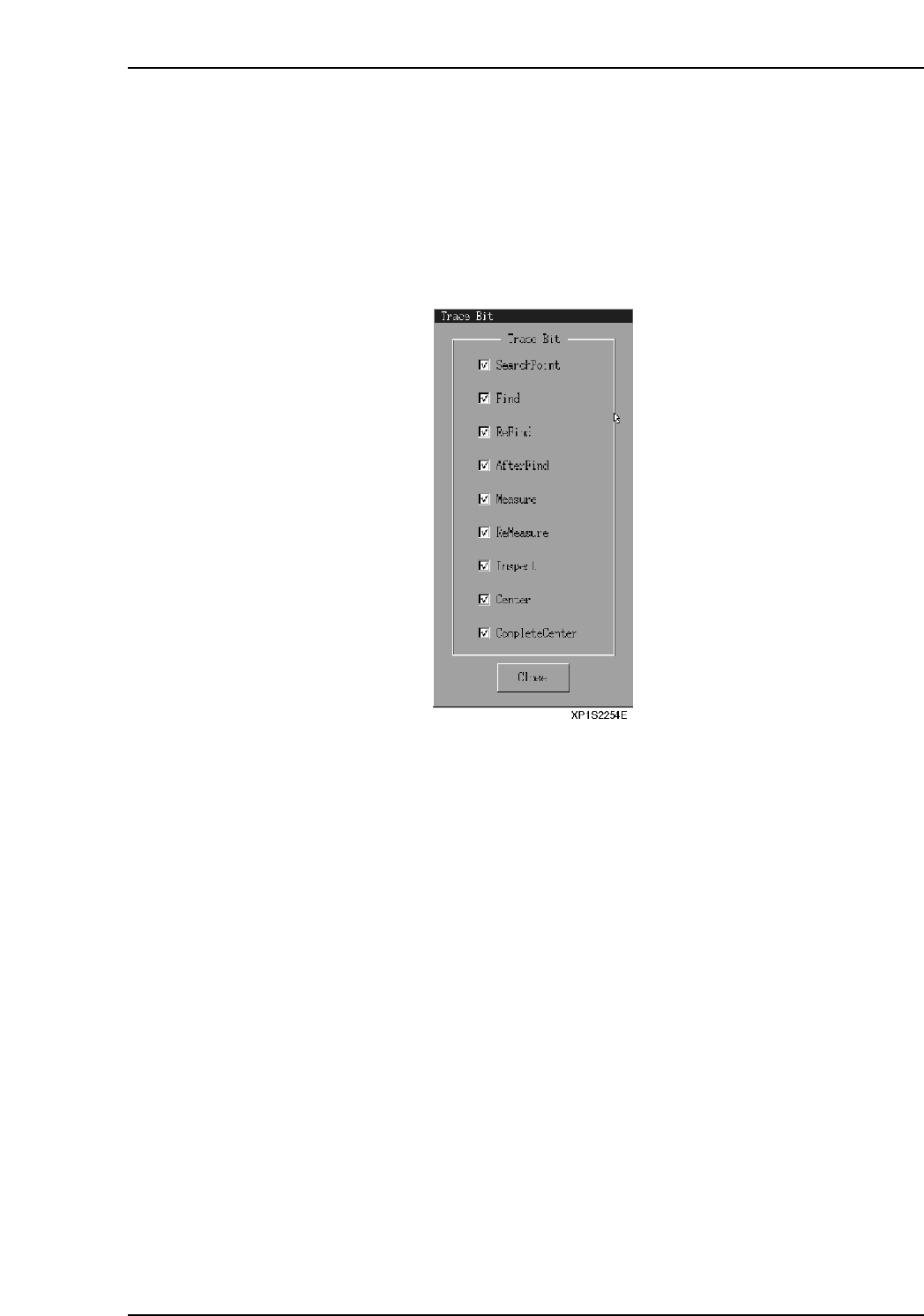
9.3 Trace Bit Settings
A trace can be used to display individual steps of the seeklines used by the MS
Algorithm vision processing results. The details of each step are explained separately in
the MS Algorithm Vision Processing Reference manual.
Procedure
1. At the [Main] screen, select [Maintenance A], then [Trace Bit] to display the
following dialog box.
2. Check the steps that you would like to display.
• SearchPoint
Displays SearchPoint with a red point.
• Find
Displays the Find step seeklines. Green indicates [OK], and red indicates
[NG].
• ReFind
Displays the ReFind step seeklines. Green indicates [OK], and red indicates
[NG].
• AfterFind
Displays the AfterFind step seeklines. Green indicates [OK], and red
indicates [NG].
• Measure
Displays the Measure step seeklines. Green indicates [OK], and red
indicates [NG].
• ReMeasure
Displays the ReMeasure step seeklines. Green and pink indicate [OK], and
red indicates [NG].
• Inspect
Displays the Inspect step seeklines. Green and pink indicate [OK], and red
indicates [NG].
Part 2 Chapter 9 Other Settings
Edition 2.0 2-9-3 XP-142E System Reference

• Center
When vision processing recognition is successful, this displays the object's
center position.
• CompleteCenter
(This is not currently used.)
3. Select the [Close] button to apply the settings, which will be reflected the next time
that vision processing is used.
Part 2 Chapter 9 Other Settings
Edition 2.0 2-9-4 XP-142E System Reference