XP-142E System Reference-SYS-XP142-2.0E.pdf.pdf - 第126页
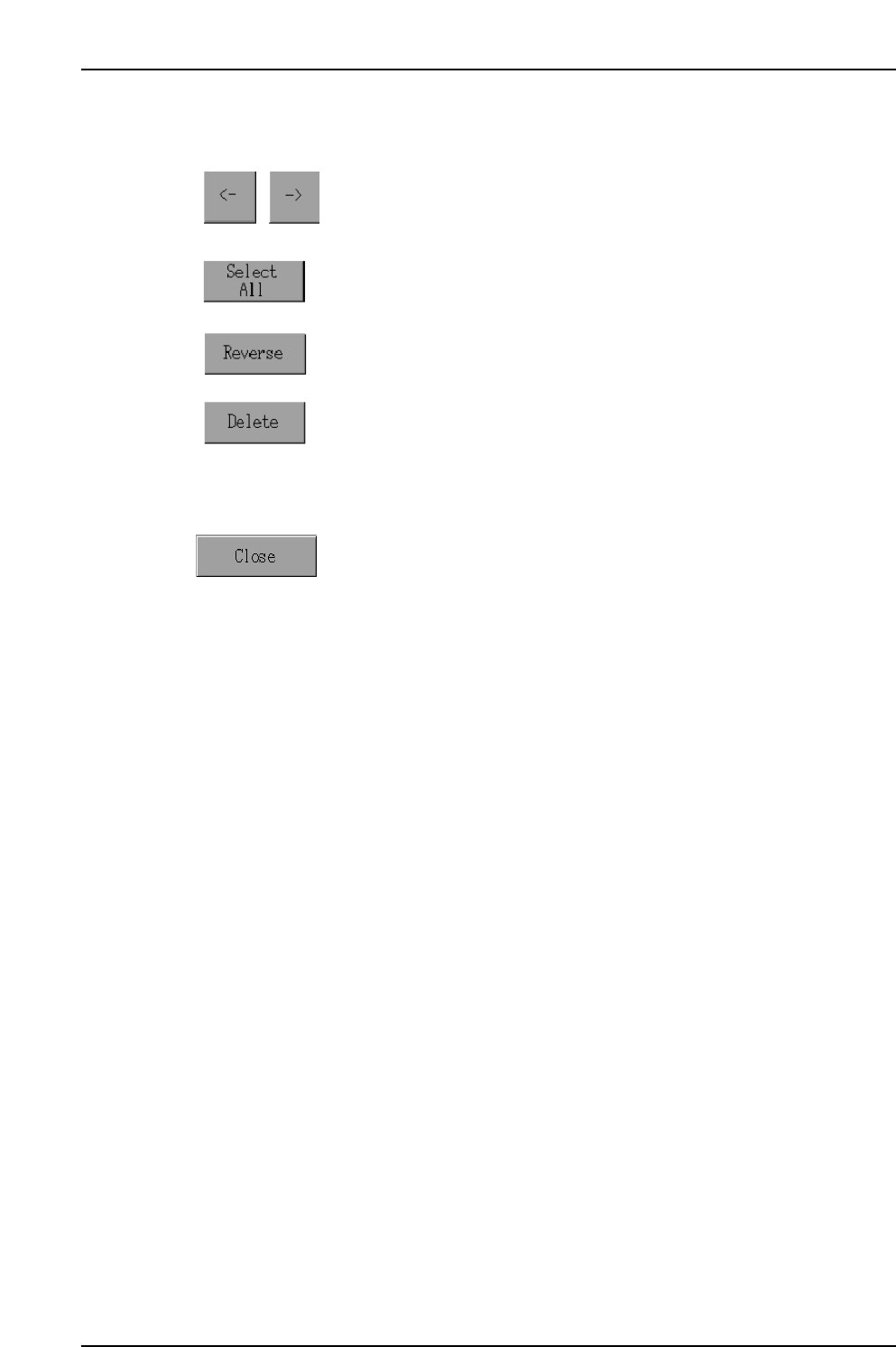
Operation Button Explanations Click these buttons to copy files in the direction of the arrow. Note: A file cannot be copied to the directory it is already in. Select all displayed files. Reverse all file selections/dese…
7.4 File Management (for the System Administrator)
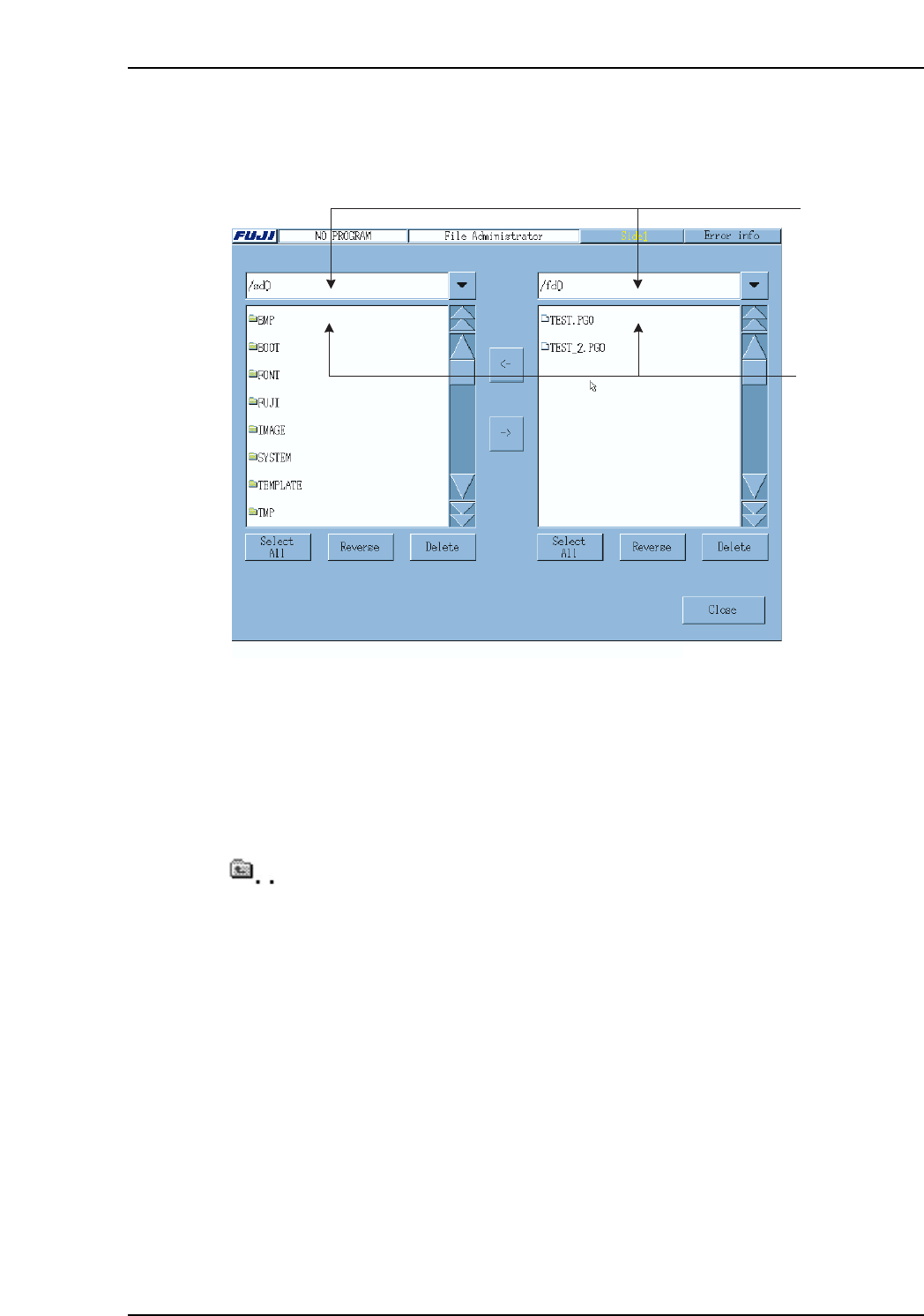
At the [Maintenance B] screen, select [File Administrator] to display the [File
Administrator] screen.
Drive Selection Combo Box
Select the drive here.
/fd0: Floppy disk drive
/sd0: Machine hard disk drive
Drive/Directory File List
Double click any of the directory names to open that directory.
Double click this item to return to the upper directory.
Single click a file name to select a file. (Multiple selections are possible)
Drive/directory
file list
Drive selection
combo box
XP1S2175E
Part 2 Chapter 7 Data Administration
Edition 2.0 2-7-13 XP-142E System Reference
Operation Button Explanations
Click these buttons to copy files in the direction of the arrow.
Note: A file cannot be copied to the directory it is already in.
Select all displayed files.
Reverse all file selections/deselections.
Delete all selected files. A confirmation message appears before
deleting the file.
Note: When deleting files from the machine’s disk drive (/sd0), be certain
not to delete any files required by the system. If system files are
deleted the machine will not start.
Close this screen.
Part 2 Chapter 7 Data Administration
Edition 2.0 2-7-14 XP-142E System Reference
8. System Administration
8.1 Displaying the Software Versions
(ESR0242a)
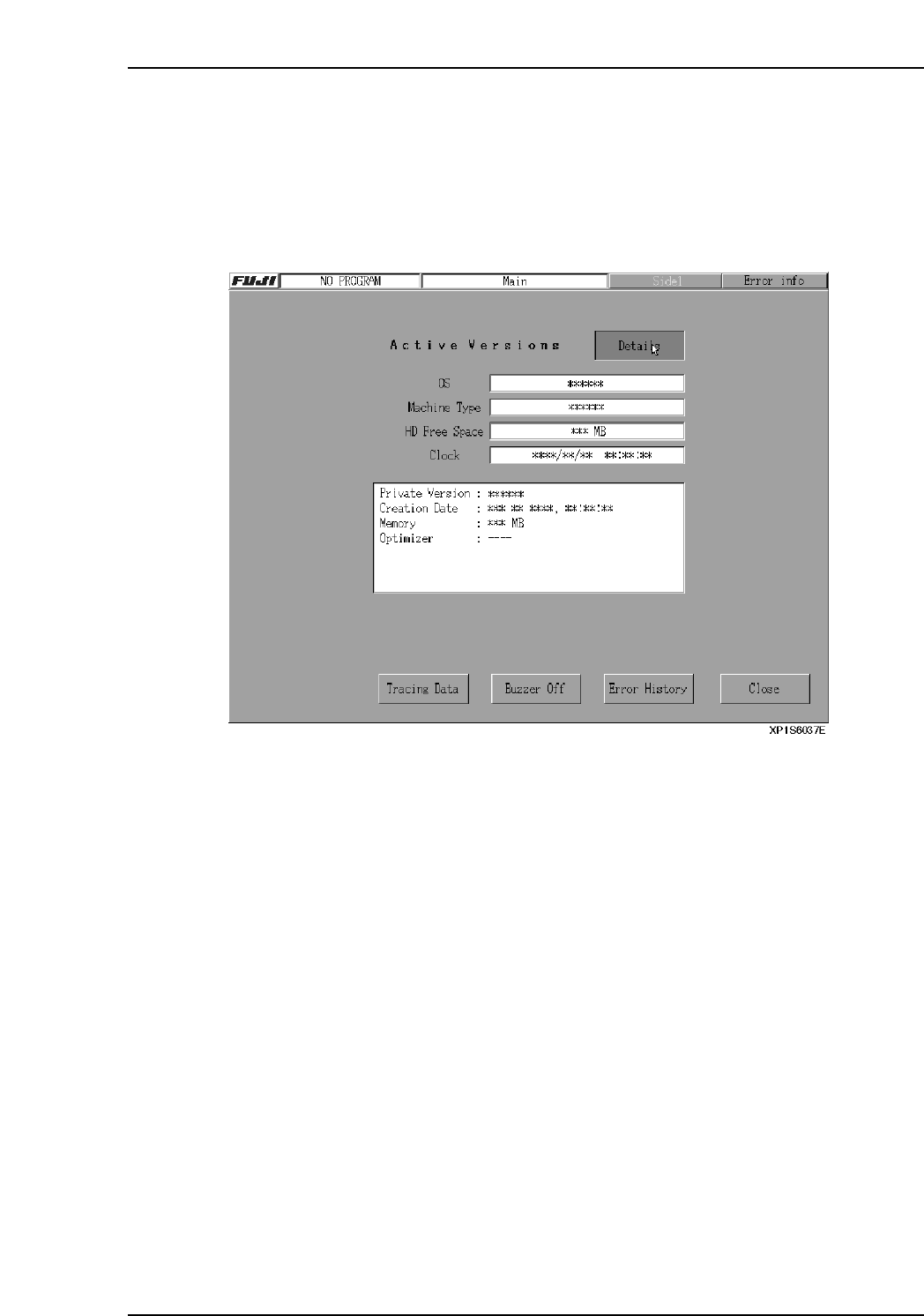
Users can access the following dialog box which displays software versions by pressing
the [FUJI] button in the top left of the touch panel. Press [Details] to display detailed
information such as Private Versions, etc. Press [Close] to clear the version display.
Part 2 Chapter 8 System Administration
Edition 2.0 2-8-1 XP-142E System Reference