XP-142E System Reference-SYS-XP142-2.0E.pdf.pdf - 第212页
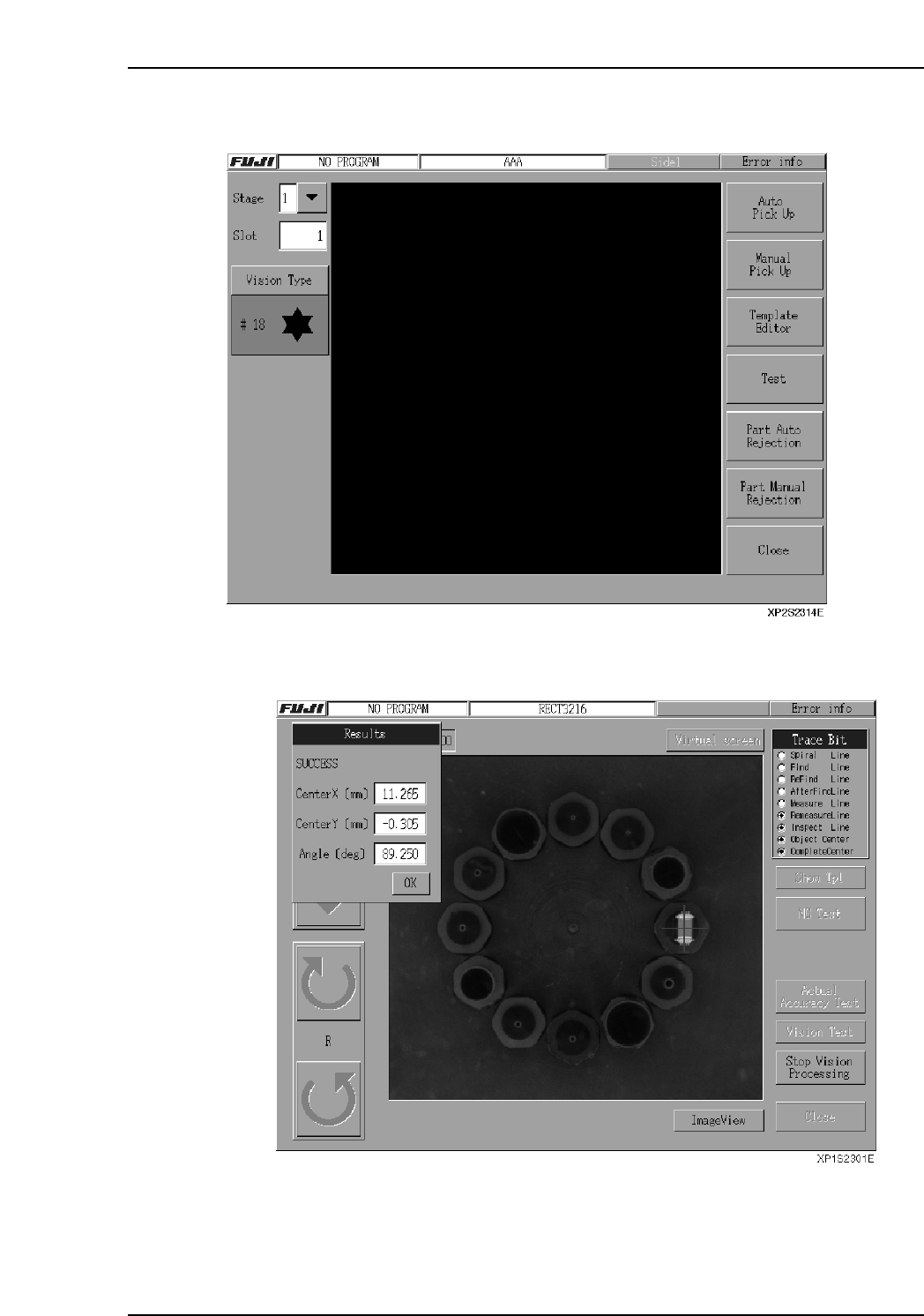
25. The vision processing "Success" or "Fail" result displays in the [Results] dialog box, together with the part's center coordinates and angle. The seek line display colors are as follows: SUCC…
23. Press [Test].
24. When "Vision Processing" is selected, the test occurs, and the results display.
Part 4 Chapter 2 Creating a Template From Existing Part Data
Edition 2.0 4-2-9 XP-142E System Reference

25. The vision processing "Success" or "Fail" result displays in the [Results] dialog box,
together with the part's center coordinates and angle.
The seek line display colors are as follows:
SUCCESS FAIL
Position line Green/red Red/red
Inspection lineGreen Red
26. Press [OK] at the [Results] dialog box, then press [Close] to close the template
vision processing test screen. To discard the part, select [Part Auto Rejection] or
[Part Manual Rejection] button.
Part 4 Chapter 2 Creating a Template From Existing Part Data
Edition 2.0 4-2-10 XP-142E System Reference
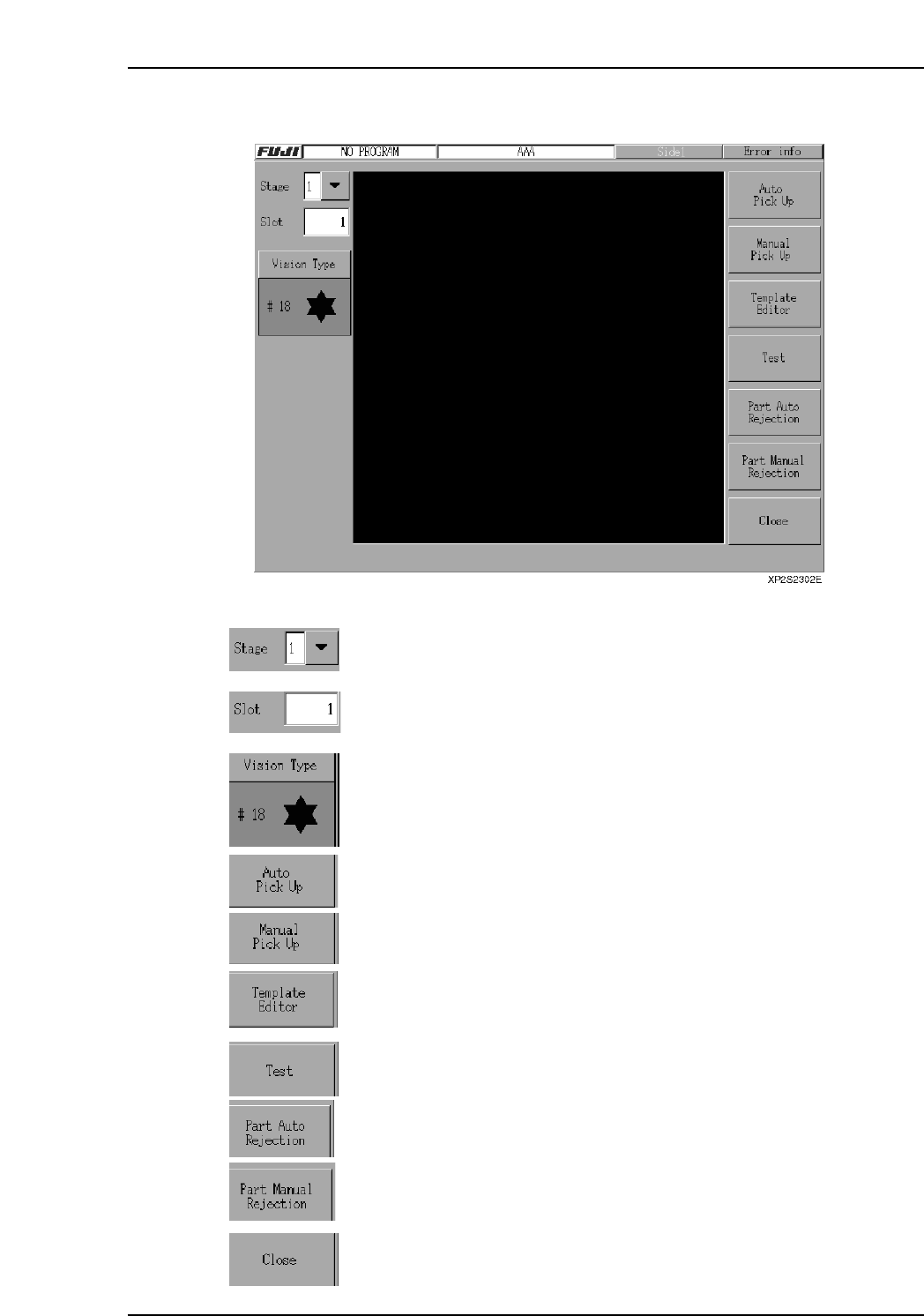
■ Template Creating Screen Explanations
Operation Button Explanations
Press to select the desired stage when picking up parts or when
manually discarding parts.
Press to select the desired slot when picking up parts or when
manually discarding parts.
Specifies the Vision Type for the selected part.
Press to automatically pick up a part from the specified stage and slot.
Press to manually (by hand) pick up a part from the specified stage and
slot.
Press to open the template wizard.
Press to open the test screen.
Press to automatically discard the picked up part.
Press to manually (by hand) discard the picked up part.
Closes the screen.
Part 4 Chapter 2 Creating a Template From Existing Part Data
Edition 2.0 4-2-11 XP-142E System Reference