XP-142E System Reference-SYS-XP142-2.0E.pdf.pdf - 第144页
Notes: Part 2 Chapter 8 System Administration Edition 2.0 2-8-18 XP-142E System Reference
8.8 Warranty Period
(ESR0231)
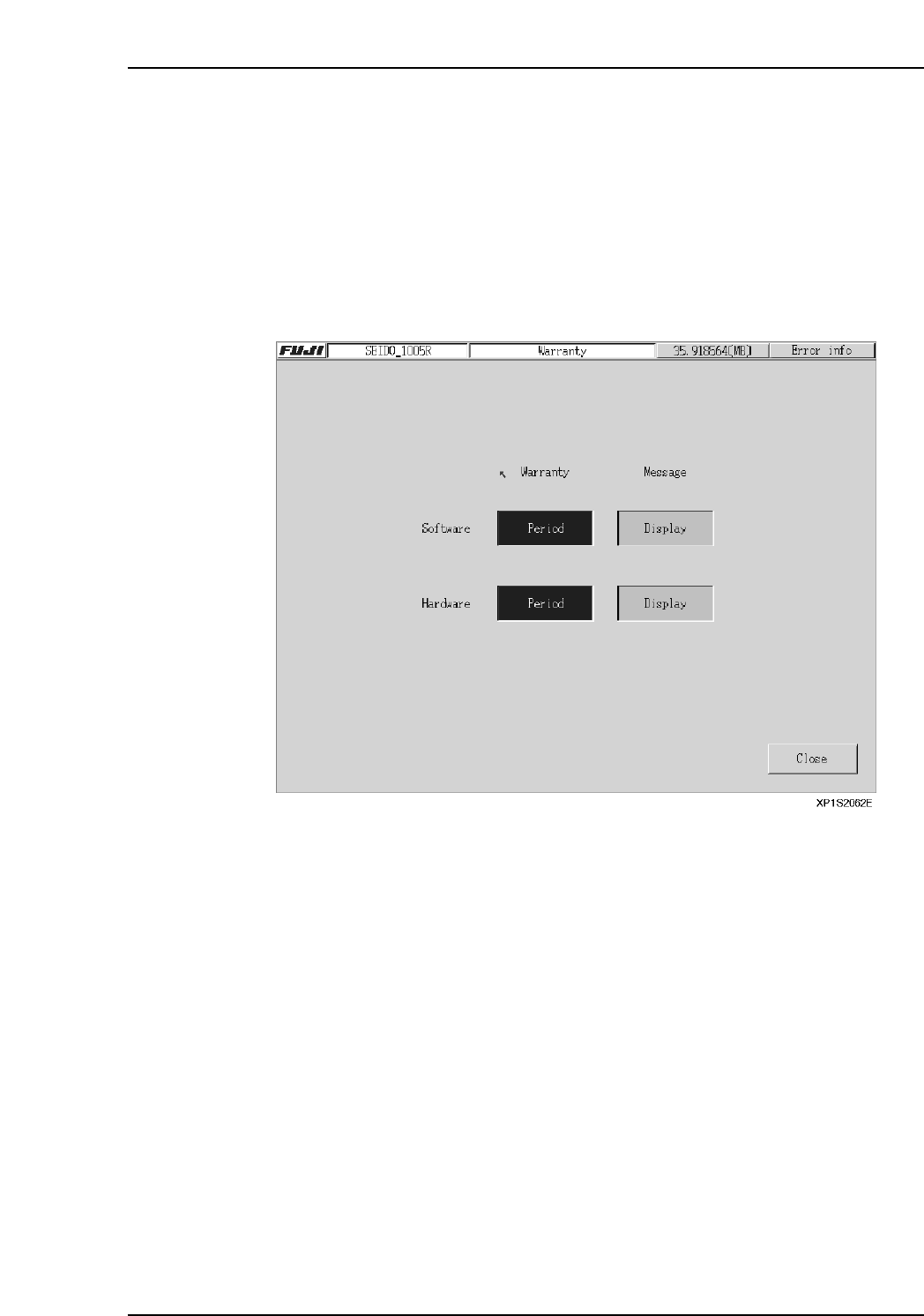
This screen indicates whether or not the machine and control software are still under
warranty.
Procedure
1. At the [Main] screen, press [Maintenance B] then [Warranty] to display the
[Warranty Period] screen.
2. When still under warranty, the display appears as shown below. The default
setting for the [Message] display is “Display”.
Part 2 Chapter 8 System Administration
Edition 2.0 2-8-17 XP-142E System Reference

Notes:
Part 2 Chapter 8 System Administration
Edition 2.0 2-8-18 XP-142E System Reference
9. Other Settings
9.1 Touch Screen Calibration
(ESR0226b)
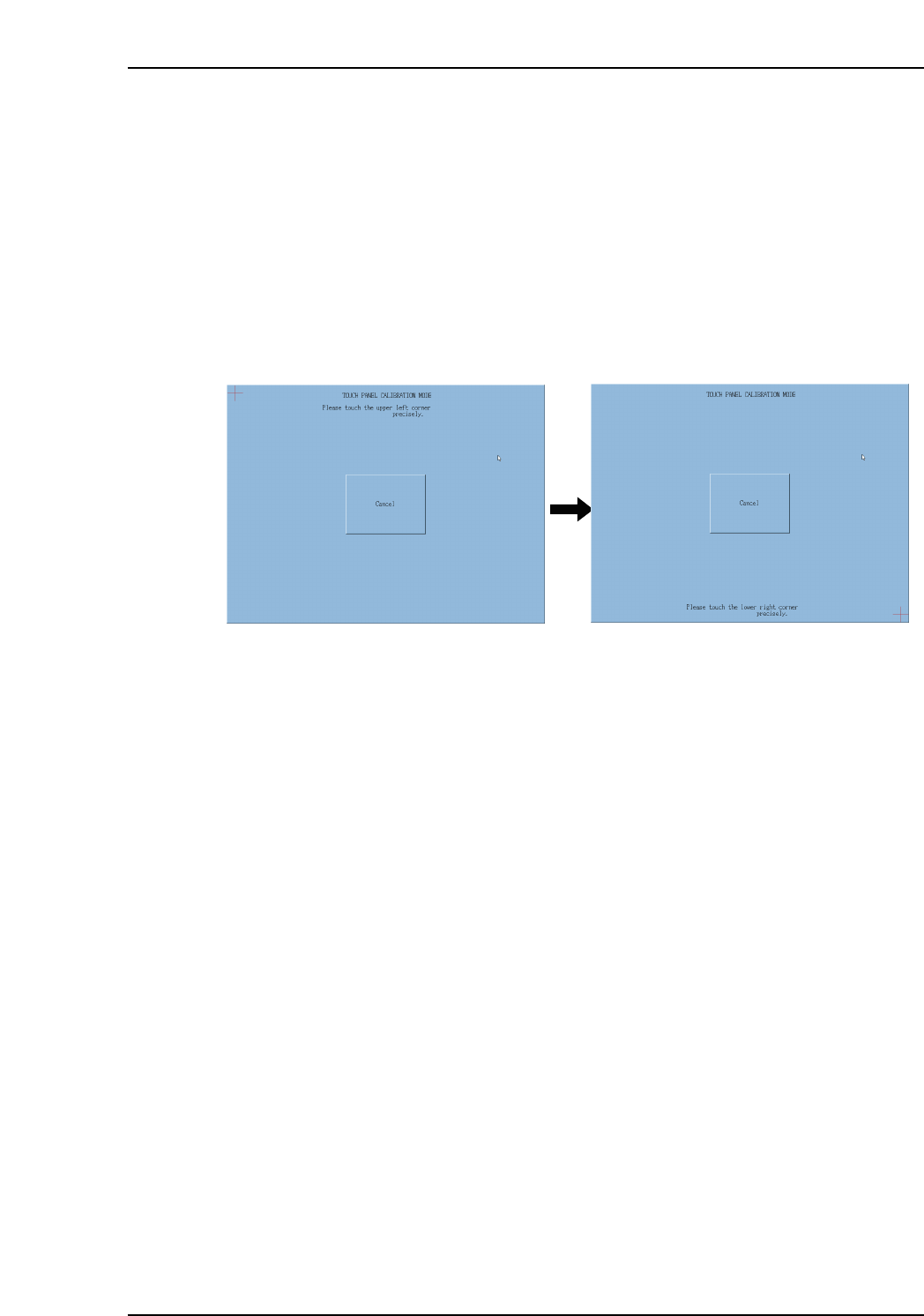
This function adjusts the position of the mouse cursor when the touch panel is displayed.
Complete this calibration when the cursor appears in a different location than where the
screen was touched.
Procedure
1. At the [Maintenance A] screen, select [Touch Screen Calibration] to display the
screen shown to the left below.
2. Touch the red crosshair at the top left of the screen. Another red crosshair appears
at the lower right of the screen.
Click [Cancel] to terminate the calibration and exit the screen.
Note: The mouse must be used to select [Cancel].
XP1S2253E
Part 2 Chapter 9 Other Settings
Edition 2.0 2-9-1 XP-142E System Reference