XP-142E System Reference-SYS-XP142-2.0E.pdf.pdf - 第176页
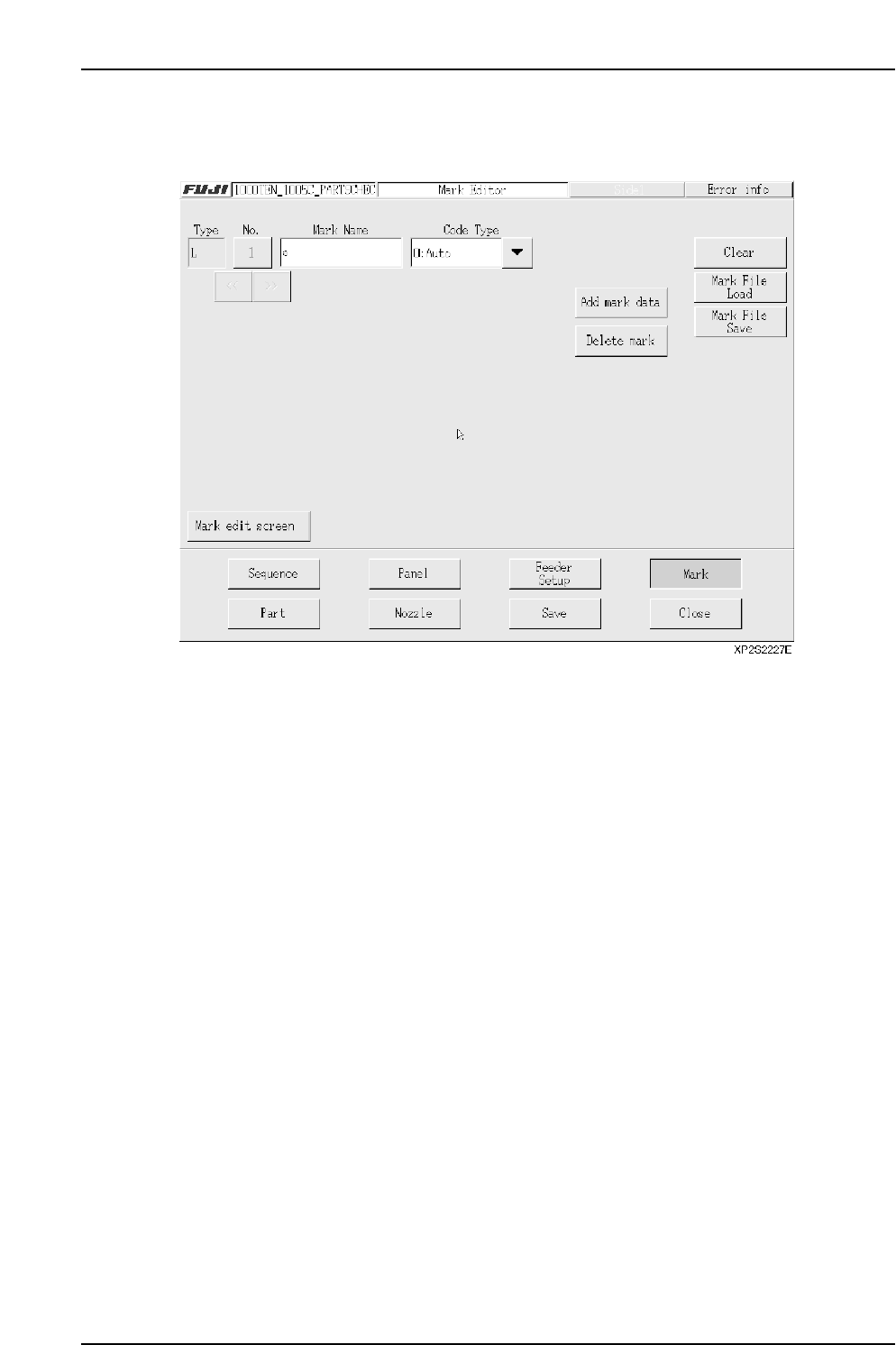
• [Code Type] drop-down list The code type can be selected from the following. • [Add mark data] button When this button is pressed, one vacant panel ID data area is added after the final existing panel ID data being edi…
Part 3 Chapter 3 Editor
Edition 2.0 3-3-20 XP-142E System Reference
3.5.2 Panel ID (2D Code) Editor Screen
The functions in this screen are not currently supported by the machine.
• [Mark Name] textbox
Enter the mark name in this textbox. (Max. 23 characters)
Note: The following characters cannot be used in the mark name: (:¥/;*?”<>|). Also, a tilde (~)
cannot be used as the first character of the name.
• [>>] button
Displays the next mark data specified in the data being edited.
• [<<] button
Displays the previous mark data specified in the data being edited.
• [No.] button
Displays the panel ID number. A panel ID list screen displays when this button is
pressed. When a panel ID is selected from this list, the data for that panel ID
displays.
Note: This number is used only at the mark editor screen. It is not registered in the
production program.

• [Code Type] drop-down list
The code type can be selected from the following.
• [Add mark data] button
When this button is pressed, one vacant panel ID data area is added after the final
existing panel ID data being edited.
• [Delete mark] button
Deletes the currently displayed panel ID data. After the deletion, the next mark data
displays.
• [Clear] button
Clears the currently displayed panel ID data. When the editor screen is closed, the
cleared mark data is deleted. (Cleared mark data cannot be saved at the production
program.)
• [Mark File Load] button
Loads panel ID data from the library.
• [Mark File Save] button
Saves the currently displayed panel ID data to the library.
• [Mark Edit Screen] button
Press to switch to the fiducial mark editor screen.
Input value
0
1
2
Type
Auto
Data Matrix
QR Code
XP2S2228E
Part 3 Chapter 3 Editor
Edition 2.0 3-3-21 XP-142E System Reference
■ Panel ID List Screen
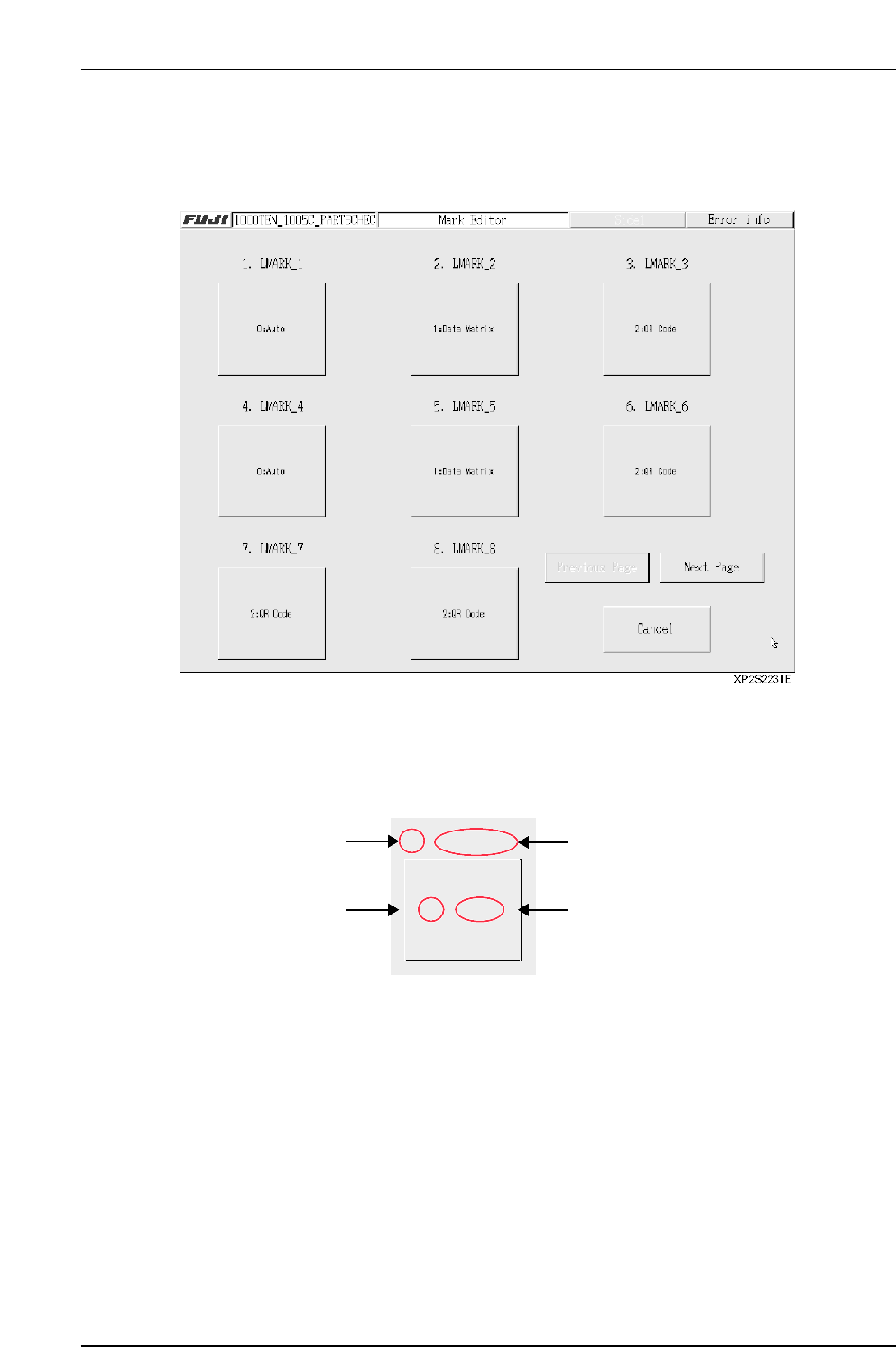
A list of panel IDs which are registered in the data being edited displays at this screen.
[Example]
• Editing panel ID display
The panel ID, code type, and name are displayed.
Press the button where editing is desired in order to edit that panel ID at the mark
editor screen.
• [Cancel] button
Closes this screen.
• [Previous page] / [Next Page] buttons
Press to switch display screens. If all the mark data is contained on a single screen,
these buttons do not display.
XP2S2232E
1. LMARK_1
No.
0 Auto
Code type
Panel ID
Code type name
Part 3 Chapter 3 Editor
Edition 2.0 3-3-22 XP-142E System Reference