XP-142E System Reference-SYS-XP142-2.0E.pdf.pdf - 第336页
“Nozzle information cannot be read from Nozzle spec file or Nozzle configuration file.” Conditions: This error message may appear after the following command sequences. When logging on [Production] - [Nozzle Editor] [Pro…

2. Corrective Measures for Error Messages that
Appear without an Error Code
In some cases, an error message will appear without a code (number). These error messages
are listed in alphabetical order of the first letter in the message.
“A value exists that could not be read correctly. Please set the proper data.”
Conditions: During the start up process, the machine may lock up with this message on the
touch panel. The touch panel will not respond, but clicking the OK button with
the mouse will open the Proper Data Editor.
Cause: Certain Proper data values could not be read properly.
Remedy: Follow the procedure for loading a backup file as explained in the remedy to the
error message, “Proper data doesn’t exist. Please set the Proper data”, or directly
enter the Proper data values using the Proper Data Editor.
“An unsupported machine type is set in the Proper data. Please set the Proper data”
Conditions: During the start up process, the machine may lock up with this message on the
touch panel. The touch panel will not respond, but clicking the OK button with
the mouse will open the Proper Data Editor.
Cause: A machine type that is not supported is specified in the Proper data.
Remedy: Follow the procedure for loading a backup file as explained in the remedy to the
error message, “Proper data doesn’t exist. Please set the Proper data”.
“Could not found language file.”
Conditions: During the start up process, the machine may lock up with this message on the
touch panel. The touch panel will not respond.
Cause: The multiple language message data could not be read, or some of the multiple
language message data has been deleted for an unknown reason.
Remedy: Use the recovery disks to restore the system.
“Illegal Proper data format. Please set the Proper data while referring to the upgrade manual.”
Conditions: During the start up process, the machine may lock up with this message on the
touch panel. The touch panel will not respond, but clicking the OK button with
the mouse will open the Proper Data Editor.
Cause: The Proper data could not be read because it is in the wrong format.
Remedy: Follow the procedure for loading a backup file as explained in the remedy to the
error message, “Proper data doesn’t exist. Please set the Proper data”.
“Illegal Proper data format. The Proper may be unreadable. Please set the Proper data.”
Conditions: During the start up process, the machine may lock up with this message on the
touch panel. The touch panel will not respond, but clicking the OK button with
the mouse will open the Proper Data Editor.
Cause: The machine may not be able to read the Proper data, because certain values are in
the wrong format.
Remedy: Follow the procedure for loading a backup file as explained in the remedy to the
error message, “Proper data doesn’t exist. Please set the Proper data”, or directly
enter the Proper data values using the Proper Data Editor.
Part 8 Chapter 2 Corrective Measures for Error Messages
that Appear without an Error Code
Edition 2.0 8-2-1 XP-142E System Reference

“Nozzle information cannot be read from Nozzle spec file or Nozzle configuration file.”
Conditions: This error message may appear after the following command sequences.
When logging on
[Production] - [Nozzle Editor]
[Program] - [Editor] - [Nozzle]
[Program] - [Editor] - [Part] - [Part Type Edit] - Nozzle Name
Cause: For an unknown reason, some of the nozzle spec data could not be read.
Remedy: Restore the system data that can be backed up to floppy in [Maintenance B]
- [Backup], and then restart the machine.
“Proper data doesn’t exist. Please set the Proper data.”
Conditions: During the start up process, the machine may lock up with this message on the
touch panel. The touch panel will not respond, but clicking the OK button with
the mouse will open the Proper Data Editor.
Cause: For an unknown reason, the Proper data has been deleted.
Remedy: Load a backup Proper data file using procedure A or B below.
If the data was backed up on another machine, then the problem may recur. In
this case, the values must be specified using the machine’s Proper Data Editor.
A) If the Proper has been backed up in [Maintenance B] - [Backup], close the
Proper Data Editor and restore the system data using commands in the
[Backup] screen. Then restart the machine power.
B) If the Proper data has been backed up on a floppy disk using the [Save to
File] command, Load the file using the [Load from File] command in the
Proper Data Editor, and then close the Proper Data Editor. Shut down the
machine for a moment, and then restart the machine.
“Proper data out of range. Please set the Proper data.”
Conditions: During the start up process, the machine may lock up with this message on the
touch panel. The touch panel will not respond, but clicking the OK button with
the mouse will open the Proper Data Editor.
Cause: Certain Proper data values exceed their valid ranges or have contradictory
settings.
Remedy: Follow the procedure for loading a backup file as explained in the remedy to the
error message, “Proper data doesn’t exist. Please set the Proper data”, or directly
enter the Proper data values using the Proper Data Editor.
“Proper data reading error. The data may be corrupt. Please set the Proper data.”
Conditions: During the start up process, the machine may lock up with this message on the
touch panel. The touch panel will not respond, but clicking the OK button with
the mouse will open the Proper Data Editor.
Cause: The Proper data exists but, for an unknown reason, cannot be read. The Proper
data file may be damaged.
Remedy: Follow the procedure for loading a backup file as explained in the remedy to the
error message, “Proper data doesn’t exist. Please set the Proper data”.
Part 8 Chapter 2 Corrective Measures for Error Messages
that Appear without an Error Code
Edition 2.0 8-2-2 XP-142E System Reference
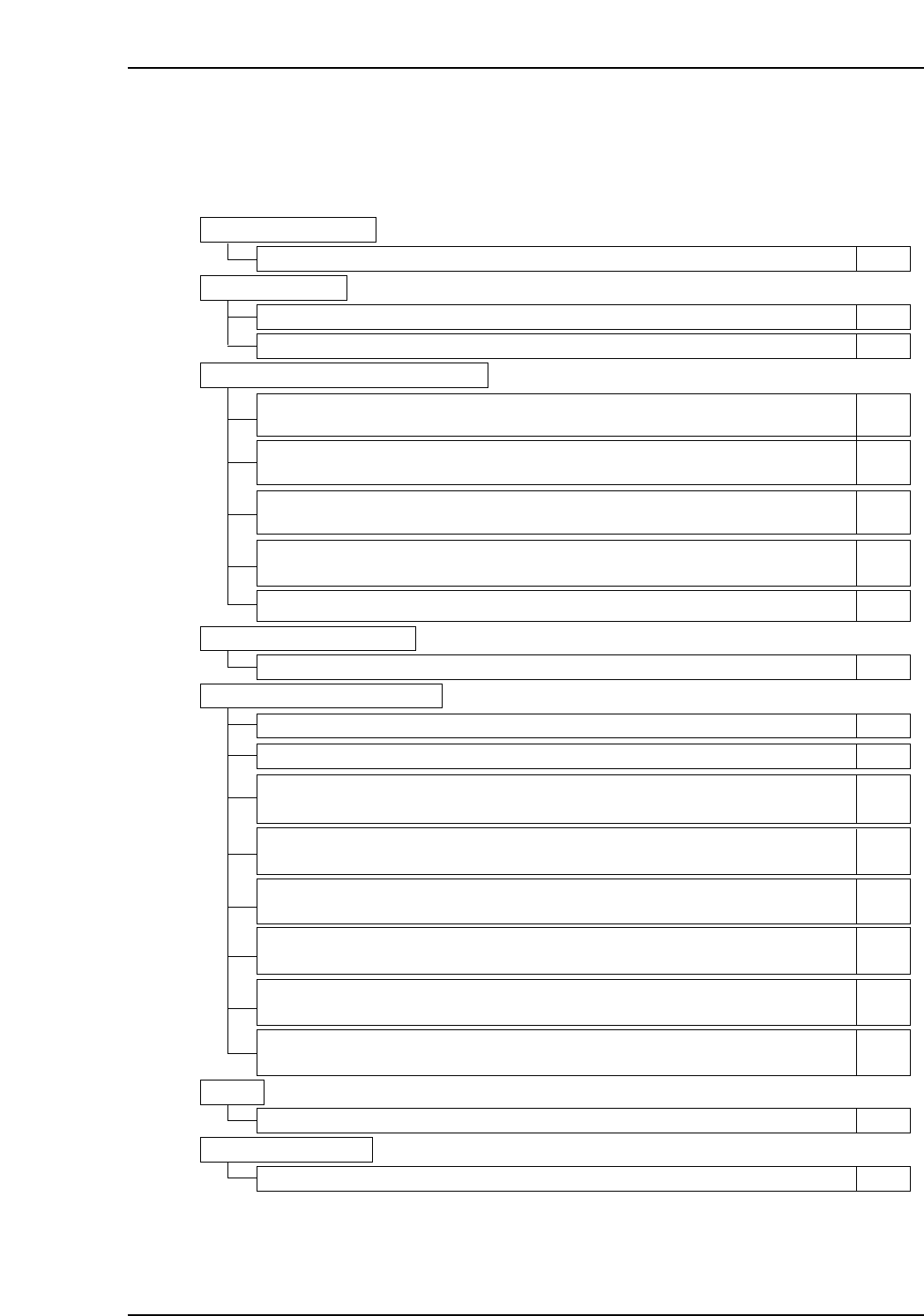
3. Corrective Measures for Problems at the Machine
This section describes possible problems at the machine and measures to correct these
problems.
1. Starting the Machine
2. Screen Displays
3. The READY ON and START Buttons
4. The CYCLE STOP Button
5. Panel Loading and Unloading
6. MFU
7. Tape Cutter
1.1 The Proper Data Editor appears when starting the machine.
2.1 Display of the [Production Data] list is unusually slow.
2.2 Display of production program screens is unusually slow.
3.1 After pushing READY ON, the machine moves even though START has
not been pushed.
3.5 The READY ON button lights up but the START button does not flash.
4.1 During production, the machine does not stop when CYCLE STOP is pushed.
6.1 The machine cannot clamp or unclamp the MFU.
7.1 The tape cutter will not move.
3.2 The START button does not respond even though "Push the START switch"
appears on screen.
3.3 The servo power turns on when the machine is ready, even though the
READY ON button has not been pushed.
3.4 The servo power does not turn on when the machine is ready and READY
ON is pushed.
5.1 Production starts when before a panel arrives at the main station.
5.2 When loading a panel, the panel stops before arrival at the main station.
5.4 Error code 1503100E (Failed to convey panel) is displayed during panel
loading.
5.5 Error code 15032011 (Failed to convey panel) is displayed during panel
loading.
5.6 When finished producing a panel, the machine unloads the panel prematurely,
before the next machine issues a panel request signal.
5.7 When finished with production, the machine does not unload the panel to the
next machine.
5.8 Error code 15031010 (Failed to convey panel) is displayed during panel
unloading.
5.3 When loading a panel, the panel does not decelerate before arrival at the
main station.
8-3-2
8-3-2
8-3-2
8-3-3
8-3-3
8-3-3
8-3-3
8-3-3
8-3-4
8-3-4
8-3-4
8-3-4
8-3-4
8-3-4
8-3-5
8-3-5
8-3-5
8-3-5
8-3-6
Page
XP1S8001E
Part 8 Chapter 3 Corrective Measures for Problems at the Machine
Edition 2.0 8-3-1 XP-142E System Reference