XP-142E System Reference-SYS-XP142-2.0E.pdf.pdf - 第215页
New Inputs Seek lines which conform to the line parameter settings can be drawn by clicking the points where seek lines are desired. When the line parameter's [Angle] button is selected, a perpendicular seek line is…
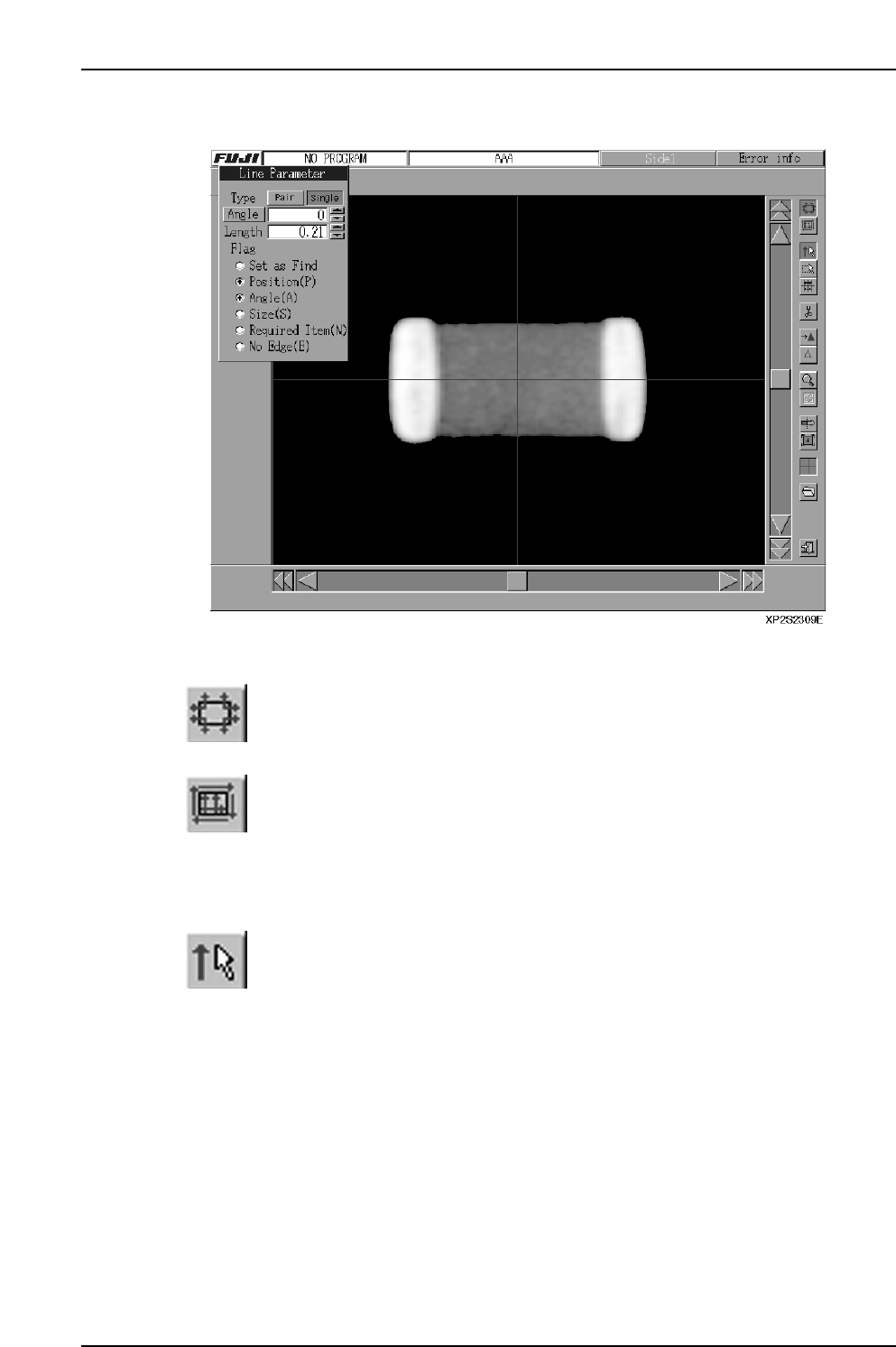
■ Template Editor
Operation Button Explanations
Position line display mode
Press to display and edit positioning lines. The position line parameters
display in the line editor mode.
Inspection line display mode
Press to display and edit inspection lines. The inspection line parameters
display in the line editor mode.
As the "Find Set" function cannot be used for inspection lines, the [Find All
Cancel] and [Find Set Mode] buttons are disabled when in the inspection line
display mode.
Line editor mode (Input)
This mode is used for line editing (inputs).
Part 4 Chapter 2 Creating a Template From Existing Part Data
Edition 2.0 4-2-12 XP-142E System Reference
New Inputs
Seek lines which conform to the line parameter settings can be drawn by clicking the
points where seek lines are desired. When the line parameter's [Angle] button is
selected, a perpendicular seek line is generated relative to the edge of the clicked
position. If the clicked position has no edge, no line can be generated. Newly generated
lines are active lines.
Selecting a Line
A seek line can be selected and made active simply by clicking on it. When a line is
selected, that line's information displays at the line parameter dialog box. If one line of a
seek line pair is selected, it becomes the "parent" line.
Moving Lines
Seek lines can be moved by dragging their center areas.
Changing Line Lengths & Angles
Seek line lengths and angles can be changed by dragging the line ends. A line length can
be extended up to the half the length of the editor screen's diagonal line.
Changing Line Parameters
The parameters of an active line can be changed at the line parameters dialog box.
Deleting Lines
1 active line can be deleted by pressing the [Active Delete] button.
Line Editor Mode (input)
This mode is for editing lines (inputs).
Selecting Lines
A selection rectangle can be created by dragging, to select multiple lines within that
rectangle. Lines which extend beyond the rectangle cannot be selected. A single line can
be selected simply by clicking on that line.
If one line of a seek line pair is selected, it becomes the "parent" line. If both are selected,
the one which was selected first becomes the "parent' line. The parameter information
for the first line which was selected displays in the line parameter dialog box.
Moving Lines
Multiple selected lines can be moved by clicking on any one of the selected lines and
dragging it. All the other selected lines move along with it.
Part 4 Chapter 2 Creating a Template From Existing Part Data
Edition 2.0 4-2-13 XP-142E System Reference
Changing All Line Parameters
The parameters for all the currently active lines can be changed in a single operation at
the line parameter dialog box. If one of the selected lines has a "No Edge" setting, the
"Find Set" operation is executed for only the lines without this "No Edge" setting.
Deleting Lines
All the currently active seek lines are deleted when the [Active Delete] button is pressed.
Calipers
This is the calipers resetting mode. This mode can be established only when
the initial zoom-in factor is in effect.
When in this mode, the following functions are disabled: [Find All Cancel],
[Edge Position Correction], [Image Position Correction]
Active Delete
Deletes the currently active seek line.
Find Set Mode
This is the manual Find setting mode. This mode can be established only
when in the position seek line display mode. If switched to the inspection
line display mode while in this Find Set Mode, the Find Set Mode is ended,
and the line editor (input) mode is established. The [Active Delete] function
is disabled when in the Find Set Mode.
Find All Cancel
When seek lines which are not "Find Set" lines are clicked, a triangle mark
displays on those lines, and a Find setting is performed. If a seek line which
is already a "Find Set" line is selected, the Find status is canceled, and the
triangle mark clears from the screen.
* The display color for "No edge" seek lines is cyan, and a "Find Set" cannot
be performed on these lines even if they are clicked.
Zoom-out / Zoom-in
This is the image zoom-in and zoom-out mode. When in the zoom-in mode,
the [Active Delete] function is disabled.
Image Zoom-In
To zoom-in, click the screen at the center of the desired zoom-in area. With each click,
the zoom-in factor increases to x2, x4, x8, x16, x32 (max.). If the zoom-in image extends
beyond the boundaries of the original image, the zoom-in center is automatically
adjusted so that the boundaries are not violated.
Part 4 Chapter 2 Creating a Template From Existing Part Data
Edition 2.0 4-2-14 XP-142E System Reference