XP-142E System Reference-SYS-XP142-2.0E.pdf.pdf - 第88页
5.3.4 Using the Mark Editor Buttons (1) Center Set Button Press the [Center Set] button at the mark editing screen to display the following dialog box. Press [OK] to set the mark position and end mark editing. Press [Can…
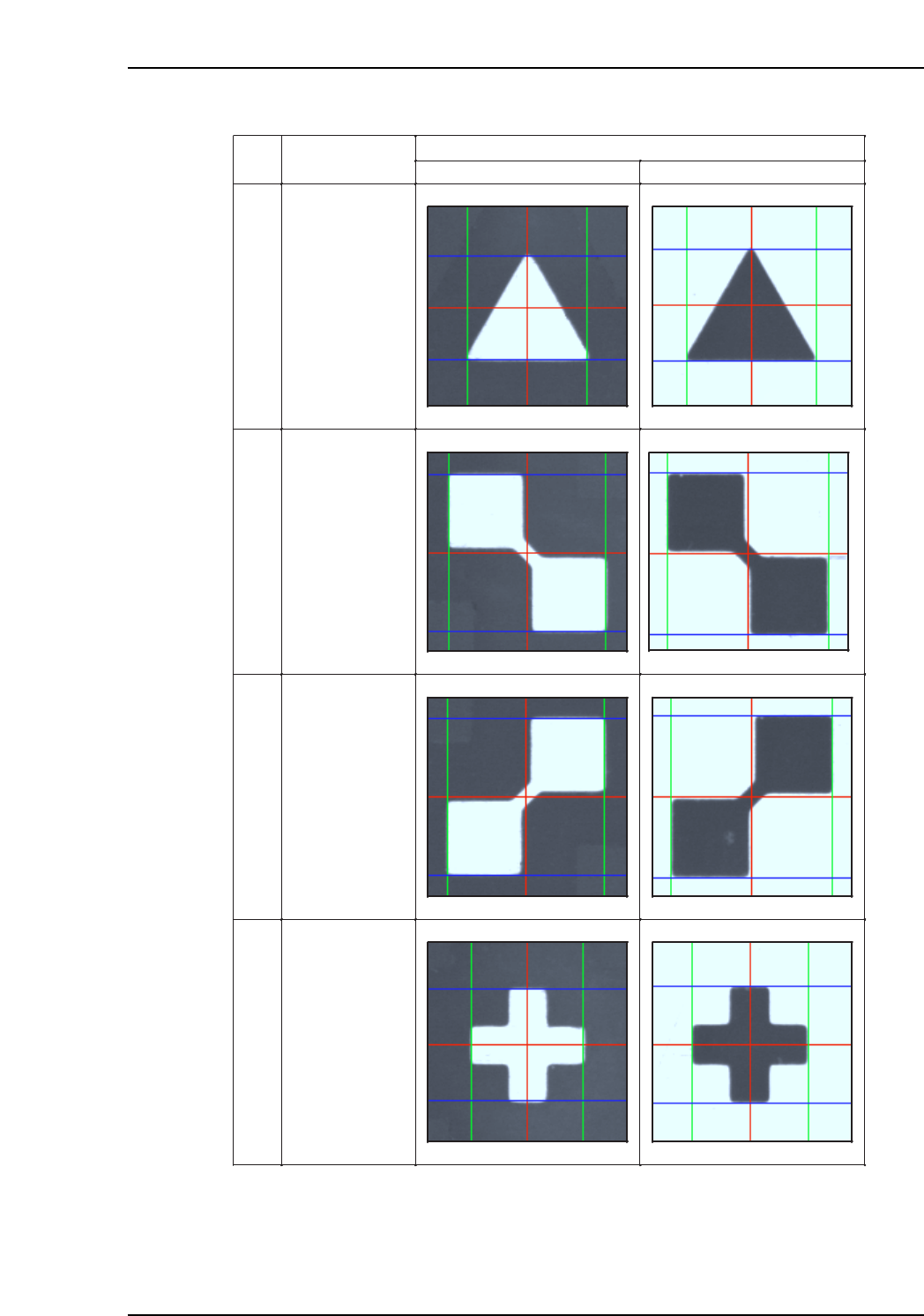
Mark
Ptn
Shape
White Black
4
Upward triangle
5
Intersecting
squares
(left side up)
6
Intersecting
squares
(right side up)
7
Cross
XP1S2152E
Part 2 Chapter 5 Stopping and Resuming Production
Edition 2.0 2-5-5 XP-142E System Reference
5.3.4 Using the Mark Editor Buttons
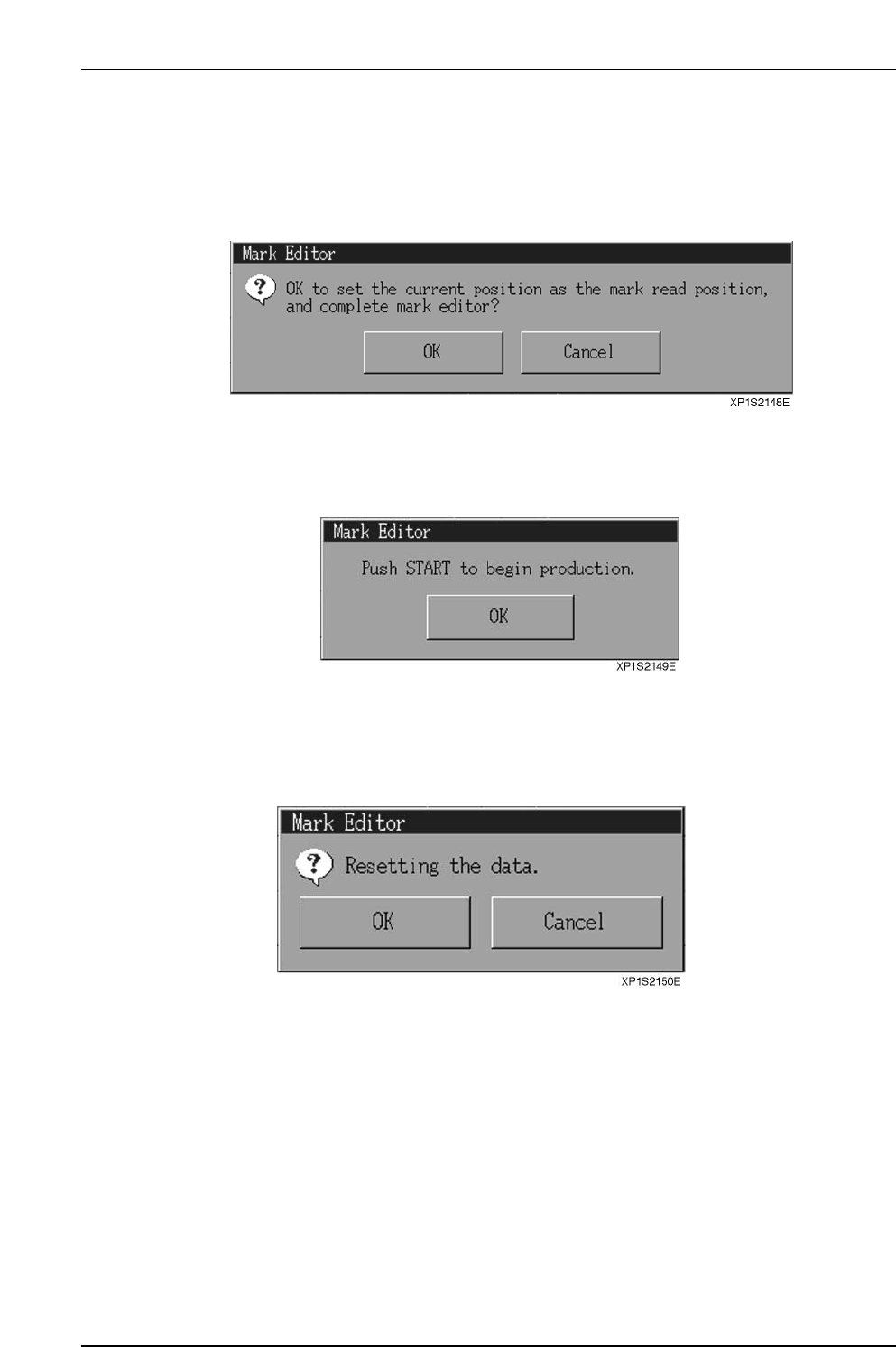
(1) Center Set Button
Press the [Center Set] button at the mark editing screen to display the following dialog
box. Press [OK] to set the mark position and end mark editing. Press [Cancel] to return
to the mark editing screen without setting the data.
The following dialog box displays when the data is set.
Press the [OK] button to return to the automatic operation screen. Press the START
switch to start production again.
(2) Reset Button
Press the [Reset] button at the mark editing screen to display the following dialog box.
Press [OK] to reset the caliper lines and the values at [Calipers], [Center] and [Offset].
Part 2 Chapter 5 Stopping and Resuming Production
Edition 2.0 2-5-6 XP-142E System Reference

5.3.5 Operation of the Machine When Production is Restarted
(1) Sequence Handling When Production is Restarted
The machine proceeds to the next sequence without rereading the fiducial mark when
data is set using the Mark Editor.
(2) Mark Reading at the Next Panel
The machine does not record the offset measured during mark editing. The panel
following the editing of the mark data returns to the settings in the production program.
Operator action following an error
Production is restarted without editing the mark. Inspections are carried out again from the first
mark.
Production is restarted after editing the mark. The machine proceeds to the next sequence.
Operation
XP1S2153E
Part 2 Chapter 5 Stopping and Resuming Production
Edition 2.0 2-5-7 XP-142E System Reference