XP-142E System Reference-SYS-XP142-2.0E.pdf.pdf - 第211页
23. Press [Test]. 24. When "Vision Processing" is selected, the test occurs, and the results display. Part 4 Chapter 2 Creating a T emplate From Existing Part Data Edition 2.0 4-2-9 XP-142E System Reference
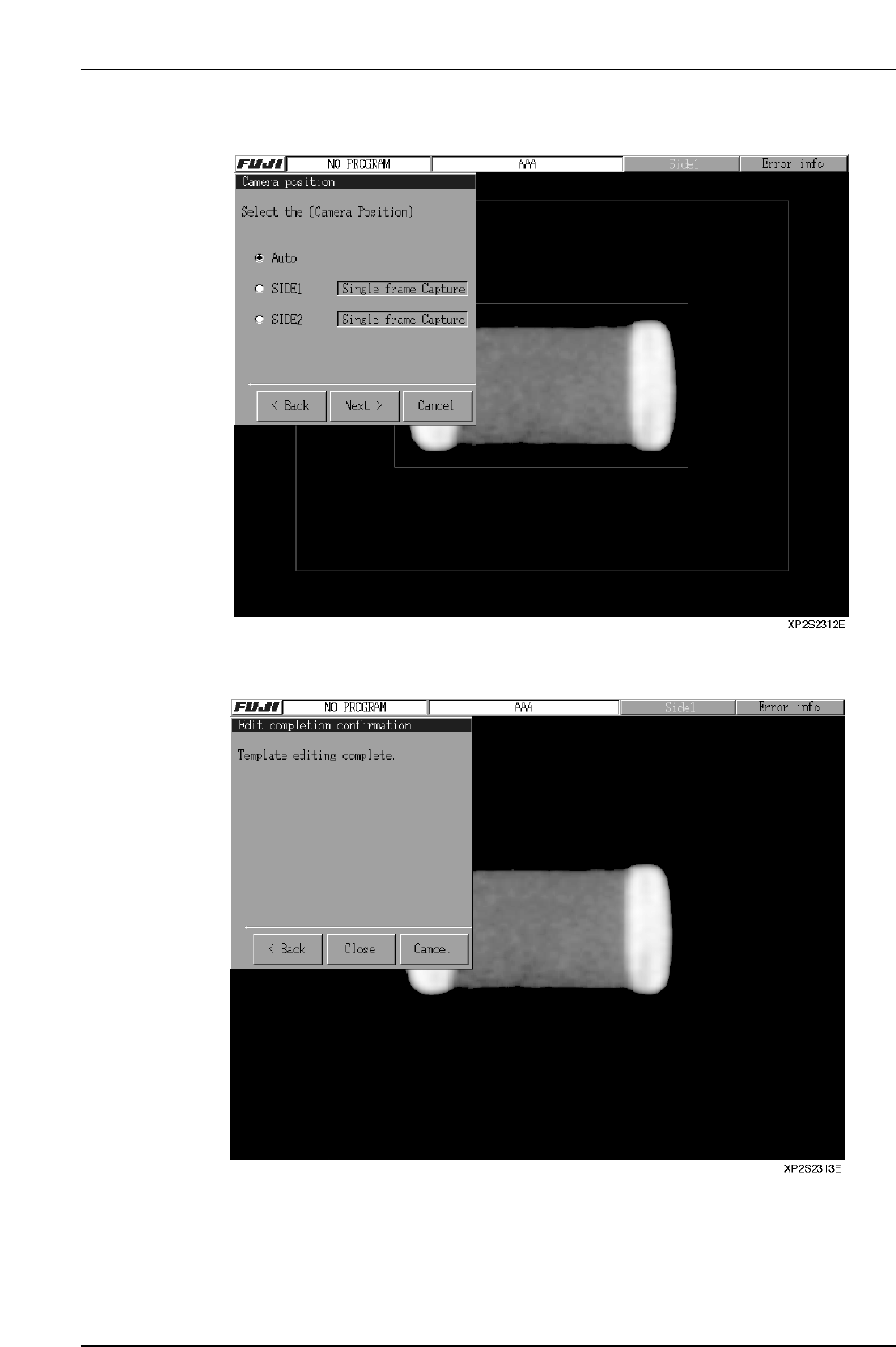
21. Specify the camera position, then press [Next].
22. Press [Close] to end the editing operation.
Part 4 Chapter 2 Creating a Template From Existing Part Data
Edition 2.0 4-2-8 XP-142E System Reference
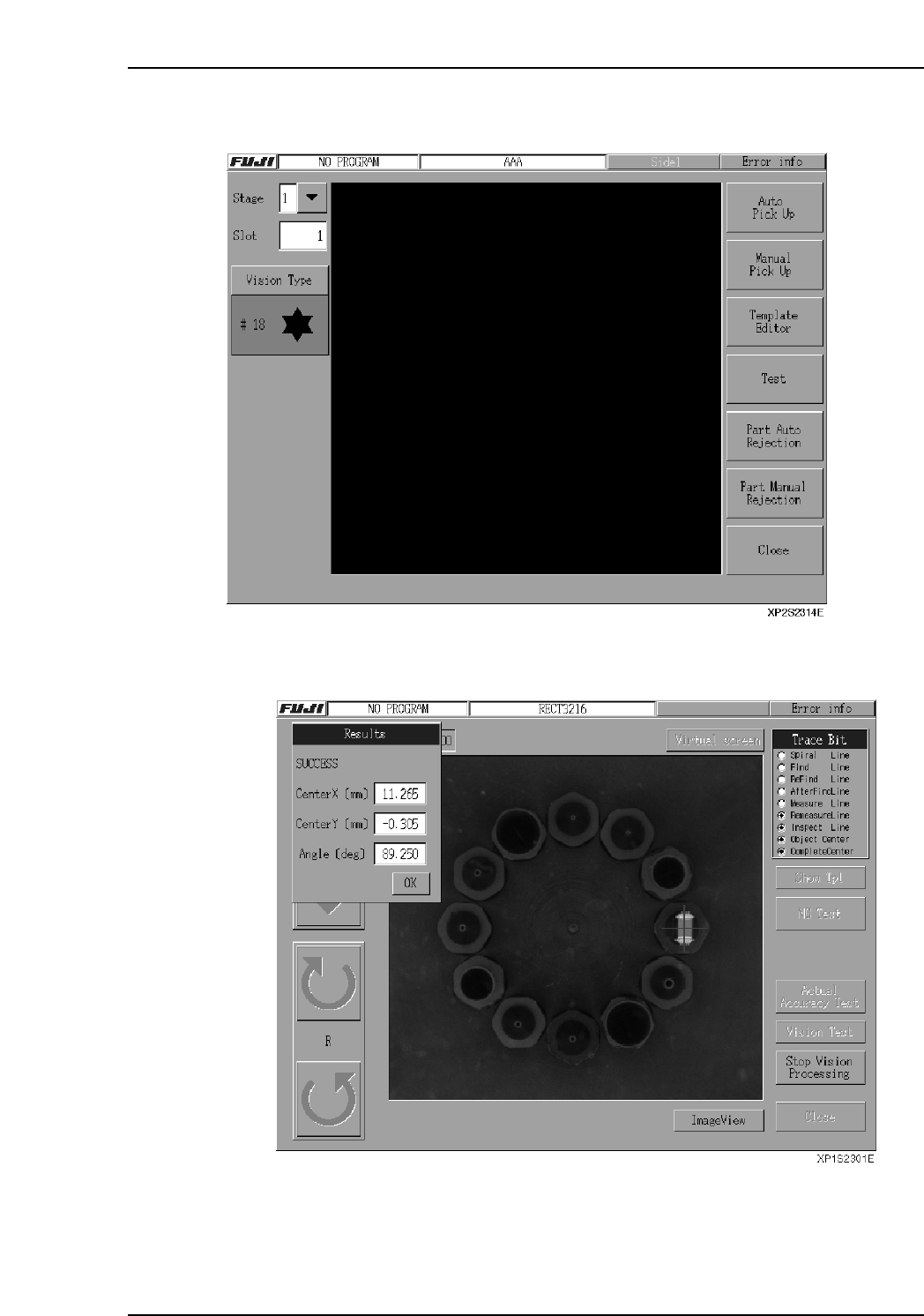
23. Press [Test].
24. When "Vision Processing" is selected, the test occurs, and the results display.
Part 4 Chapter 2 Creating a Template From Existing Part Data
Edition 2.0 4-2-9 XP-142E System Reference

25. The vision processing "Success" or "Fail" result displays in the [Results] dialog box,
together with the part's center coordinates and angle.
The seek line display colors are as follows:
SUCCESS FAIL
Position line Green/red Red/red
Inspection lineGreen Red
26. Press [OK] at the [Results] dialog box, then press [Close] to close the template
vision processing test screen. To discard the part, select [Part Auto Rejection] or
[Part Manual Rejection] button.
Part 4 Chapter 2 Creating a Template From Existing Part Data
Edition 2.0 4-2-10 XP-142E System Reference