KE2010.Instruction Manual.Ver.2.01,Rev.08.pdf - 第104页
3 − 31 3.7 Corrective A ction for A Power Failure W hen the power supply to a KE-2000 m alfunct ions, the power monitor f unction of t he UPS is activated. If any power is not supplied to the machine f or two seconds or …
3 − 30
3.6.10 Saving vision data
This function allows you to save the vision data obtained during production onto a
floppy disk.
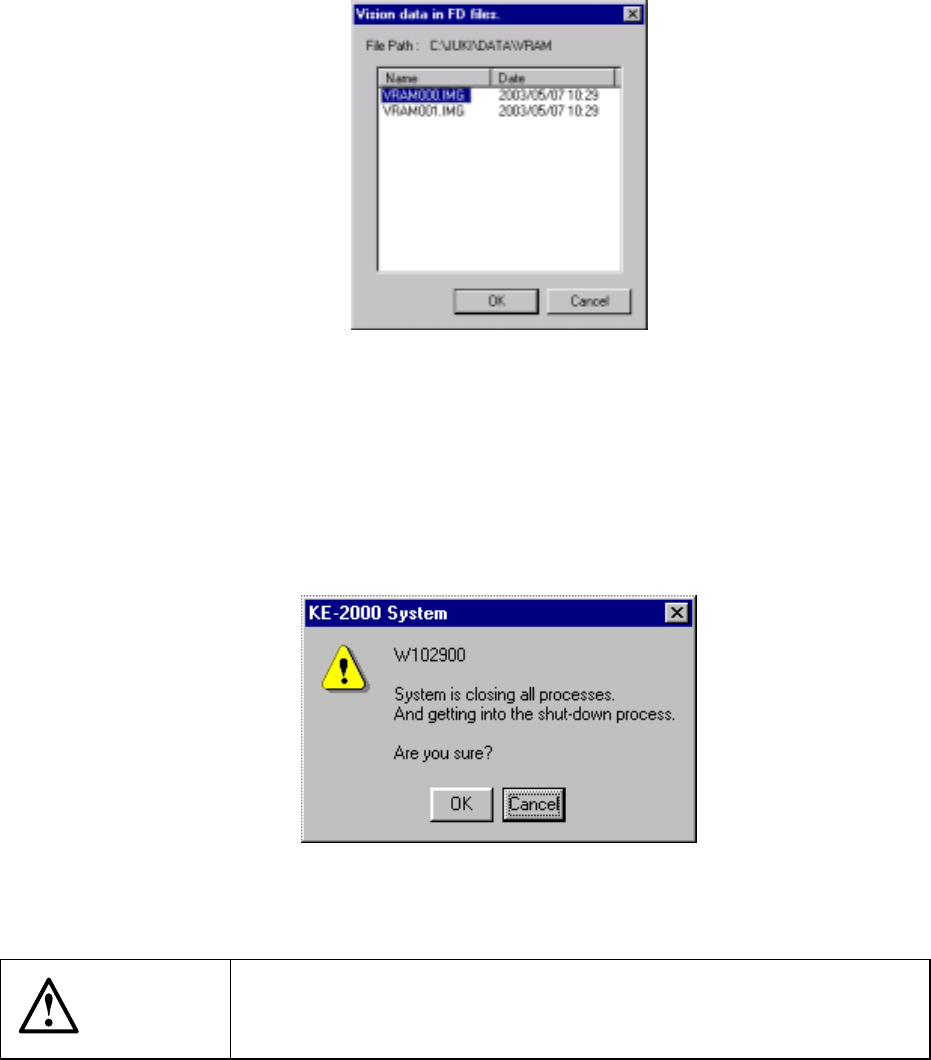
Select a file you want to save onto a floppy disk on the dialog box shown below, and
click the <OK> button. The selected file is saved onto a floppy disk.
Figure 3.6.10 “Vision data in FD files” dialog box
3.6.11 Exit
This command executes the shut-down process to quit the system.
See Section 3.4 “Starting up or Terminating the System” for the procedure for shutting
down the system.
Figure 3.6.11 Shut-down confirmation dialog box
CAUTION
If you turn off the machine without performing the shut-down process,
you may not be able to restart the machine. Be sure to perform the
shut-down process to terminate the system.
3 − 31
3.7 Corrective Action for A Power Failure
When the power supply to a KE-2000 malfunctions, the power monitor function of the
UPS is activated.
If any power is not supplied to the machine for two seconds or longer, or if the system
detects an instantaneous power interruption that has occurred at the VME board, the
system assumes that a power failure has occurred.
If you do not operate the machine for the certain time of period, the machine saves
the production program, production management information, information required to
restart production, and device management information, and perform the shutdown
process.
3.7.1 Process to be performed when a power failure occurs
Step 1. Preparation for the automatic shutdown
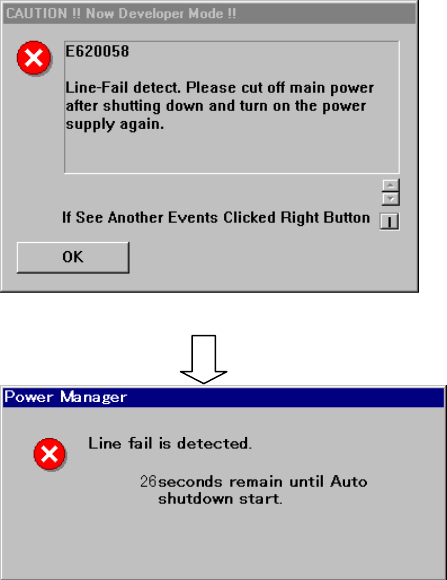
When the machine detects a power failure, the following dialog box appears on the
screen.
Figure 3.7.1.1 Dialog box displayed when the machine detects a power failure (1)
Figure 3.7.1.2 Dialog box displayed when the machine detects a power failure (2)
− If you do not perform any operation when the screen shown in Figure 3.7.1.1
appears, the screen shown in Figure 3.7.1.2 (2) appears. The machine counts
down the remaining time. When the remaining time reaches “0”, the machine
displays the automatic shutdown dialog box (see Figure 3.7.1.4).
OK: clears the error message
displayed on the screen
.
3 − 32
− When you select the <CANCEL> button
− When you click the <CANCEL> button, the machine interrupts the current
operation such as PWB production.
In such a case, the current operation is interrupted for several minutes
(approximately 3 minutes as the factory setting), so manually save data and shut
down the system.
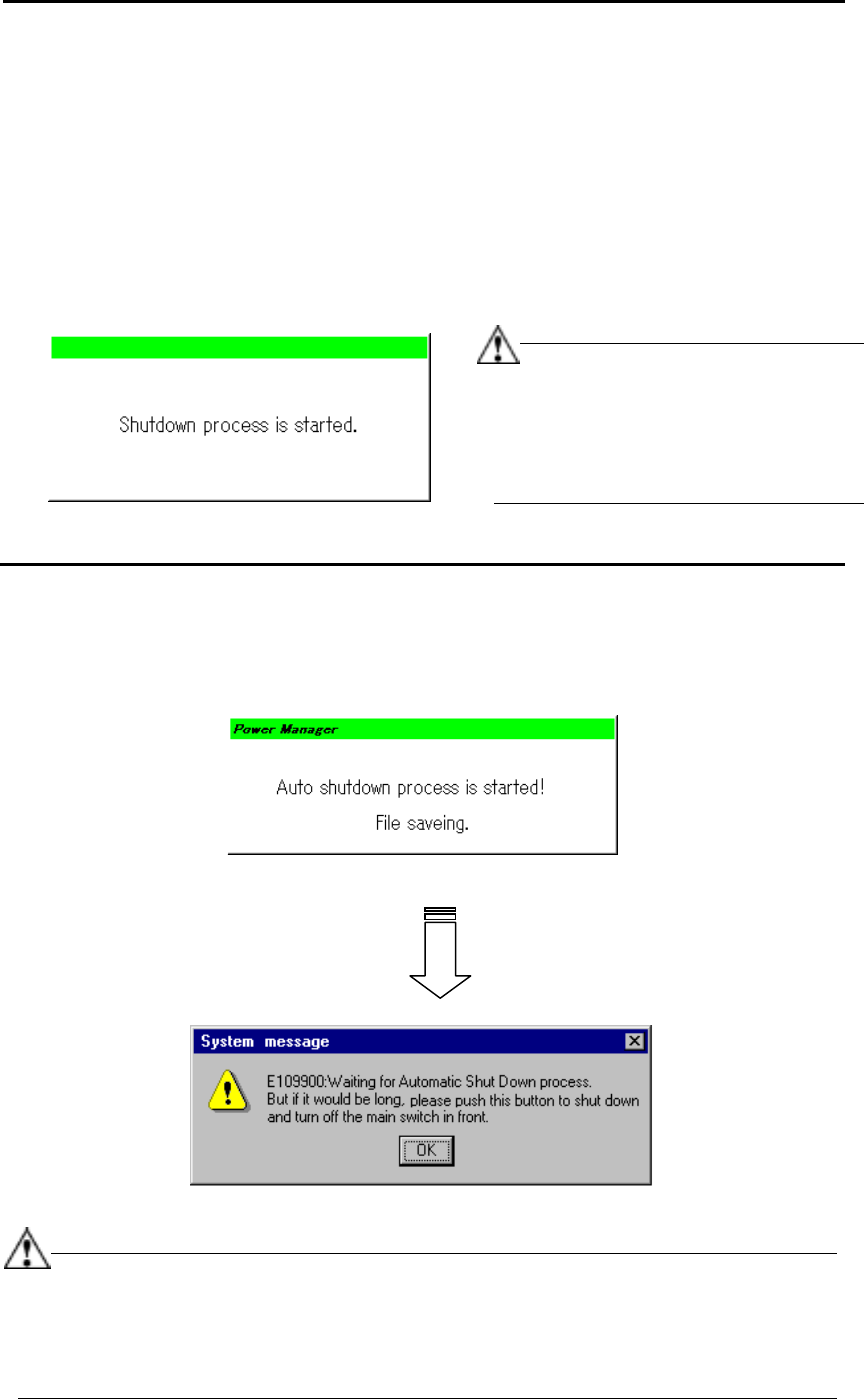
− When you do not start the shutdown process even though the preset time passes,
the machine displays the following dialog box, and then starts the shutdown
process automatically.
Figure 3.7.1.3 Shut down start dialog box
Step 2. Saving a file
After saving the information required to continue the current operation as a temporary
file, quit the application forcibly.
Figure 3.7.1.4 File saving dialog box
(Log off/on → The regulated screen appears.)
Figure 3.7.1.5 System message
−
This file saving operation does not overwrite any user data, but saves data as a
temporary file.
−
When you quit the application forcibly, the system is shut down without displaying
any inquiry message regardless the machine status.
In this case, note that the machine
does not display any message for asking
you whether to save data automatically.
After shut down, the machine operates in
the same manner as when you do not
click the <CANCEL> button.