KE2010.Instruction Manual.Ver.2.01,Rev.08.pdf - 第266页
4 – 159 By clicking <O K> butt on, the opt imum division will continue: Figure 4.10.1. 4 Optimization process display dialog box W hen the Optimization utility finishes successf ully , the O ptimization process dis…
4 – 158
Supplementary Explanation of Terms
The Placement data item for specifying a station and the Pick data items for
specifying a station and component supply position are provided in production
program data to control the optimization output.
Table 4.10.1.4 Supplementary explanation of terms
Terms Explanation
Placement
Data
Auto selection Optimization distributes the placement points to the optimum stations.
Auto selection The item “sply” is set to "AUTO".
The Optimization utility arranges a feeder to the optimal mounting
position of the station.
When the component supply count is set to “automatic,” the number
of feeders is optimized. If it is set to “manual,” the system assigns the
specified number of feeders to components. The item “Supply” is
also set to “automatic selection”, but in this Manual, “Automatic
selection” indicates that a station is automatically selected.
Pick data
Specify supply
position
The item "Sply" of Pick data is not set to "AUTO".
(1) Executing the Optimization Utility
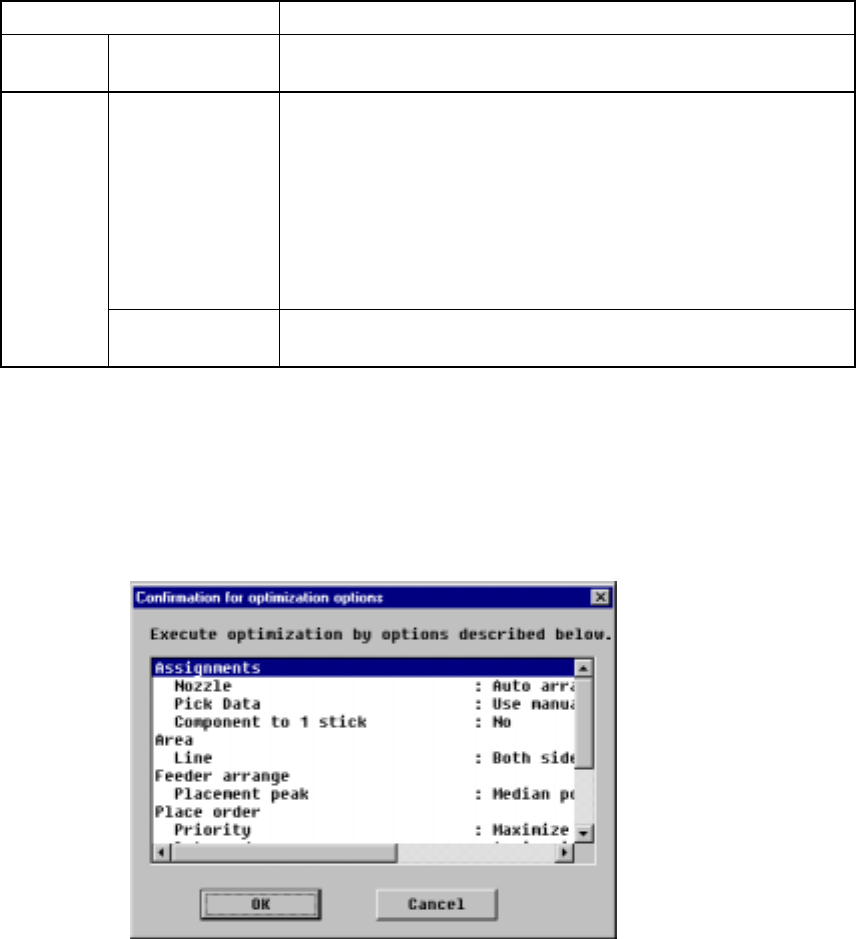
You can start the optimization process by clicking the “Run” button in the
Optimization dialog box. A dialog box displays to show the optimization option
settings:
Figure 4.10.1.3 Confirmation for optimization options
(displayed with the Program Editing or Production Planning utility)
4 – 159
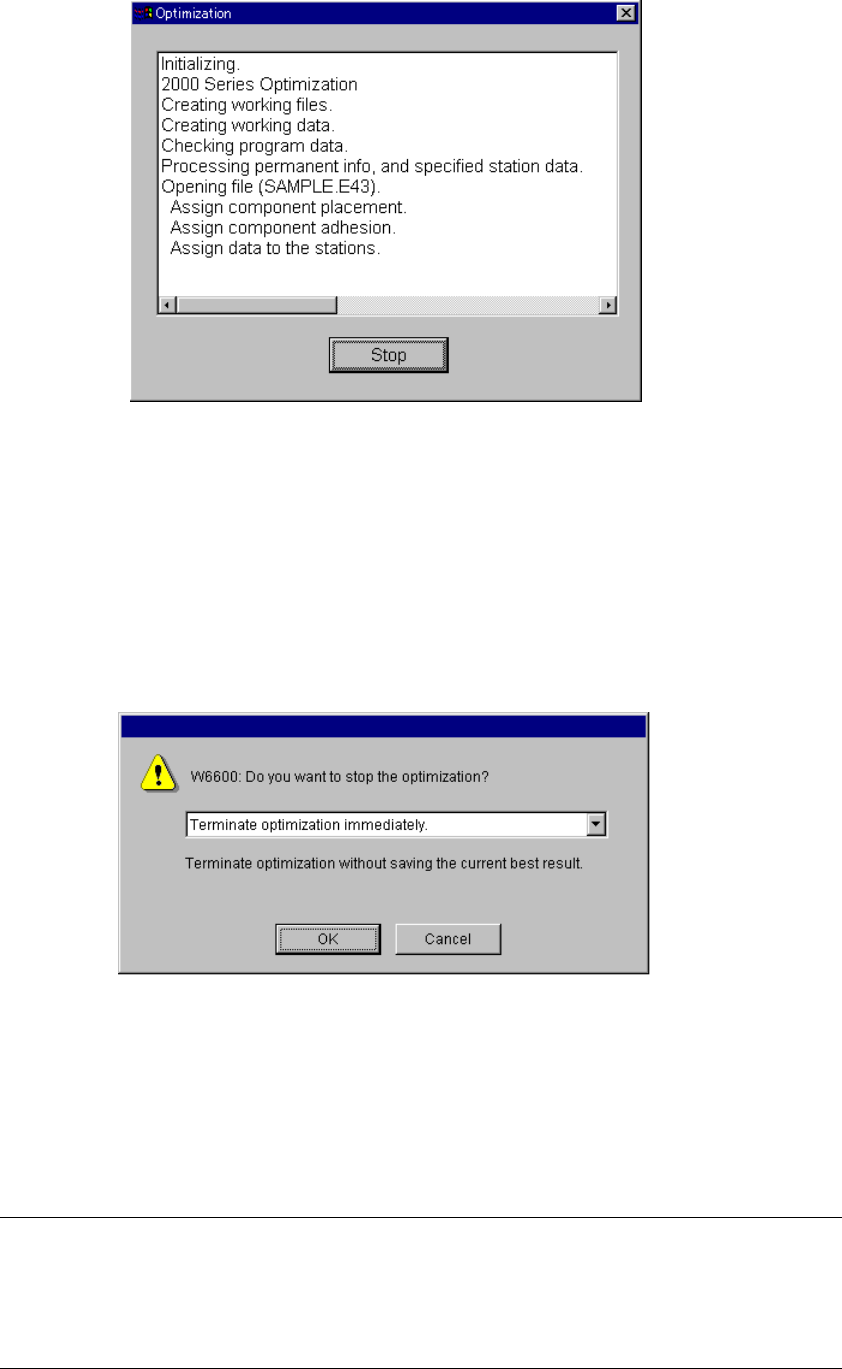
By clicking <OK> button, the optimum division will continue:
Figure 4.10.1.4 Optimization process display dialog box
When the Optimization utility finishes successfully, the Optimization process display
dialog box shown above disappears. If an error occurs, the corresponding error
message appears on the screen.
To abort the executed Optimization utility, click the <Stop> button displayed on the
Optimization process display dialog box.
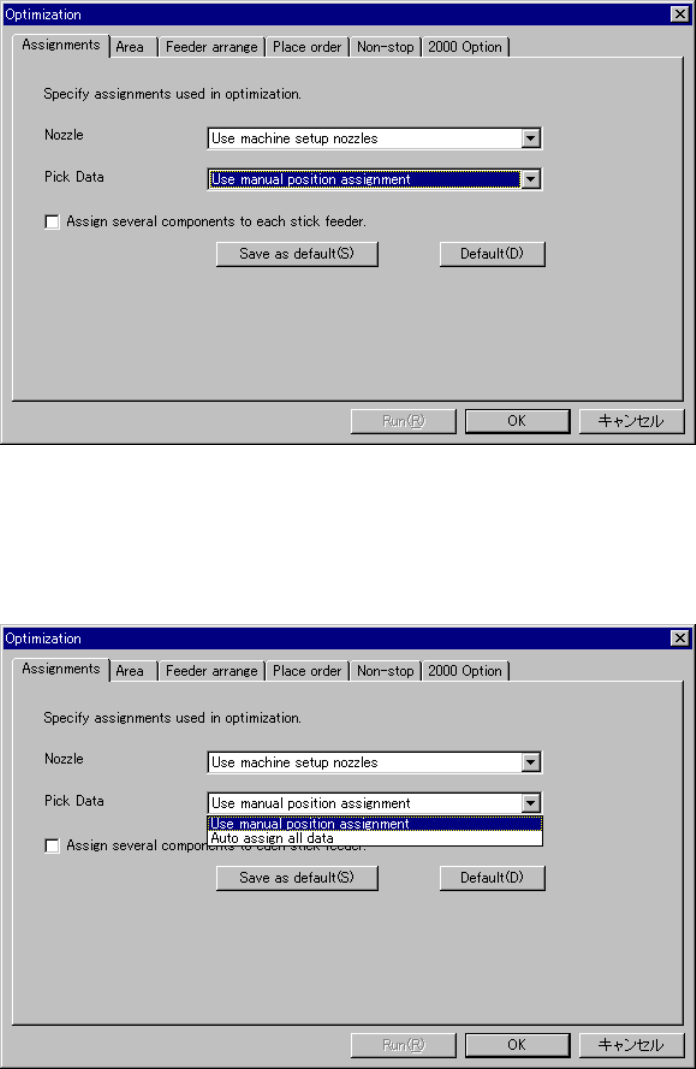
When you click the <Stop> button, the following message displays:
Figure 4.10.1.5 Optimization abort confirmation message
− OK: “Terminate optimization immediately.”
The system stops optimization without saving the result of
optimization operation the system has done.
− Cancel: Re-starts the optimization process
Notes:
①
The <Run> button is enabled when the program data is complete.
Otherwise, it is dimmed in gray.
②
When you click the <Run> button, the consistency check is performed.
When the program data cannot be used for production in the active line,
an error is displayed in the memo.
4 – 160
(2) Assignments Option
When you select the [Optimization] command from the menu or tool bar, the
“Assignments” option tab is pre-selected:
Figure 4.10.1.6 Assignments Option
Click on a drop-down button of the option setting you want to change to display the
available choices:
Select the desired one.
Figure 4.10.1.7 When you click the drop-down arrow button of the “Pick Data” option