KE2010.Instruction Manual.Ver.2.01,Rev.08.pdf - 第88页
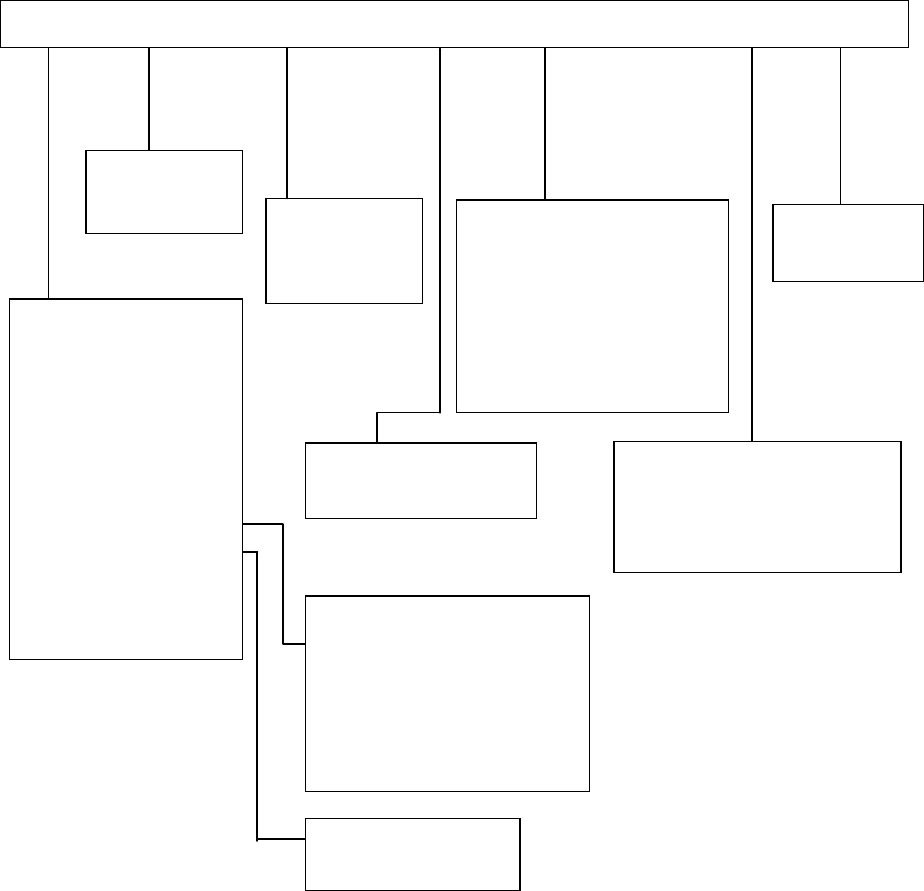
3 − 15 3.5 M enu Organiz ation 3.5.1 Main Menu Pwb Production Tr ial Run Dry Run Warm ing Up Idle m ode Self-Ca libration Machine Management inform ation Mech-Param eter Set ting MS-Param eter Sett ing File [F] Editor [E…
3 − 14
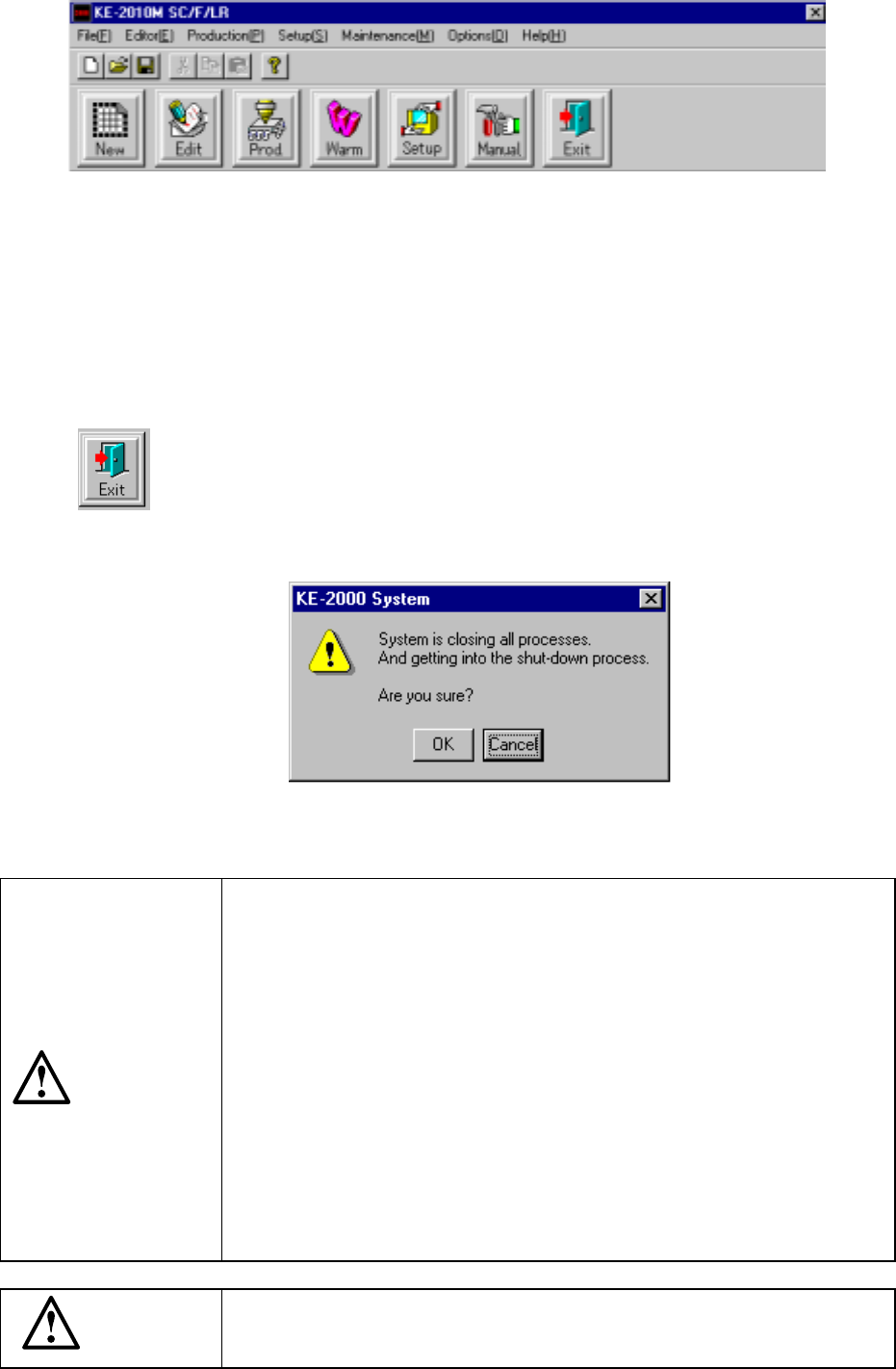
Figure 3.4.4 Main window
To terminate the system, click the <Exit> command button. When you click the <Exit>
button, the confirmation dialog box appears on the screen. When you click the <OK>
button displayed on this dialog box, the shut down process starts, then the system
terminates. If you click the <Cancel> button on this dialog box, the main menu
reappears.
When you click the <Exit> button, the shut-down process confirmation
dialog box opens.
Figure 3.4.5 Shut-down process confirmation dialog box
To turn off the main unit, be sure to click the <Exit> button on the
Main window to shut down the system. Then, turn off the main unit
only after the message “You can turn off the power” appears on the
screen. If you turn off the main unit without shutting down the system
on the Main window, it may damage the system file or hard disk and
you may not be able to start up the system again.
If you cannot click the <Exit> button on the Main window by any
chance, press the <CTL>, <ALT> and <DELETE> keys at the same
time to select the shutdown function. Then, turn off the power after
shutting down the system.
If the combination of the <CTL>, <ALT> and <DELETE> keys cannot
function, press the Emergency Stop button and wait for ten minutes
without performing any operation. Then, turn off the power. In this
case, the shutdown function is not executed, so it cannot prevent the
system from being damaged completely, but it can minimize the
damage of the system.
When you start up the main unit, two consol screens (under DOS) are
started up at the same time. These consol screens are necessary to
control the system. Never close them.
CAUTION
CAUTION
3 − 15
3.5 Menu Organization
3.5.1 Main Menu
Pwb Production
Trial Run
Dry Run
Warming Up
Idle mode
Self-Calibration
Machine Management
information
Mech-Parameter Setting
MS-Parameter Setting
File [F] Editor [E] Production [P] Setup [S] Maintenance [M] Options [O] Help [H]
Machine Set up
Manual Operation
KE-2000 Help
About Programs
Program Editor
Database Editor
Change User Group
User Group Environmental Settings
Option Setting
Environment Setting
Control Data File Storage
Data Manager
New [N] Ctrl + N
Open [O] Ctrl + O
Save [S] Ctrl + S
Save as [A]
File Management [Explorer]
Default Folder
Printer Setup
Print
Control Data Management
Save Machine Data
Save Vision Data
Exit [X]
Production Program List
Retry List
Production Management Data
Machine Management information
Machine Setup Data
Option Setting Data
3 − 16
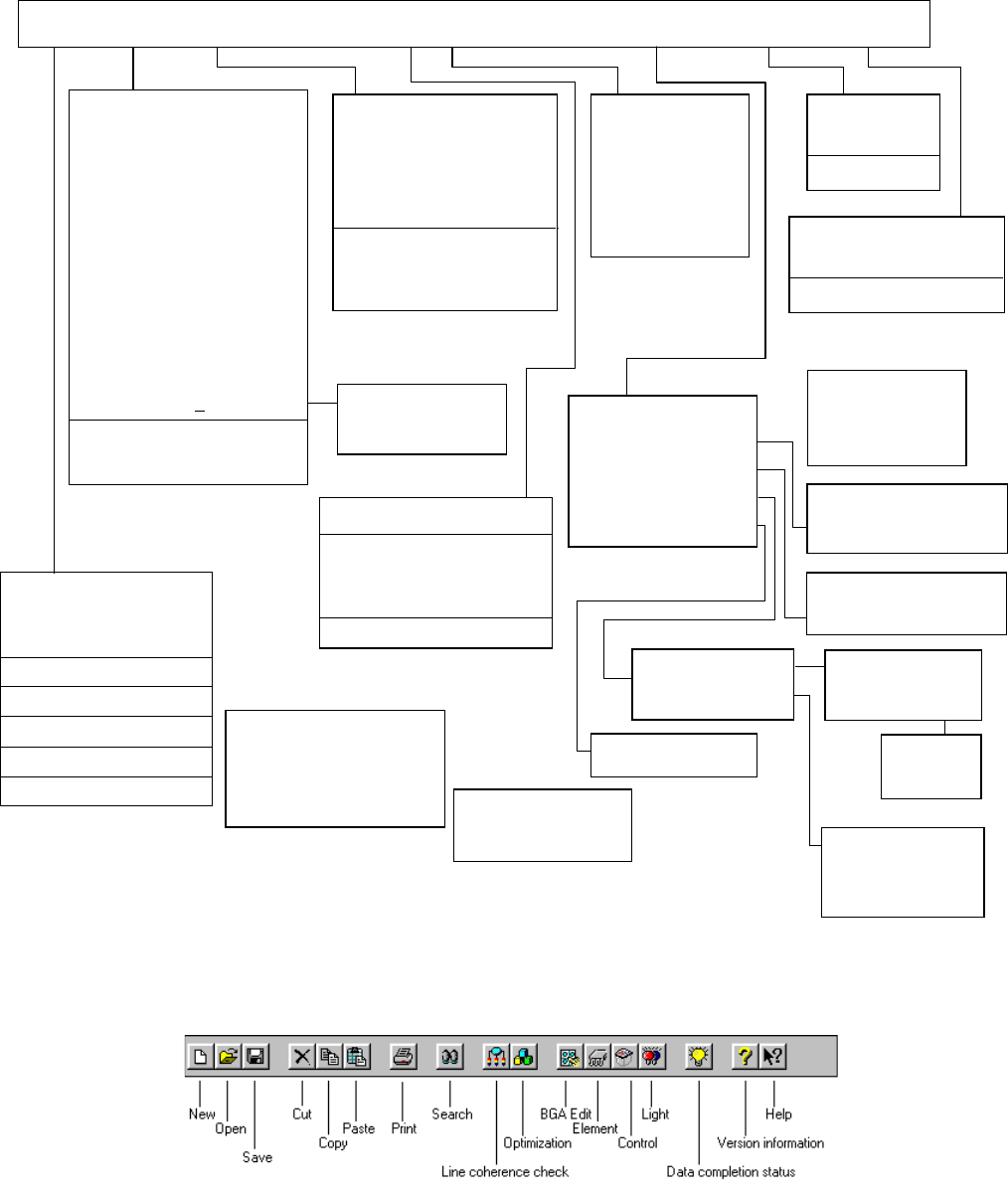
3.5.2 Program editing local menu
This section describes the commands to be used for editing a production program.
Command list
Tool bar
The figure below indicates the contents of the tool bar displayed when you edit a
production program.
PWB data [B]
Placement data [P]
Component data [C]
Pick data [I]
Vision data [V]
Data completion stalus [S]
Station data [E]
Data coherence check [L]
Cut [T] Ctrl + X
Copy [C] Ctrl + C
Paste [P] Ctrl + V
Insert Line [U]
Jump [J] Ctrl + G
Search [S] Ctrl + F
Search the next item [N]F7
Replacement [L]
Cel copy [O] Ctrl +E
Cel Paste [P] Ctrl +R
Sort [R]
Change component Name [H]
Update Layers (Y
) >>
Matrix copy [M]
Vision copy [V]
PWB load [L]
PWB eject [E]
Auto conveyor [A]
Current component [C]
All component [A]
Mark [M] >>
Coordinate
[
C
]
>>
BOC [B]
Feeder Bank [F]
Front [F]
Rear [R]
Place tracking [P]
Pick tracking [I]
Height tracking [H]
Program data [P]
Nozzle Setup [N]
Production information [M]
Optimization [O] >>
Option [O]
Supply quantity [S]
Register [B]
Call list [C]
Re-Search [R]
Command [C]
How to use help [H]
Version information [A]
Transport [T] >>
Measurement [M] >>
Inspection [I] >>
Confirmation [C] >>
Management [A] >>
Optimization [G]
Divided placement Data [P]
Nozzle layout [N]
Component supply count [S]
Status Dis
p
la
y
[
D
]
File [F] Edit [E] Data[C] Optimization [O] Display [V] Machine operation [M] Data Base[D] Help
[H]
Component form
Component list
Feeder layout
Tool bar
Vision Form
Vision List
Mark Database [M]
New [N] Ctrl + N
Open [O] Ctrl + O
Save [S] Ctrl + S
Save as [A]
File Information [I]
Print [P] >>
Environment setting [C]
Exit [E]
Vision recognition [I]
Co
p
lanarit
y
[
C
]
All components
Current component