KE2010.Instruction Manual.Ver.2.01,Rev.08.pdf - 第710页
11 − 1 CHA PTER 11 OPTIONS 11.1 Overv iew The item s to be set as options ar e shown in Table below. Table 11.1.1 Opti ons menu items NO. Option group Description 1 Changing the user group Allows y ou to change the user …
10 − 25
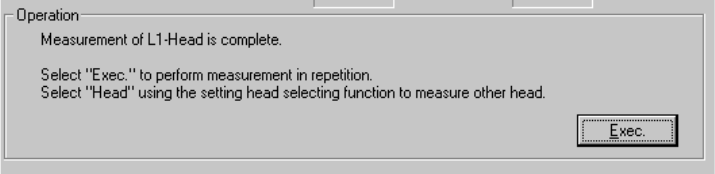
− The machine finished measuring the vacuum condition of the selected head
at this point.
- To repeat measurement, click the <Exec.> button.
- When you click the <Exec.> button, the initial screen reappears.
- To measure another head vacuum condition, select the desired head from
the "Select Head" combo box.
- When you change the selected head, the initial screen reappears.
− To quit the vacuum condition measurement operation, click the <OK> button.
11 − 1
CHAPTER 11 OPTIONS
11.1 Overview
The items to be set as options are shown in Table below.
Table 11.1.1 Options menu items
NO. Option group Description
1
Changing the user
group
Allows you to change the user group.
When you enter the user group, the functions available to
the entered user group are determined.
2
Setting the user
group
Allows you to change each password and set the default
user group.
3 Option Setting Allows you to set operational options.
11.2 Changing the User Group
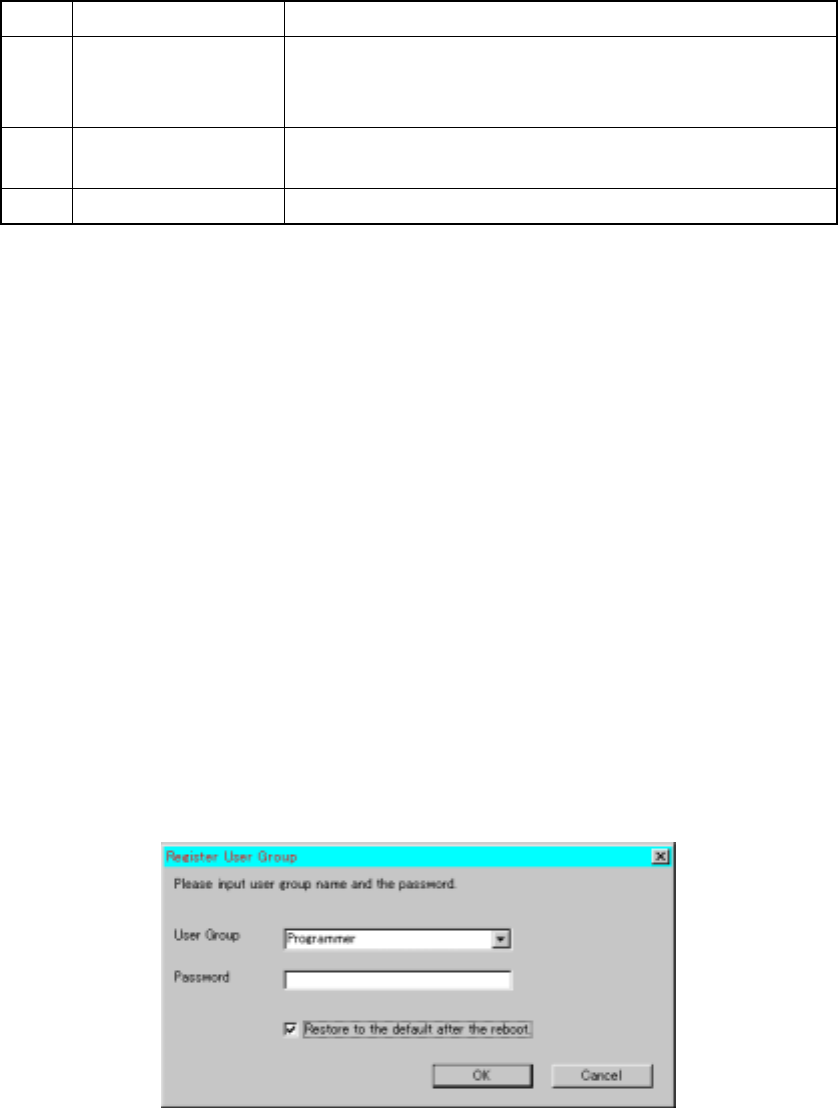
How to change the user group:
Select the [Options] command on the menu bar of the main menu, then the [User
Group Setting] command. Next, enter the user group and password, then click the
<OK> button.
When the check box "Restore to the default after the reboot" is checked at restart of
the system, the user group you set with this command functions until you quit the
system. At restart of the system, the system starts up as the default user.
When unchecked, the user group remains the same even after you restart up the
system.
If the password you entered is wrong, the user group is restored to the default setting.
User Group:
The user group is provided as one method for protecting the machine from
malfunctioning due to wrong operation of the machine, and restricts the available
operations according to an operator's knowledge and operating skill of the machine.
Figure 11.2 "Register User Group" dialog box
When you enter the user group, the available functions (such as menu items and
buttons you can select) are determined.
11 − 2
11.3 Setting the User Group
How to set the user group:
Select the [Options] command on the menu bar of the main menu, then the [Listing
User Group Passwords] command.
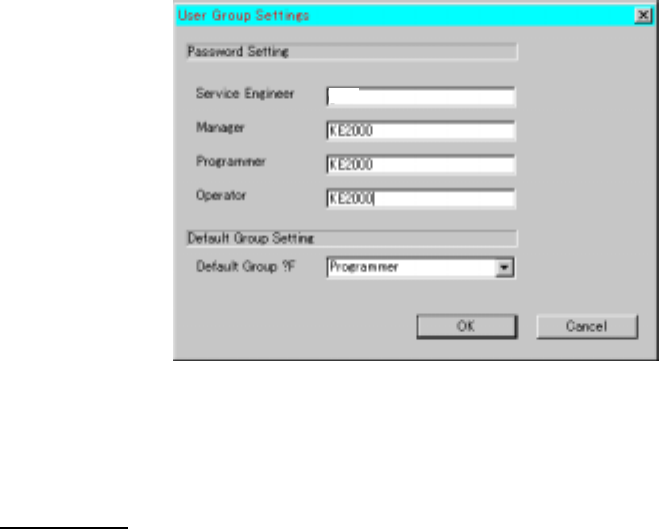
The following dialog box allows you to change each password and set the default user
group.
Note that you cannot see nor change the password(s) of the user group(s) which is
(are) higher than the current user level.
You cannot change the default user group to any user group whose level is higher
than the current user group level either.
Figure 11.3 "User Group Settings" dialog box
All of the passwords for the current user level or lower are displayed in a list.
User level list
Operator: The basic operation for producing PWBs is available.
Production program editing or various setting are not available.
Programmer: Operations such as production, editing of a production program,
and setting of the operation options are available.
Some mechanical operations of the machine are prohibited.
Manager: All operations such as production, editing of a production program,
setting of the operation options, setup for feeder changeover and
manual control are available.
Note that operation such as repairs and re-adjustment of the
machine is prohibited.
Maintenance level: Any features for ordinary operations are available with this level.
Although you cannot repair/adjust the machine, maintenance work
like installation of main unit software are allowed.
Service Engineer: Tasks such as re-adjustment of the machine, change of the setting
required to replace components, repairs of the machine,
replacement of a main component and change of an optional unit
as well as all operations of the machine are available.
This level is provided to limit the operation that may cause extreme
danger without sufficient knowledge of the machine.