KE2010.Instruction Manual.Ver.2.01,Rev.08.pdf - 第581页
7 − 44 7.2.2.14 Si gnal light A screen as shown in Figure 7.2. 2.14.1 “Sig nal light setting dialog box” appears when [Signal light] is selected on the [ Setting Group] m enu. Figure 7.2. 2.14.1 Signal l ight setting di …
7 − 43
7.2.2.13 Vacuum table
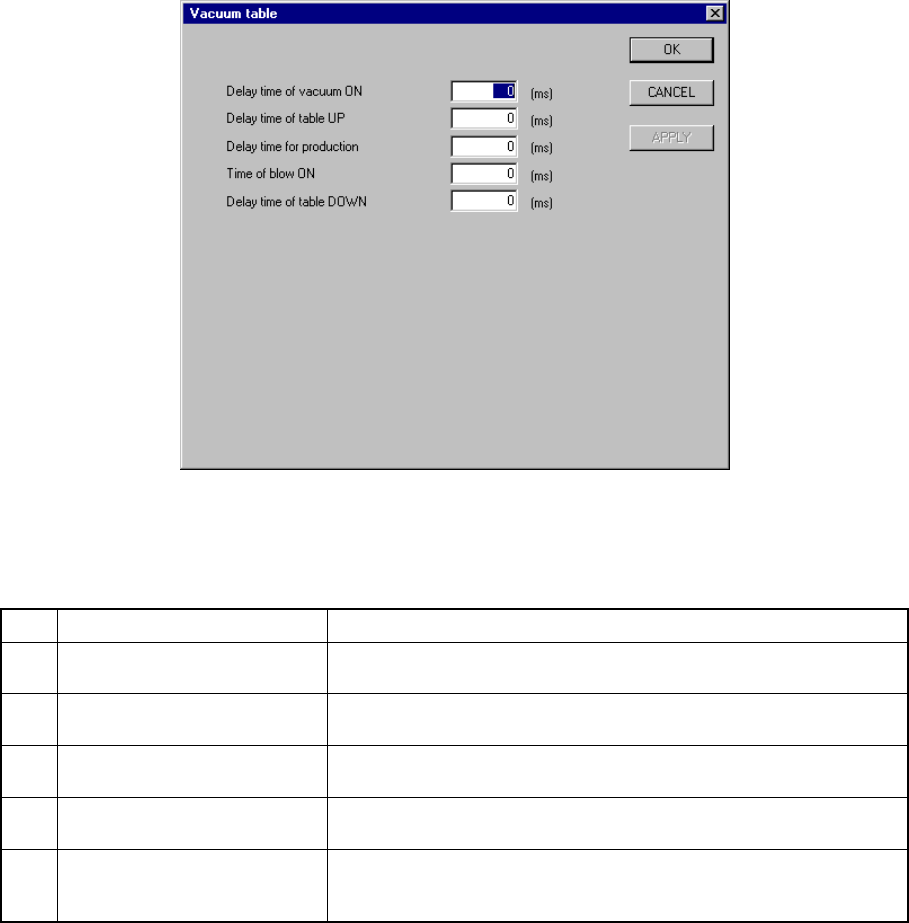
When you select [Vacuum table] from the [Setting Group] menu, the “Vacuum table”
dialog box appears as shown in Figure 7.2.2.13.1.
Figure 7.2.2.13.1 “Vacuum table” dialog box
(1) Setting items
No. Item Description
1 Delay time of vacuum ON Sets the time of period since the STOP sensor is activated until
vacuum is turned on when a board is clamped.
2 Delay time of table UP Sets the time of period since vacuum is turned on until the support
plate starts moving up when a board is clamped.
3 Delay time for production Sets the time of period required to detect the ON status of the vacuum
sensor when a board is clamped.
4 Time of blow ON Sets the time of period while the blow function is set to ON when the
clamped board is released.
5 Delay time of table DOWN Sets the time of period since the system detects the vacuum sensor
OFF status until the support plate starts moving down when the
clamped board is released.
(2) How to set
− Enter a value directly form a keyboard.
− The input range is from 0 to 1000.
− The unit is fixed to “ms”.
− The defaults of all the items are “0 ms”.
− When the “Vacuum table” is set to “disable” on the “Option Device enable”
tab, these menu items are dimmed.
7 − 44
7.2.2.14 Signal light
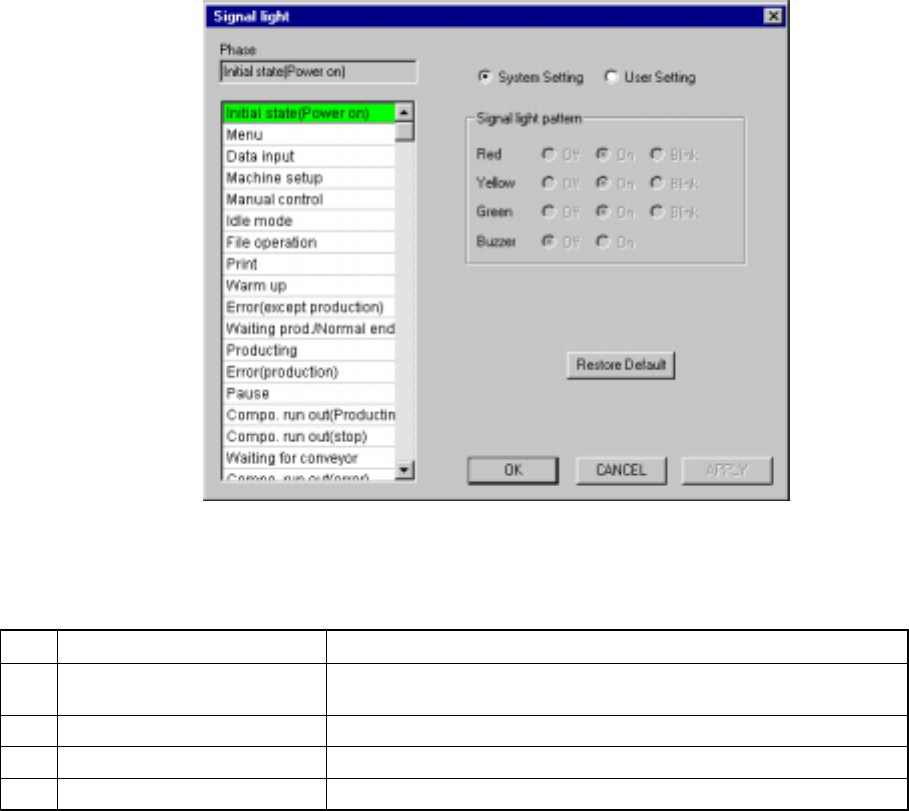
A screen as shown in Figure 7.2.2.14.1 “Signal light setting dialog box” appears
when [Signal light] is selected on the [Setting Group] menu.
Figure 7.2.2.14.1 Signal light setting dialog box
(1) Setting items
No. Item Description
1 Signal light pattern
(Red, Yellow, Green)
Sets the light pattern of the signal light in each operation phase.
2 Signal light pattern (Buzzer) Sets ON/OFF of the buzzer in each operation phase.
3 System setting/User setting Sets the data used for a user signal pattern.
4 System Default Copies the system setting data to the user setting data.
(2) How to set
① Signal light (Red, Yellow, Green)
− Using the radio button, set on, off, or blink.
② Buzzer
− Using the radio button, set off or on.
③ System Setting/User Setting
− Select the data to be used with either of these radio buttons.
− Selection of the “System Setting” radio button allows you to see the
settings of the system initial values only. You cannot change them.
7 − 45
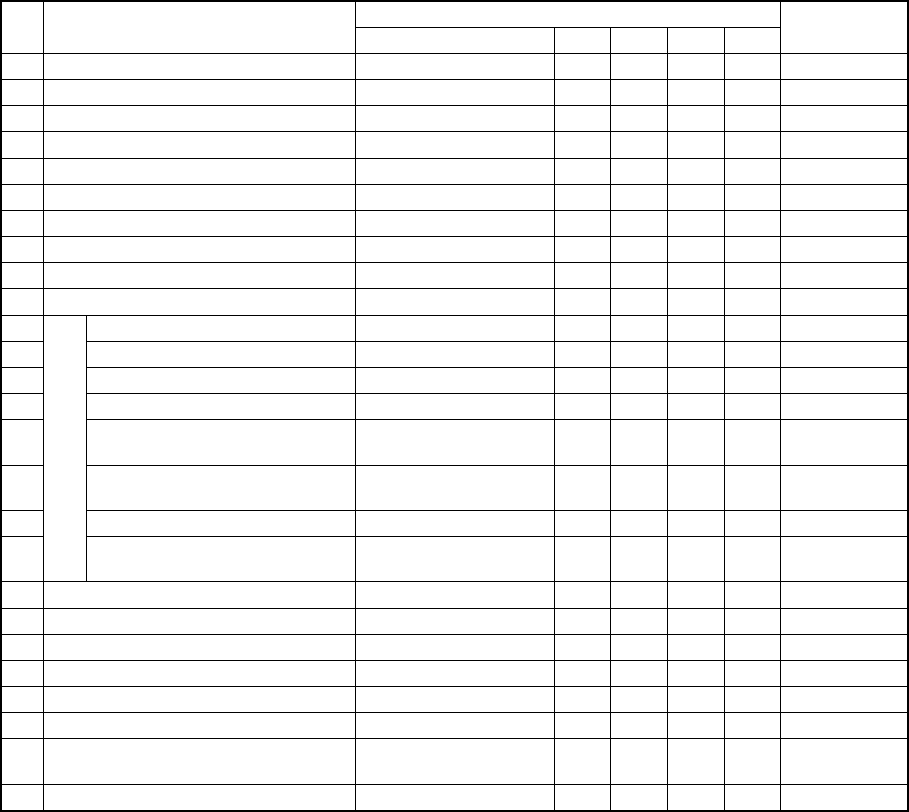
(3) Default values
Signal light pattern
No. Phase
Red Yellow Green Buzzer
Remarks
1 Initial state (Power on) All colors of lamps light.
■
■
■
OFF
2 Menu The yellow lamp lights.
―
■
―
OFF
3 Data input The yellow lamp lights.
―
■
―
OFF
4 Machine setup The yellow lamp lights.
―
■
―
OFF
5 Manual control The yellow lamp lights.
―
■
―
OFF
6 Idle mode The yellow lamp lights.
―
■
―
OFF
7 File operation The yellow lamp lights.
―
■
―
OFF
8 Print The yellow lamp lights.
―
■
―
OFF
9 Warm up The yellow lamp lights.
―
■
―
OFF
10 Error (except production) The red lamp lights.
■
―
―
OFF
11 Waiting prod/Normal end All colors of lamps light.
■
■
■
OFF
12 Producing The green lamp lights.
―
―
■
OFF
13 Error (production) The red lamp lights.
■
―
―
OFF
14 Pause The yellow lamp lights.
―
■
―
OFF
15 Compo. run out (producing) The green lamp lights and
yellow lamp flashes.
―
□
■
OFF
16 Compo. run out (stop) The red lamp lights and
yellow lamp flashes.
■
□
―
OFF
17 Waiting for conveyor The green lamp flashes.
―
―
□
OFF
18
Production
Compo. run out (error) The red lamp lights and
yellow lamp flashes.
■
□
―
OFF
19 Emergency stop The red lamp lights.
■
―
―
OFF
20 Returning to the origin (home position) The yellow lamp lights.
―
■
―
OFF
21 Self diagnostics The yellow lamp lights.
―
■
―
OFF
22 Trouble analysis The yellow lamp lights.
―
■
―
OFF
23 Self calibration The yellow lamp lights.
―
■
―
OFF
24 Settings changing The yellow lamp lights.
―
■
―
OFF
25 Producing at one station and waiting a
board to be transported at another station
The green lamp flashes.
―
―
□
OFF For a KE-2030
26 Others All colors of lamps light.
■
■
■
OFF
■
: ON
□
: Flashes
―
: OFF
* The initial status of the machine means the duration before it is set ready to be
operated after power is turned on. The desktop is the initial display of the
screen after the machine quits the initial status.
(4) Signal Light Buzzer
A signal light buzzer is optional, so be sure to set the Buzzer radio button of the
signal light pattern to OFF when you use a signal light not equipped with a
buzzer.
The buzzer sounds when the machine enters each status described in Table
above only if the Buzzer radio button of the signal light pattern is set to ON. To
stop the buzzer, press any key on the front panel such as the <START> key
and <STOP> key. In this case, the key you pressed just stops the buzzer, and
does not perform its own function.