KE2010.Instruction Manual.Ver.2.01,Rev.08.pdf - 第343页
4 – 236 4.12.4.6 Overview of obtaini ng the coplanari ty parameters The operat ion flow for obtaining t he coplanarity paramet ers is shown below . Figure 4.12.4.4 O peration flow for obtaining the coplanarity parameters…
4 – 235
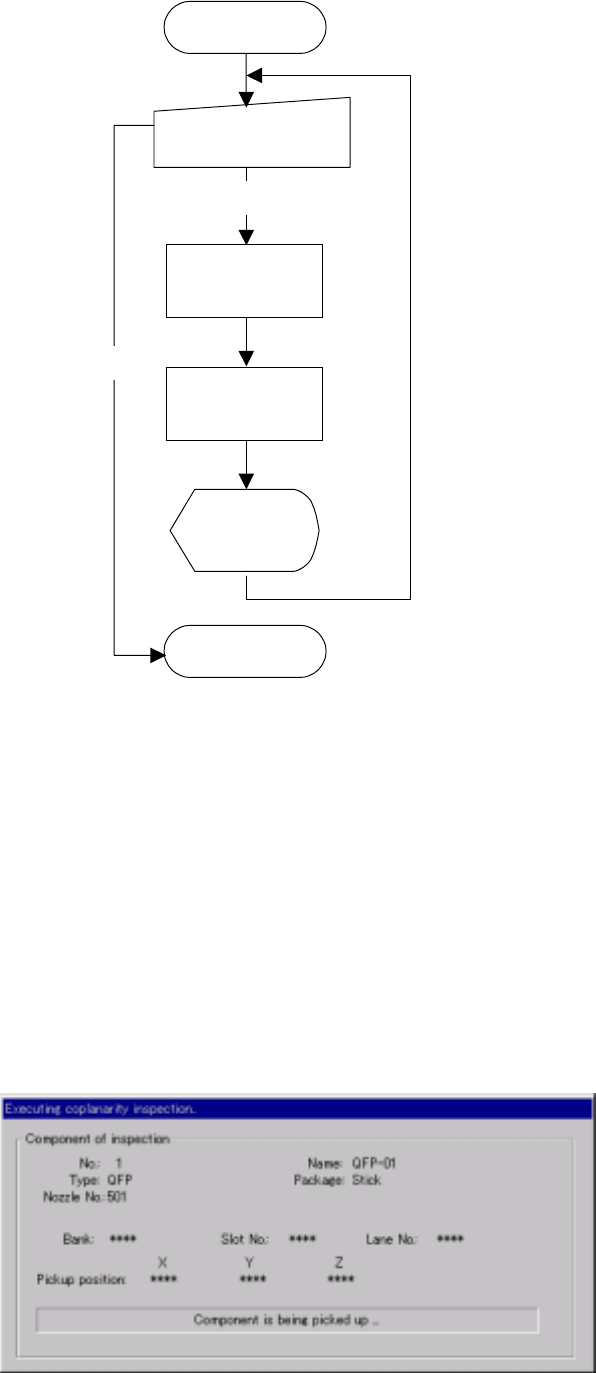
Figure 4.12.4.2 Operation flow for performing a coplanarity check
4.12.4.4 Methods for checking coplanarity
The system exercises a series of controls over the vision centering function, and
then coplanarity check according to the settings of Component data, and checks to
see if no error occurs.
4.12.4.5 “Executing coplanarity inspection” dialog box
When you click the <INSP> button on the “Coplanarity inspection” dialog box, the
system executes a coplanarity check function, and the following dialog box appears
while the system is executing a coplanarity check function.
Figure 4.12.4.3 “Executing coplanarity inspection” dialog box
Execution of check
(on the dialog box)
Check
Check with vision
reco
g
nition
Display of the
result (on the
dialo
g
box
)
Start of
coplanarity check
Coplanarity check
End of
coplanarity check
End
4 – 236
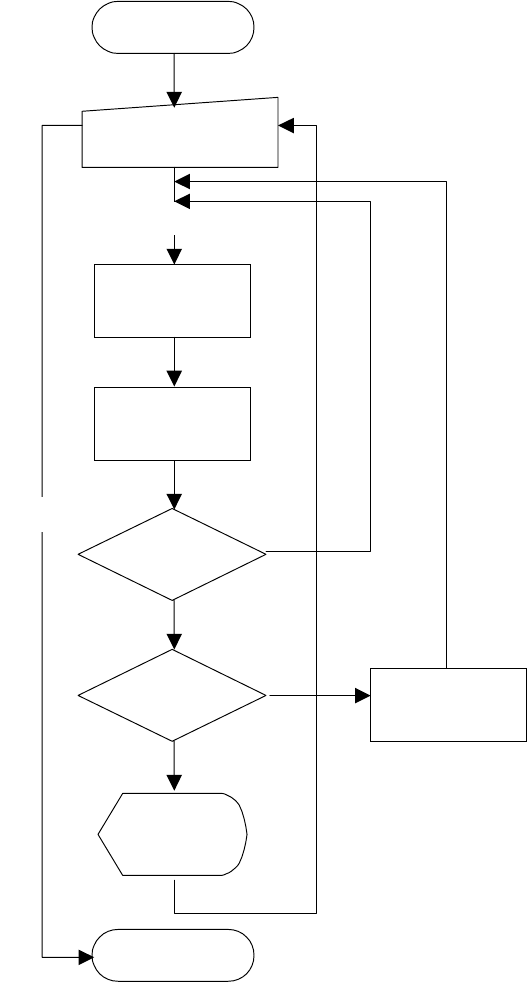
4.12.4.6 Overview of obtaining the coplanarity parameters
The operation flow for obtaining the coplanarity parameters is shown below.
Figure 4.12.4.4 Operation flow for obtaining the coplanarity parameters
4.12.4.7 Methods for obtaining the coplanarity parameters
If the system cannot perform a coplanarity check stably, change the threshold value
of the electrode brightness and the scanning position offset value (applicable for a
lead component only) to obtain the parameters that stabilizes measurement
operation. How any times the system measures a component becomes a multiple
of a value you entered in the “Number of times” field, and may become up to 20
times of the value you entered.
Execution of check
(on the dialog box)
Check
Check with vision
reco
g
nition
Display of the
result (on the
dialo
g
box
)
Start of obtaining
the parameters
Coplanarity check
End of obtaining
the parameters
End
Performed the
check the number
of times you set?
Judge
Change of the
parameter
4 – 237
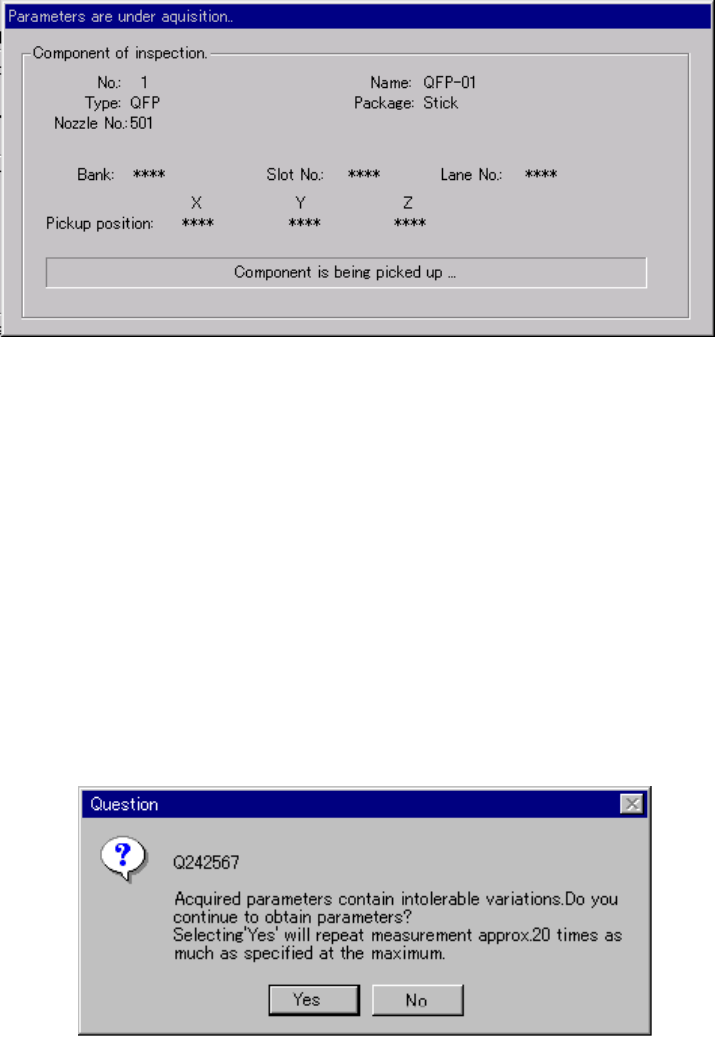
4.12.4.8 “Parameters are under acquisition…” dialog box
When you click the <Acquire> button on the “Coplanarity inspection” dialog box, the
system obtains the coplanarity parameters, and displays the following dialog box
while the system is obtaining the parameters.
Figure 4.12.4.5 “Parameters are under acquisition…” dialog box
4.12.4.9 Confirmation dialog box for continuing to obtain the parameters
If there is any unstable element (deviation) among the measured coplanarity
parameters, the machine displays the following dialog box even though any
measurement error does not occur.
When you click the <Yes> button, the machine starts obtaining the coplanarity
parameters again. In this case, it repeats this operation up to the number of times
calculated by multiplying the value you set by 20. When you click the <No> button,
the machine uses the current coplanarity parameters.
Figure 4.12.4.6 Confirmation dialog box for continuing to obtain the parameters