KE2010.Instruction Manual.Ver.2.01,Rev.08.pdf - 第688页
10 − 4 − How to operate W hen you follow the instruct ions displayed on the dialog box, the appropr iate values are automatically obtained. Click the < Exec.> button. W hen y ou click t he <Exec.> button, the…
10 − 3
10.2 XY Axis Correction Coefficients
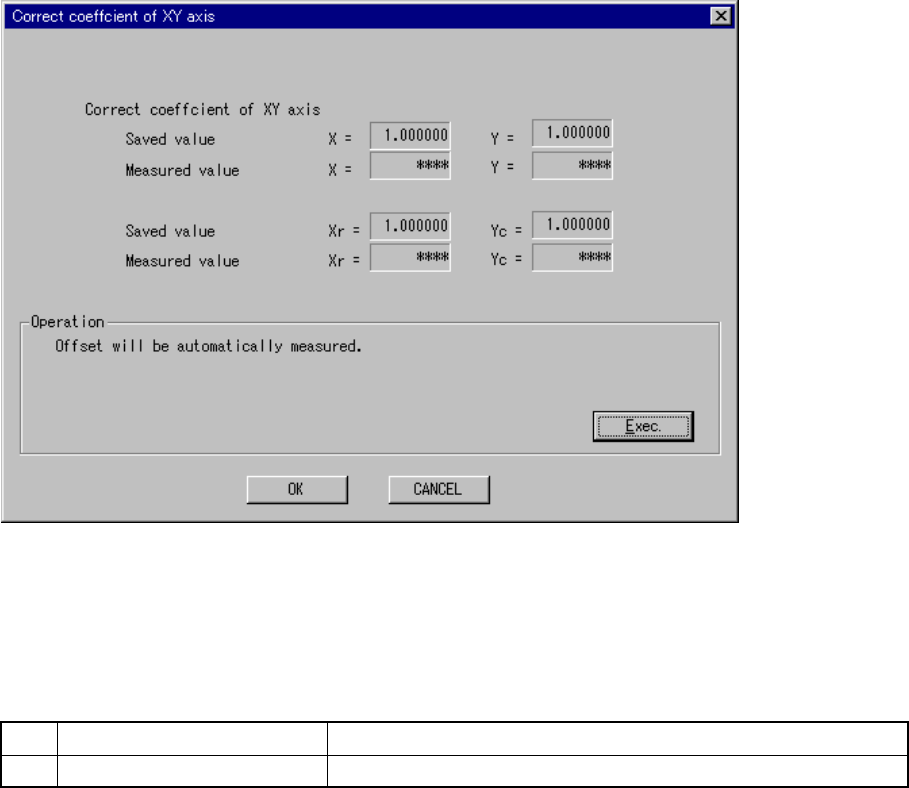
When you select the [Set-up group] on the menu bar, then the [Correct coefficient of
XY axis] on the displayed menu, the following ”Correct coefficient of XY axis” dialog
box appears.
Figure 10.2.1 “Correct coefficient of XY axis” dialog box
(Screen example when a KE-2030 is used)
(1) Setting items
No. Item Description
1 Correct coefficient of XY axis Sets the XY stop accuracy correction parameter
(2) How to set
− Set each parameter with following the instructions displayed on the dialog box
above.
− When you click the <OK> button, your settings become valid (but, are not
saved at this point).
− When you click the <CANCEL> button, your settings become invalid.
(Corrective coefficient
already set)
(Corrective coefficient
measured)
* Displayed with a
KE-2030 only.
(Xr, Yc)
10 − 4
− How to operate
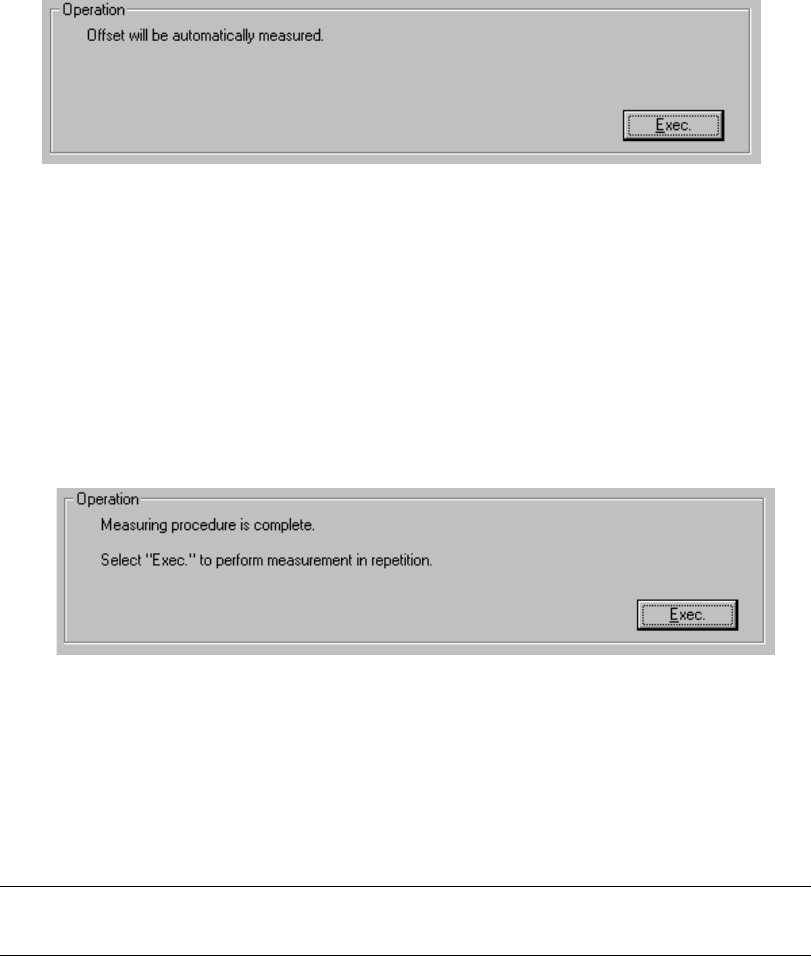
When you follow the instructions displayed on the dialog box, the appropriate
values are automatically obtained.
Click the <Exec.> button.
When you click the <Exec.> button, the XY axes stop accuracy correction
parameters are automatically obtained.
− Measurement
① The machine obtains the temperature of the XY axes base frame, then
calculates the correction parameters.
When calculation is done, the message above appears on the screen.
To repeat this calculation, click the <Exec.> button.
When you click the <Exec.> button, the previous screen reappears.
To exit from this dialog box, click the <OK> button.
Note: If you change the XY axes stop accuracy correction parameters, you have
to zero the XY axes.
10 − 5
10.3 Laser Sensor Height
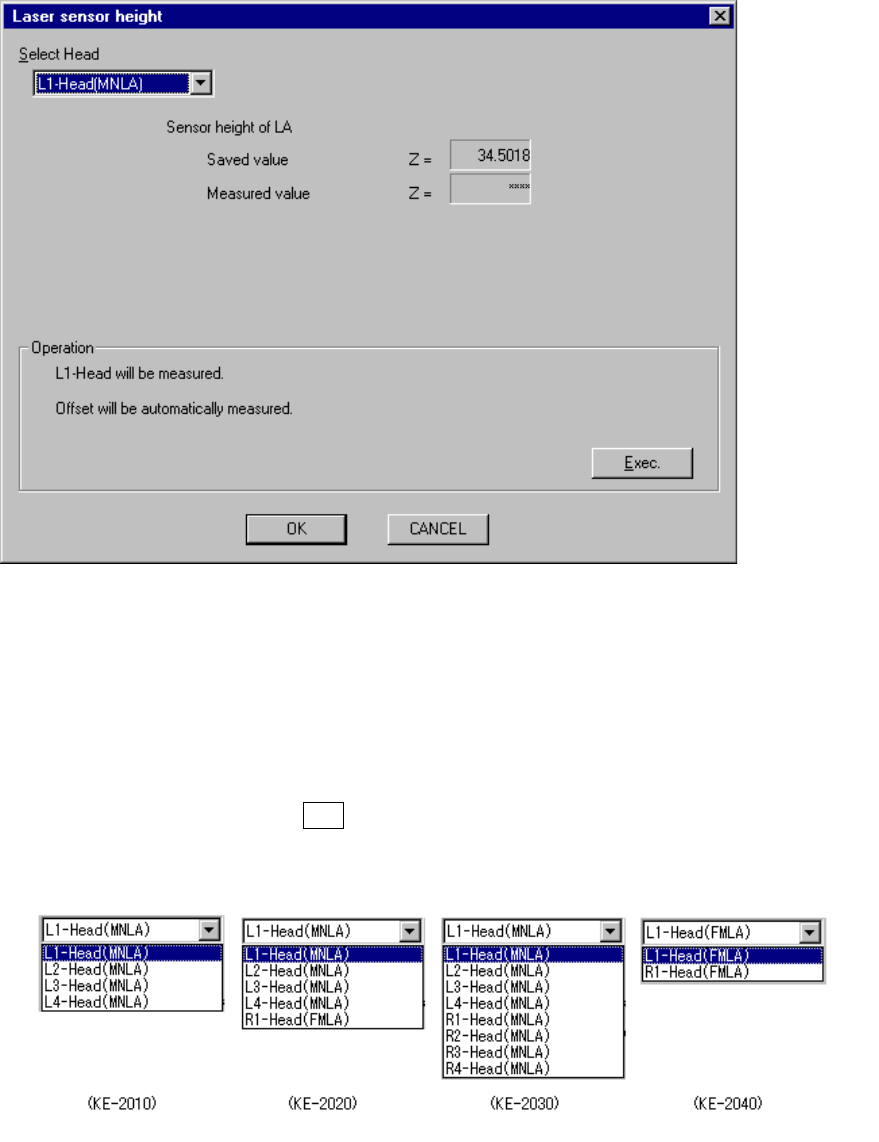
When you select the [Set-up group] command on the menu bar, then select the
[Laser sensor height] command on the displayed menu, the following “Laser sensor
height” dialog box appears on the screen.
Figure 10.3.1 “Laser sensor height” screen
− Select Head
Using this combo box, select the head to be set.
The units which are not checked on the “Device enable” menu invoked from the
Machine Setup menu (that is, checked as “Not used”) cannot be selected
When you press the ALT key and the down arrow key at the same time, the
following list appears on the screen.
(When the left 1
head is selected)
(Height already set)
(Height measured)