KE2010.Instruction Manual.Ver.2.01,Rev.08.pdf - 第327页
4 – 220 Figure 4.12.3. 3.4 “Coordinate T eaching” dialog box Step 3) T o enable the validated coordinates, click the <Set > button or press the ENTER key again. T o reset the validated coordinat es to their or igin…
4 – 219
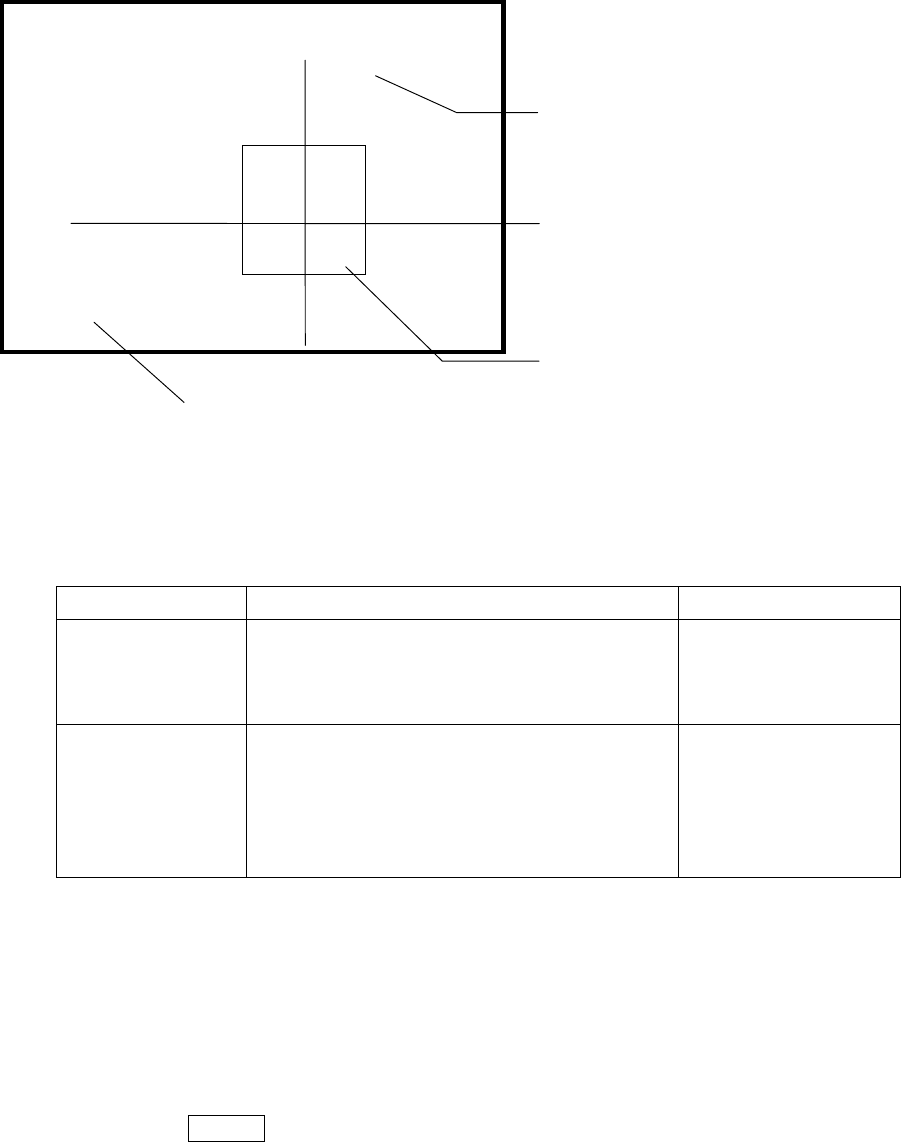
(5) Monitor display
During tracking, the following information on each component placement position
is displayed on the monitor.
Display of the center and four corners of a component varies depending on the
component size.
Component size Four corners of a component Center of a component
Component whose
shorter side is 4.5
mm or less
The window frame displayed on the monitor
indicates four corners of a component. A
placement point whose angle was set is displayed
by rotating the window frame itself.
Center of the point at
which lines are crossed.
Other components
(large components)
The camera moves to each set of coordinates of
four corners: [TOP-L], [TOP-R], [BTM-R] and
[BTM-L] in this order. For a component
placement point whose angle was set, the camera
moves to the coordinates obtained by rotating four
corners.
After the camera moves
to all of four corners,
[CENTER] is displayed
on the monitor. The
camera moves to the
center of a component.
(6) Teaching coordinates during tracking
If the tracked coordinates are different from the actual ones, you can use the
HOD to teach the component placement point.
Step 1) Move the cursor to the X or Y coordinate.
Step 2) Press the HOD device button to teach the coordinates, then press the
ENTER key to validate them.
Indicates the coordinates viewed from the home position.
------- PLACE XY TRACE -------
Station:L R [ CENTER ]
Cur.No:
Pla.No :
Compo:
Angle :
Pos X : Y:
[CENTER]
indicates the center of a component.
[TOP-L] [TOP-R] [BTM-L] [BTM-R]
indicate four corners of a component
respectively: left on the top side, right on the
top side, left on the bottom side and right on
the bottom side.
Indicates the center or four corners of a component.
4 – 220
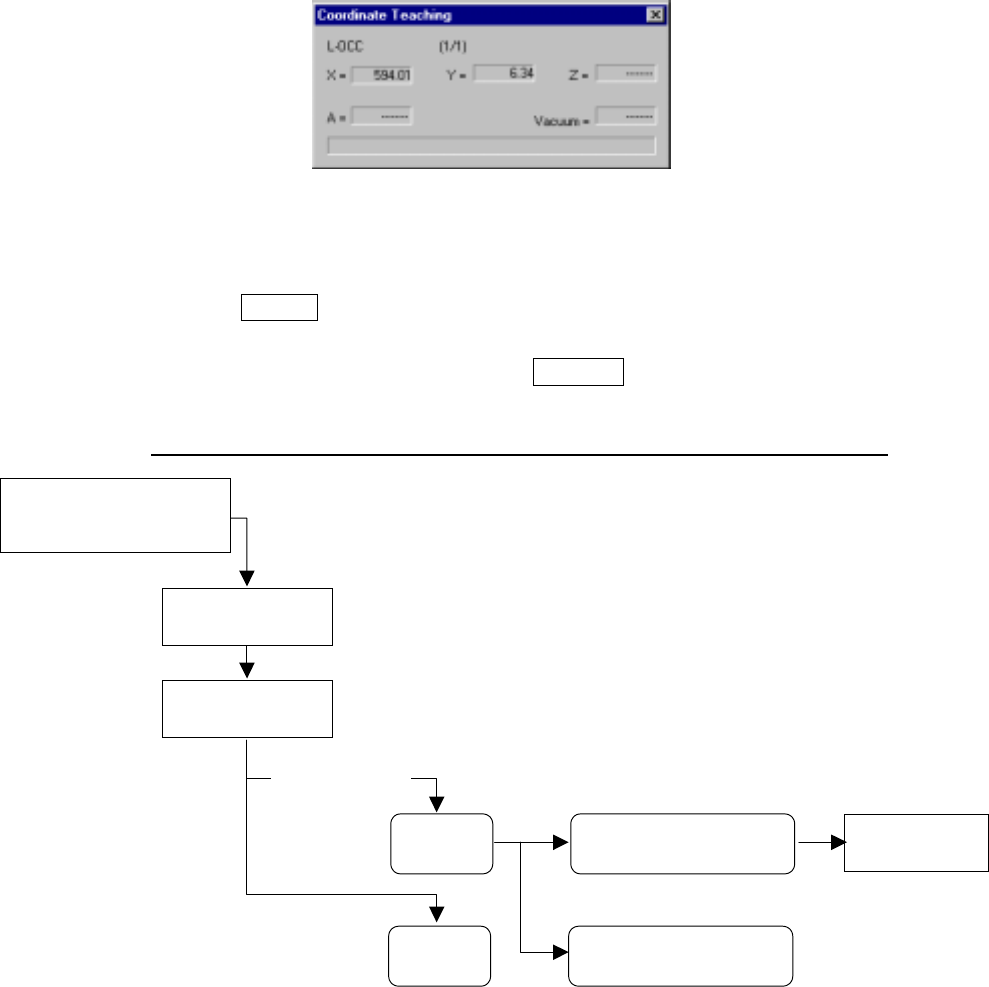
Figure 4.12.3.3.4 “Coordinate Teaching” dialog box
Step 3) To enable the validated coordinates, click the <Set> button or press the
ENTER key again.
To reset the validated coordinates to their original values, click the
<Cancel> button or press the CANCEL key.
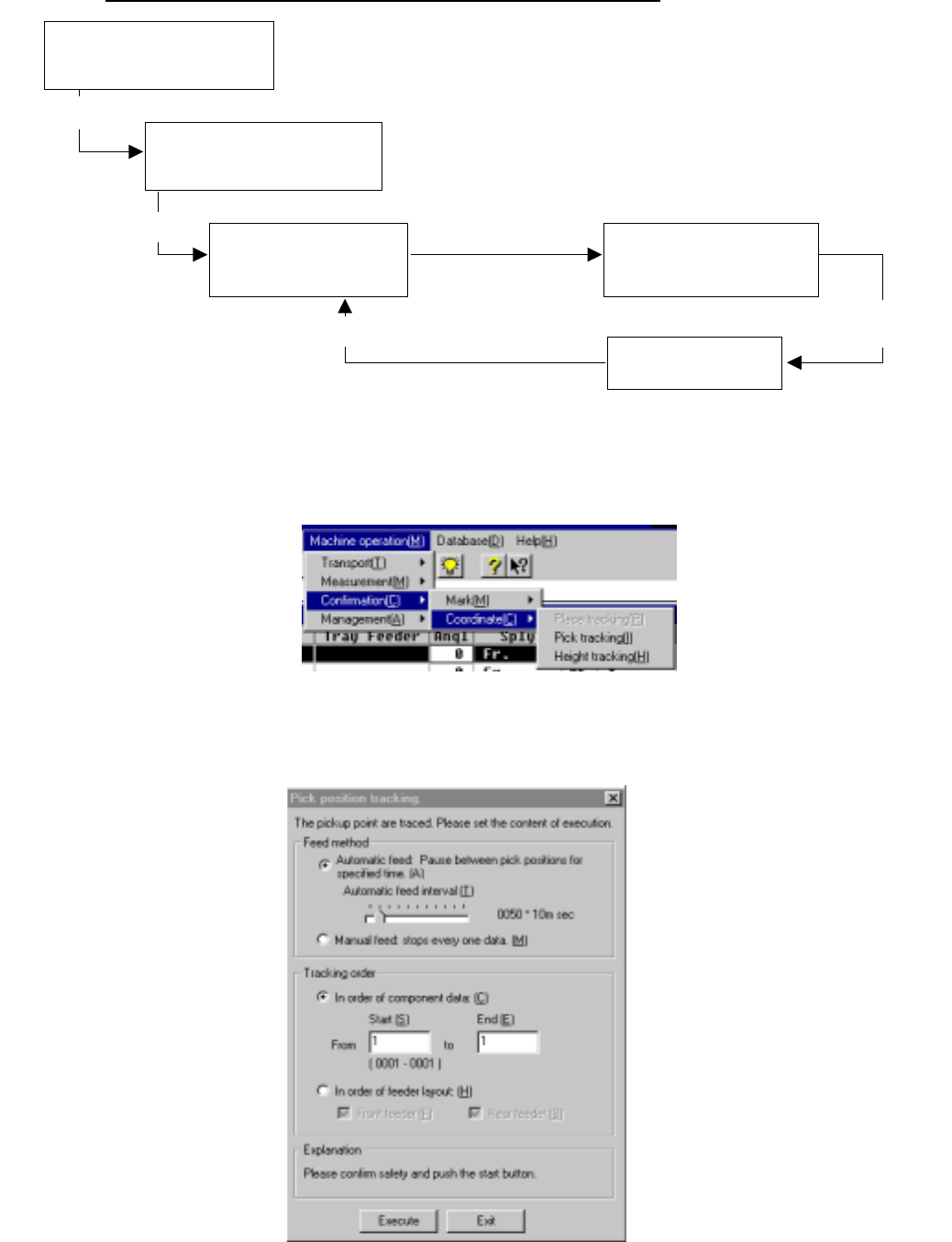
Operation flow for teaching during tracking of a component placement point
4.12.3.4 Pick tracking/Height tracking
These commands allow the camera to track the component pick-up point. You can
see the component pick-up point displayed on the monitor, so you can use the HOD
to teach the pick-up point if the entered coordinates are not appropriate.
If you use the HMS, you can track the component pick-up height. In this case, the
system displays on the monitor values detected by the HMS one by one. If the
height of a component is quite different from that specified in Pick data, the system
teaches the height of a component in the same manner it does coordinates. (See
Chapter 6 “PRODUCTION PROCEDURES” for tracking during production.)
Move the input focus to the
component placement
coordinates XY edit box.
Press the HOD
device key.
Change
Placement data.
Teaching operation
ENTER
CANCEL
Click the <Set> button or
press the ENTER key.
Click the <Cancel> button
or press the CANCEL key.
After validating
the coordinates
4 – 221
Operation flow for tracking a component pick-up point (height)
(1) Setting the tracking conditions
To track a component pick-up point, select the [Pick tracking] command on the
menu invoked from the “Machine Operation” menu provided with the Program
Editing utility.
When you select this [Pick tracking] command, the following "Pick position
tracking" dialog box appears on the screen as shown in the figure below.
Figure 4.12.3.4.1 “Pickup positions tracking” dialog box
Select the [Pick tracking] or
[Height tracking] command on
the Machine Operation menu
Select the command.
Execution
Modified coordinates take effect.
Moving to each set of
coordinates specified in
Pick data
Modification of each
set of coordinates
Setting of the pick-up point
tracking conditions
Checking of the
coordinates/value detected
with the HMS on the monitor
Teaching with the HOD
Executing of the
component pick-up point
(height) tracking operation