KE2010.Instruction Manual.Ver.2.01,Rev.08.pdf - 第566页
7 − 29 ② Component scrap posit ion - Key in X, Y and Z coor dinate value directly f rom t he keyboard. - Use the HO D to teach and ent er the coordinat es. In t his case, if either X or Y is in f ocus, bot h values are t…
7 − 28
7.2.2.8 IC conveyor belt position
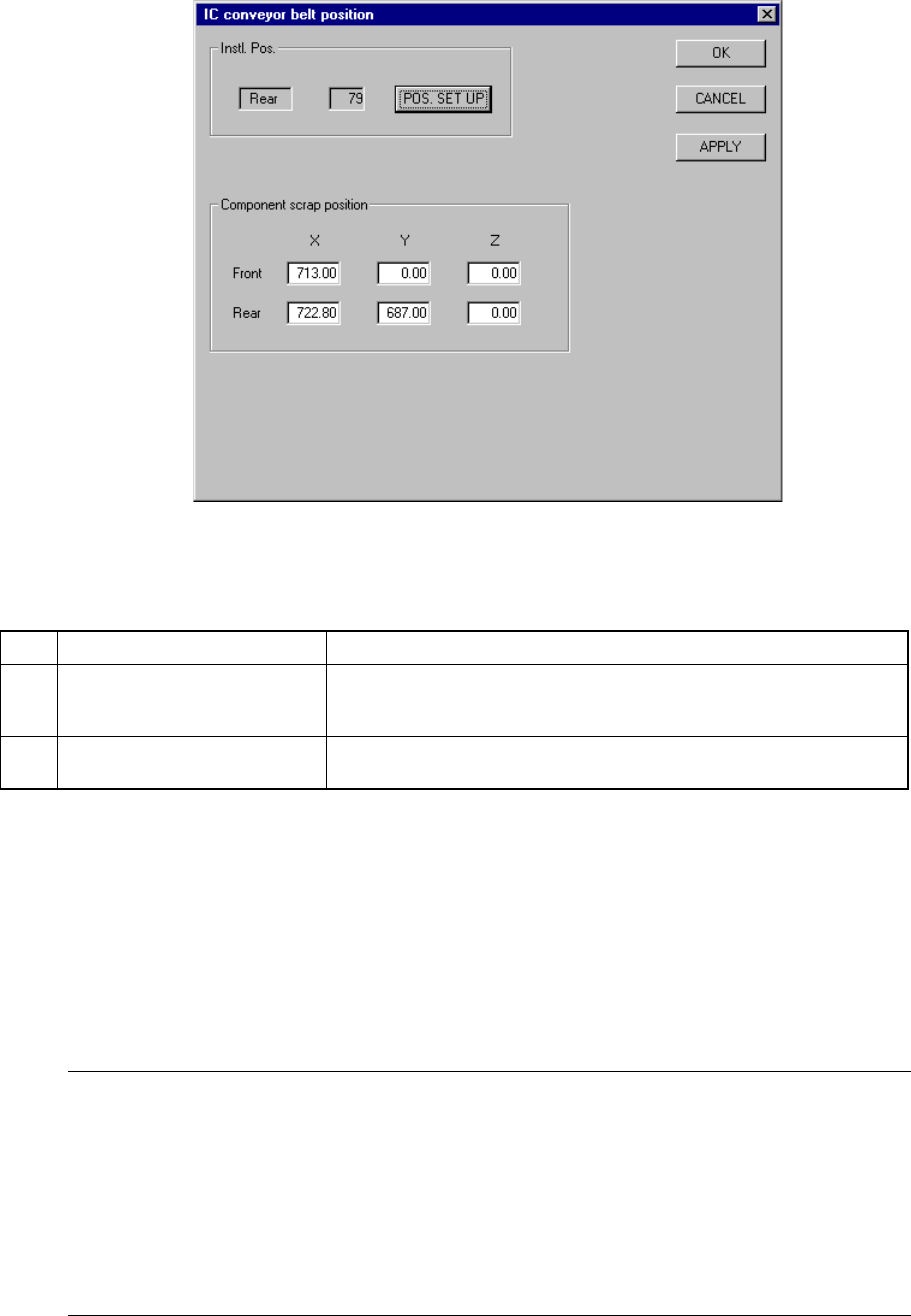
When you select the [IC collection belt position] command, the "IC collection belt
position setting" dialog box appears on the screen as shown in Figure 7.2.2.8.1.
Figure 7.2.2.8.1 IC collection belt position setting dialog box
(1) Setting items
No. Item Description
1 Instl. Pos (Installation position)
(Front/Rear, Feeder mounting
hole number)
IC collection belt installation position
2 Component scrap position
(X, Y and Z)
Component scrap position on the IC collection belt
(2) Setting the position
① How to install the IC collection belt
− Set the IC collection belt installation position.
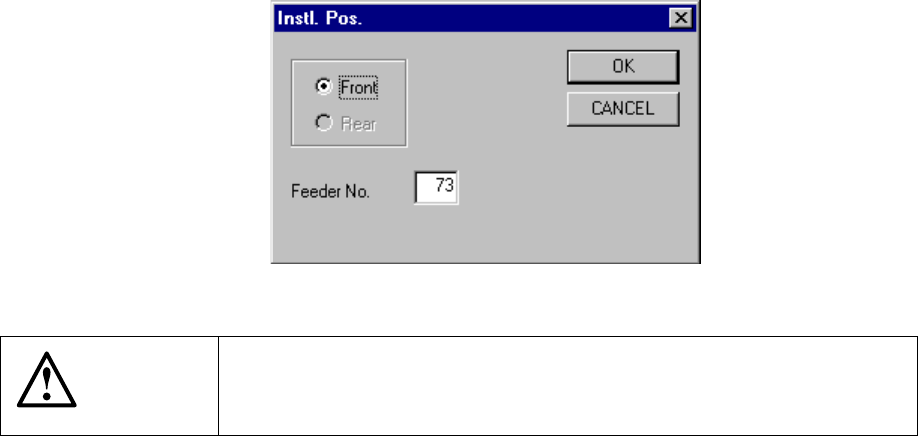
− When you click the <POS.SET UP> button, the "Instl. Pos." dialog box
appears on the screen as shown in Figure 7.2.2.8.2.
− Use the "Front" or "Rear" radio button to set the side.
− Enter the feeder mounting hole number in the "Feeder No." edit box.
Notes:
- The range of feeder mounting hole number should be within the area the right
head can move over.
- When you click the <OK> button to quit the dialog box shown in Figure 7.2.2.8.2,
the system automatically calculates the component scrap position. Perform
teaching to check this calculated scrap position.
- If you optimize a production program before you set the IC collection belt position,
the feeder and the IC collection belt may overlap one another.
7 − 29
② Component scrap position
- Key in X, Y and Z coordinate value directly from the keyboard.
- Use the HOD to teach and enter the coordinates. In this case, if either
X or Y is in focus, both values are taught, then entered.
- Z must be in focus to teach the Z coordinate.
Figure 7.2.2.8.2 "Inst. Pos." (IC collection belt position setting) dialog box
CAUTION
To avoid a risk of injury, do not place your hand in the machine, nor
move your face or head close to the machine during operation of the
HOD.
7 − 30
7.2.2.9 Head wait position
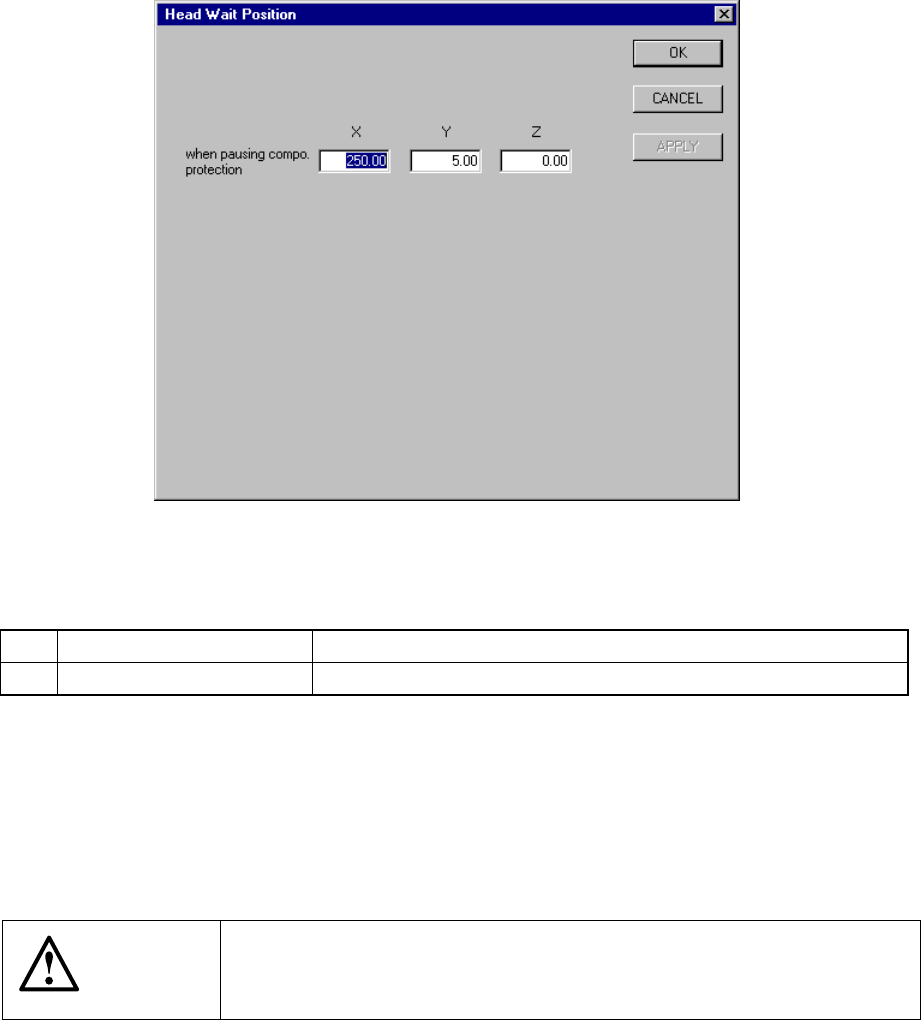
When you select the menu item “Head wait position”, the following “Head Wait
Position” dialog box appears on the screen as shown below.
Figure 7.2.2.9.1 “Head Wait Position” dialog box
(1) Setting items
No. Item Description
1 X, Y, Z Position at which the head pauses to protect a component
(2) Setting the position
− Key in X, Y, and Z coordinate values directly from the keyboard.
− Use the HOD to teach and enter the coordinates. In this case, if either X or
Y is in focus, both values are taught, then entered.
− Z must be in focus to teach the Z coordinate.
CAUTION
To avoid a risk of injury, do not place your hand in the machine, nor
move your face or head close to the machine during operation of the
HOD.