KE2010.Instruction Manual.Ver.2.01,Rev.08.pdf - 第109页
4 − 2 W hen y ou display the tool bar , a screen appears as shown below . On the recor d box • Record box position The record box is displayed on the left side of the horizontal scroll bar in the same manner as the dat a…
4 − 1
CHAPTER 4 EDITING THE PROGRAM
4.1 Overview
You have to create a production program before producing PWBs. To create or edit
production program data, start up the Program Editing utility, then enter each data.
Click the Edit command button to start up the Program Editing utility.
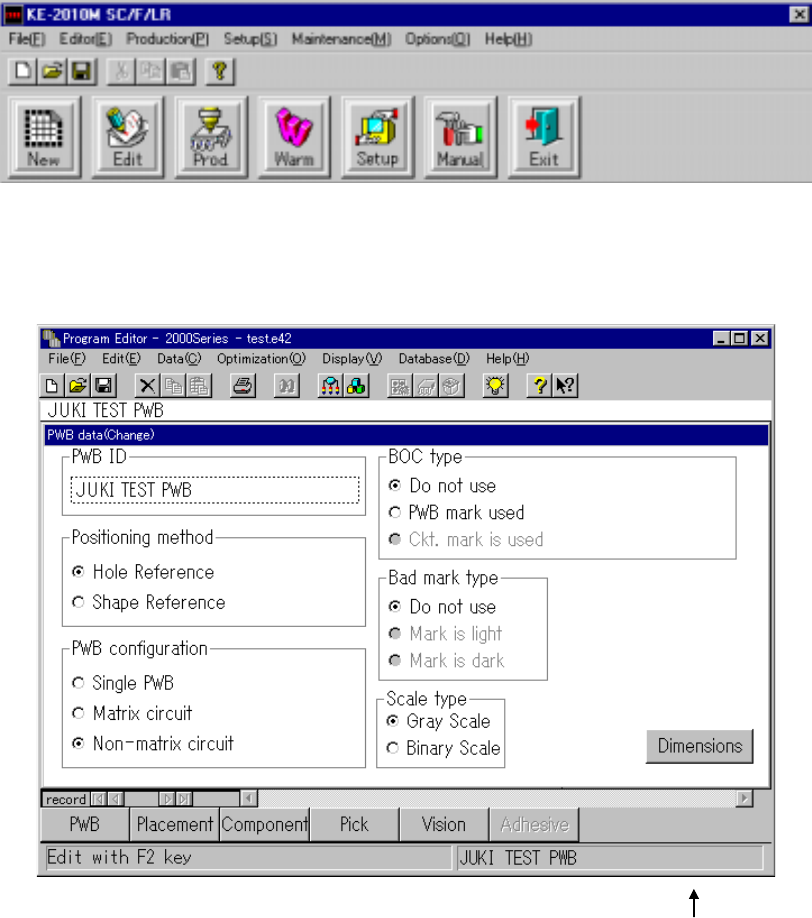
When the Production Program Editing utility starts up, a screen appears as shown
below.
PWB ID
When the Program Editing utility starts up, “UNTITLED” appears on the right side of the
title bar as the program name, and the PWB ID column on the right side of the status
bar becomes blank.
When you display the tool bar from the menu bar, the operability improves.
To create or edit a production program, click the data title to be create/edited, or select
[Data (C)] on the menu bar to open the desired data.
4 − 2
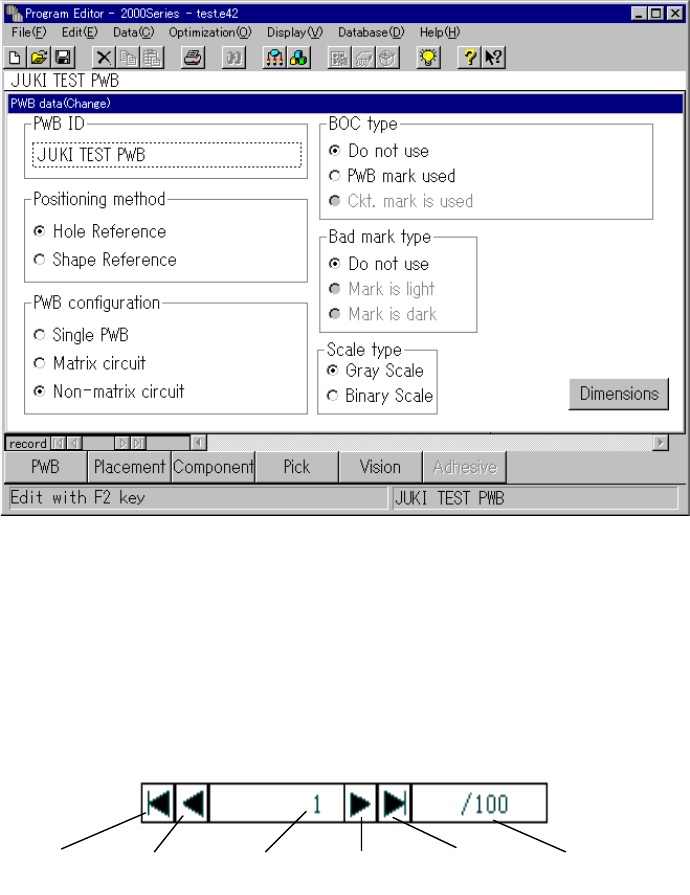
When you display the tool bar, a screen appears as shown below.
On the record box
• Record box position
The record box is displayed on the left side of the horizontal scroll bar in the same
manner as the database is.
Start
button
PREV
button
Record
number
NEXT
button
End
button
Total number of
records
• Record box function on the list screen
Even on the list screen, the record box functions in the same manner as on the form
screen. On the list screen, the PREV and NEXT buttons move up/down the cursor,
the Start and End buttons jump to the start and end positions respectively, and entry
in the record number box jumps to the position specified with your entry.
• Validation when you enter a number directly
When you enter the record number directly, your entry is not reflected on the screen
unless you press the Return key. If you press any other button (such as the Start,
End, PREV and NEXT buttons) before you press the Return key, your entry is not
validated, and the pressed button functions.

4 − 3
• Keyboard operations
When you use a keyboard to enter a value, you do not have to move the input focus
to the record box.
• Record box display
The record box is displayed on the PWB data (circuit layout), Placement data,
Component list, Component form (Package, Centering, Expansion, Inspection and
Adhesive), Pick data, Vision data, Adhesive list and Adhesive form screens.
Data types
Production program data which has to be created with the Program Editing utility is
shown in the table below.
Table 4.1.1.1 Data types making up production program data
Data type Description 2010 2020 2030
PWB data Data on a PWB such as the PWB dimensions and coordinates
of a BOC mark
○
○
○
Placement data Data such as the coordinates of a component placement
position and the name of components to be placed on a board
○
○
○
Component data Data necessary to center a component such as the dimensions
of a component and package style
○
○
○
Pick data Data on the position to which a component is to be fed from a
tape feeder or tray.
○ ○ ○
Vision data Data used to recognize a component with the VCS.
× ○ ×
4.1.1 Procedure for creating data
4.1.1.1 Creating a new production program
Create a new production program in the following order:
①
PWB data
②
Placement data
③
Component data
④
Pick data
Each type of data is related with each other, so create all of these types of data in
this order. If you open data which is not created completely, the machine does not
accept your data entry.
• If PWB data is not ready to be created, you cannot open any other type of
data.
• If even one record of Placement data is not created yet, you cannot enter
Component data, Pick data, nor Vision data: until the component name is
entered as Placement data, the machine does not prepare data area for
Component data.
• You cannot create Pick data until the associated Component data is created.
See Sections 4.5 "PWB Data", 4.6 "Placement Data", 4.7 "Component Data", and
4.8 "Pick Data" for details.