KE2010.Instruction Manual.Ver.2.01,Rev.08.pdf - 第544页
7 − 7 7.2.1.2 Read Nzl . data This f unction adds nozzle information on cust omized nozzles to the system. The system allows you to read nozzle informat ion in the f ollowing two way s: − Read Nzl. data [FD]: f unct ion …

7 − 6
7.2.1.1.1 Nozzle information editing function
Caution Only a user whose level is “service man” or higher is allowed to use the
“nozzle information editing” function. (If you do not handle this function
correctly, it may cause a production error.)
<Contact your distributor or us directly for details.>
<Version 1.12 or higher>
Step 1.
Press the F3 or F4 key when the Nozzle information window is activated (its line
is highlighted). This allows you to edit “Design” data or “MechPara” data on
the highlighted line.
Double-clicking of the data column also allows you to edit data in the same way.
Note that you cannot edit the nozzle number (NzlNo) or data displayed on the
non-editable field (data column in which any data is not displayed).
Step 2.
When you press the <Return> key after editing data, the displayed data is
updated as you edited.
If a parameter error occurs when you press the <Return> key, the machine
displays the original data again.
If you click the nozzle information window or vertical scroll bar with a mouse
during editing, the current editing process is aborted.
Step 3.
When you edit any of data, the <Abort> button appears on the screen.
When you click the <Abort> button, all of your editing is canceled.
If an input range over error occurs when you click the <OK> button, all of your
editing is canceled too.
7.2.1.1.2 Special key operations
If you press the Ctrl key and down arrow key or the Ctrl key and up arrow key at the
same time when the nozzle information window is activated (its data line is
highlighted), it allows you to select another nozzle number on the nozzle number list.
The machine displays the corresponding data of the nozzle number newly selected
dynamically.
7.2.1.1.3 Saving the nozzle data
When you edit the nozzle information and click the <OK> button, the data you edited
is automatically saved although any saving data confirmation screen does not appear
when you quit the Machine Setup menu.
7 − 7
7.2.1.2 Read Nzl. data
This function adds nozzle information on customized nozzles to the system.
The system allows you to read nozzle information in the following two ways:
− Read Nzl. data [FD]: function for reading data from a floppy disk
− Read Nzl. data: function for reading data from a file (where a nozzle is
installed)
7.2.1.2.1 Read Nzl. data [FD]
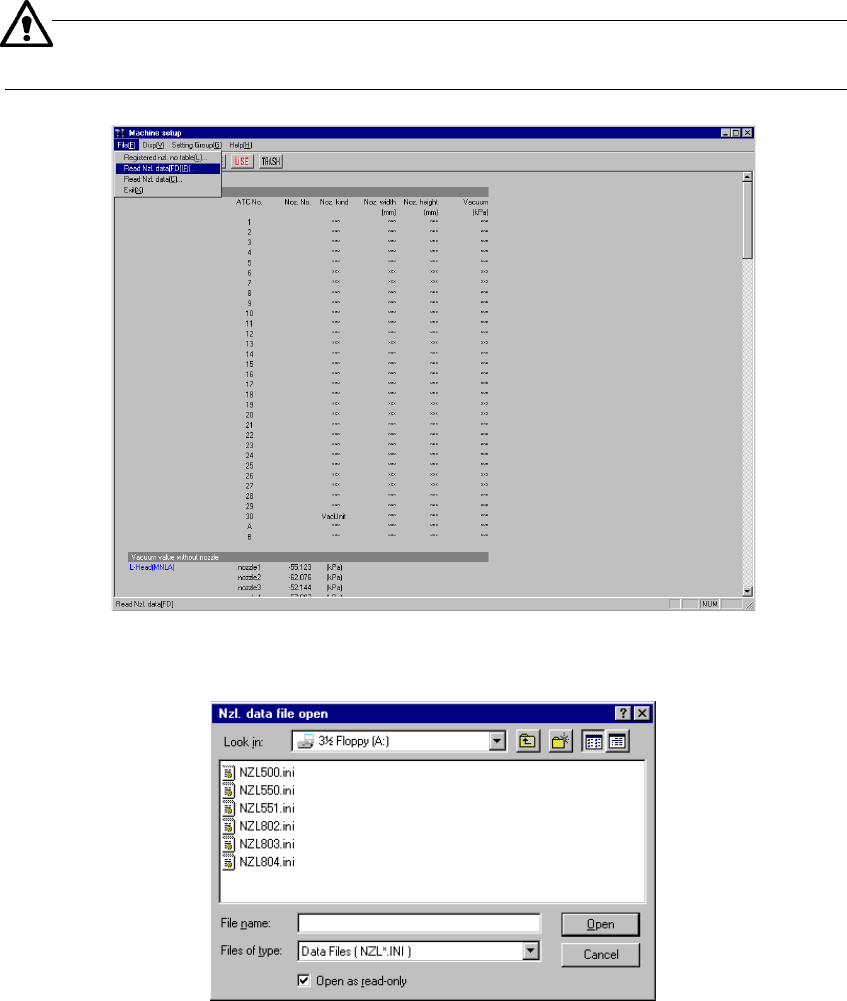
When you select the [Read Nzl. data] command from the “File” menu that is invoked
form the menu bar, the “Nzl. data file open” dialog box (see Figure 7.2.1.2.2)
appears on the screen.
− Additional nozzle information is provided from a floppy disk.
− The format of an additional nozzle information file is “NZL*.INI”, that is, an
INI file format, where * is a three-digit nozzle number.
When you select this menu command, insert the floppy disk on which
additional nozzle information is stored in advance.
Figure 7.2.1.2.1 “Read Nzl. data” menu command
(Screen example when a KE-2020 is used)
Figure 7.2.1.2.2 “Nzl. data file open” dialog box
7 − 8
Select the desired file, then click the <Open> button.
You have registered additional nozzle information to the system at this point.
An “ini” file that is registered from a floppy disk is to be copied into the folder
C:¥JUKI¥DATA¥CUSTOM¥NZL.
− When you click the <Cancel> button, any data is not registered.
− You can check the added nozzle number with the “Registered nzl. no table”
menu command, which is described under Section 7.2.1.1.
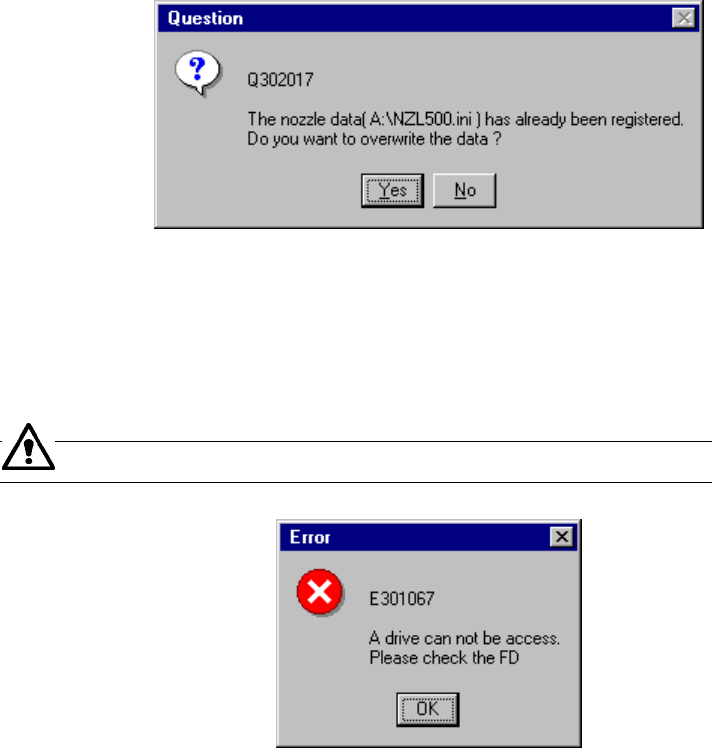
If the specified nozzle information is already registered, the dialog box that asks you
whether to overwrite the existing nozzle information (see Figure 7.2.1.2.3).
− When you select “Yes”, the system updates the existing data with the specified
nozzle information that is stored on a floppy disk.
Figure 7.2.1.2.3 Nozzle information update confirmation dialog box
If no floppy disk is inserted into the drive or if any data is not read due to a failure of
the inserted floppy disk, the system displays the error dialog box (see Figure
7.2.1.2.4) on the screen.
Check the floppy disk drive or contents of the floppy disk.
Figure 7.2.1.2.4 Floppy disk access error dialog box