KE2010.Instruction Manual.Ver.2.01,Rev.08.pdf - 第683页
9 − 29 9.6 Saving the Machine Information This f unction allows you to save the inform ation req uired to analyze an error ont o the hard disk as a bat ch operation. Use this function only if an err or occurs at t he mac…
9 − 28
9.5.2 Event View buttons
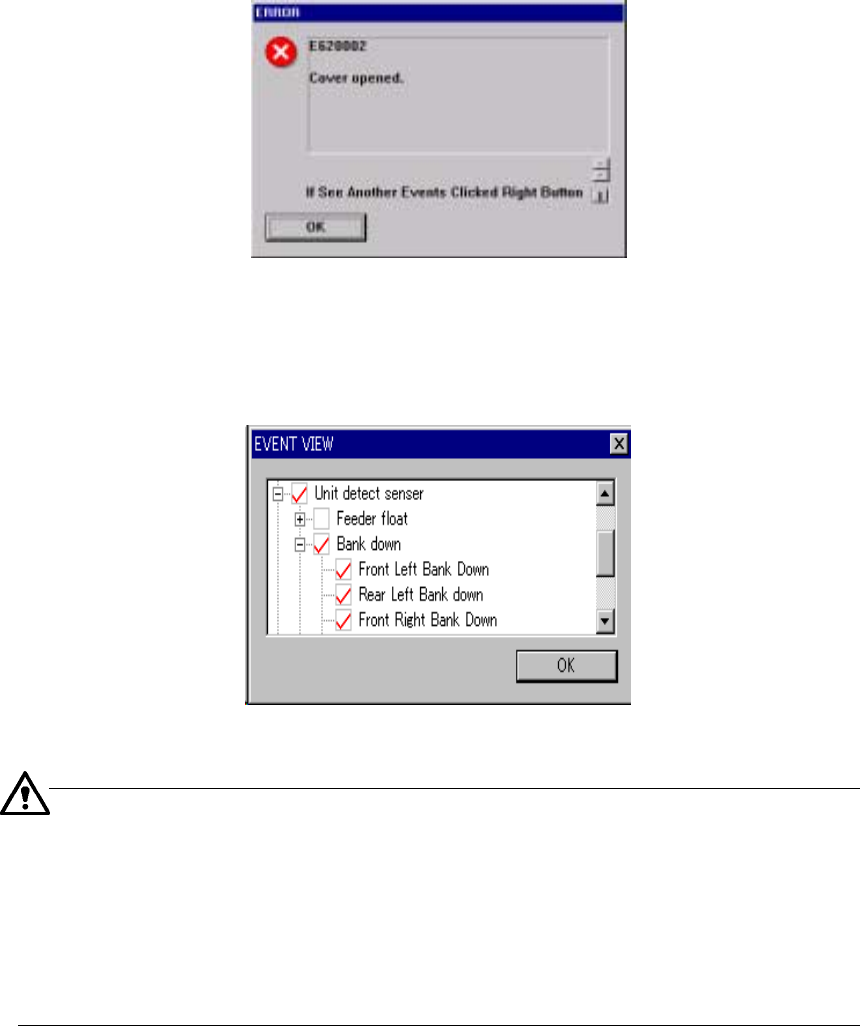
The following screen appears if you open the safety cover, if you press the
Emergency Stop button, or if the machine detects an alarm of each axis servo driver.
− The message “If See Another Events Click Right Button” may appears on the
screen. This message appears if two or more events occur at the same time,
and the machine can display the event whose priority is higher only on the screen.
Figure 9.5.2.1 “ERROR” screen
When you click the <OK> button, events are displayed in the hierarchical view.
A check mark is displayed next to the events that actually occurred.
Figure 9.5.2.2 Hierarchical display of events
You do not have to check the events on the hierarchical display above normally.
However, if a driver error occurs and you judges the machine malfunctions, check this
display.
If a driver alarm error appears on the screen, check to see if an event that turns off
the servo power supply (such as Emergency Stop, area sensor activation, feeder float
and so on) occurs. If an event that turns off the servo power supply occurs even
though a driver alarm error appears on the screen, a driver may not malfunction in
many cases.
9 − 29
9.6 Saving the Machine Information
This function allows you to save the information required to analyze an error onto the
hard disk as a batch operation.
Use this function only if an error occurs at the machine.
9.6.1 Starting up from the menu invoked from the “Production” screen
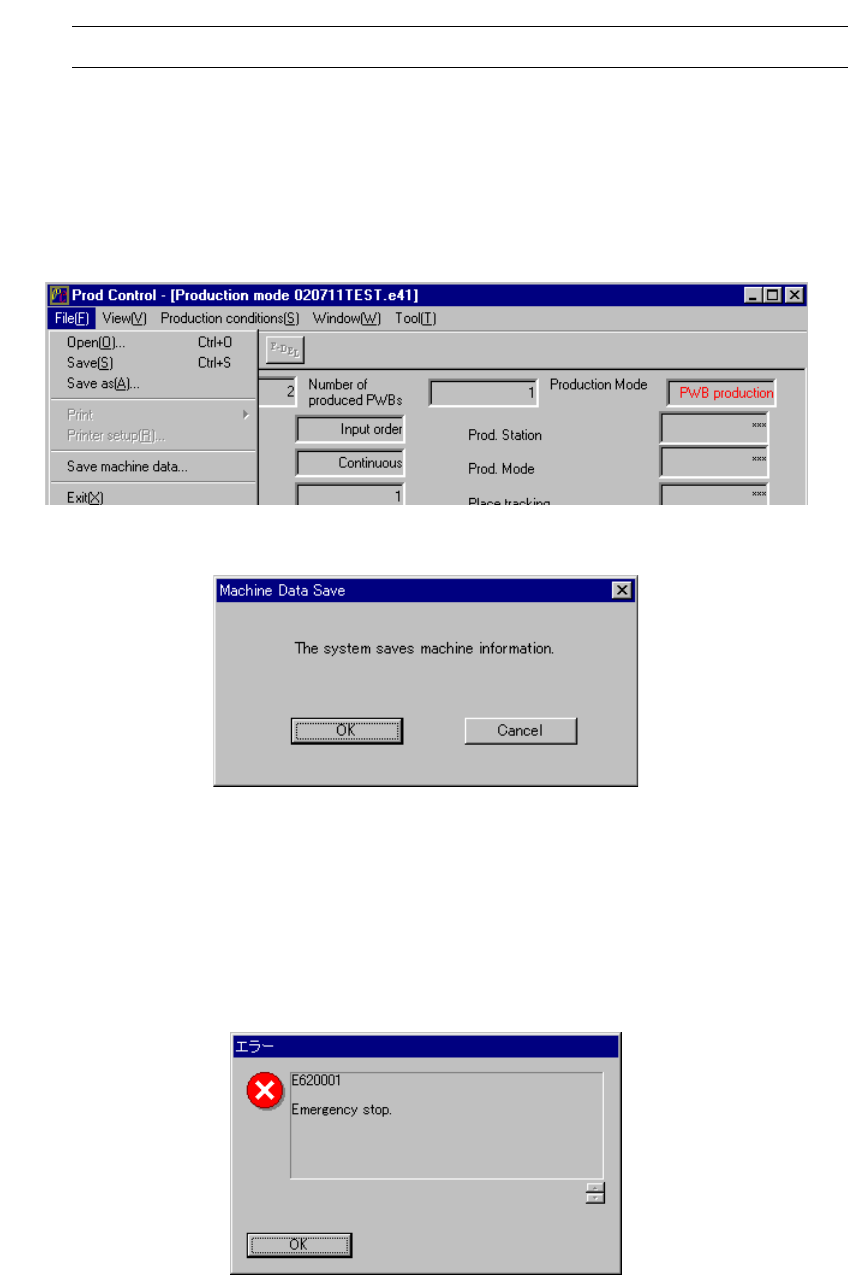
Select the [Save machine data] command on the “File” menu invoked from the
“Production” screen.
The “Machine Data Save” dialog box appears on the screen.
Figure 9.6.1.1 Selecting the [Save machine data] command
Figure 9.6.1.2 “Machine Data Save” dialog box
9.6.2 Starting up from the “Emergency stop” screen
Press the [F9] key of a keyboard when the “Emergency stop” screen is displayed.
The “Machine Data Save” dialog box appears on the screen in the manner described
above also.
Figure 9.6.2 “Emergency stop” screen
9 − 30
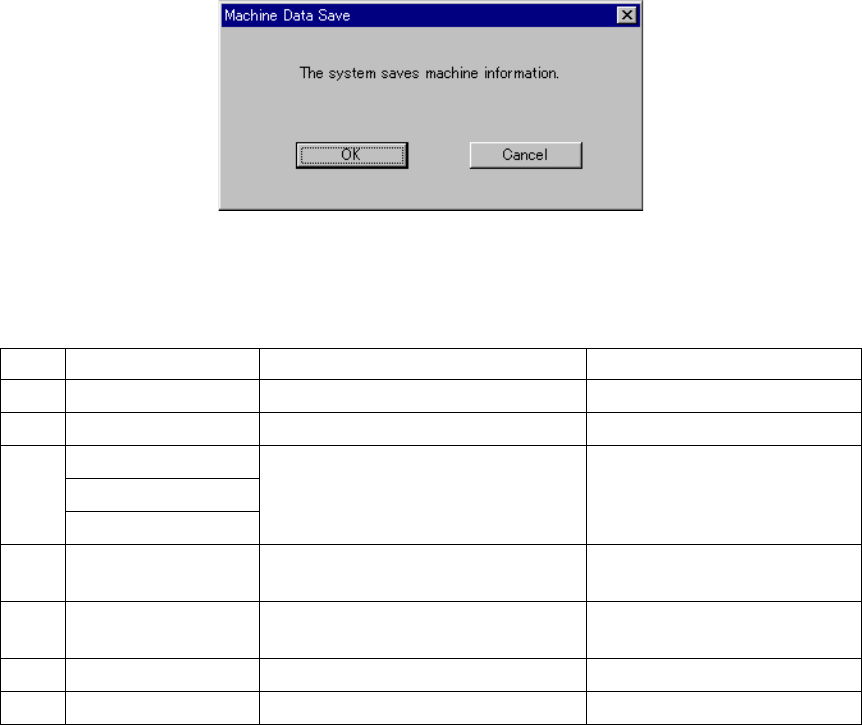
9.6.3 Saving
Click the <OK> button on the “Machine Data Save” dialog box.
To close this dialog box without saving any data, click the <Cancel> button.
Figure 9.6.3 “Machine Data Save” dialog box
This function saves the following files onto the hard disk.
No. File name Description Remark
1 Computer name.log
Log of the machine operations −
2 hist.txt Operation history −
AppEvent.Evt
SecEvent.Evt
3
SysEvent.Evt
Windows NT event log −
4 drwtsn32.log Dr. Watson log This file is saved only if a Dr.
Watson error occurs.
5
process.txt Information on which process is being
stated up currently
−
6
cnvrstat.txt Conveyor sensor condition −
7
axispos.txt Current head position −
Table 9.6.3 Files to be saved with the [Save machine data] command