KE2010.Instruction Manual.Ver.2.01,Rev.08.pdf - 第616页
8 − 27 (2) Contr ol position W ith the combo box, select the position when the conveyor is automatically controlled. Y ou cannot select the cont rol position if the cont rol item , “Ready out”, “ Board available out”, “C…
8 − 26
8.3 Transport System
8.3.1 Transport system individual control
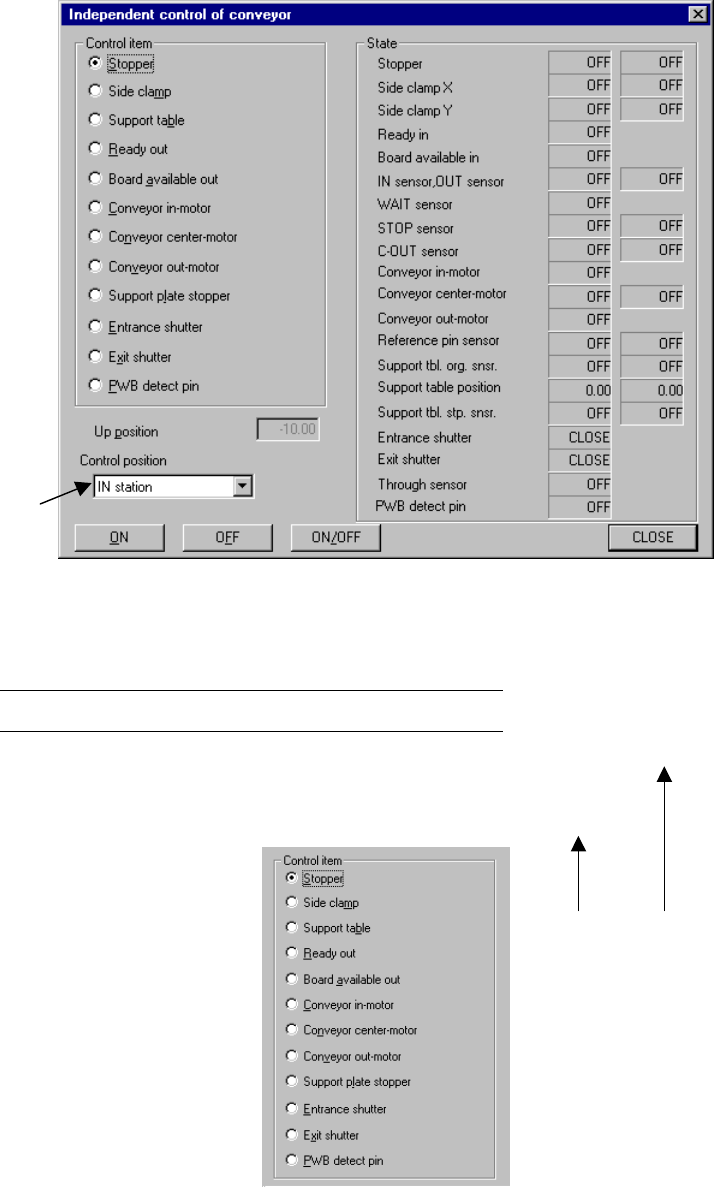
When you select the [Conveyor] command from the [Ctrl] menu, then the
[Independent control of conveyor] command, the following Independent control of
conveyor dialog box appears on the screen.
Figure 8.3.1 Independent control of conveyor dialog box
(Screen example when a KE-2030 is used)
Note: *1 displayed with a KE-2030 only.
(1) Control item
Select a control item with the corresponding radio button.
*1
*1
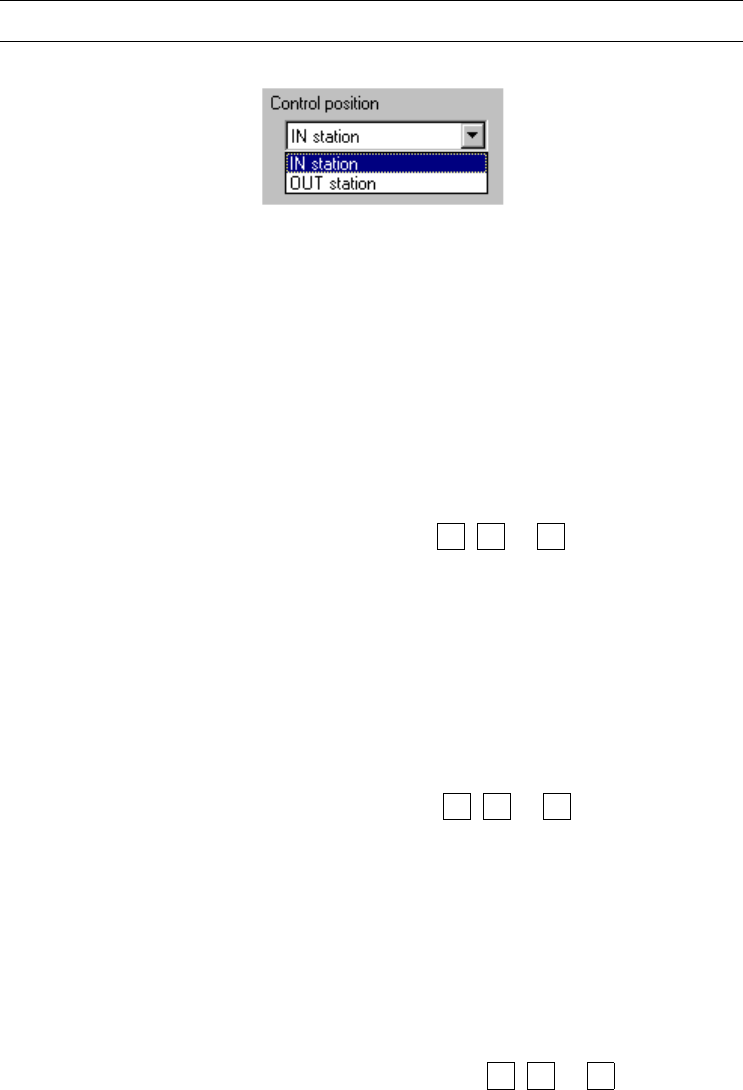
IN station OUT station
8 − 27
(2) Control position
With the combo box, select the position when the conveyor is automatically
controlled.
You cannot select the control position if the control item, “Ready out”, “Board
available out”, “Conveyor in-motor” or “Conveyor out-motor” is selected.
Note: You cannot select this menu item for models other than a KE-2030.
(3) Control button
Execute the selected control item with the control buttons.
The displayed control buttons vary depending on the control item you selected.
1) Stopper
This item turns on and/ off the stopper .
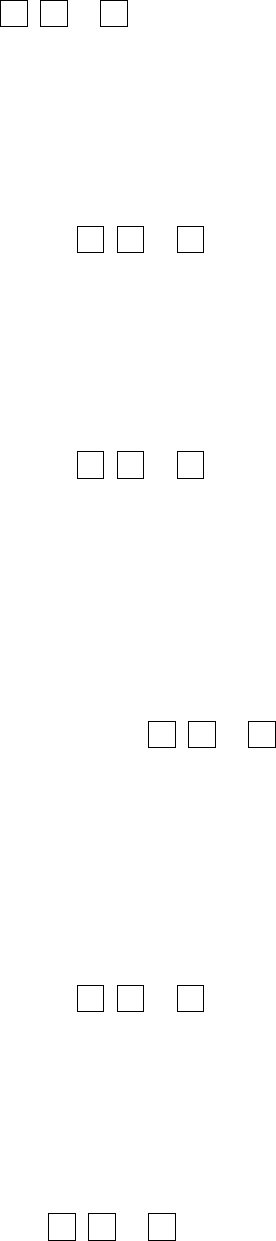
− When the control item “Stopper” is checked, select the <ON>, <OFF> or
<ON/OFF> button or press the F3, F4 or F5 key to control the stopper
pin.
− The status display is updated when the control is completed.
2) Side clamp
This item turns on and/ or off the side clamp cylinder.
− The control item “Side clamp” is checked, click the <ON>, <OFF> or
<ON/OFF> button, or press the F3, F4 or F5 key.
− The state display is updated when the side clamp cylinder is controlled
completely.
3) Support plate
This item moves up and/or down the support plate.
− The control item “Support plate” is checked, click the <UP>, <DOWN>
or <UP/DOWN> button or press the F3, F4 or F5 key.
− The state display is updated when the support plate is controlled
completely.
8 − 28
4) Ready out
This item turns on and/ or off the ready OUT signal.
− When the control item “Ready out” is checked, select the <ON>, <OFF>
or <ON/OFF> button or press the F3, F4 or F5 key to control the ready
OUT signal.
5) Board available out
This item turns on and/ or off the board available OUT signal.
− When the control item “Board available out” is checked, select the <ON>,
<OFF> or <ON/OFF> button or press the F3, F4 or F5 key to control
the board available OUT signal.
6) Conveyor in-motor
This item turns on and/or off the transport motor (IN buffer).
− When the control item “Conveyor in-motor “ is selected, click the <ON>,
<OFF> or <ON/OFF> button or press the F3, F4 or F5 key.
− The state display is updated when the transport motor (IN buffer) is
controlled completely.
7) Conveyor center-motor
This item turns on and/ or off the transport motor (Center buffer).
− When the control item “Conveyor center-motor” is selected, click the
<ON>, <OFF> or <ON/OFF> button or press the F3, F4 or F5 key.
− The state display is updated when the transport motor (center buffer) is
controlled completely.
8) Conveyor out-motor
This item turns on and/ or off the transport motor (OUT buffer).
− When the control item “Conveyor out-motor” is selected, click the <ON>,
<OFF> or <ON/OFF> button or press the F3, F4 or F5 key.
− The state display is updated when the transport motor (OUT buffer) is
controlled completely.
9) Support tbl. stp. snsr. (Support table stop sensor)
This item turns on and/or off the support table stopper.
When the control item “Support tbl. stp. snsr.” is selected, click the <ON>,
<OFF> or <ON/OFF> button or press the F3, F4 or F5 key.
The state display is updated when the support table stopper is controlled
completely.