KE2010.Instruction Manual.Ver.2.01,Rev.08.pdf - 第331页
4 – 224 (2) Executing the bank mark alig nment operat ion If t he bank m ark r ecognition is set on the Setup m enu, the system r ecognizes a bank mar k to im prove the precision of the component pick- up point bef ore t…
4 – 223
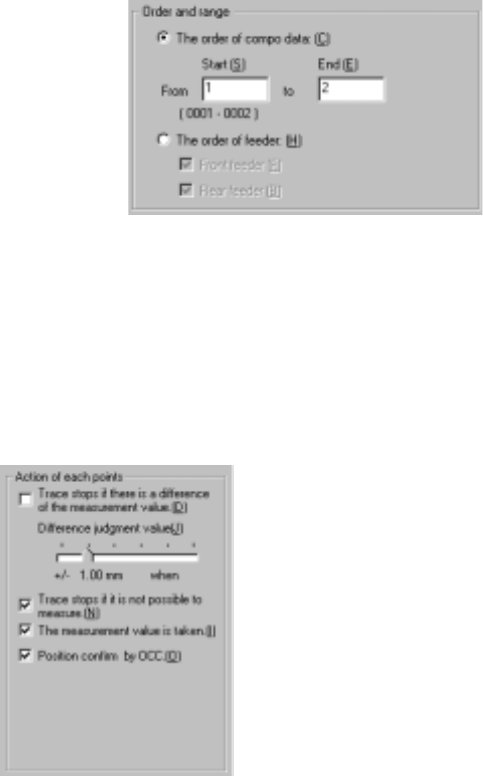
2) Order and range
① The order of component data
Enter the range of Component
data used for tracking: from the
start point to the end point. As
the default setting, all
components are to be tracked.
② The order of feeder
The camera or HMS tracks the front/rear of the feeder bank sequentially.
Select the feeder bank to be tracked.
3) Action of each points (displayed on the "Pick height tracking" dialog box)
The [Height tracking] command allows you to specify the action to be
performed after the machine moves to each tracking point.
① Trace stops if there is a difference of the measurement value.
If the difference between the value measured with the HMS and the
component pick-up height set in Pick data exceeds the "Difference
judgment level", the dialog box appears on the screen to stop the tracking
operation. (Difference judgment level)
Set the +/- upper and lower limits with the slider bar.
② Trace stops if it is not possible to measure.
If the HMS cannot measure the pick-up height (for example, because
there is no component at the measured pick-up point), the dialog box
appears on the screen to stop the tracking operation.
③ The measurement value is taken.
This choice allows you to save the value measured by the HMS into Pick
data by asking whether to save it for each point.
④ Position confirm by OCC.
Before moving the HMS to the pick-up point, you can check the pick-up
point on the VCS monitor.
After you specify the setting items, press the <Start> button or click the
<Execution> button.
When you click the <Exit> button, the system returns to the previous screen.
)
4 – 224
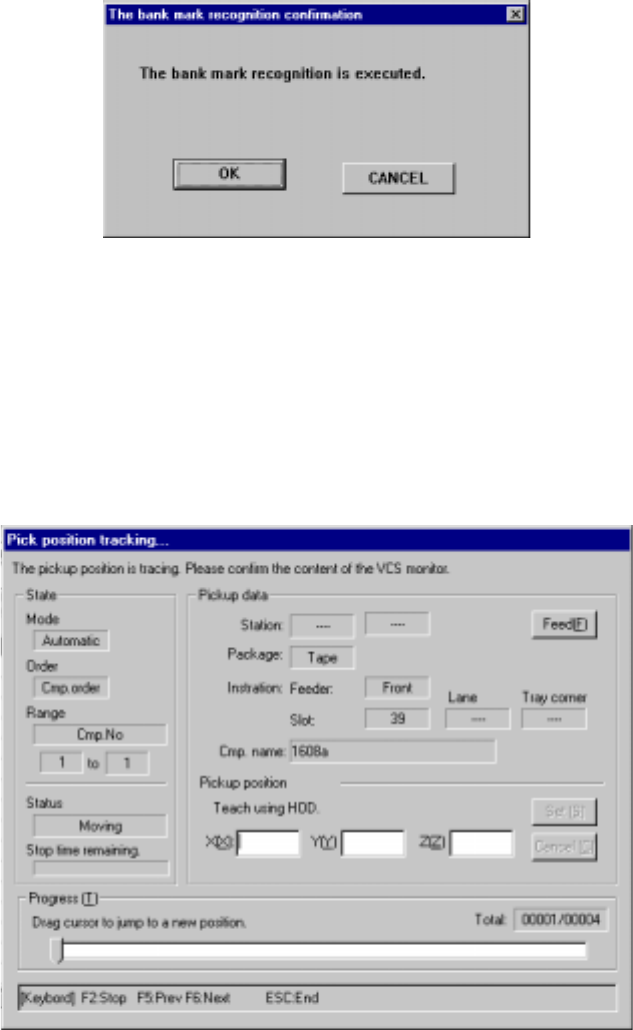
(2) Executing the bank mark alignment operation
If the bank mark recognition is set on the Setup menu, the system recognizes a
bank mark to improve the precision of the component pick-up point before the
camera or HMS moves to each feeder bank. The following dialog box appears
on the screen. Click the <OK> button. If you click the <Cancel> button, the
precision of the component pick-up point is not corrected.
Figure 4.12.3.4.3 “Feeder bank recognition confirmation” dialog box
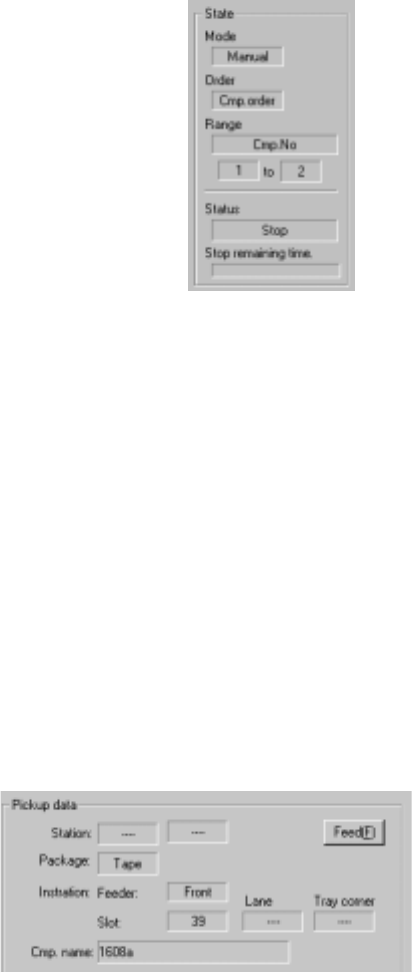
(3) While the camera is tracking a component pick-up point/the HMS is tracking
component height
After you press the <Start> button or click the <Execution> button, the following
dialog box appears on the screen while the system is tracking each pick-up
position (height).
Figure 4.12.3.4.4 “Pickup position (height) camera trace” dialog box
4 – 225
1) State
① Mode
“Manual” or “Automatic” which is set with the
radio button “Feed method” appears here.
② Order
“Feeder order” or “Cmp order” appears here as
specified with the “Order and Range” radio
button.
③ Range
The “first” component number and “end”
component number to be tracked are displayed
here. Or, which feeder bank is to be tracked is
displayed.
④ Status
“Operating” indicates that the axis is moving. “Pause” indicates that the
axis pauses temporally in Automatic Feed mode. “Stop” indicates that
the axis is stopped manually or intentionally. “Waiting” indicates that the
axis is moving to the safety position.
⑤ Stop remaining time
The progress bar indicates the remaining stop time in Automatic Feed
mode.
2) Pickup data
① Station (available to a KE-2030 only)
The station whose component pick-up point is being tracked is displayed
here.
② Package
The packaging style of a
component being tracked is
displayed here.
③ Installation Feeder
The fixing hole position of a
component being tracked is displayed here: if a stick feeder is used, the
lane number is displayed also, while if a tray is used, the corner number
is displayed also.
④ Cmp. name (Component name)
The name of a component being tracked is displayed here.