KE2010.Instruction Manual.Ver.2.01,Rev.08.pdf - 第175页
4 – 68 4.7.2 How to enter data ① Comment Enter a comm ent in the Edit f ield. Y ou can enter up to 30 character s consisting of alphabets, number s and/or symbols as a comment fr om a keyboard. ② Kind of component W hen …
4 – 67
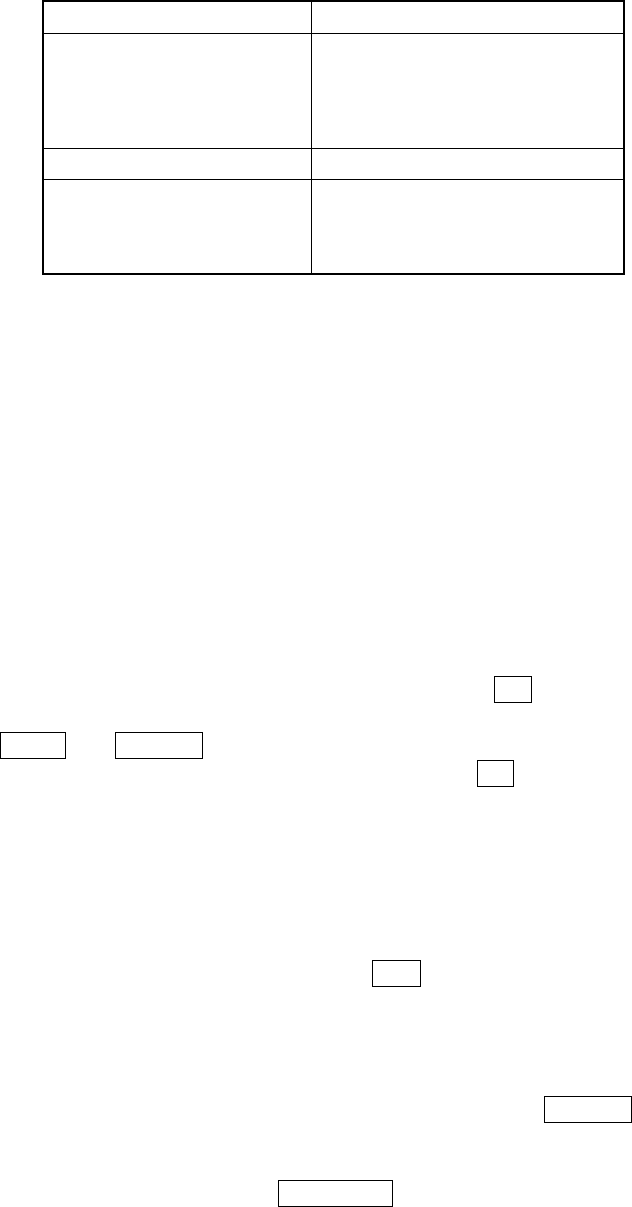
Input group
Group Setting items
Basic section
Comment
Kind of component
Component packaging
Outer dimensions
Indication choice
Centering section Centering method
Tack control section
Packaging style
Centering
Expansion
Inspection
Window display
When no data has been entered, the “Packaging style” page of the tack control
section appears on the top of the screen, and no entry item appears on the screen.
When you enter the “Kind of component” of the basic section, the corresponding input
items are displayed on the screen.
When you enter data to a setting item of the basic section, the check mark is
displayed on the right side of the task index of the tack control section item(s) for
which the corresponding default value is set and you do not have to enter any data.
Moving through items
Click the input field or tack index of the item you want to set with a mouse.
To move through items with a keyboard, press the Tab key to move the cursor.
To move from either of the windows to an index of the Tack control section, press the
SHIFT and Page Up keys at the same time. To move from an index of the Tack
control section to an item of the window, use the Tab key to move to the index of the
Tack control section you want to display, then press the Space bar.
Entry of mutually exclusive items
When you enter or change data for a mutually exclusive item, press the right button of
a mouse to open the pop-up menu, then click the desired entry.
When you use a keyboard, press the F2 key. The pop-up menu appears on the
screen. Move the cursor to the item you want to select, then enter data with keys.
Moving to previous or next component data page
When you click the Page Backward button or press the Page Up key, the previous
Component data screen page appears. If no page is provided before the current
one, the Page Backward button becomes unavailable. When you click the Page
Forward button or press the Page Down key, the next Component data screen page
appears. If no page is provided after the current one, the Page Forward button
becomes unavailable.
4 – 68
4.7.2 How to enter data
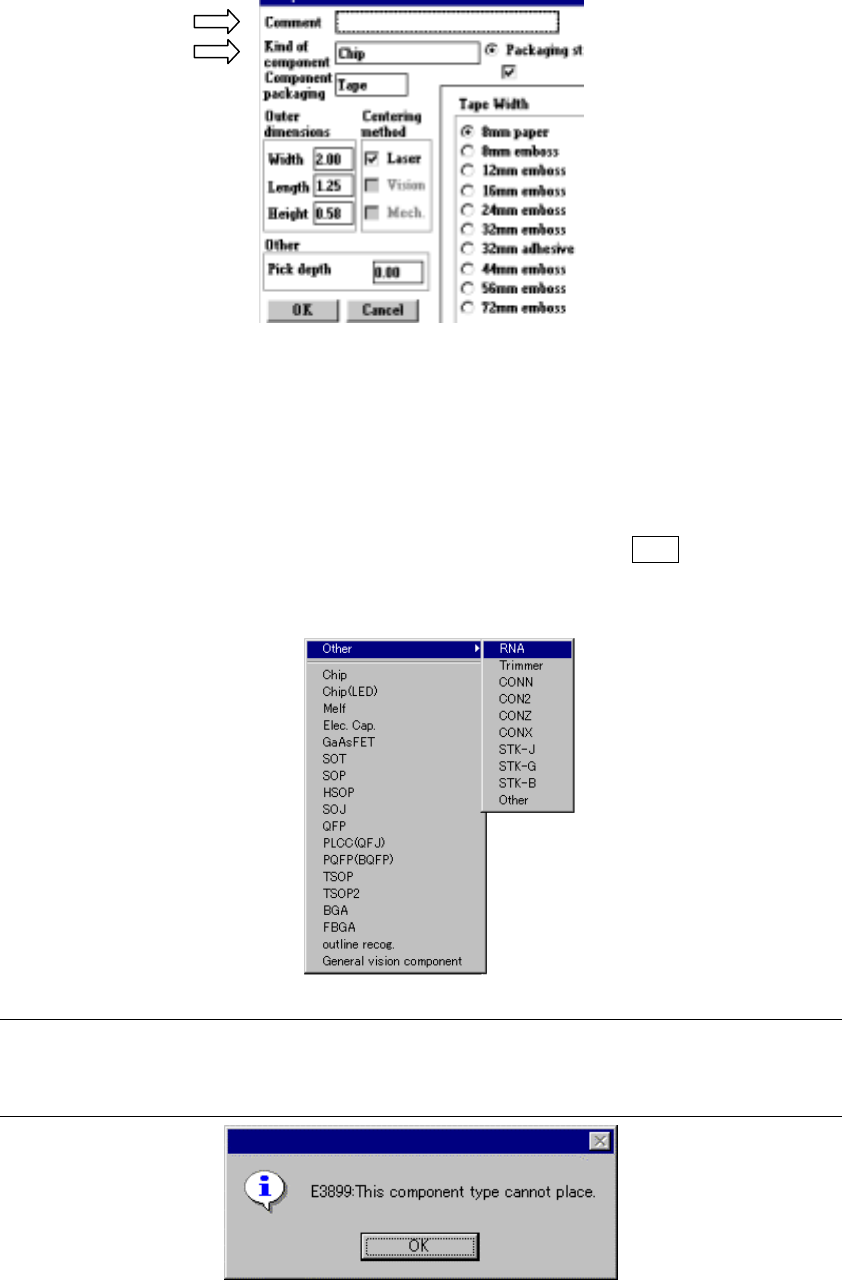
① Comment
Enter a comment in the Edit field. You can enter up to 30 characters consisting of
alphabets, numbers and/or symbols as a comment from a keyboard.
② Kind of component
When you press the right button of a track ball or press the F2 key, the pop-up
menu appears as shown below. Select the desired item.
Note: When you are to select the component type which is displayed in gray, the
following error message appears on the screen. Since this component type is
not available, select another one.
4 – 69
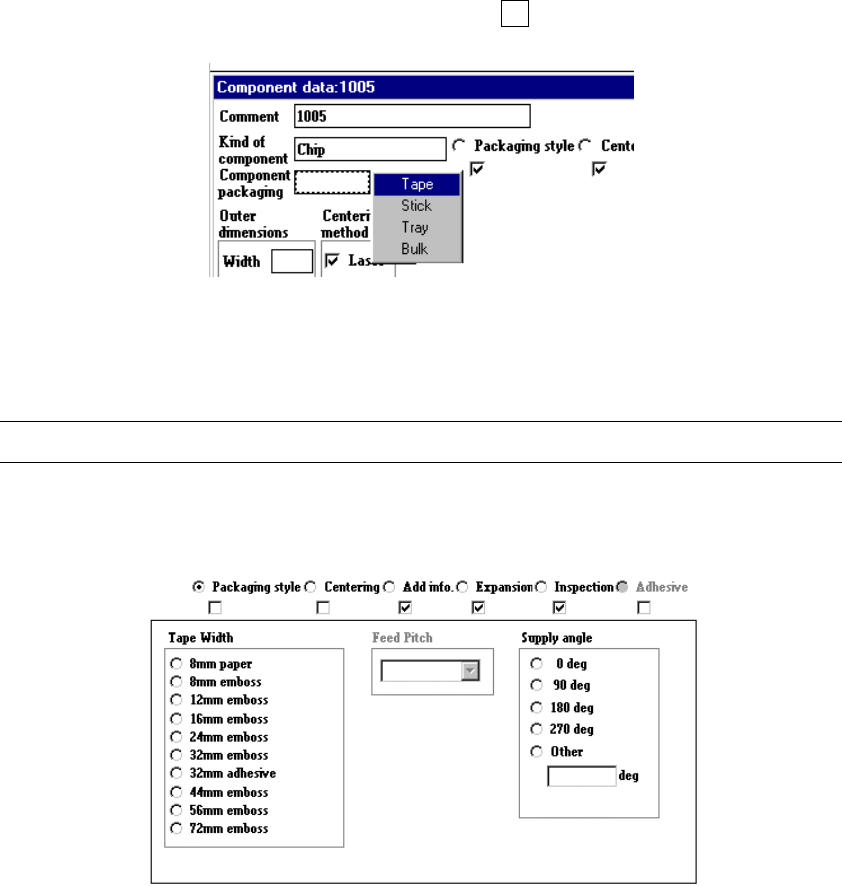
③ Component package
When press the right button of the trackball or F2 key, a pop-up menu for
component packages appears as shown below.
When your entry is validated, the package window associated with the package
type you entered opens on the screen.
Note: Although you can select “Tray”, it cannot be optimized.
1) Tack control section to be displayed when “Tape” is selected as the component
package
When you select the tape width, feed pitches you can specify for the selected
tape width appear on the screen.