KE2010.Instruction Manual.Ver.2.01,Rev.08.pdf - 第265页
4 – 158 Supplementary Explanation of T erms The Placement data item f or specif ying a stat ion and the Pick data items f or specifying a st ation and component supply position ar e provided in production progr am data t…
4 – 157
The dialog box consists of options and buttons related to optimization.
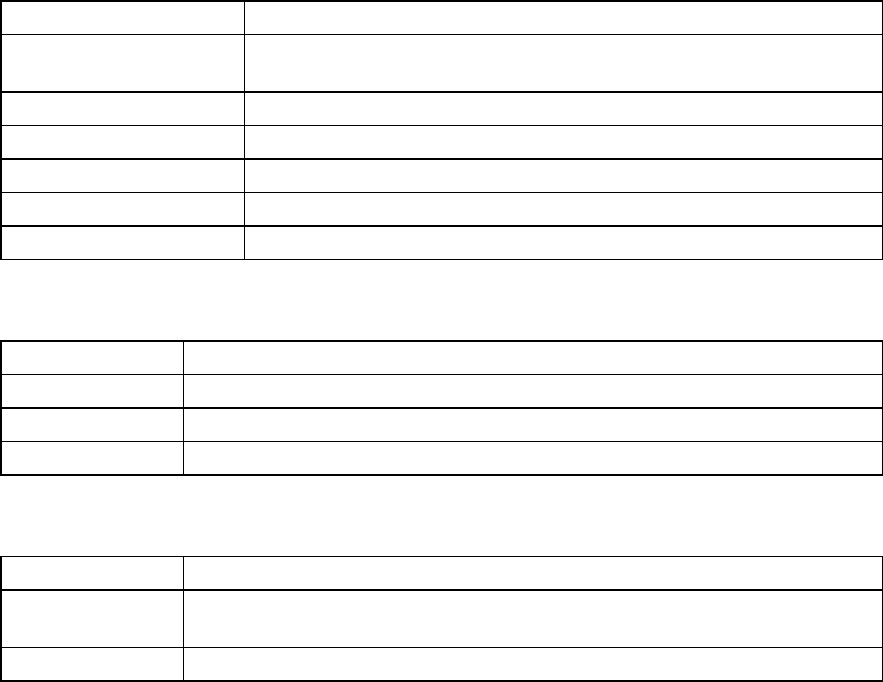
Table 4.10.1.1 Optimization Option Types
Option types Purpose
Assignments Option Specifies the options to be referred to by the Optimization utility to assign a
nozzle or Pick data.
Area Option Specifies the area in which feeders can be mounted.
Feeder arrange Option Specifies the option for arranging feeders.
Place order Option Sets the options for rearranging placement order.
2000 Option Specifies the options unique to the KE-2000 series of products.
Non-stop Option Specifies a station that is to perform the Non-stop operation.
Table 4.10.1.2 Common Buttons
Button Name Function
Run Executes optimization with the options specified on the Optimization dialog box.
OK Validates the changes in the Optimization option(s), and closes the dialog box.
Cancel Cancels the changes in the Optimization option(s), and closes the dialog box.
Table 4.10.1.3 Buttons for Each Option
Button Name Function
Save as Default Saves the settings on the Optimization dialog box as the default setting. These
settings are used when a new program is created.
Default Returns the settings to the standard settings at the factory.
4 – 158
Supplementary Explanation of Terms
The Placement data item for specifying a station and the Pick data items for
specifying a station and component supply position are provided in production
program data to control the optimization output.
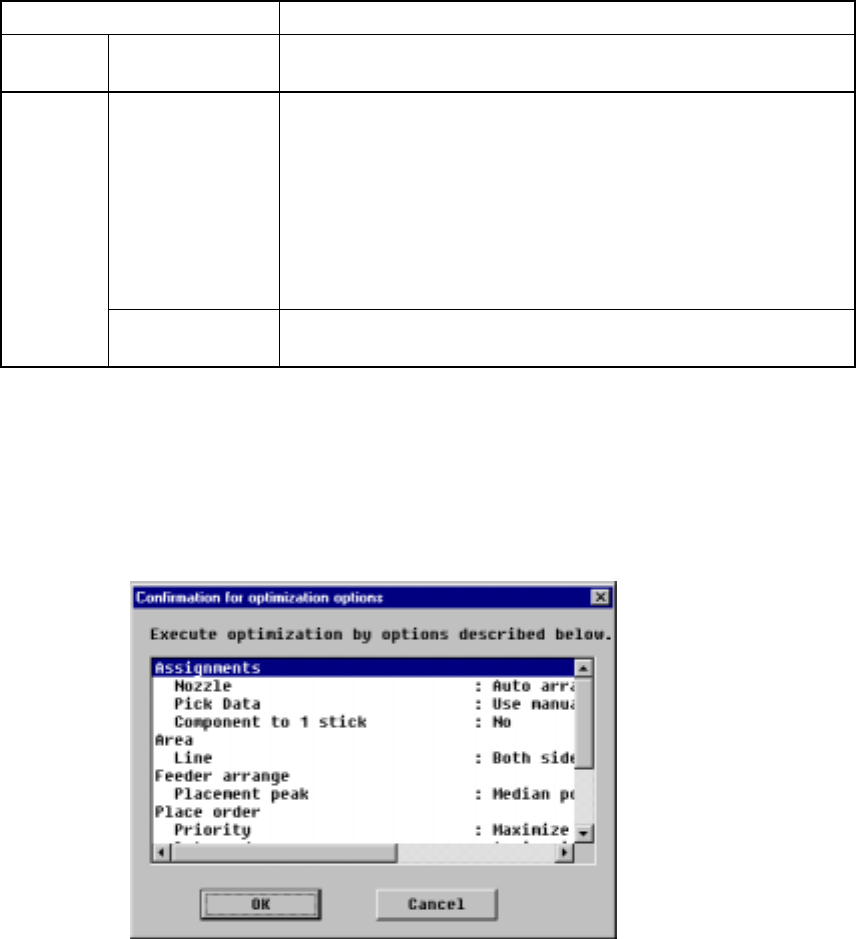
Table 4.10.1.4 Supplementary explanation of terms
Terms Explanation
Placement
Data
Auto selection Optimization distributes the placement points to the optimum stations.
Auto selection The item “sply” is set to "AUTO".
The Optimization utility arranges a feeder to the optimal mounting
position of the station.
When the component supply count is set to “automatic,” the number
of feeders is optimized. If it is set to “manual,” the system assigns the
specified number of feeders to components. The item “Supply” is
also set to “automatic selection”, but in this Manual, “Automatic
selection” indicates that a station is automatically selected.
Pick data
Specify supply
position
The item "Sply" of Pick data is not set to "AUTO".
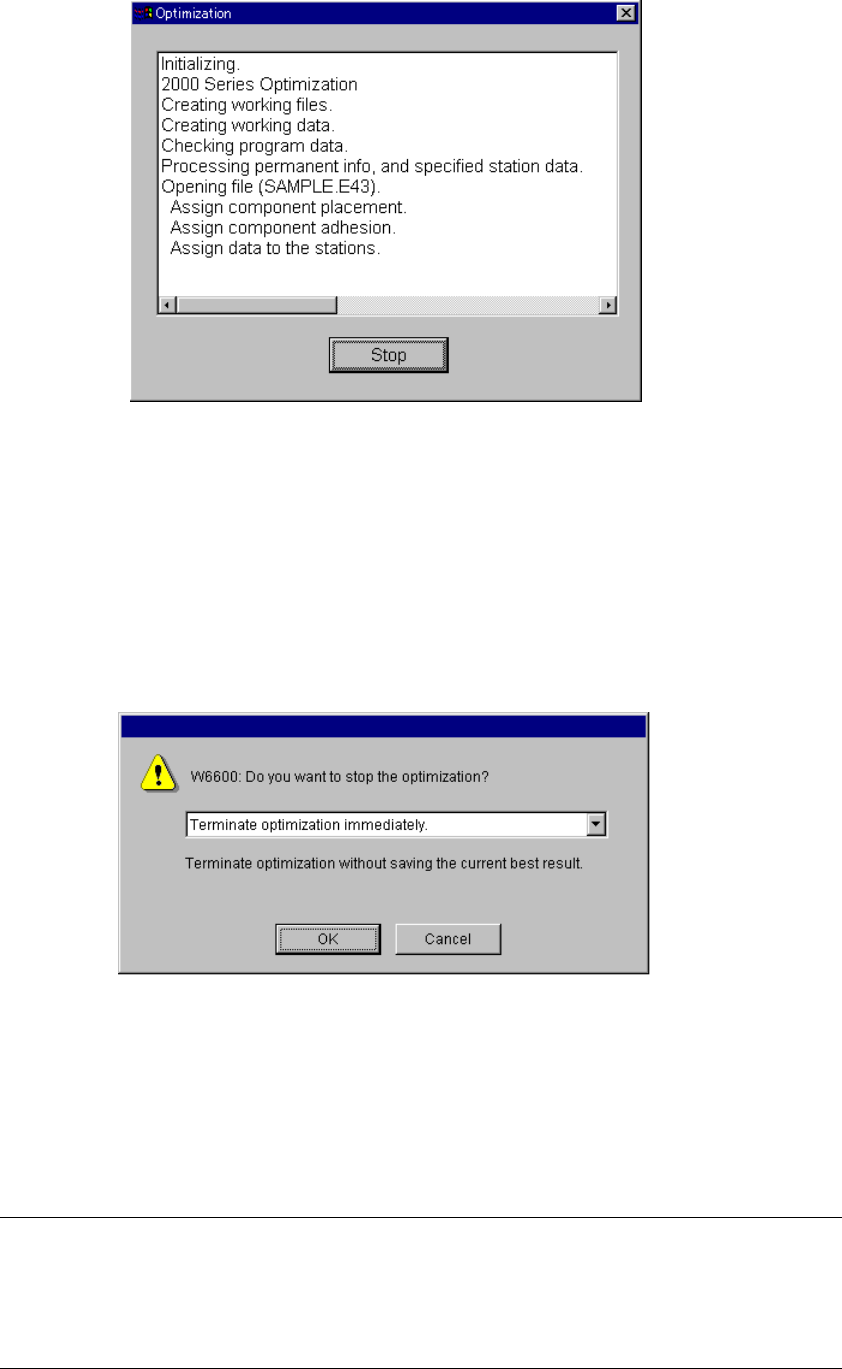
(1) Executing the Optimization Utility
You can start the optimization process by clicking the “Run” button in the
Optimization dialog box. A dialog box displays to show the optimization option
settings:
Figure 4.10.1.3 Confirmation for optimization options
(displayed with the Program Editing or Production Planning utility)
4 – 159
By clicking <OK> button, the optimum division will continue:
Figure 4.10.1.4 Optimization process display dialog box
When the Optimization utility finishes successfully, the Optimization process display
dialog box shown above disappears. If an error occurs, the corresponding error
message appears on the screen.
To abort the executed Optimization utility, click the <Stop> button displayed on the
Optimization process display dialog box.
When you click the <Stop> button, the following message displays:
Figure 4.10.1.5 Optimization abort confirmation message
− OK: “Terminate optimization immediately.”
The system stops optimization without saving the result of
optimization operation the system has done.
− Cancel: Re-starts the optimization process
Notes:
①
The <Run> button is enabled when the program data is complete.
Otherwise, it is dimmed in gray.
②
When you click the <Run> button, the consistency check is performed.
When the program data cannot be used for production in the active line,
an error is displayed in the memo.