KE2010.Instruction Manual.Ver.2.01,Rev.08.pdf - 第267页
4 – 160 (2) Assignm ents O ption W hen y ou select the [ Optimization] com mand f rom the m enu or tool bar , the “Assignment s” option tab is pr e-selected: Figure 4.10.1.6 A ssignments Option Click on a drop- down butt…
4 – 159
By clicking <OK> button, the optimum division will continue:
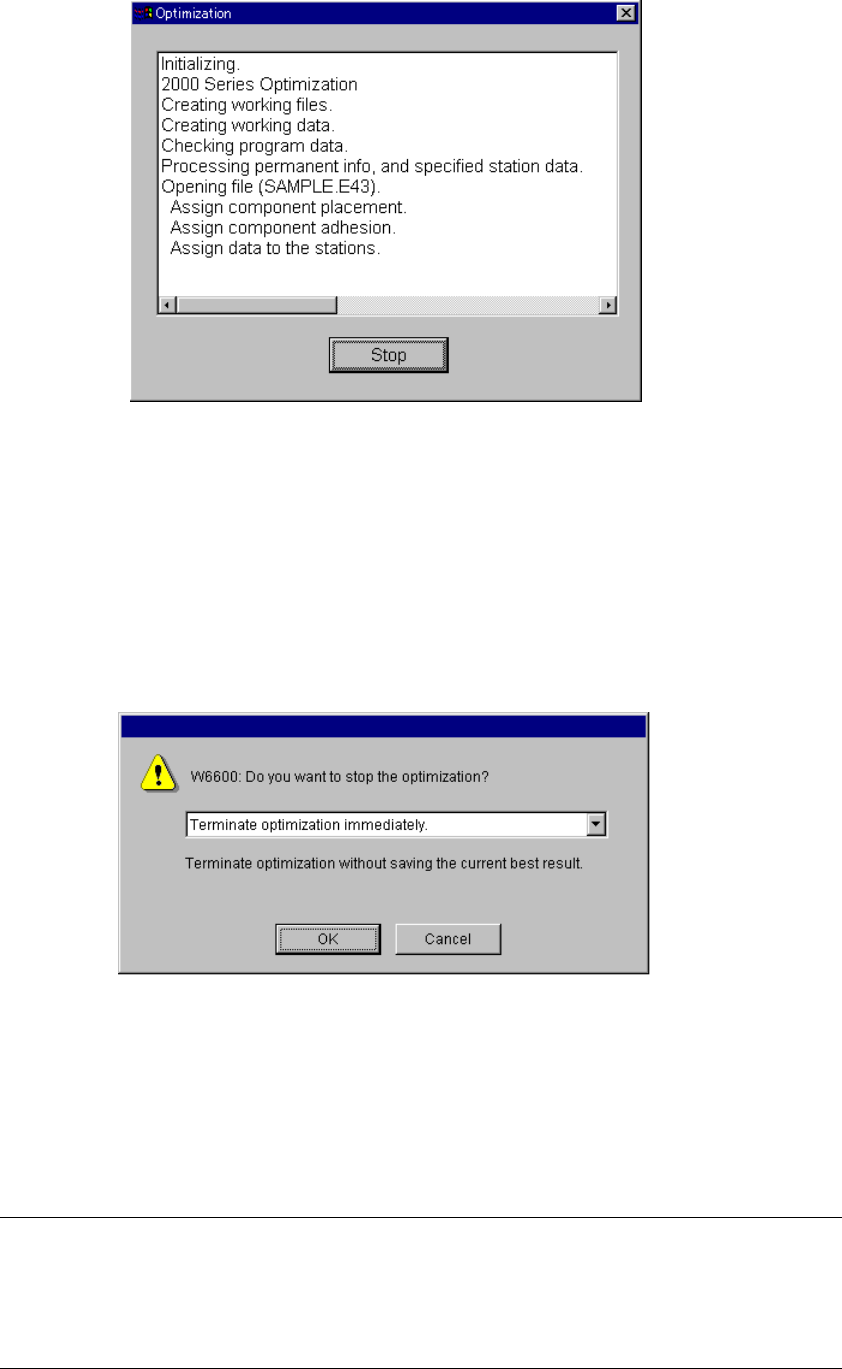
Figure 4.10.1.4 Optimization process display dialog box
When the Optimization utility finishes successfully, the Optimization process display
dialog box shown above disappears. If an error occurs, the corresponding error
message appears on the screen.
To abort the executed Optimization utility, click the <Stop> button displayed on the
Optimization process display dialog box.
When you click the <Stop> button, the following message displays:
Figure 4.10.1.5 Optimization abort confirmation message
− OK: “Terminate optimization immediately.”
The system stops optimization without saving the result of
optimization operation the system has done.
− Cancel: Re-starts the optimization process
Notes:
①
The <Run> button is enabled when the program data is complete.
Otherwise, it is dimmed in gray.
②
When you click the <Run> button, the consistency check is performed.
When the program data cannot be used for production in the active line,
an error is displayed in the memo.
4 – 160
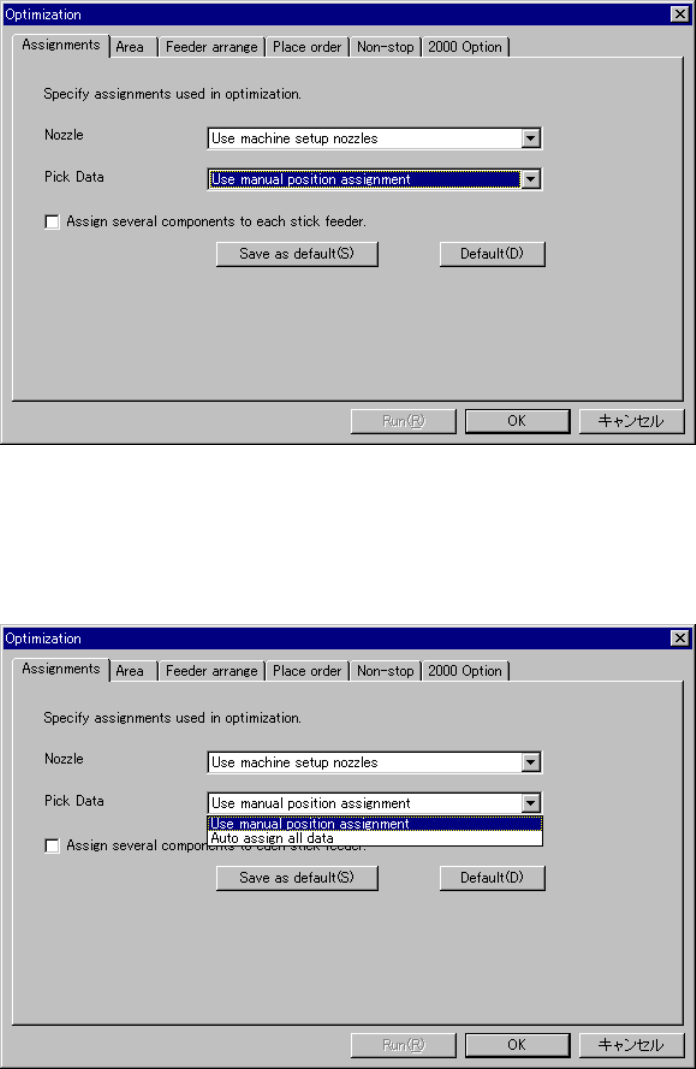
(2) Assignments Option
When you select the [Optimization] command from the menu or tool bar, the
“Assignments” option tab is pre-selected:
Figure 4.10.1.6 Assignments Option
Click on a drop-down button of the option setting you want to change to display the
available choices:
Select the desired one.
Figure 4.10.1.7 When you click the drop-down arrow button of the “Pick Data” option

4 – 161
The Assignments options are described in the table below:
Table 4.10.1.5 Assignments option detailed descriptions
Items to be
set
Function Choices
Nozzle Specifies if the Optimization
utility assigns nozzles.
[Auto arrange nozzles]
The Optimization utility assigns nozzles and ignores
the permanent information/ATC nozzle settings.
[Auto arrange empty nozzle positions]
The Optimization utility assigns additional nozzles if
there are empty ATC slots according to permanent
information/ATC nozzle settings.
[Use permanent nozzle setup from MSL Setup]
Nozzles are assigned according to the permanent
information/ATC nozzle settings. The Optimization
utility does not assign any nozzles.
Pick Data Specifies whether to assign
feeders to the station
specified in the Pick data
“station” section and “supply”
section.
If the supply position is not
changed as a result of
optimization, the pick position
XYZ for those feeders will be
kept.
[Use manual station/position assignments]
Assigns a feeder(s) whose component feeding
position is specified according to that specification.
The Optimization utility assigns feeders when they
are set to “auto selection”.
[Auto assign all data]
Re-assigns all feeders as if they are set to “auto
selection”.
However the permanent feeders are assigned
at the position specified.
Assign several stick components to one stick feeder.
Assign the same type of stick components to one feeder. If this option is not checked, assign
one lane to one feeder to allow simultaneous pick-up of components.
If the lane is specified for a particular component, then the specified lane is used.
Note: The "permanent nozzle" means a nozzle which you set on the Machine Setup
menu.