KE2010.Instruction Manual.Ver.2.01,Rev.08.pdf - 第722页
11 − 13 If any laser head is stained, the system pauses. W hen the system restart s, it check s the laser heads again. I f any laser head is st ill stained, the dialog box appears on the scr een that prom pts you to sele…
11 − 12
11.4.4 Setting the Production (Function2) option
When you select the [Options] command on the menu bar, then the [Option Setting]
command on the Options menu, the Operation option setting dialog box appears on
the screen.
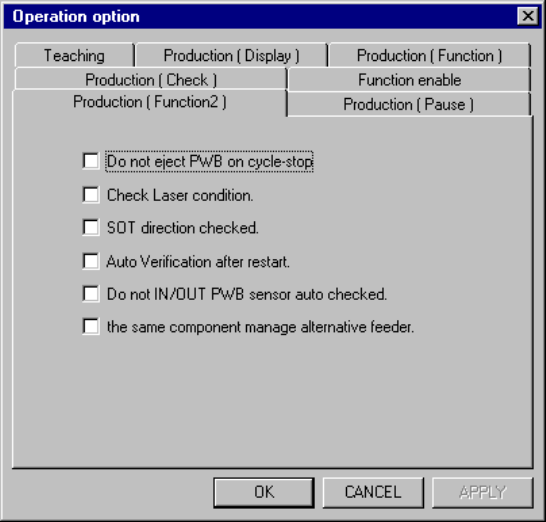
When you click the <Production (Function2)> tab, the “Production (Function2)” option
setting screen appears as shown in Figure 11.4.4.
Figure 11.4.4 Production (Fucntion2) option setting screen.
(1) How to set the item
① Do not eject PWB on cycle-stop
− Using the check box, select whether the system should eject a PWB at
cycle-stop.
− When you check this check box, the system enters Cycle-Stop mode.
When you press the <Stop> key, the system finishes the current
production after releasing a clamped PWB.
When you press the <Start> key, the system restarts the current
production.
− When you do not check this check box, the system finishes production
after ejecting a PWB to the post-production process.
② Check Laser condition.
− Using the check box, select whether the system should check to see if
laser head(s) is (are) stained when a board is sent into the machine.
− When you check this check box, the system checks to see if laser head(s)
is (are) stained after the head(s) move(s) to the waiting position when a
board is sent into the machine.
11 − 13
If any laser head is stained, the system pauses. When the system
restarts, it checks the laser heads again. If any laser head is still stained,
the dialog box appears on the screen that prompts you to select if the
system should check the laser heads again or the system continues
production forcibly.
− When you do not check this check box, the system does not check any
laser head.
③ SOT direction checked.
− Using this check box, select whether to check the direction of an SOT
component equipped with three terminals with the component picking-up
and tracking operation.
− When you check this check box, the system checks the direction of an
SOT component equipped with three terminals when it performs the
component picking-up and tracking operation.
− When you do not check this check box, the system does not check the
direction of an SOP component.
④ Auto verification after restart.
− Using this check box, select whether to execute the verification check with
the component picking-up and tracking operation.
− When you check this check box, the system executes the verification
check when it performs the component picking-up and tracking operation.
− When you do not check this check box, the system does not execute the
verification check.
⑤ Do not IN/OUT PWB sensor auto checked.
− Using this check box, select whether to check to see if there is a board on
the IN and OUT buffers at start of production after an error occurs while the
system is transporting a board between the IN and OUT buffers.
− When you check this check box, the system does not check a board at
start of production.
− When you do not check this check box, the system automatically sets a
board on the sensor if it remains between the IN and OUT buffer sensors
at start of production.
⑥ the same component manage alternative feeder.
− Using this check box, select whether to use the alternative feeder for the
same type of components.
− When you check this check box, the alternative feeder is used if the
stocked component runs out.
− When you do not check this check box, the alternative feeder is not used.
When you validate the settings of these two items, click the <OK> button. If you do
not want to make any setting of these items, click the <CANCEL> button.
11 − 14
11.4.5 Setting the Production (Pause) option
When you select the [Options] command on the menu bar, then [Option Setting]
command on the Options menu, the Operation option setting dialog box appears on
the screen.
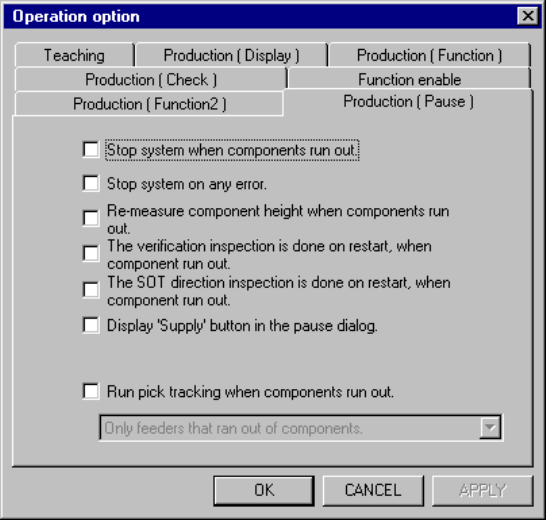
When you click the <Production (Pause)> tag, the Production (Pause) option setting
screen appears as shown in Figure 11.4.5.
Figure 11.4.5 Production (Pause) option setting screen
(1) How to set the item
① Stop system when components run out.
− Using the check box, set the operation mode when components run out.
− When this option is checked, the machine temporarily stops production
when components runs out.
− When this option is not checked, the machine continues placing
components as long as it has components which can be placed, even
when a type of components run out during production.
② Stop system on any error.
− Using the check box, set the operation mode to be entered when an error
occurs.
− When this option is checked, the machine temporarily stops production
when a productional error (including the component run-out error) occurs.
− When this option is not checked, the machine continues placing
components as long as it has components which can be placed, even
when a productional error occurs.