KE2010.Instruction Manual.Ver.2.01,Rev.08.pdf - 第715页
11 − 6 ② Auto-corr ect ref erence pin. − Set whether to correct the placement point f rom the inclinat ion dif fer ence between the ref erence pin and the f ollower pin with this check box. − W hen t he check box of this…
11 − 5
11.4.1 Setting the teaching option
When you select the [Options] command on the menu bar, then the [Option Setting]
command on the Options menu, the Operation options settings dialog box appears on
the screen.
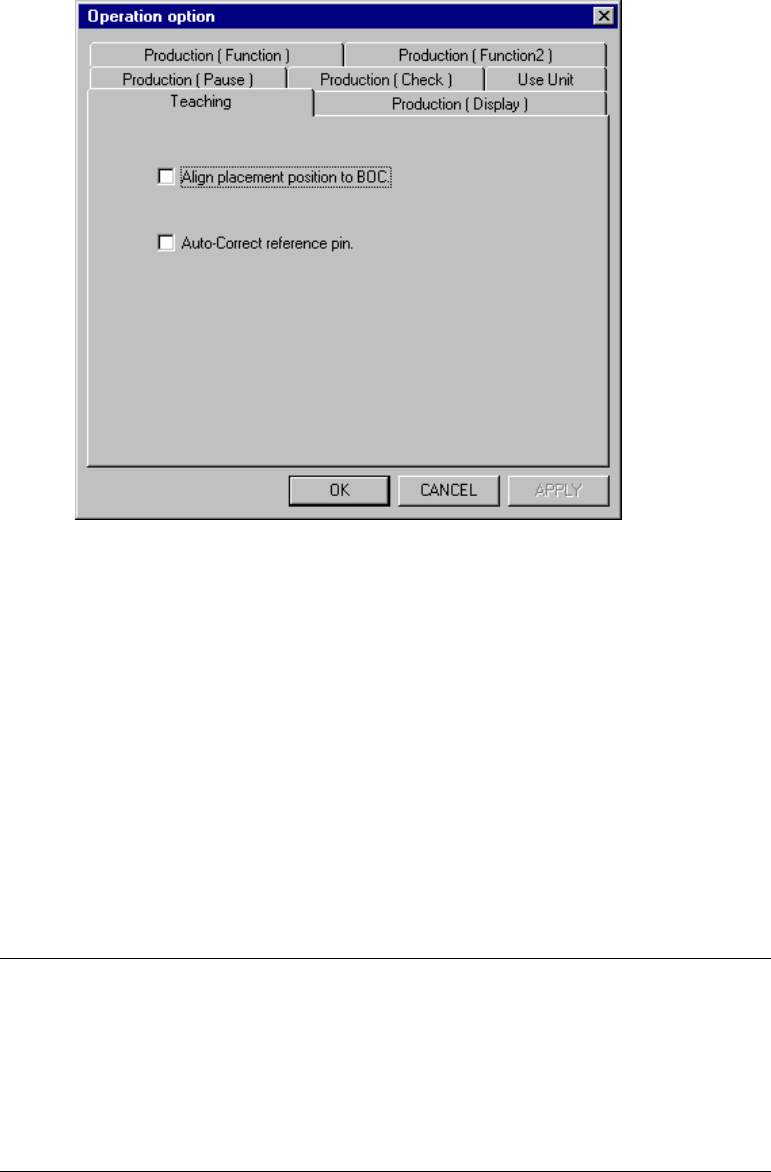
When you select the <Teaching> tag, the Teaching option setting screen appears as
shown in Figure 11.4.1.
Figure 11.4.1 Teaching options setting dialog box
(1) How to set each item
①
Align placement position to BOC.
− Set whetter to align the placement position with a BOC or not with
cheching the check box to perform teaching of a placement point for
editing, etc.
− When the check box of this option is checked, the placement point is
changed to the coordinates corrected with the BOC mark during teaching
of the placement point, while the placement point is corrected reversely
when it is loaded to the system. Therefore, the system can teach the
coordinates of the correct placement point on a board.
Notes:
−
This alignment cannot be performed if the mark data of the PWB
data is incomplete.
−
This alignment cannot be performed when the OCC is not set to be
used on the Machine setup menu.
−
For the value of alignment, the latest result of mark recognition is
used. If BOC alignment is readjusted during data creation, the
result may be slightly different from the previous one.

11 − 6
② Auto-correct reference pin.
− Set whether to correct the placement point from the inclination difference
between the reference pin and the follower pin with this check box.
− When the check box of this option is checked, the placement point is
corrected based on inclination between the reference pin and the follower
pin if the "Hole Reference" is selected as "Reference" in PWB data.
Notes:
−
Correct alignment cannot be made if the correct coordinates of the
reference pin and the follower pin have not been entered on the
Machine setup menu.
−
If the setting of this option differs between when data creating and
when PWB production, the correct placement cannot be achieved.
When you validate the selected item(s), click the <OK> button. If you do not
want to set any option, click the <CANCEL> button.
11 − 7
11.4.2 Setting the Production (Display) option
When you select the [Options] command on the menu bar, then [Option Setting]
command on the Options menu, the Operation option setting dialog box appears on
the screen.
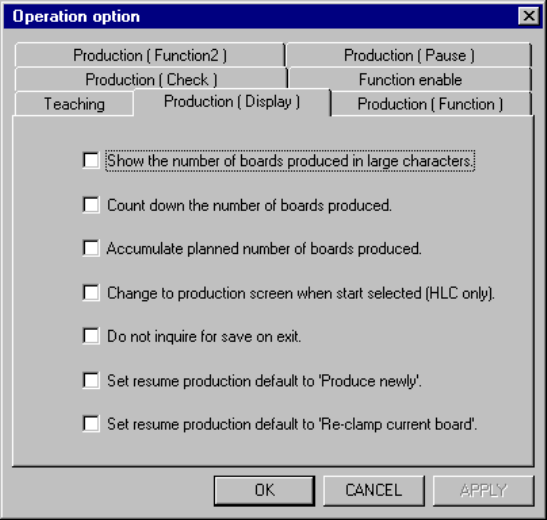
When you select the <Production (Display)> tag, the <Production (Display) > option
setting dialog box appears on the screen as shown in Figure 11.4.2.
Figure 11.4.2 <Production (Display)> option setting dialog box
(1) How to set the item
① Show the number of boards produced in large characters.
− Using the check box, set the display mode of the number of boards
produced.
− When this option is checked, the number of boards produced during a
production run is shown in the upper case.
② Count down the number of boards produced.
− Using the check box, display the number of boards produced or to be
produced.
− When this option is checked, the number of remaining boards to be
produced is shown.
− When it is not checked, the number of boards already produced is shown.
③ Accumulate planned number of boards produced.
− Using the check box, set how to update the number of boards produced.
− When this option is checked, the number of boards adds up and is
accumulated until the production management information is cleared (the
total number is shown).