KE2010.Instruction Manual.Ver.2.01,Rev.08.pdf - 第164页
4 – 57 If += is appended bef ore the num ber entered, that num ber is added to the value of the f ield one line above the f ield at the cursor . If -= is appended befor e the number ent ered, that number is subt racted f…
4 – 56
4.6.2 How to enter data
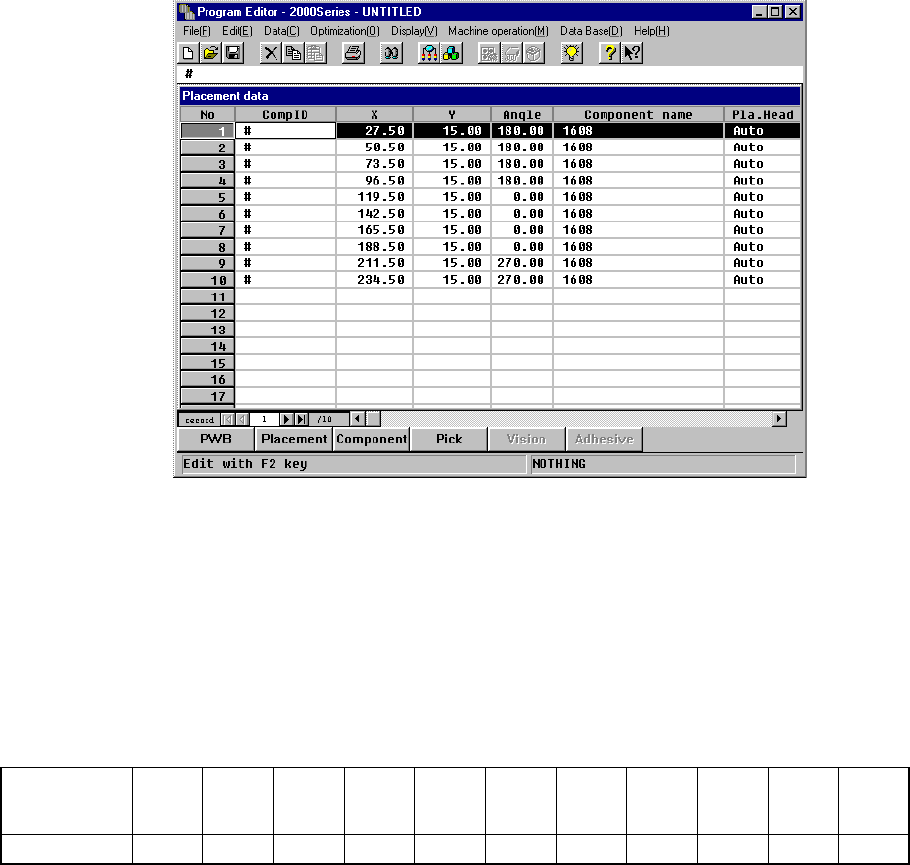
Placement data initial screen
Details
① (Component) ID
Enter the component ID using the formula bar.
When this parameter is defined, the default values are shown and an asterisk (*)
appears where data entry is not necessary.
Default values
Pla. H
(Placement
head)
Mark Mark ID
Mark
1 X
Mark
1 Y
Mark
1 TI
Mark
2 X
Mark
2 Y
Mark
2 TI
Skip Test
Lyr
(Layer)
Auto No * * * * * * * No No 4
If you enter eight characters or more, only the first eight characters are allowed
and entered actually. If you omit the ID, the ID becomes “#”. IDs other than “#”
are checked if they are unique, and if the same ID already exists, it is rejected.
② X, Y
Define the placement position with the X and Y formula bars.
− Absolute position entry
A numeric entry is directly set. Either a + or - sign may precede the number.
− Relative position entry
If ++ is appended before the number entered, that number is added to the
value of the field at the cursor.
If -- is appended before the number entered, that number is subtracted from
the value of the field at the cursor.
4 – 57
If += is appended before the number entered, that number is added to the
value of the field one line above the field at the cursor.
If -= is appended before the number entered, that number is subtracted from
the value of the field one line above the field at the cursor.
Note: Do not enter any space between “+” and “+”, “-“ and “-“, “+” and “=“, or “-“ and
“=“.
③ Angle
Enter the placement angle using the formula bar.
The setting range is from 0° to 359.95° in increments of 0.05°.
③ Component name
Enter the component name using the formula bar. Each time a component name
is entered, the component data space is allocated accordingly. If you enter a
wrong component name, the corresponding component data space is released
when you change the wrong name unless you enter any Component data.
When you enter a component name, the machine searches it through the
Component library. When the machine finds the same component name in the
Component library, it loads the corresponding component data into a production
program. Upper case characters and lower case characters are handled as the
same as each another, but are displayed separately. If a component name is
registered in the Component database in advance, the registered characters are
displayed instead of the characters you entered here.
The length of a component name is up to 20 characters.
The 21st and the following characters are ignored.
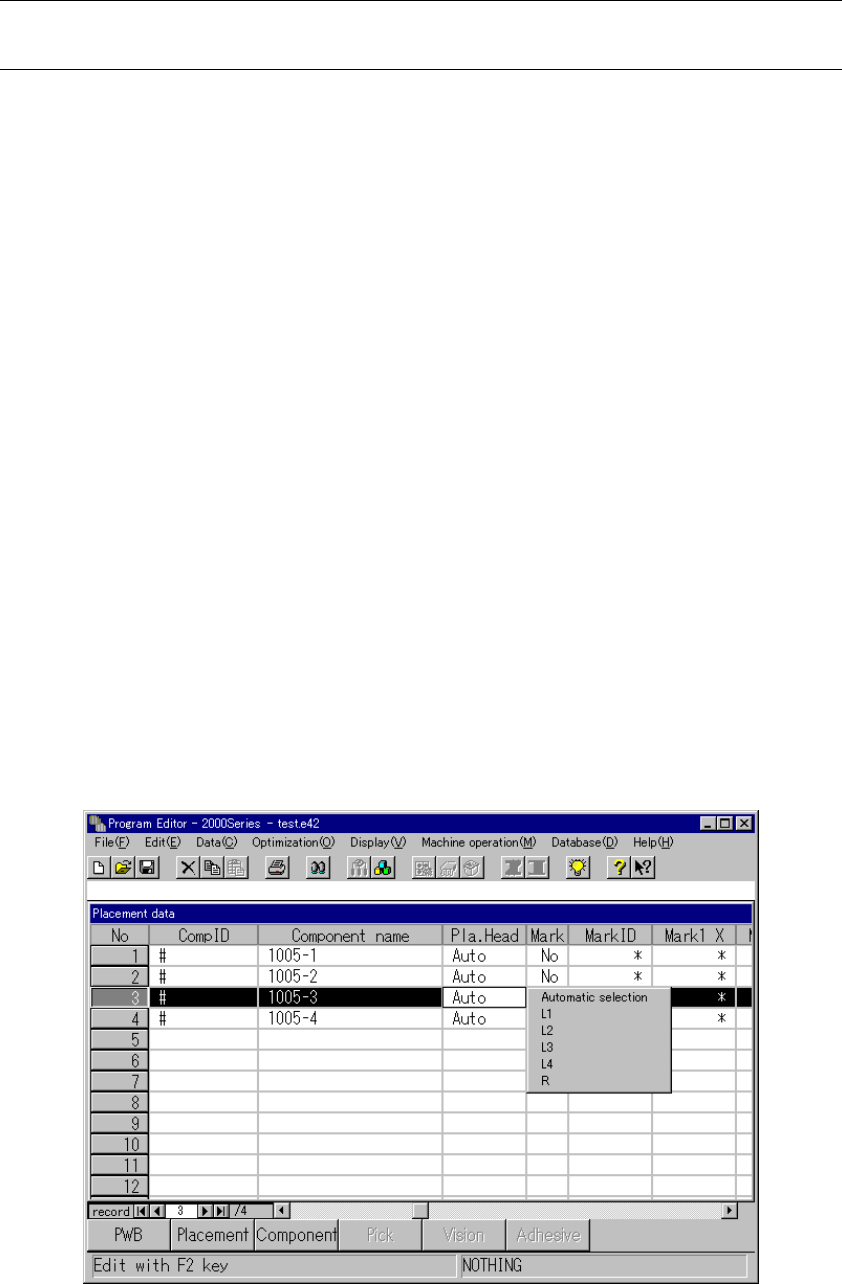
⑤ Pla. Head
Select the head to mount on the machine from the pop-up list box. If you do not
want to select a head, select “Auto” from the pop-up list box displayed as shown
below.
4 – 58
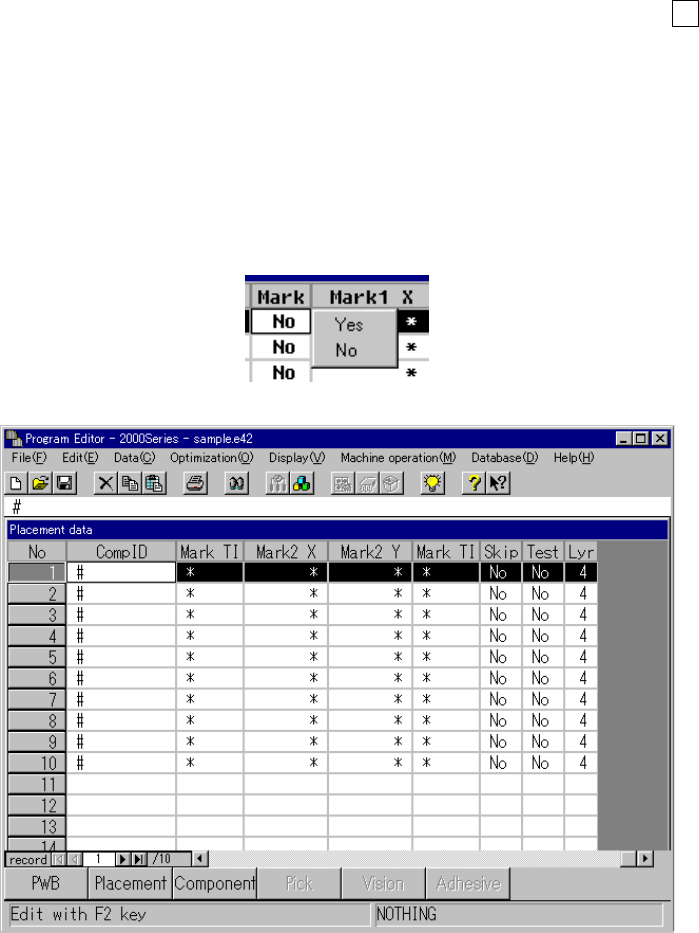
⑥ Mark
Select from the pop-up list box whether or not correction is made for placement
position using the area fiducial mark when the machine places a component on a
board.
When you enter the component ID, “No” (this means “not used”) appears as
default for the mark. To change the default setting, using the Edit key ( F2 key)
of clicking the input field with the right button of a mouse, open the list box to
select the desired item.
If you want to change the “Mark” items of Placement data at a time, select the
desired Placement data records in advance, and then change them.
When you select “Yes” (this means “planned to be used”), you have to enter
positions of two sets of area fiducial marks. Even though you enter the position
of only one set of fiducial marks, Placement data cannot be completed.
⑦ Mark ID
If you want to use a mark as an area fiducial mark, assign an ID to mark data so
that you can use specify the desired mark.
Use the formula bar to enter a mark ID. When the “Mark” item is set to “Yes”,
the system allows you to enter a mark ID and automatically generates it so the
same ID cannot be generated.
If you enter a mark ID manually and the same mark ID already exists, the mark
data is linked to each other and can be shared.