KE2010.Instruction Manual.Ver.2.01,Rev.08.pdf - 第94页
3 − 21 3.6.5 File management Start up Explorer to manag e files. CA UTION Explorer allows you t o delete or move a file other than a production program. However, if you delet e or move a file other than a production prog…
3 − 20
3.6.3 Overwrite & Save
Operation 1: Select the [File] command on the menu bar, then [Overwrite & Save]
command on the File menu.
Operation 2: Select the
button on the tool bar.
This operation saves a production program with the current name.
Note: Only if you change data on the Basic setting screen of PWB data, move to
another screen, then save the data.
Even though you perform the save operation for the changed data on the Basic
setting screen, the machine does not save it.
3.6.4 Save As
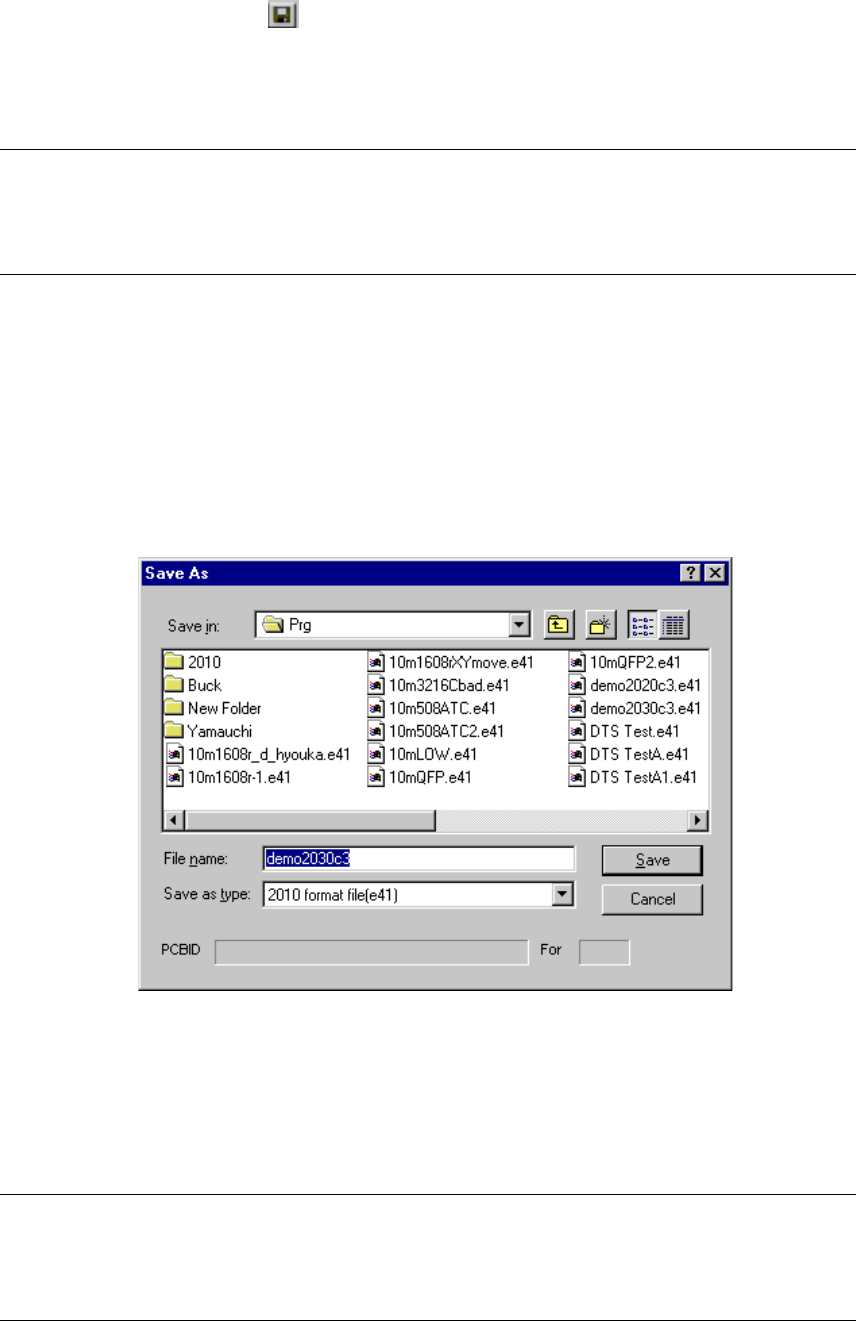
Operation: Select the [File] command on the menu bar, then [Save As] command
on the File menu.
This operation renames the current production program, then saves it.
Figure 3.6.4 <Save As> dialog box
As long as you follow the Windows file name conventions, you can assign a long file
name or Japanese file name to a program. However, to maintain the compatibility
with the KE-700 series of products, we recommend that you assign to a production
program an English file name whose length is eight characters or less.
Note: Only if you change data on the Basic setting screen of PWB data, move to
another screen, then save the data.
Even though you perform the save operation for the changed data on the Basic
setting screen, the machine does not save it.
3 − 21
3.6.5 File management
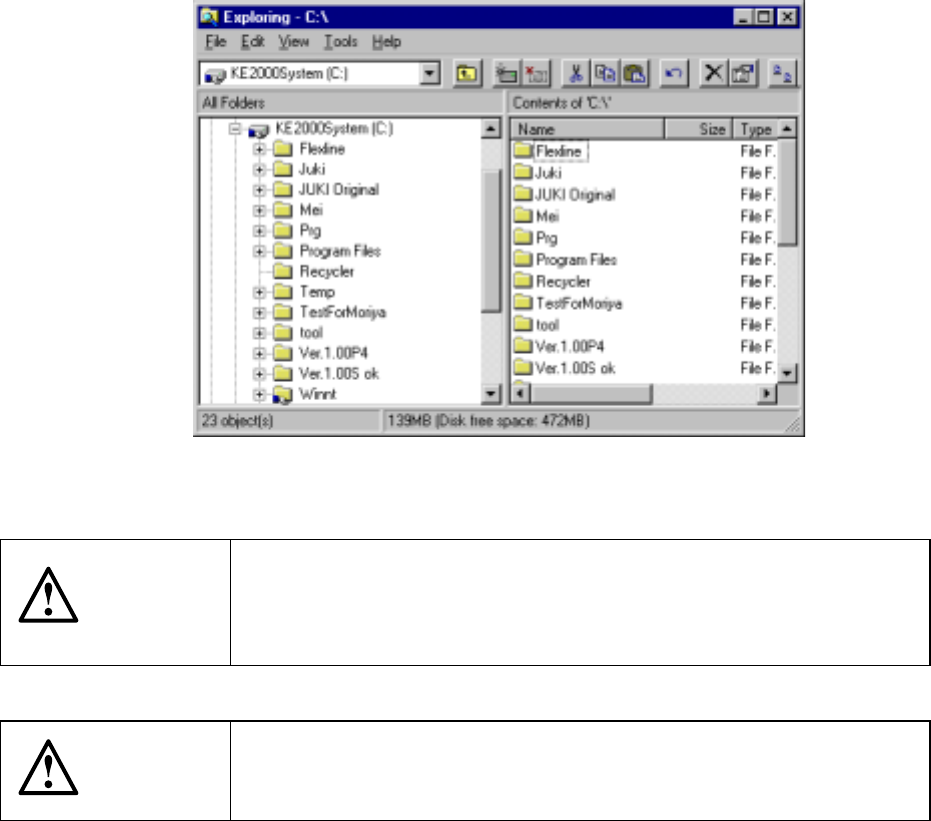
Start up Explorer to manage files.
CAUTION
Explorer allows you to delete or move a file other than a production
program. However, if you delete or move a file other than a production
program, you may not be able to restart the machine. Never delete
nor move files other than those in the PRG folder.
CAUTION
If you change the extension of a production program, the machine
cannot recognize the production program. Never change the
extension of any production program.
3 − 22
3.6.6 Default Folder
This command sets up the initial directory from/to which a production program is to be
read/written.
3.6.7 Setting a Printer and Printing
− Setting a printer
Add or set a printer used to print data.
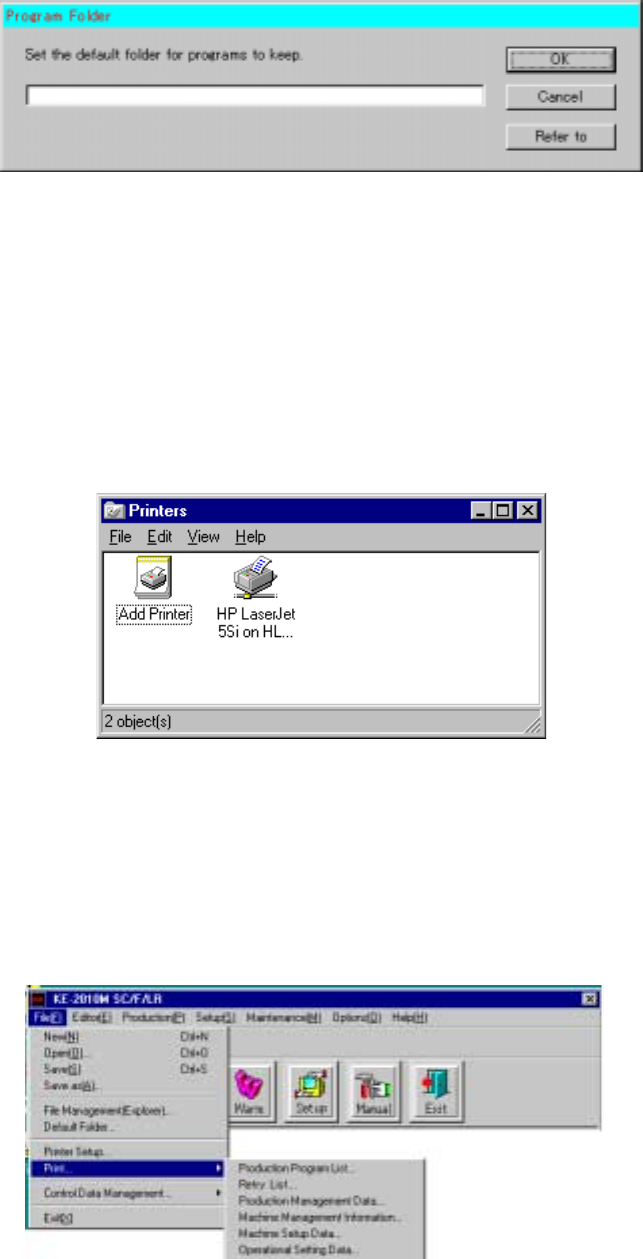
1. Select the [File] command on the menu bar, then click the [Printer Setup]
command on the “File” menu.
2. Click the “Add Printer” icon or an existing printer icon.
3. Follow the instructions displayed with the Printer wizard to set a printer.
Figure 3.6.7.1 Setting a printer
− Print
This command prints the production management information, machine operation
information (by the [Component lifetime management information] command),
machine setup conditions and operation option settings.
When you select the [Print] command, the following sub menu appears on the
screen.
Figure 3.6.7.2 Print