KE2010.Instruction Manual.Ver.2.01,Rev.08.pdf - 第600页
8 − 11 (2) Con trol item Select the contr ol item with a radio but ton. (3) Contr ol button Each control item can be executed with the corresponding cont rol butt on. The display of t he control but tons diff ers dependi…
8 − 10
8.2 Head-Related Control
8.2.1 Head control
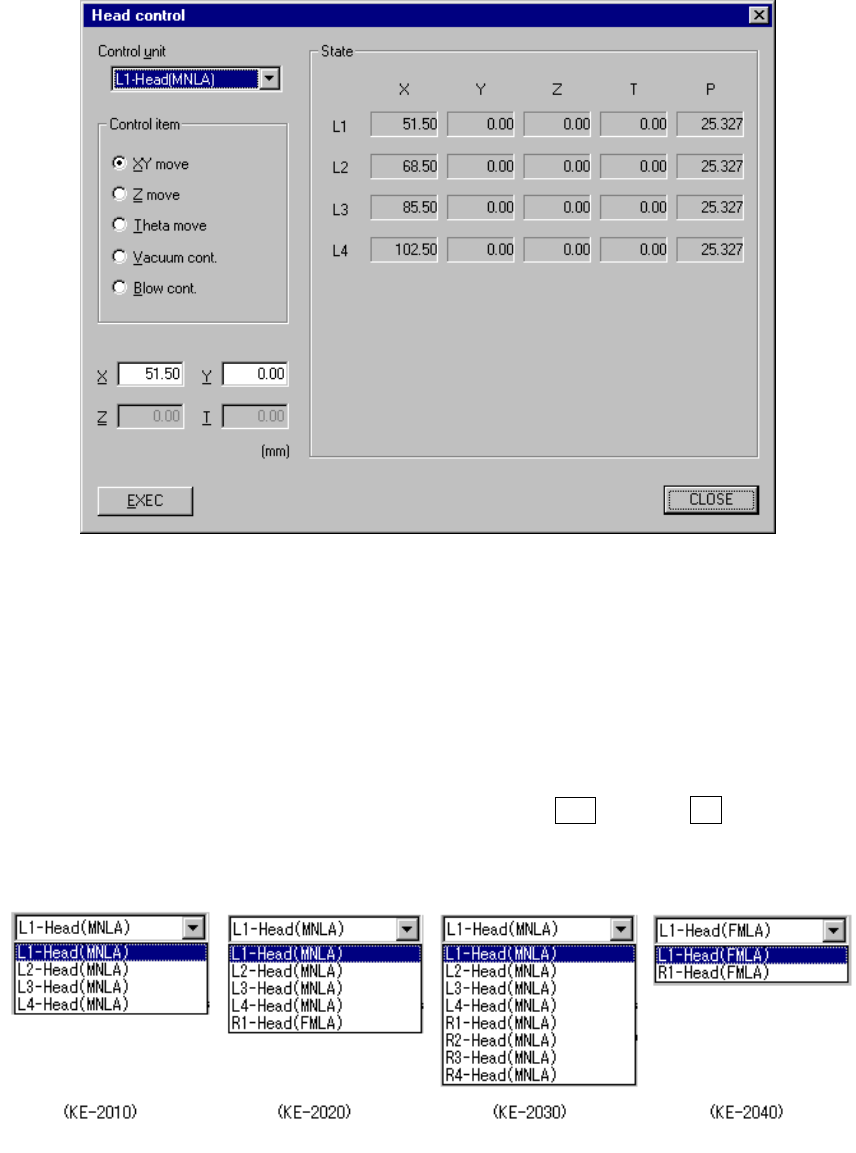
When you select the [Head] command on the [Ctrl] menu, then the [Head control]
command, the following Head control dialog box appears on the screen.
Figure 8.2.1 Head control dialog box
(1) Control unit
Select the unit to be controlled from the combo box.
This setting does not affect the setting of the “Device enable” menu invoked
from the Machine Setup menu. (This means that the units without check mark,
that is not to be used, can be selected.)
The following list appears when you press the ALT key and ↓ key at the
same time.
8 − 11
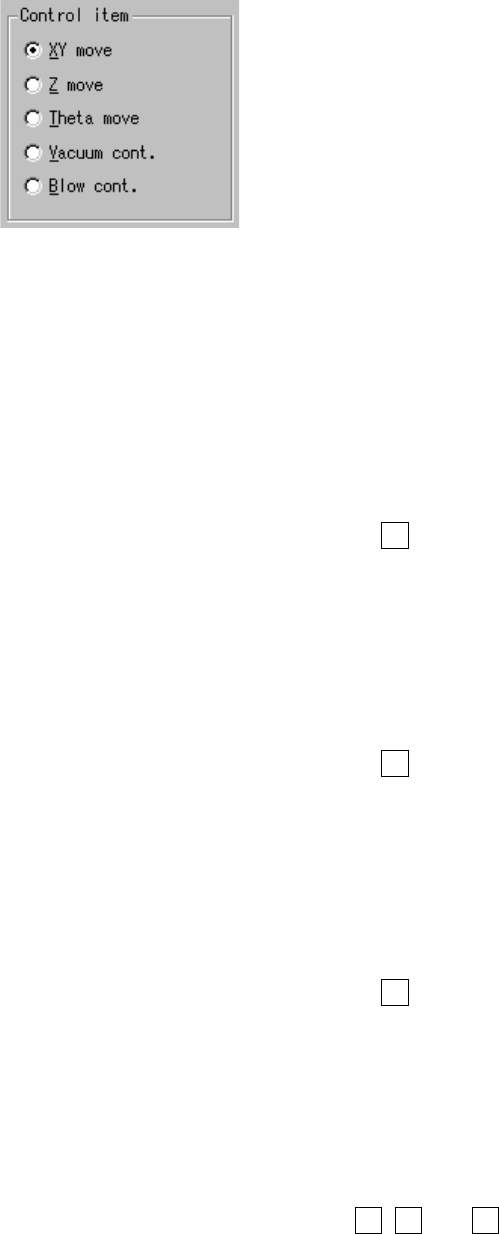
(2) Control item
Select the control item with a radio button.
(3) Control button
Each control item can be executed with the corresponding control button.
The display of the control buttons differs depending on the control item
selected.
1) Moving the X- and Y- axes
When the control item “XY move” is checked, enter the destination
coordinates, then click the <EXEC> button or press the F3 key. The head
starts moving by referring to the selected control unit position.
The display of the coordinates is updated when the movement has been
completed.
2) Moving the Z axis
When the control item “Z move” is checked, enter the destination
coordinates, then click the <EXEC> button or press the F3 key. The head
starts moving by referring to the selected control unit position.
The display of the coordinates is updated when the movement has been
completed.
3) Moving the θ axis
When the control item “Theta move” is checked, enter the destination
coordinates, then click the <EXEC> button or press the F3 key. The theta
axis starts moving by referring to the selected control unit position.
The display of the coordinates is updated when the movement has been
completed.
4) Controlling the vacuum
When the control item “Vac. cont.” is checked, click one of the <ON>,
<OFF)> and <ON/OFF> buttons, or press one of the F3, F4 and F5 keys.
The display of the vacuum level is updated when the control has been
completed.

8 − 12
5) Controlling the blow
This item turns on and off of the blow of the head selected.
When the control item “Blow cont.” is checked, click one of the <ON)>,
<OFF> and <ON/OFF> buttons, or press one of the F3, F4 and F5 keys.
The display of the vacuum level is updated when the control has been
completed.
(4) State display
X and Y coordinates, Z coordinate, θ coordinate, and pressure value are
displayed when the control has been completed.
The pressure value is always displayed during monitoring.