KE2010.Instruction Manual.Ver.2.01,Rev.08.pdf - 第436页
6 − 60 6.3.4 Printing the Retry List W hen y ou select the [ File] comm and on the menu bar, the [Print ] command on t he displayed menu, and the [Retr y List] command af t er PW B production, the ret ry list printing di…
6 − 59
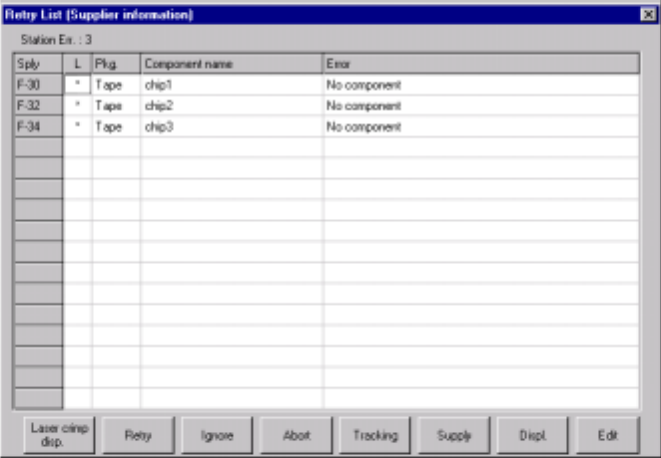
6.3.3.3 Pick point correction using the Retry list (supplier information) dialog box
When the Retry list (supplier information) dialog box appears, select the [Pick track]
button. Pick point tracking of the feeders selected in the list box is performed, and its
pick point can be corrected. The feeders subject to pick point correction are fully
loaded automatically.
Figure 6.3.3.3.1 Retry list (Supplier information) dialog box
6.3.3.4 Operation
① Starting tracking operation
When the <Pick track> button is selected on the Retry list dialog box, the "Pick
camera tracking" dialog box appears on the screen immediately, and the head
moves to the pick point of the feeder displayed in the list box. This operation is the
same as that of pick point tracking operation (manual operation) when only one
piece of pick data exists.
Using the device key of the HOD, teaching of pick points is also possible here.
② Fishing pick point correction
When tracking of the subject pick data (one piece of the data) has been
completed, tracking operation is finished automatically, and the Retry list dialog
box appears again.
6 − 60
6.3.4 Printing the Retry List
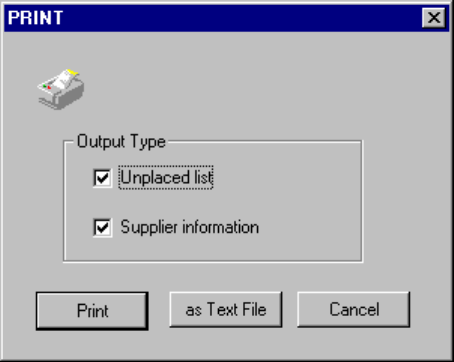
When you select the [File] command on the menu bar, the [Print] command on the
displayed menu, and the [Retry List] command after PWB production, the retry list
printing dialog box appears on the screen.
− Select the data to be printed with checking either of the “Output Type” radio
buttons.
− If the retry list cannot be displayed, you cannot select the [Print] command on the
[File] menu.
Figure 6.3.4 Retry list printing dialog box
When you click the <Print> button, the system starts printing the specified data.
When you click the <as Text File> button, the “File Save” dialog box appears on
the screen. Specify the path and file name, then click the <Save> button. The
specified data is output as a text file.
When you click the <Cancel> button, the display returns to the screen displayed
before you selected the [Print] command.
6 − 61
6.4 Operation during Board Production
6.4.1 Run-out of components stock
When one of the following events (indicating a runout of components stock) occurs,
take the actions stated below.
(1) Occurrence of a Runout-of-Components-Stock event
① If a retry over error occurs when the machine picks up a component from a
tape feeder or stick feeder
(2) Machine’s action for run-out of components stock
① Blinks the signal lamp in yellow.
② Continues processing.
Places another type of components that can be placed.
Uses an alternate feeder (if available) in the next and later pickup and
placement cycles. However, when the "Stop the system when components
runout" operational option is selected, the machine immediately stops,
displays a dialog box shown below, and waits for a user's input.
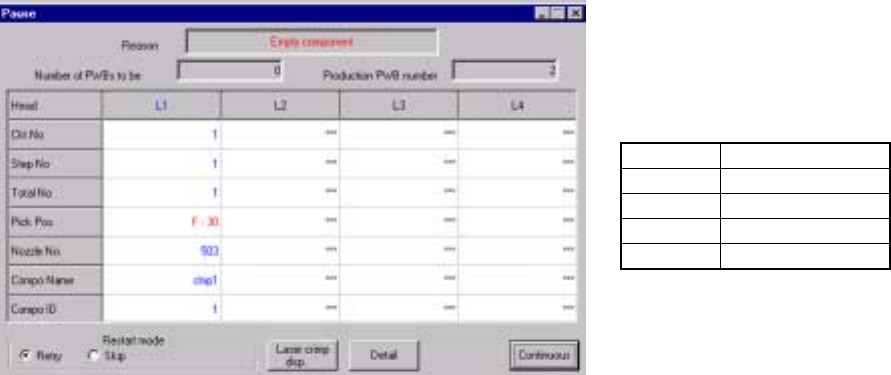
When you check the operation option "Stop the system when components
run-out" and the machine pauses, the dialog box shown in Figure 6.4.1.1
appears on the screen.
Figure 6.4.1.1 Empty component dialog box
(Screen example when you use a KE-2020)
Pressing the <START> switch on the operation panel restarts the production.
Pressing the <STOP> switch puts the production temporarily in halt with the
temporarily halt dialog box displayed.
When "The height of component is measured on restart component run out"
operational option is selected, the system resumes production after it
measures the height of a chip or MELF which runs out.
If the system fails to measure the height, the dialog box shown in Figure
6.4.1.2 appears on the screen.
• The actually displayed names
under the caption “Head” vary
depending on the model you use.
Model
Head name
KE-2010
L1 to L4
KE-2020
L1 to L4, R1
KE-2030
L1 to L4, R1 to R4
KE-2040
L1, R1