KE2010.Instruction Manual.Ver.2.01,Rev.08.pdf - 第338页
4 – 231 (7) Action t o be perf ormed at each point while the machine is track ing the component pick-up heig ht W hen y ou check t he check box "Trace stops if t here is a diff erence of the measurement value."…
4 – 230
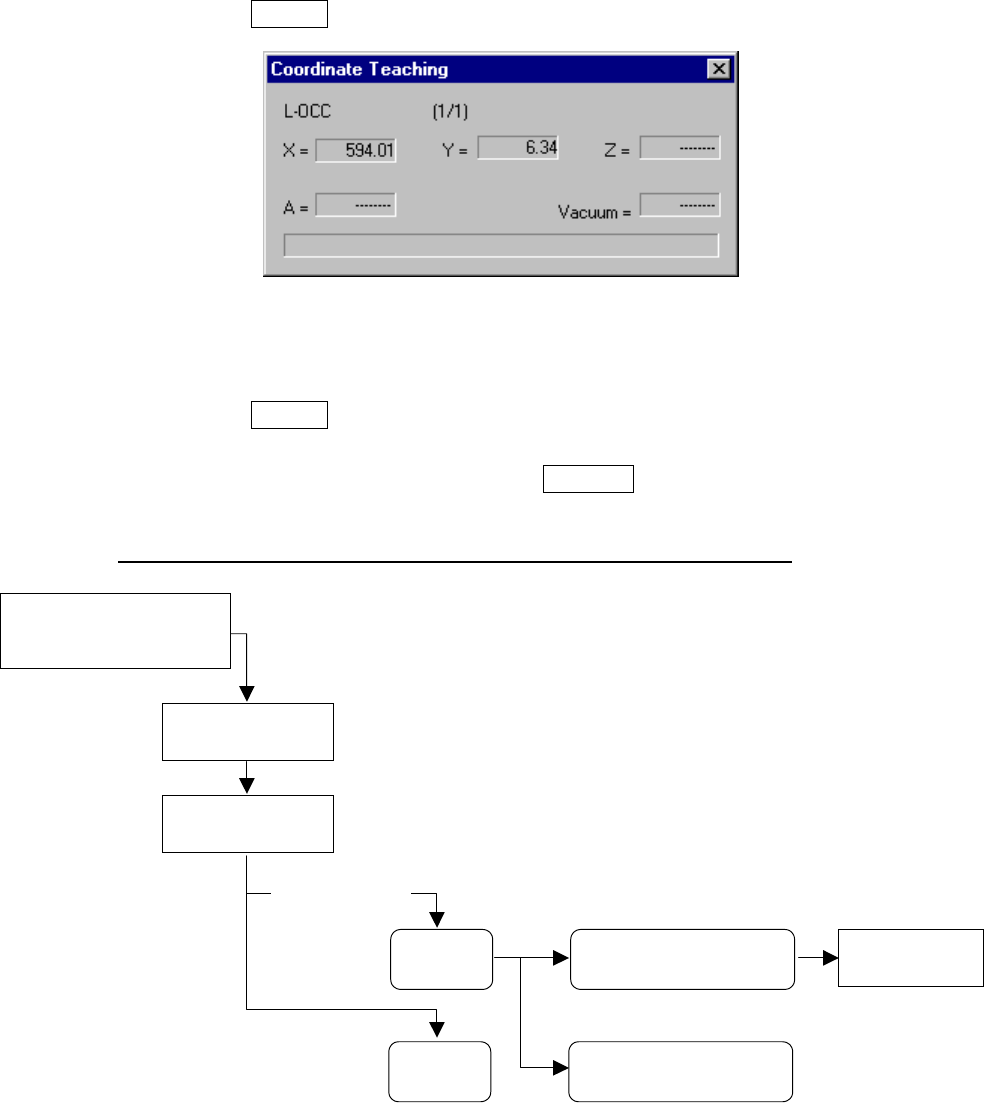
(6) Teaching coordinates during tracking
If the tracked coordinates are different from the actual ones, you can use the
HOD to teach the component pick-up point.
Step 1) Move the cursor to the X, Y or Z coordinate.
Step 2) Press the HOD device button to teach the coordinates, then press the
ENTER key to validate them.
“Coordinate Teaching” dialog box
Step 3) To enable the validated coordinates, click the <Set> button or press the
ENTER key again.
To reset the validated coordinates to their original values, click the
<Cancel> button or press the CANCEL key.
Teaching operation flow during tracking of a component pick-up point
Move the input focus to the
component pick-up
coordinates XYZ edit box.
Press the HOD
device key.
Change Pick
data.
Teaching operation
ENTER
CANCEL
Click the <Set> button or
press the ENTER key.
Click the <Cancel> button
or press the CANCEL key.
After validating
t
h
e
coo
r
d
in
ates
4 – 231
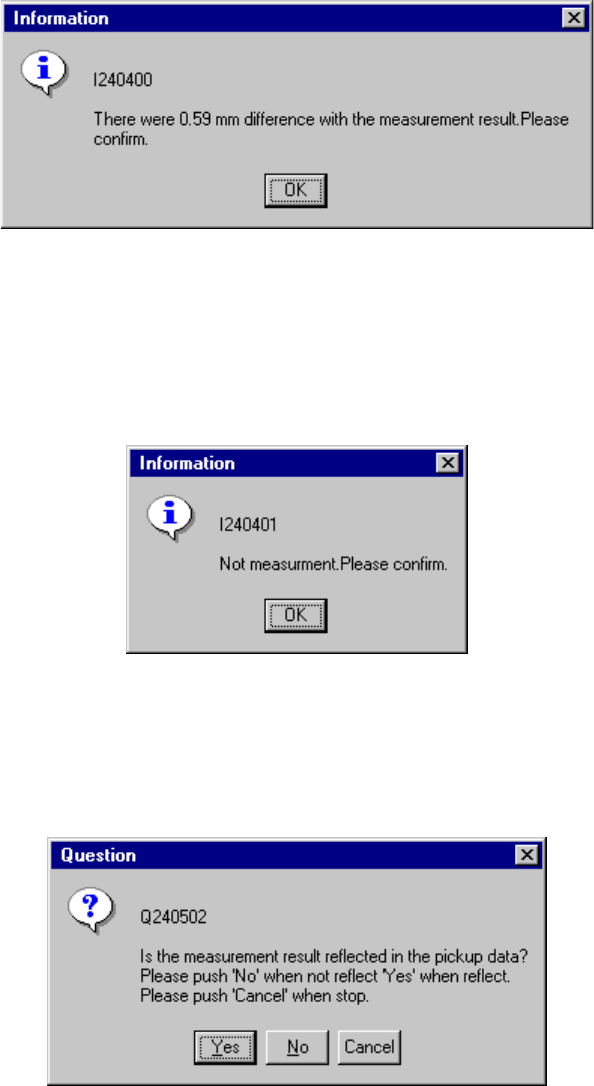
(7) Action to be performed at each point while the machine is tracking the component
pick-up height
When you check the check box "Trace stops if there is a difference of the
measurement value." on the "Pick height tracking" dialog box, the dialog box
appears on the screen as shown in the figure below if the difference is detected.
If you select "Automatic feed" as the "Feed method", the machine stops tracking
a pick-up point. Check the height specified in Pick data.
When you check the check box "Trace stops if it is not possible to measure" on
the "Pick height tracking" dialog box, the dialog box appears on the screen as
shown in the figure below if the HMS cannot measure the height.
If you select "Automatic feed" as the "Feed method", the machine stops tracking
a pick-up point. Check the height specified in Pick data.
When you check the check box "The measurement value is taken" on the "Pick
height tracking" dialog box, the dialog box, which asks you whether to save the
value measured by the HMS as the Z coordinate of Pick data, appears on the
screen. To save it, click the <Yes> button.
4 – 232
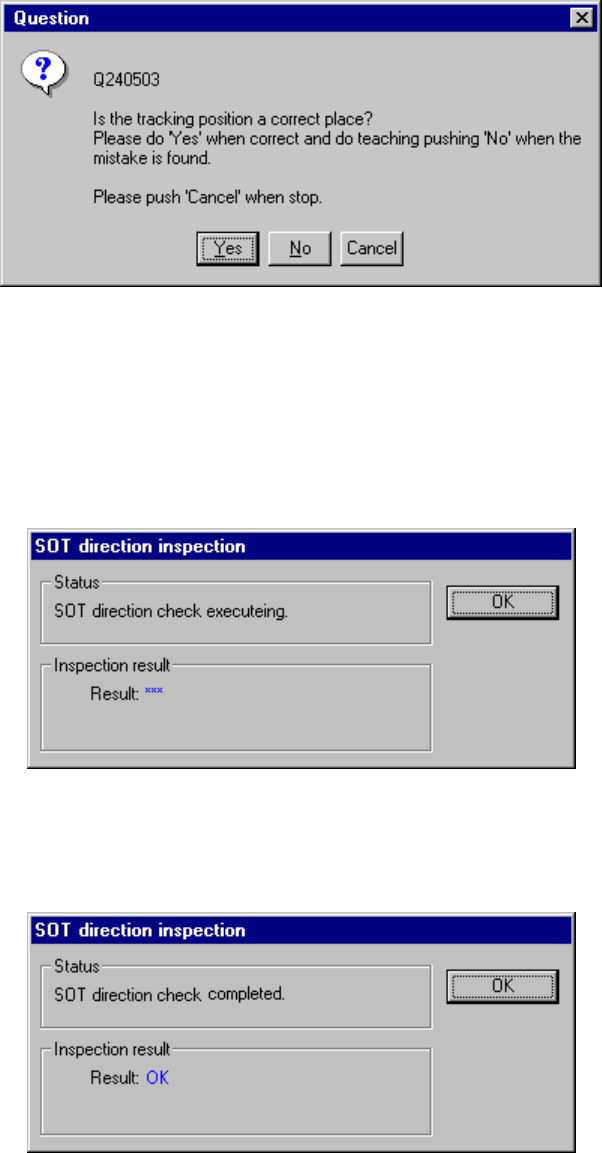
When you check the check box "Position confirm by OCC." on the "Pick height
tracking" dialog box, the pick-up position is displayed on the VCS monitor.
When the following dialog box appears on the screen, check the position with
your eyes. When the position is correct, click the <Yes> button. If you want to
teach it again, click the <No> button to teach the coordinates as described in Item
(6).
(8) Checking the direction of an SOT component being tracked
The system can check the direction of an SOT component when the tracking
operation pauses.
The following screen appears when the system is checking the direction of an
SOT component:
After the system finishes checking the direction of an SOT component, it displays the
result: “OK” or “NG”.