KE2010.Instruction Manual.Ver.2.01,Rev.08.pdf - 第161页
4 – 54 W hen y ou move to the scr oll limit of the r ight side, a screen appears as shown below . The s croll bar appear s on the sc reen when there is s till data to be displayed bey ond the last line of the sc reen. Up…
4 – 53
4.6 Placement Data
4.6.1 Basic operation
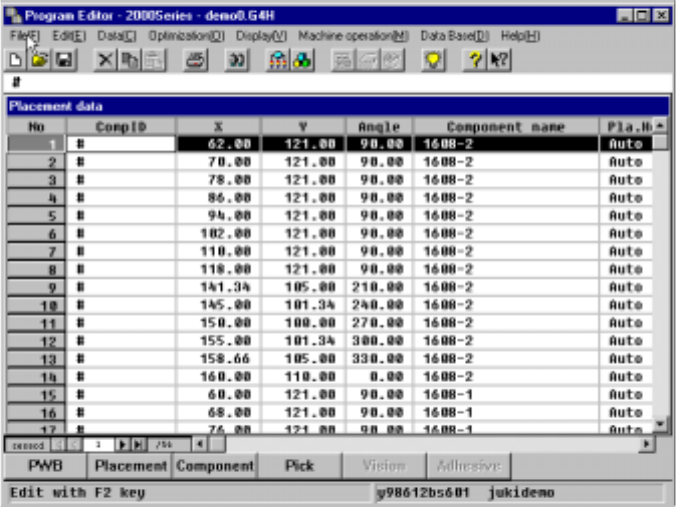
Start-up screen
The Placement data input screen appears in the form of a list at its start up as
shown below.
The line at which the input focus is located is highlighted, while the cell at which
the input focus is located is not highlighted.
Characters you entered are echoed back in the formula bar, and when you
validate them, they are entered into the cell.
Left-right scroll
The placement data list screen does not show all data at one time. You have to
scroll the screen right to left or vice versa to enter data. When you move to the
right at the rightmost input field, the screen scrolls by one row, then the input
focus moves to the next field.
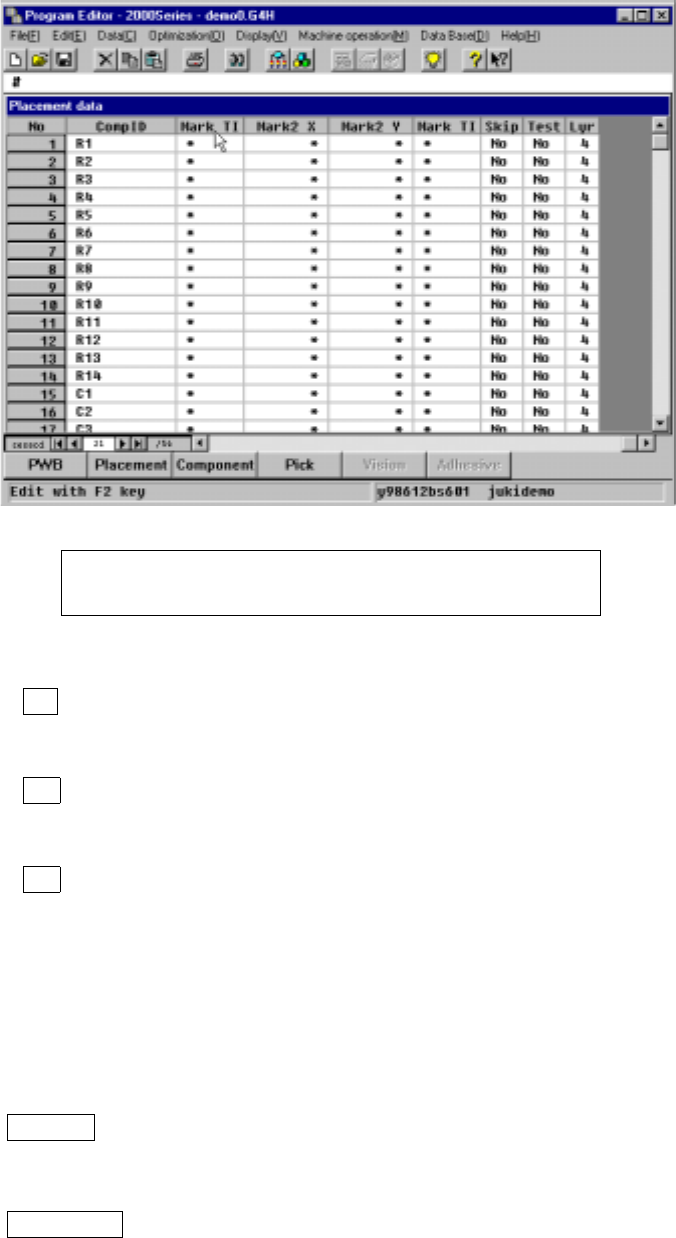
When you continue scrolling the screen to the right to reach the final column field,
the input focus cannot be moved even though you try to move to the right
direction. To move to the next line, scroll the screen downward.
4 – 54
When you move to the scroll limit of the right side, a screen appears as shown below.
The scroll bar appears on the screen when there is still
data to be displayed beyond the last line of the screen.
Up-down scroll
If the ↑ key or button is pressed when the input focus is located on the top line
within the data display area of a window, but not the first line, the screen scrolls
down one line.
If the ↓ key or button is pressed when the cursor is located on the bottom line
within the data display area of a window and when the component ID for the
following line has been entered, the screen scrolls up one line.
If the ↓ key or button is pressed when the cursor is located on the bottom line
within the data display area of a window and when the component ID for the
following line is not entered yet, the screen scrolls up one line and then the cursor
moves to the comp ID cell.
Scroll bar
When you click the scroll bar located at the top of the vertical scroll box, the
screen scrolls down one page.
The Page Up key functions in the same manner.
When you click the scroll bar located at the bottom of the vertical scroll box, the
screen scrolls up one page.
The Page Down key functions in the same manner.
When you click the scroll bar on the left of the horizontal scroll box, the screen
scrolls to the right by one page.
When you click the scroll bar on the right of the horizontal scroll box, the screen
scrolls to the left by one page.
4 – 55
Scroll box
When you drag the scroll box, the screen starts scrolling from the position
indicated with the scroll box by comparing the scroll bar to all data display area.
Moving to an unentered line
When you click the down arrow key at the bottom line, a new record is created
and the cursor is moved to the “Comp ID” cell.
(If you do not enter any data for a new record, for example, by pressing just a
cursor key, the new record is deleted when you move to another line.)
Moving to the top or bottom of the screen
When you press the Home key, the left half screen which cannot be scrolled to
the left further appears, then the input focus moves to the “Comp ID” cell.
When you press the End key, the right half screen which cannot be scrolled to the
right further appears, then the input focus moves to the “Lyr” cell.
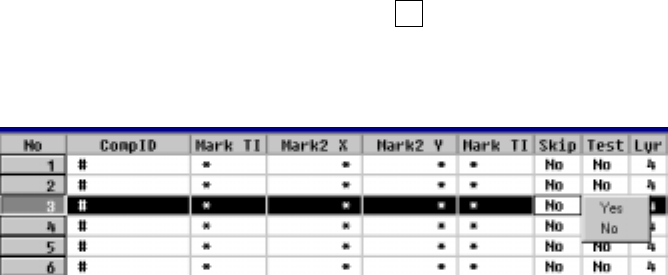
Entry of mutually exclusive items
When you enter data or change it, press the F2 key or click the input field with
the right button of a mouse. The pop-up menu appears on the screen. Select
the desired value.