KE2010.Instruction Manual.Ver.2.01,Rev.08.pdf - 第345页
4 – 238 4.12.4.10 Dialog box for show ing the parameters obtained W hen the system obtains the optimal coplanar ity parameter , the system display s the obtained electrode br ightness t hreshold and scanning posit ion of…
4 – 237
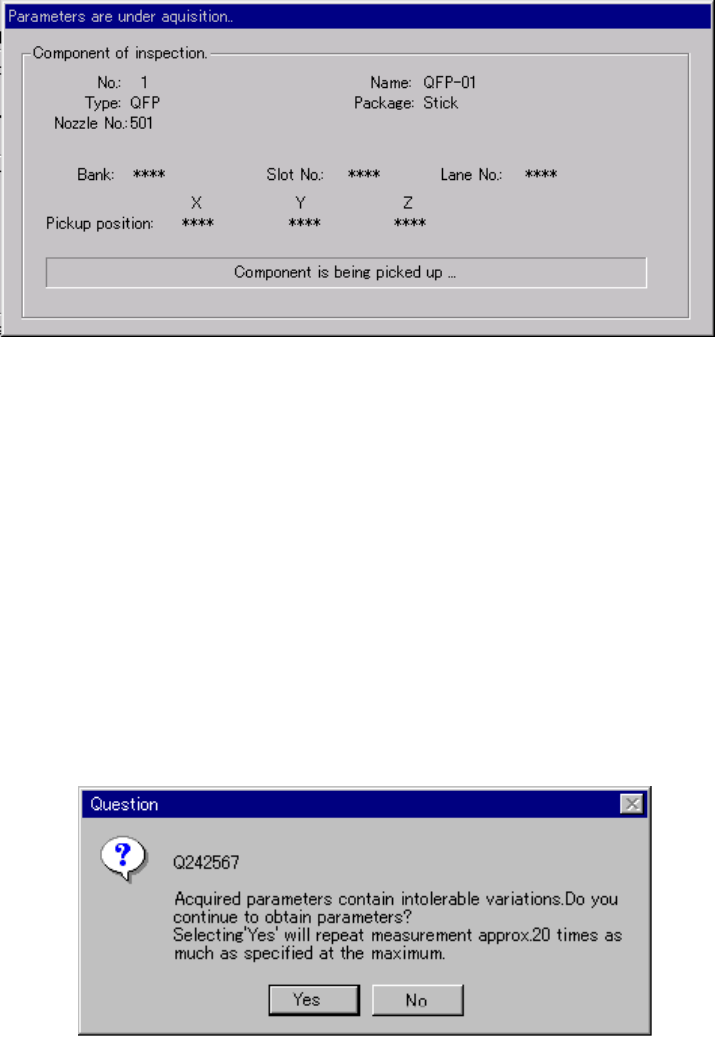
4.12.4.8 “Parameters are under acquisition…” dialog box
When you click the <Acquire> button on the “Coplanarity inspection” dialog box, the
system obtains the coplanarity parameters, and displays the following dialog box
while the system is obtaining the parameters.
Figure 4.12.4.5 “Parameters are under acquisition…” dialog box
4.12.4.9 Confirmation dialog box for continuing to obtain the parameters
If there is any unstable element (deviation) among the measured coplanarity
parameters, the machine displays the following dialog box even though any
measurement error does not occur.
When you click the <Yes> button, the machine starts obtaining the coplanarity
parameters again. In this case, it repeats this operation up to the number of times
calculated by multiplying the value you set by 20. When you click the <No> button,
the machine uses the current coplanarity parameters.
Figure 4.12.4.6 Confirmation dialog box for continuing to obtain the parameters
4 – 238
4.12.4.10 Dialog box for showing the parameters obtained
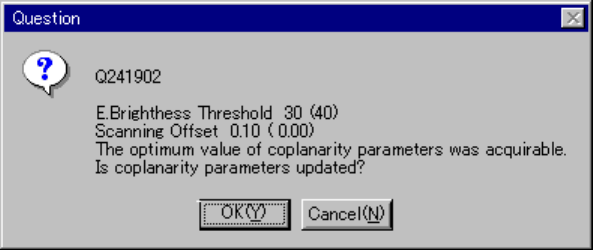
When the system obtains the optimal coplanarity parameter, the system displays the
obtained electrode brightness threshold and scanning position offset on the screen.
The parameters set before the system obtains new ones are displayed in
parentheses. When you click the <OK> button, the system updates these
parameters to the obtained ones. When you click the <Cancel> button, the system
maintains the parameters set before obtaining new ones.
Figure 4.12.4.7 Obtained parameters dialog box
4 – 239
4.12.5 Mark database
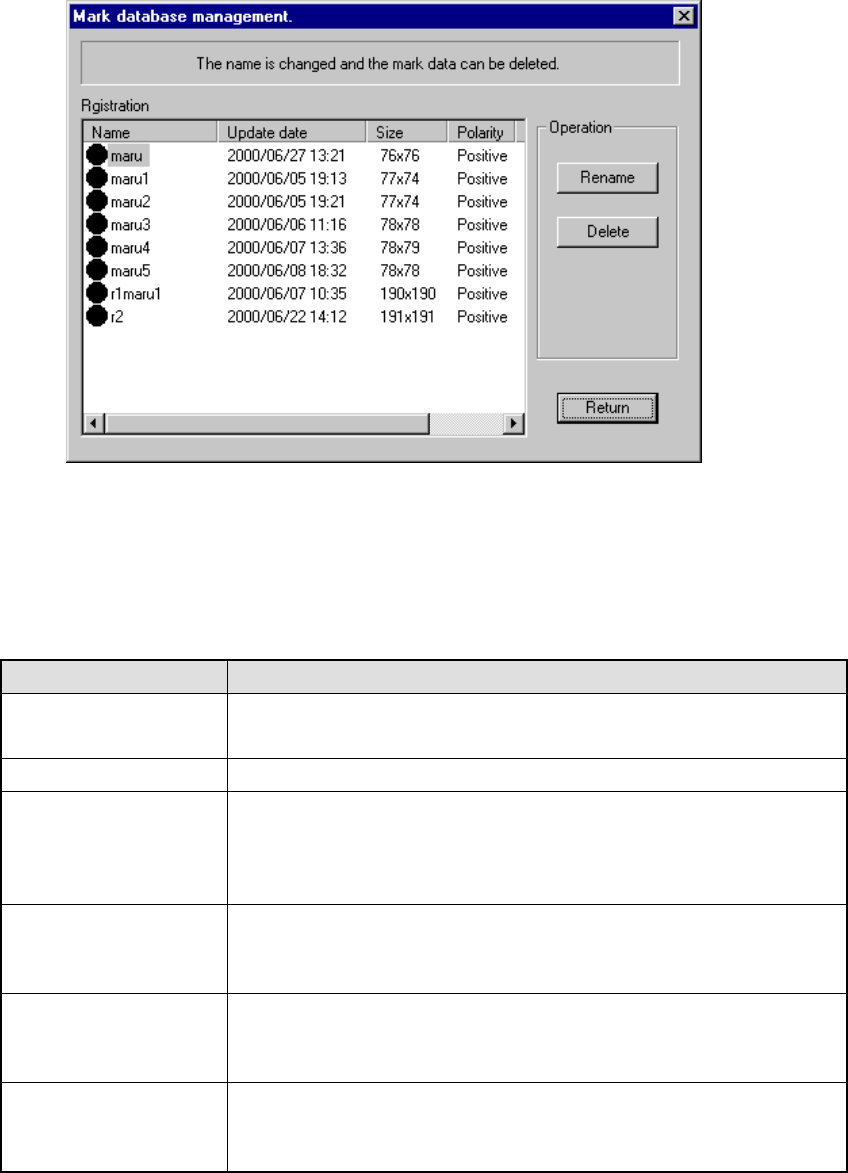
This command manages the mark database which was registered during teaching of
mark data described in Chapter 5 "TEACHING".
Figure 4.12.5.1 "Mark database management" dialog box
(1) Registration
This list displays the mark data registered in the database. The meaning of
each item is described in Table below.
Item Meaning
Name Name of a mark
(The mark shape is displayed before the name itself.)
Update date Date when a mark was registered in the database.
Size Number of horizontal and vertical pixels consisting of a mark
aaa x bbb
aaa = number of horizontal pixels
bbb = number of vertical pixels
Polarity Negative/positive shot of a mark
Positive: white mark on black background
Negative: black mark on white background
Scale Image data scale of a mark
Grayscale: mark data is read as a multi-scale image.
Binaryscale: mark data is read as a binary-scale image.
Station (available to a
KE-2030 only)
Station which obtained a mark
Left = A mark was read with the OCC located on the left station.
Right = A mark was read with the OCC located on the right station.