Omron V-TS Teaching Manual.pdf.pdf - 第120页
2.7 PCB/Com ponent Block Unit Setting 2- 93 3. The dialog to confirm the deletion appears . Click [OK]. Move a Component Block Unit 1. Click to select the Com ponent Block Unit to move in the PCB Layout list. 2. Click …
Chapter 2 Inspection Programming
2-92
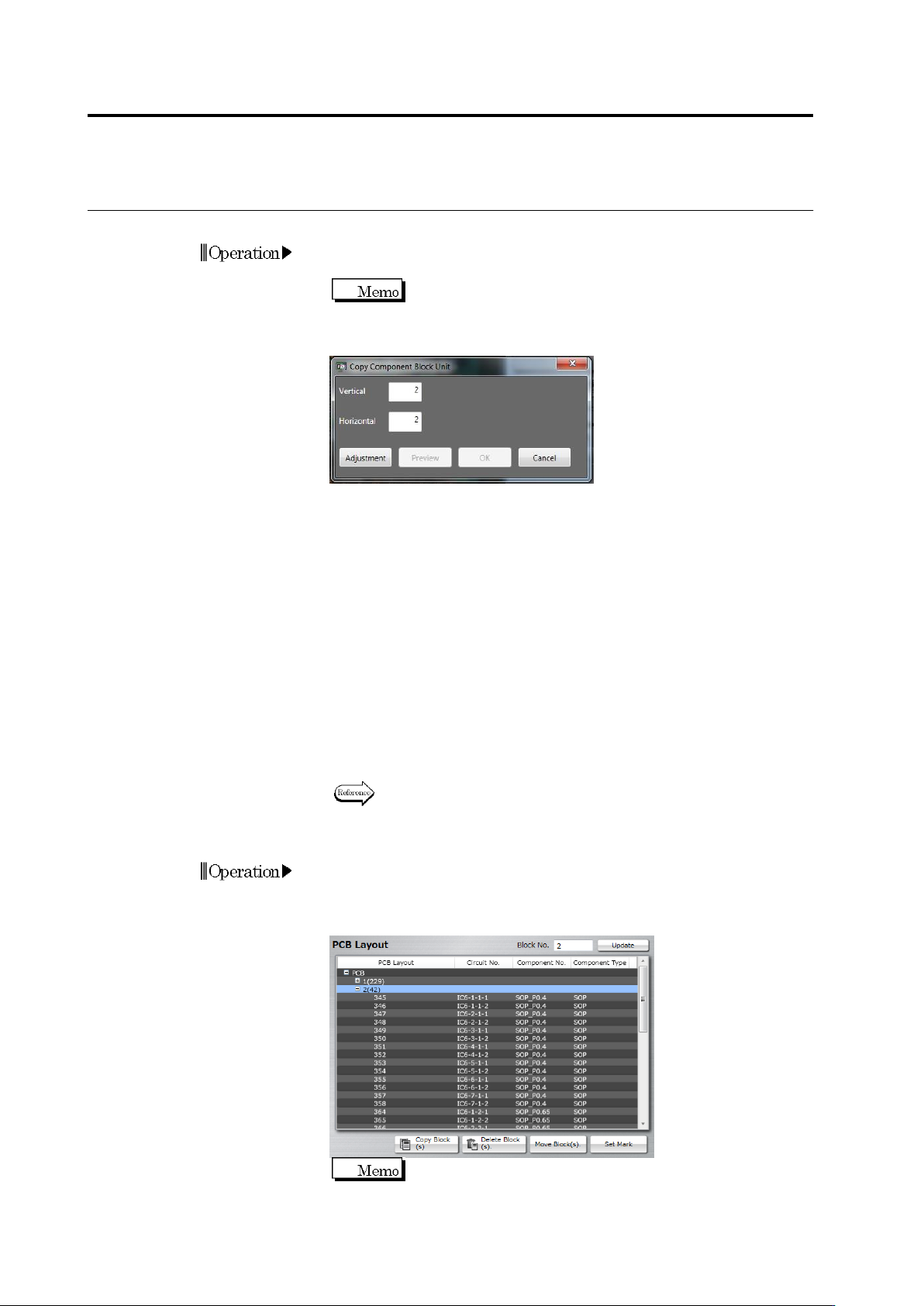
Copy a Component Block Unit
1.
Click to select the original Component Block Unit to copy in the
PCB Layout list.
Find the corresponding "Component Block Unit No. (The
number of components)" in the PCB Layout column.
2.
Click [Copy Block(s)].
3.
Specify the number of component block units to create and click
[Adjust]. Component block units for XY position adjustment are
displayed for vertical and horizontal directions. To copy a
component block unit only in the vertical direction, enter "1" for the
horizontal direction.
4.
Align the window positions of component block units for position
adjustment to the component block units at the end of the
vertical/horizontal directions.
5.
Clicking [Preview] displays component block unit windows at even
intervals calculated based on the number of component block units
and positions of the component block units for position adjustment.
[Preview] is enabled by clicking [Adjustment].
6.
Click [OK] to copy a component block unit.
7.
You can independently adjust a position of the copied component
block unit as necessary.
Refer to the next page for the procedure to move the Component
Block Unit.
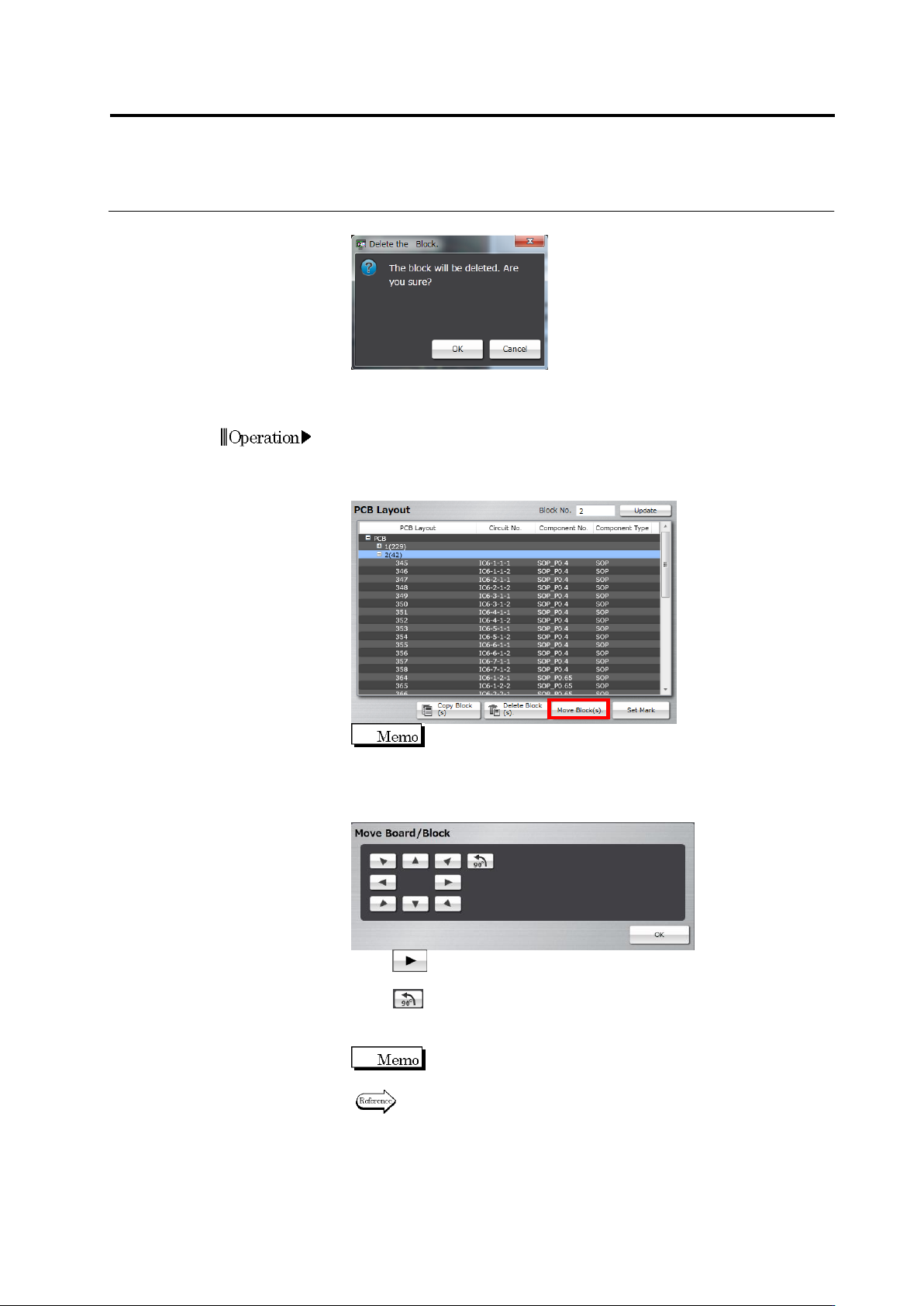
Delete a Component Block Unit
1.
Click to select the Component Block Unit to delete in the PCB
Layout list.
2.
Click [Delete Block(s)].
The [Delete Block(s)] button is disabled when only one
Component Block Unit is listed.
Operation
Operation
2.7 PCB/Component Block Unit Setting
2-93
3.
The dialog to confirm the deletion appears. Click [OK].
Move a Component Block Unit
1.
Click to select the Component Block Unit to move in the PCB
Layout list.
2.
Click [Move Block(s)].
By default, an unpopulated PCB is displayed. By clicking
the [Display Component] check box, you can switch
ON/OFF of Display Component.
3.
The PCB moving buttons are displayed.
Click button for the target direction, or drag the image display
area to move the Component Block Unit.
Click if the Component Block Unit (or its copy) requires a
rotation. A single click rotates the unit by 90 degrees in the
counterclockwise direction.
Use the PCB entire view display function for rough position
alignment, then tune the position using the magnified view.
Refer to "2.1.3 Image Display Area Operation" for the image display
area operation.
4.
Click [OK] when the position is determined.
Operation
Chapter 2 Inspection Programming
2-94
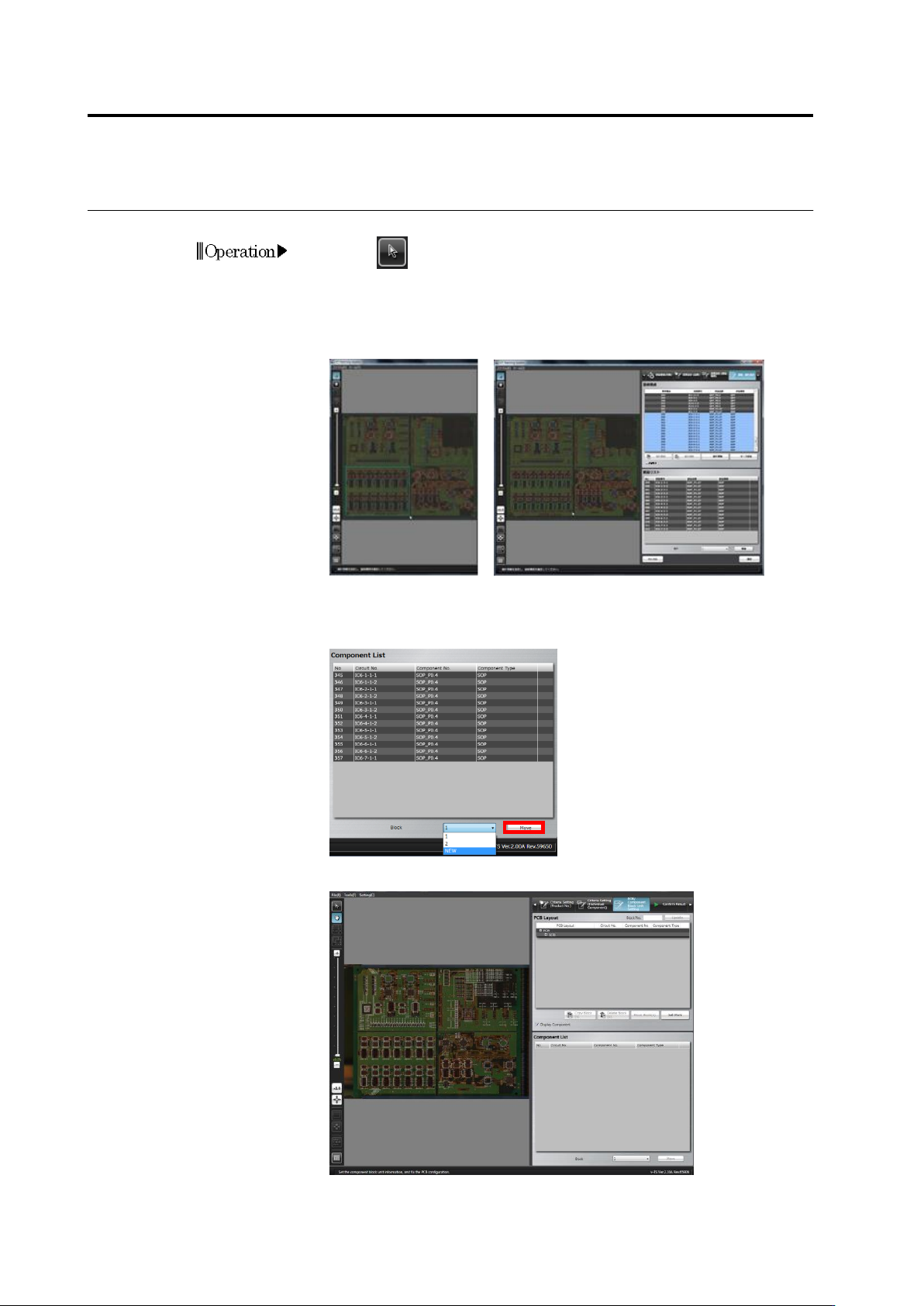
Divide a Component Block Unit
1.
Click (Select Window) button in the Image Operation tool bar.
2.
Drag to specify the range to be separated from the Component
Block Unit on the image display area. Drop the cursor. The
components included in the specified range are added to the
Component List.
3.
Select the destination Component Block Unit number the separated
portion is moved to in the list and click [Move].
To add a new component block unit number, select [NEW].
The selected component is set as another Component Block Unit.
Operation