Omron V-TS Teaching Manual.pdf.pdf - 第43页
Chapter 2 Inspection Programm ing 2- 16 ■ Target Im age List For the component of the thum bnail image displayed in the im age display area, height calculation, re-learn ing, and so on are perf ormed. For the detai ls of…
2.1 Basics of Teaching
2-15
Specify Yes or No for individual adjustment, and click [Adjust].
- Individual Adjustment . . . Specify if you want to adjust Land Window individually or not.
- ON Land Window is adjusted individually based on the bare board image.
- OFF Deployment is done for Land Window with the same size and relative
position as the representative component.
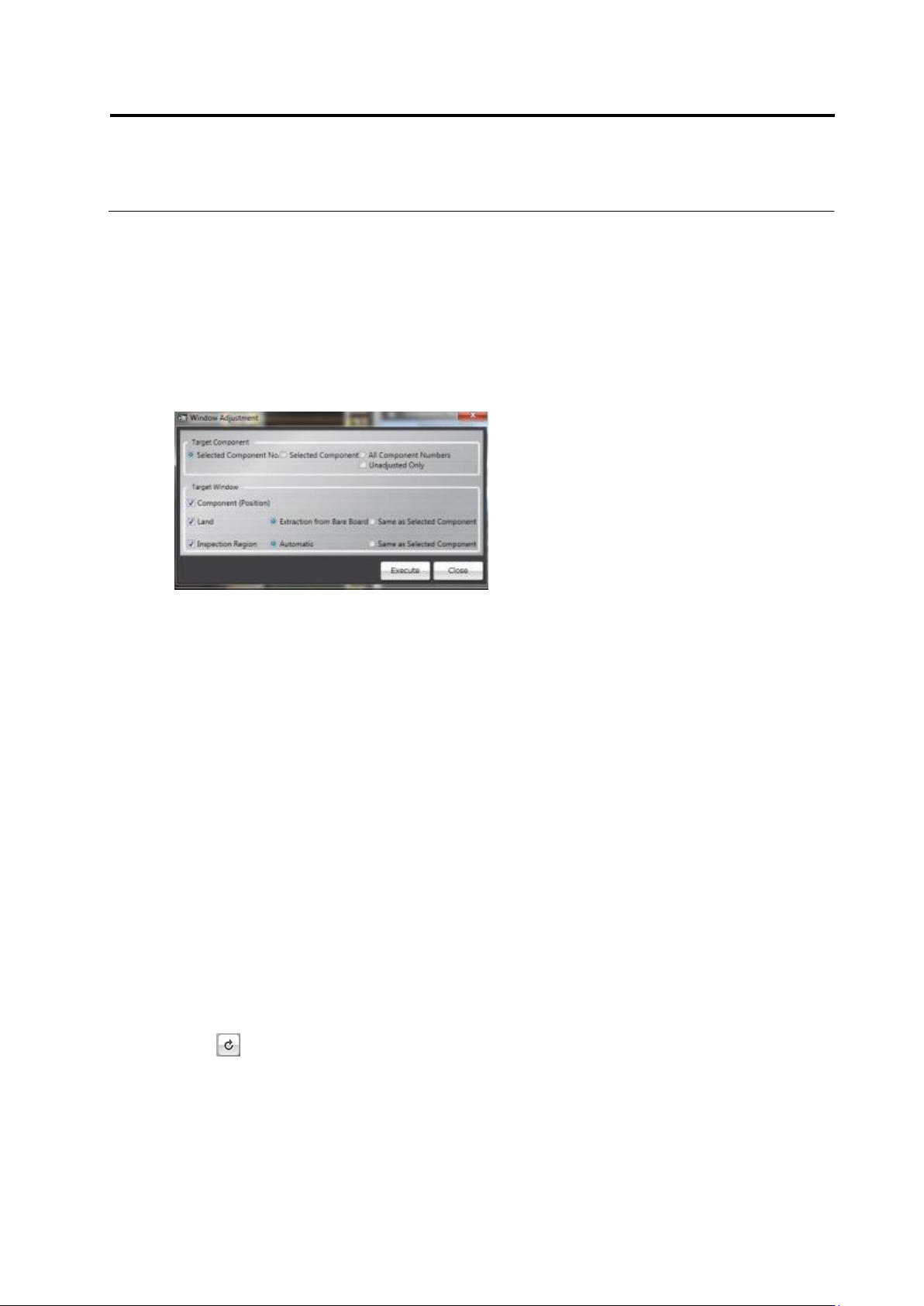
Clicking [Adjust] displays the window adjustment dialog box.
Specify a target component and window, and click [Execute].
- Target Component . . . Selects a target component.
- Selected Component No. Selected component number is set as a target.
- Selected Component Selected component is set as a target.
- All Component Number All component numbers are set as target.
- Unadjusted Only . . . Unadjusted component numbers or components are set as target out of
the component numbers or components selected in the Target
Component area.
- Target Window . . . Selects a target window.
- Component (Position) Moves the component window to the inspection criteria position.
- Land Adjusts the Land Window.
- Extract from Bare Board Extracts a land from the bare board image and adjusts
the Land Window.
- Same as Selected Component Sets the Land Window of the target component same as
that of the selected component.
- Inspection Region Adjusts the inspection range window.
- Automatic Adjusts the inspection range window automatically.
- Same as Selected Component Sets the inspection range window of the target
component same as that of the selected
component.
< Update >
Click on top-right component number list to update the list.
Chapter 2 Inspection Programming
2-16
■ Target Image List
For the component of the thumbnail image displayed in the image display area, height
calculation, re-learning, and so on are performed.
For the details of the method to operate the image on the target image list, refer to 2.5
“Registering the Component Number Model.”
(6) Display Switch Tabs
Display switch tabs are provided. They are positioned in the order of the depth of teaching
progress (from left to right).
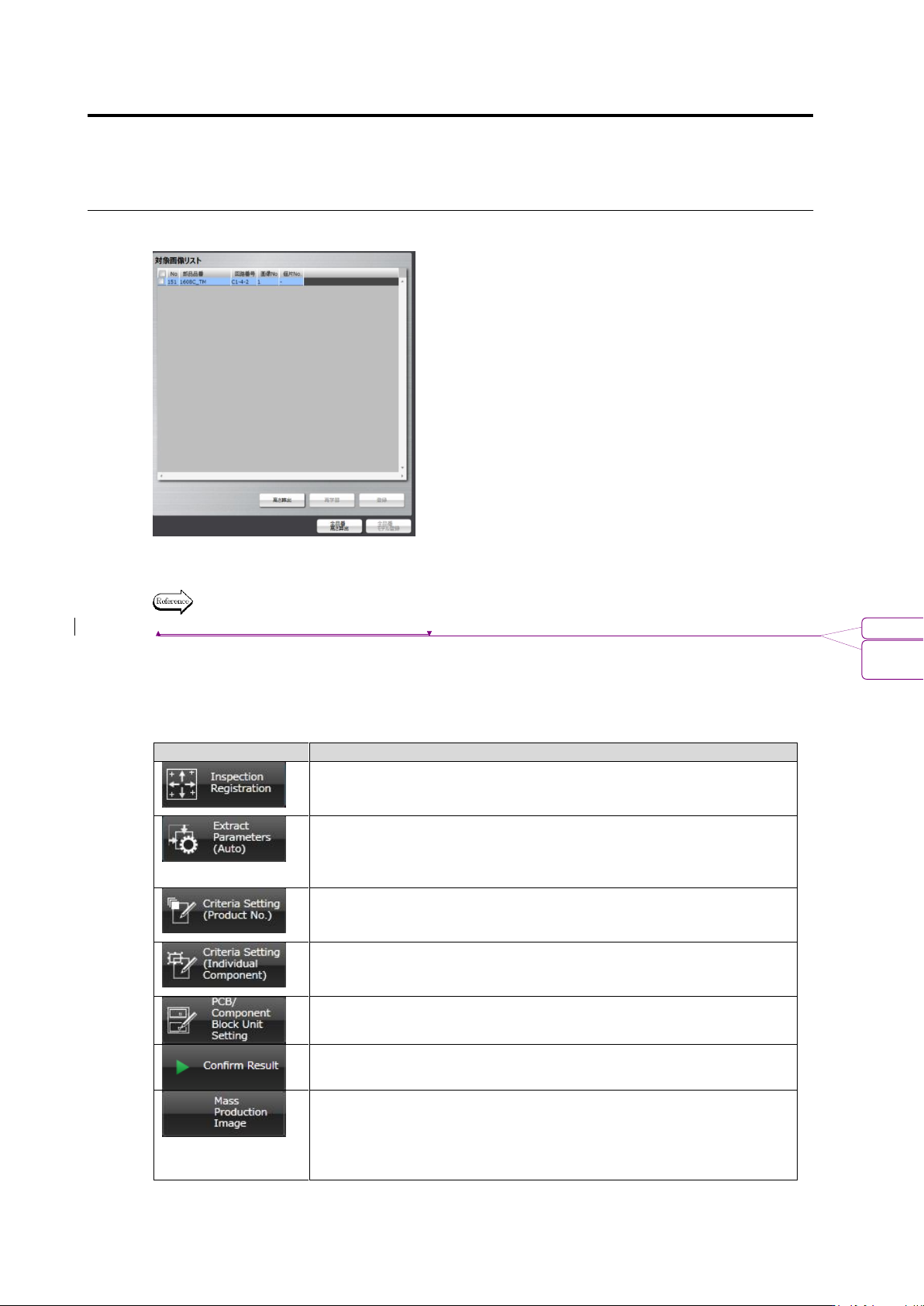
The following shows the operation available with each tab.
Tab
Outline of Operation
Load the mounting data and register the components to inspect.
Specify the inspection windows (component body, land and
electrode windows) by the unit of component number.
Select a component thumbnail for the component number, based on
which a model is calculated. The characteristic parameters for the
component number is then automatically extracted, and the model is
registered in the library.
Set the criteria values for each of the inspection items for the
component number.
Edit a component number model image registered in the library.
Specify the criteria values for each of inspection items for individual
components.
Perform Component Block Unit settings (position change, copy or
deletion) and mark settings (2D code).
Inspection images and adjustment images are read in, the PCB is
tested, and the result is listed.
Load mass-production images specified by Q-upNavi and images
judged as inspection NG by v-TS, select an image to register it in
the library. In addition, images checked on the [Save Image] column
are also included in the mass-production images regardless of the
inspection result.
書式変更: フォント : 10 pt
削除: Registering the Component Number
Model
2.1 Basics of Teaching
2-17
2.1.3 Image Display Area Operation
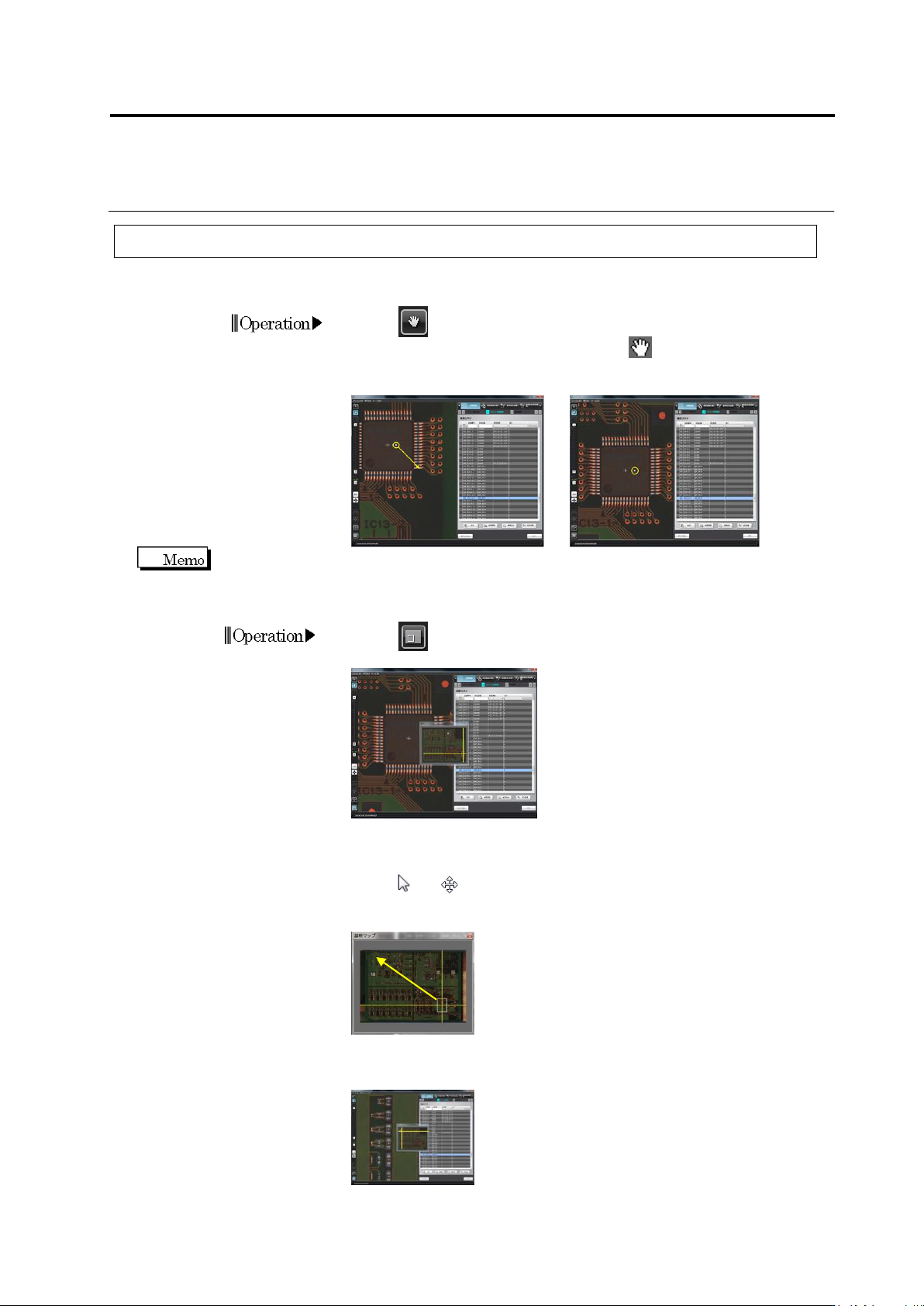
Move Field of Vision
<For Small Movement>
1.
Click (Move Field of Vision) button in the Image Operation
tool bar. The mouse cursor changes to .
2.
Drag and drop the PCB image to change the field of vision.
Drag and drop using the right mouse button, instead of using the image operation button, can also
move the field of vision.
<For Large Movement>
1.
Click (PCB Map) button in the Image Operation tool bar to
display the PCB map.
2.
Locate the mouse cursor on the field of vision window in the PCB
map (intersection of the yellow lines). The mouse cursor changes
from to .
3.
Drag the field of vision window in the PCB map.
4.
Drop the window at a desired location in the PCB map to position
the field of vision.
Operation