Omron V-TS Teaching Manual.pdf.pdf - 第213页
Chapter 2 Insp ection Progr amming 2- 186 4. W hen the [Next] button is click ed, software operat es as follows: If the com ponent is included in the m ount data, the [ON] but ton is set ON for the com ponent num ber inc…
2.15 Modifying an Inspection Program
2-185
7.
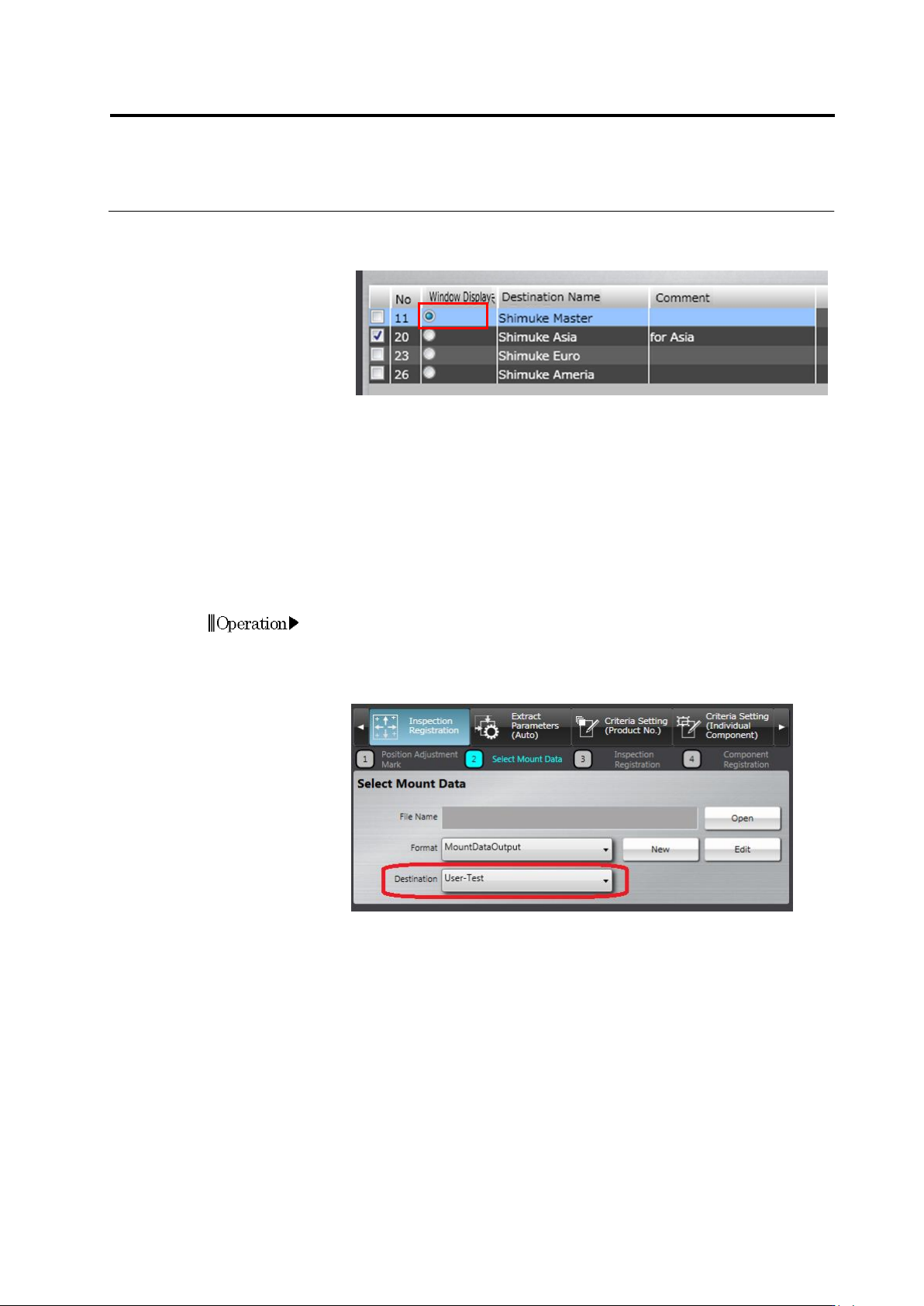
Only the effective components out of the destination components
whose radio button on the window display column is ON are
displayed.
8.
Press the [Close] button to return to the [Register Inspection]
screen.
According to the mount data you have, set up destination on each component number or circuit
by one of the following two methods.
Method 1: When there is mount data covering the circuits and component numbers for all
destinations:
By this procedure, a master destination data including all circuits and component numbers is
created. Then, each component number and circuit included in each destination is set up.
1.
Press the [Return] button to return to the [Select Mount Data]
screen.
2.
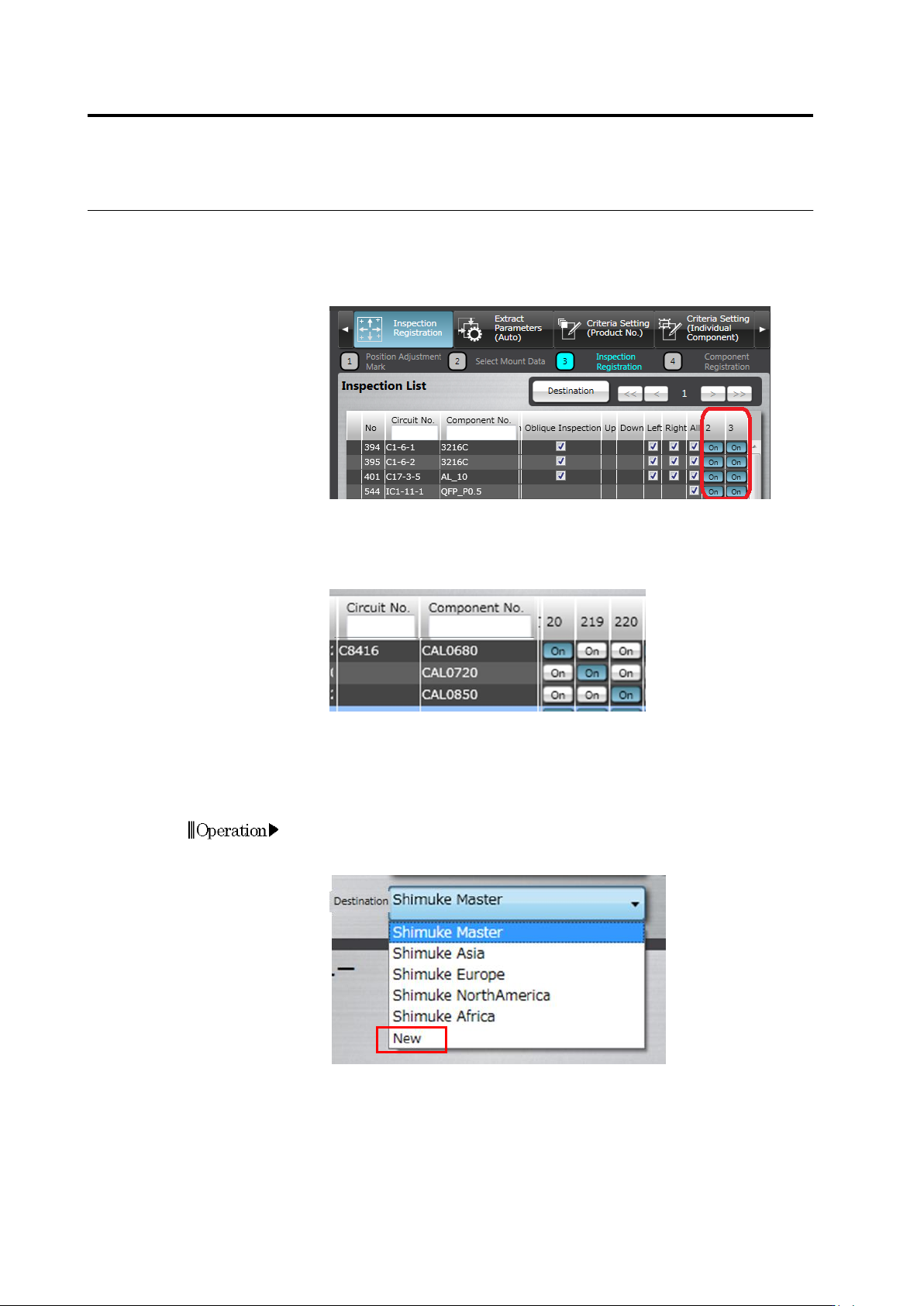
Click the [Destination] pull-down menu to select a master
destination.
3.
Read in the mount data to position it.
Chapter 2 Inspection Programming
2-186
4.
When the [Next] button is clicked, software operates as follows:
If the component is included in the mount data, the [ON] button is
set ON for the component number included in each destination on
the list. If the component is not included in the mount data, the [ON]
button is set OFF.
5.
To add component numbers to a circuit manually as a destination,
select the target circuit, and click [Add Component Number]. For the
component numbers with the same circuit number, the circuit
number is displayed for the first component number only.
Method 2: When there is mount data for each destination:
By this procedure, mount data corresponding to each destination is read in. Then, circuits and
component numbers are set up.
1.
Press the [Return] button to return to the [Select Mount Data]
screen.
2.
Click the [Destination] pull-down menu to select [New].
3.
Read in the mount data to position it.
4.
Execute steps 2 and 3 repeatedly for the number of necessary
destinations.
2.16 Managing PCB Images
2-187
2.16 Managing PCB Images
The PCB Image Management screen is provided for the deletion of PCB images and model
editing of position correction colors, solder colors, land exposure colors, fillet exclusion colors,
and PCB colors.
2.16.1 Accessing the PCB Image Management Screen
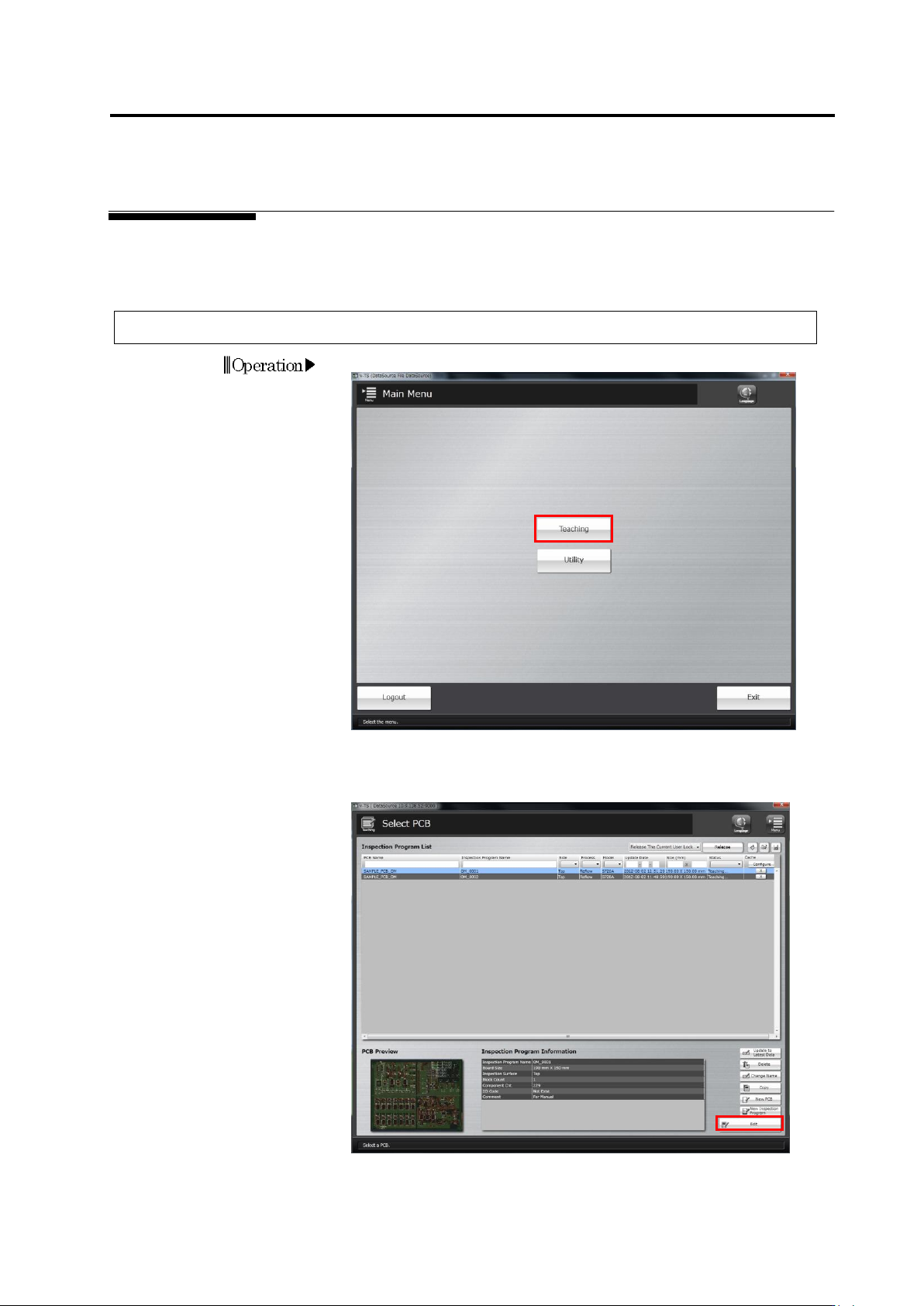
1.
Click [Teaching] in the Main menu.
2.
The Select PCB screen appears.
Select the inspection program to manage the images in the
Inspection Program List, and click [Edit].
Operation