Omron V-TS Teaching Manual.pdf.pdf - 第20页
Chapter 1 Before Gett ing S tarted 1-6 1.2.2 Usi ng the Keyboard The keyboard i s used for actions suc h as inputting file na mes and shortcut keystrokes. The types of key s are listed below . Alphabet Keys These k eys…
1.2 Basic Operations
1-5
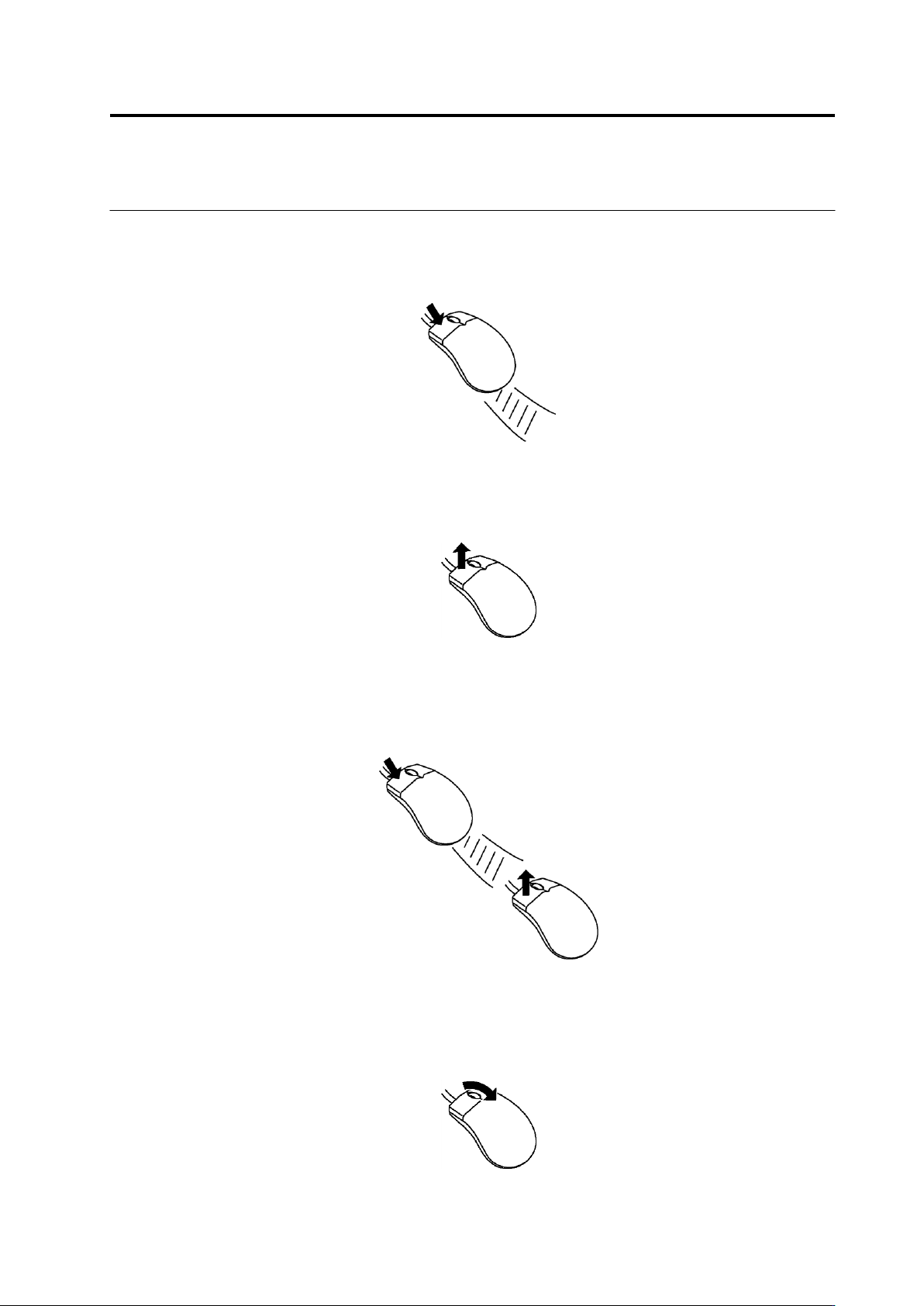
Drag
After fixing the mouse cursor on the correct position, move the cursor while pressing the
mouse button. This is used for actions such as selecting multiple windows.
Drop
Release the mouse button that was being pressed. This is used for executing the area
selected by dragging.
Drag and Drop
After fixing the mouse cursor on the correct position, move the cursor while pressing the
mouse button and release the button at the desired place. This is used for actions such as
moving a window.
Scrolling the Wheel
Turning the wheel in dialog boxes where the scroll bar appears will scroll the contents. This
is used for actions such as checking a list of inspection programs.
Chapter 1 Before Getting Started
1-6
1.2.2 Using the Keyboard
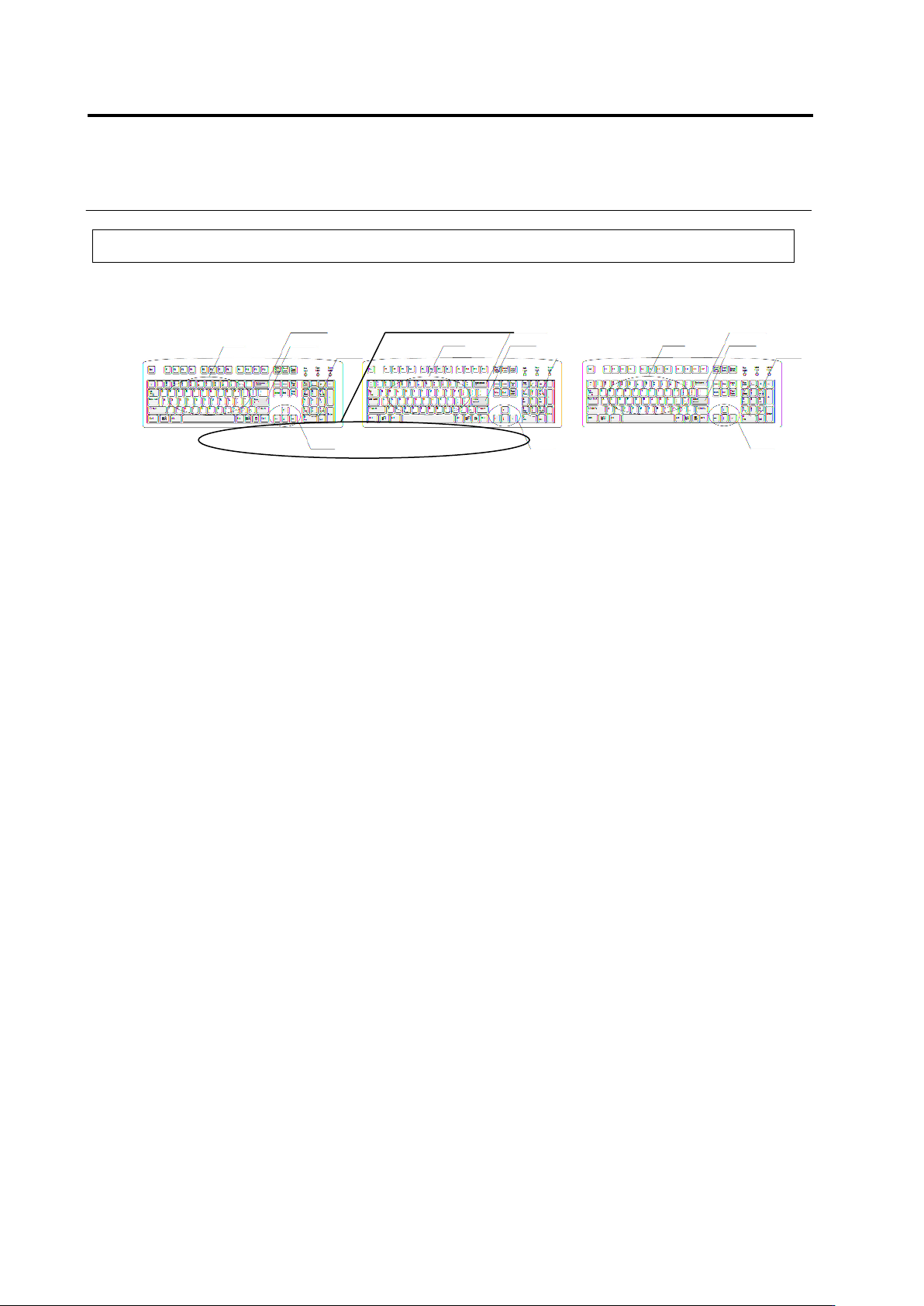
The keyboard is used for actions such as inputting file names and shortcut keystrokes. The
types of keys are listed below.
Alphabet Keys
These keys input letters. These are used for things like inputting the name of the inspection
program, comments, component number names, circuit numbers, etc., in dialog boxes.
Numeric Keys
These keys input numbers. These are used for inputting numeric values in the dialog boxes.
Back Space Key
Erases the character to the left of the cursor.
Enter Key
Confirms the input data and sets them.
Cursor Keys
Moves the cursor in the direction indicated by the arrow.
Function keys
Executes the following function:
F2: Switching of the mouse tool button.
Alphabet Keys
Cursor Keys
Enter Key
Back Space Key
Function Keys
Numeric Keys
1.3 Startup & Termination of the System
1-7
1.3 Startup & Termination of the System
This section describes how to start and end v-TS.
1.3.1 System Startup
Do not start other applications at the same time with this system.
1.
Turn ON the power of the PC.
2.
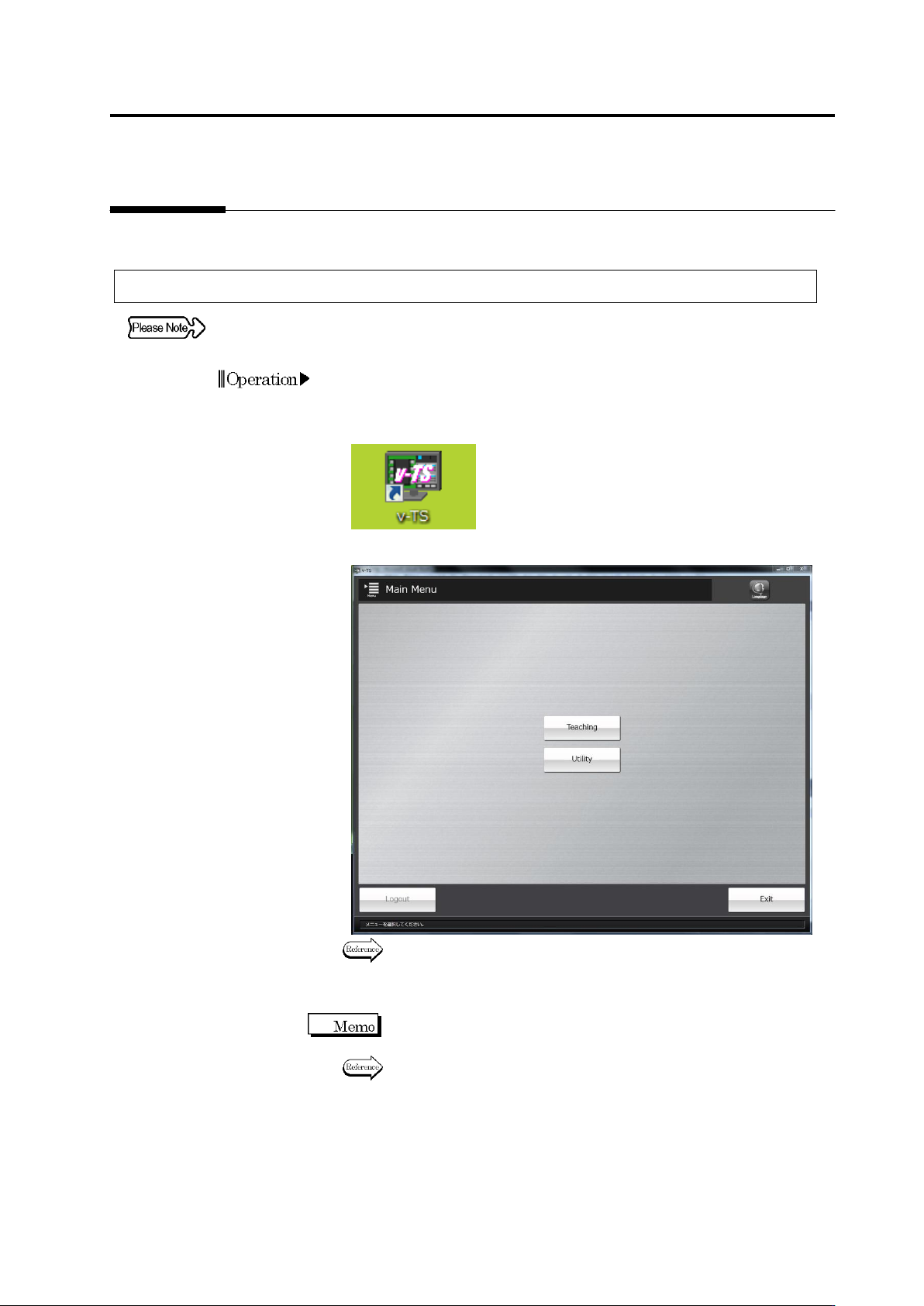
After OS is started, double-click the v-TS shortcut icon on the
desktop.
3.
The teaching system is started and the main menu appears.
To create an inspection program, go to P2-1, "Chapter 2 Inspection
Programming."
To configure the system using the utility, go to P3-1, "Chapter 3
Management Menu."
When the password function has been implemented, the login dialog
appears. Log in to the system before starting a menu.
Refer to "1.5 Login and Logout."