Omron V-TS Teaching Manual.pdf.pdf - 第17页
1.1 Overview 1-3 1.1.3 PC S pecific ations for v- TS Hardware Hardware Name Specifications CPU Intel Core i7 2600 (3.40GHz, 8MB, 4C) or higher * use Intel HD Graphics Memory 16G (DDR3 1.333 MHz) or more HDD 250Gx1 SA…
Chapter 1 Before Getting Started
1-2
1.1 Overview
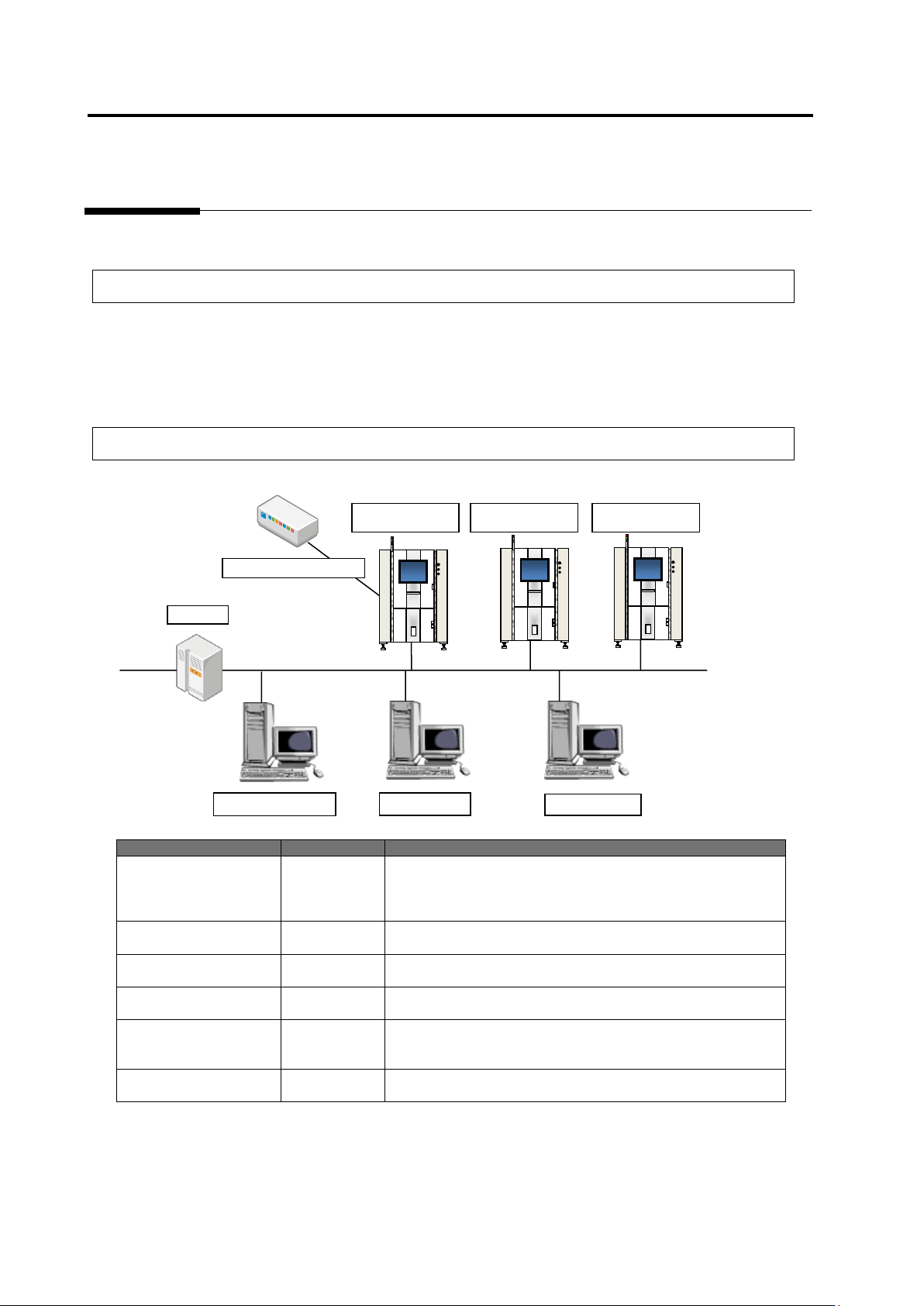
This section describes overview and configuration of the teaching system.
1.1.1 Overview of Teaching System
This system uses a PCB image captured by a PCB Inspection System to create and modify an
inspection program.
Improving an inspection program also improves an inspection pass rate of the PCB Inspection
System.
1.1.2 System Configuration
System Name
Abbreviation
Outline
PCB Inspection System
VT-S730
VT-S720A
VT-S500
VT-S730
VT-S720A
VT-S500
Main unit of the inspection system. It inspects a PCB and
captures a PCB image.
Teaching System
v-TS
TS
Creates an inspection program to be used and saves it to the
database.
Q-upNavi
Q-upNavi
Checks a production state and analyzes processes.
This can work on a PC that runs the teaching system.
Visual Check Assistant
v-CA
CA
Performs visual check based on an inspection result by the
system and saves the visual check result to the database.
Database
v-DB
DB
Stores inspection program creation information, inspection
results, and inspection system management information.
-
Upper-level system
-
Connection to an upper-level system is made through
RS-232C for transmission of PCB ID, etc.
PC for v-TS
PC for v-CA
PCB Inspection
System
PC for Q-upNavi
v-DB
Intranet
Upper-Level System
RS-232C
PCB Inspection
System
PCB Inspection
System
1.1 Overview
1-3
1.1.3 PC Specifications for v-TS
Hardware
Hardware Name
Specifications
CPU
Intel Core i7 2600 (3.40GHz, 8MB, 4C) or higher
* use Intel HD Graphics
Memory
16G (DDR3 1.333 MHz) or more
HDD
250Gx1 SATA 7200rpm or higher
Network
Gigabit Ethernet
Monitor
Size: 17-inch or higher
Resolution: Horizontal: 1280 pixels (or higher) x Vertical 1024 pixels (or higher)
or Horizontal: 1920 pixels (or higher) x Vertical 1080 pixels (or higher)
Color: True Color (32-bit)
Software
Software Name
Specifications
OS
Microsoft Windows7 Professional 64-bit Service Pack 1 (English version)
Chapter 1 Before Getting Started
1-4
1.2 Basic Operations
The mouse and the keyboard can also be used as input devices for creating inspection
program. This section describes the basics for how to use each.
1.2.1 Using the Mouse
The mouse is used for selecting menus and clicking options in dialog boxes. Moving the
mouse on a flat surface will move the mouse cursor on the screen.
The mouse has two (2) buttons and a wheel and the left button is used for actions such as
selecting indicated options. Clicking the right button shows a pull down menu alongside the
mouse cursor. The wheel is used for scrolling the indicated contents in dialog boxes.
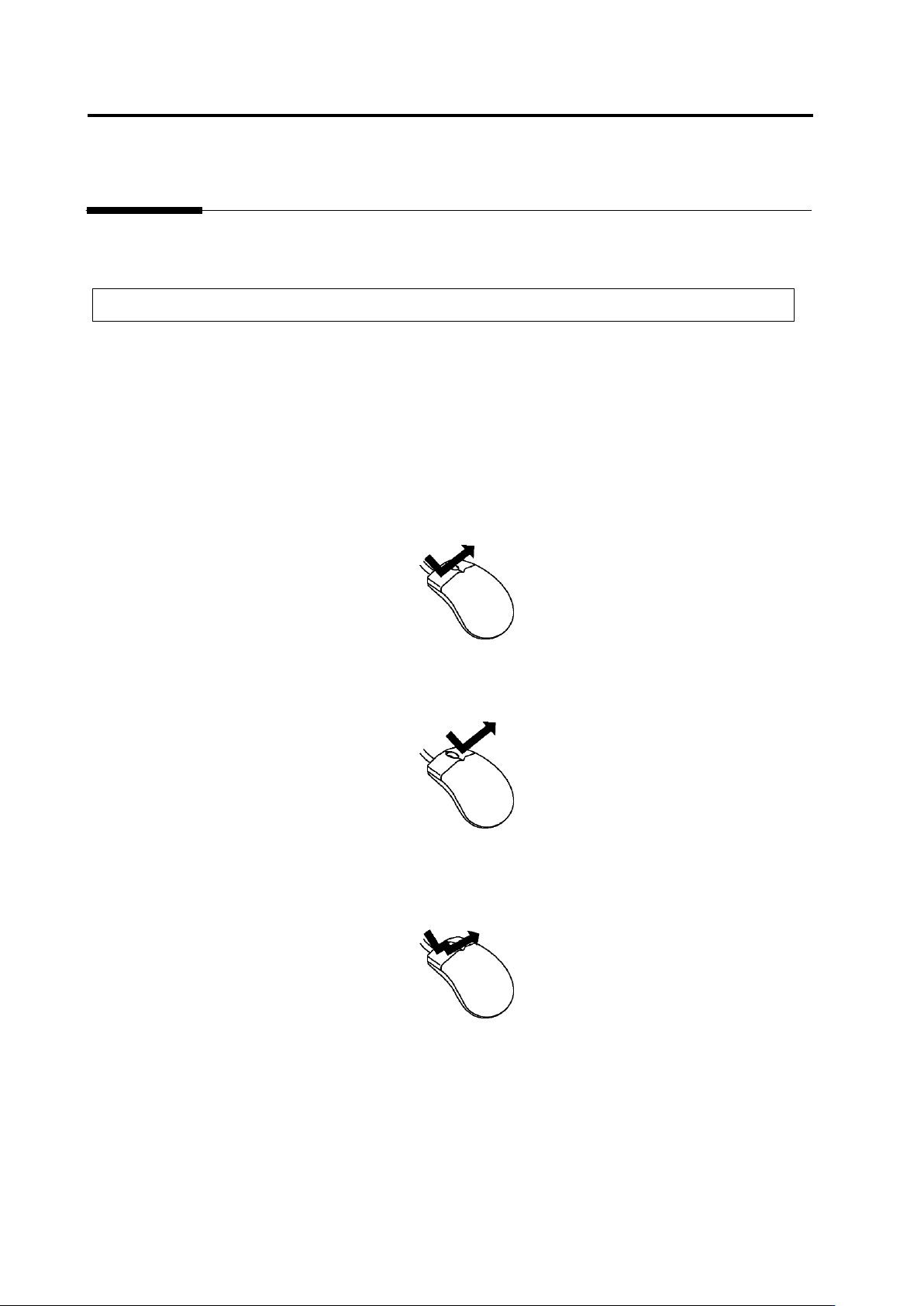
The mouse button is used for many purposes, including the following:
Click
After positioning the mouse cursor on the correct position, press the mouse button once.
This is used in cases such as selecting an option in a dialog box or using an operation
command.
Right Click
Clicking the right button once lightly shows a pull down menu alongside the mouse cursor.
Double Click
After positioning the mouse cursor on the correct position, press the mouse button twice in a
row, succession. This is used for actions such as selecting and opening a file.