Omron V-TS Teaching Manual.pdf.pdf - 第132页
2.8 PCB Tes ting/Result Check 2- 105 2.8.3 Sav ing Inspection Result This section explains the procedure to sa ve the PCB tes t result in the CSV form at. It is used for m anaging the PCB test resu lt, etc. 1. Click [Sav…
Chapter 2 Inspection Programming
2-104
・ Component Image
Displays a list of the inspection fault component thumbnail images relevant to the component
number selected in the PCB Test Result list. Also shows a magnified image of the
component selected in the Detailed Result list or the component thumbnail image list.
The windows where a fault is detected are displayed in a pink frame.
The components in the thumbnail images are displayed at 0 degrees angle.
The (image No. – component block unit No.) circuit number, test result (OK/NG),
visual check result with v-CA (OK/NG/None) are displayed below the individual
component thumbnail images.
Oblique images are not displayed, if the test is performed on a PCB used for oblique
image capturing.
S720A
2.8 PCB Testing/Result Check
2-105
2.8.3 Saving Inspection Result
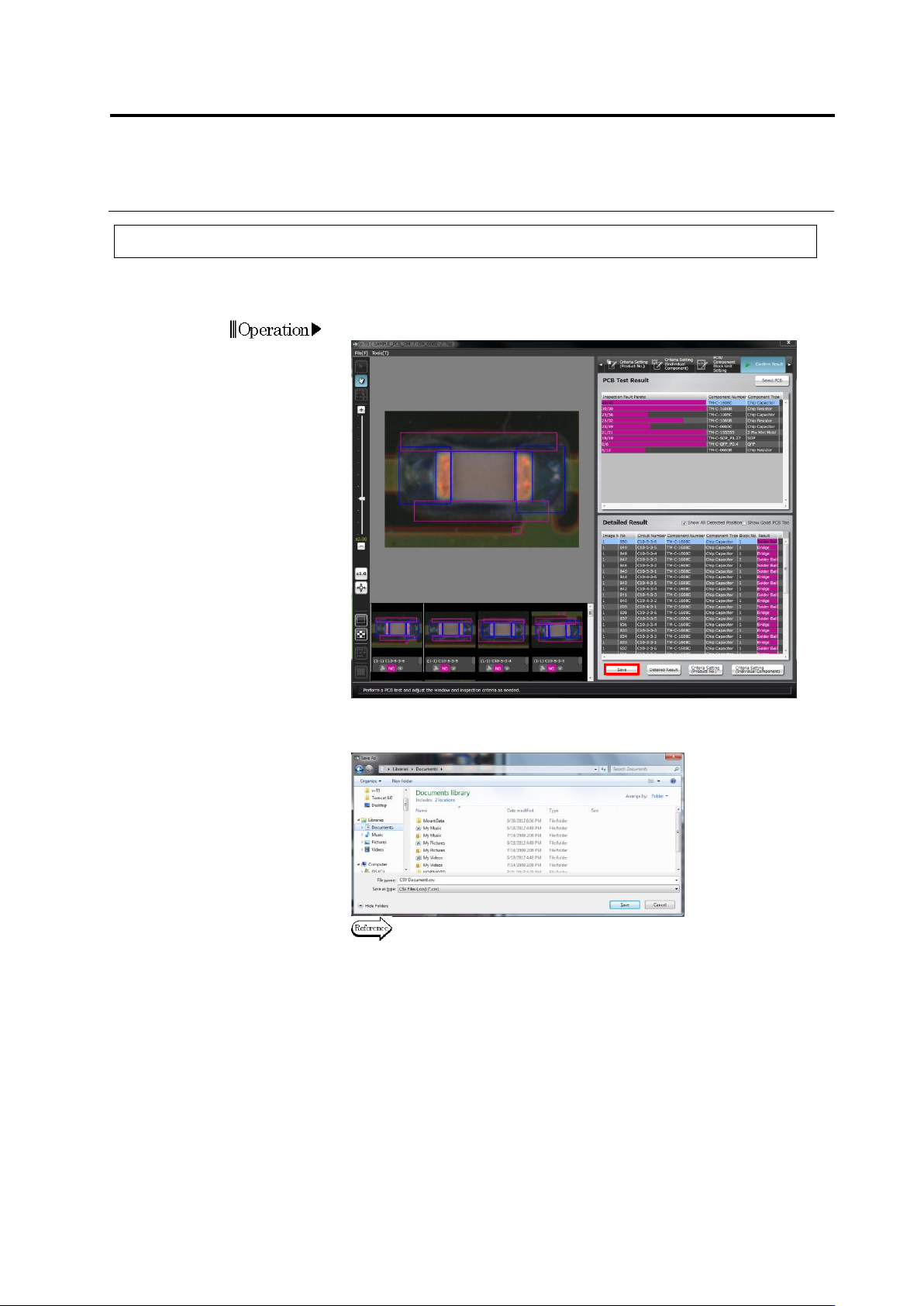
This section explains the procedure to save the PCB test result in the CSV format.
It is used for managing the PCB test result, etc.
1.
Click [Save].
2.
The file save dialog appears. Select the save destination, specify
the file name and click [Save].
Refer to the next page for the details of output formats.
Operation
Chapter 2 Inspection Programming
2-106
2.8.4 Displaying Inspection Detailed Result
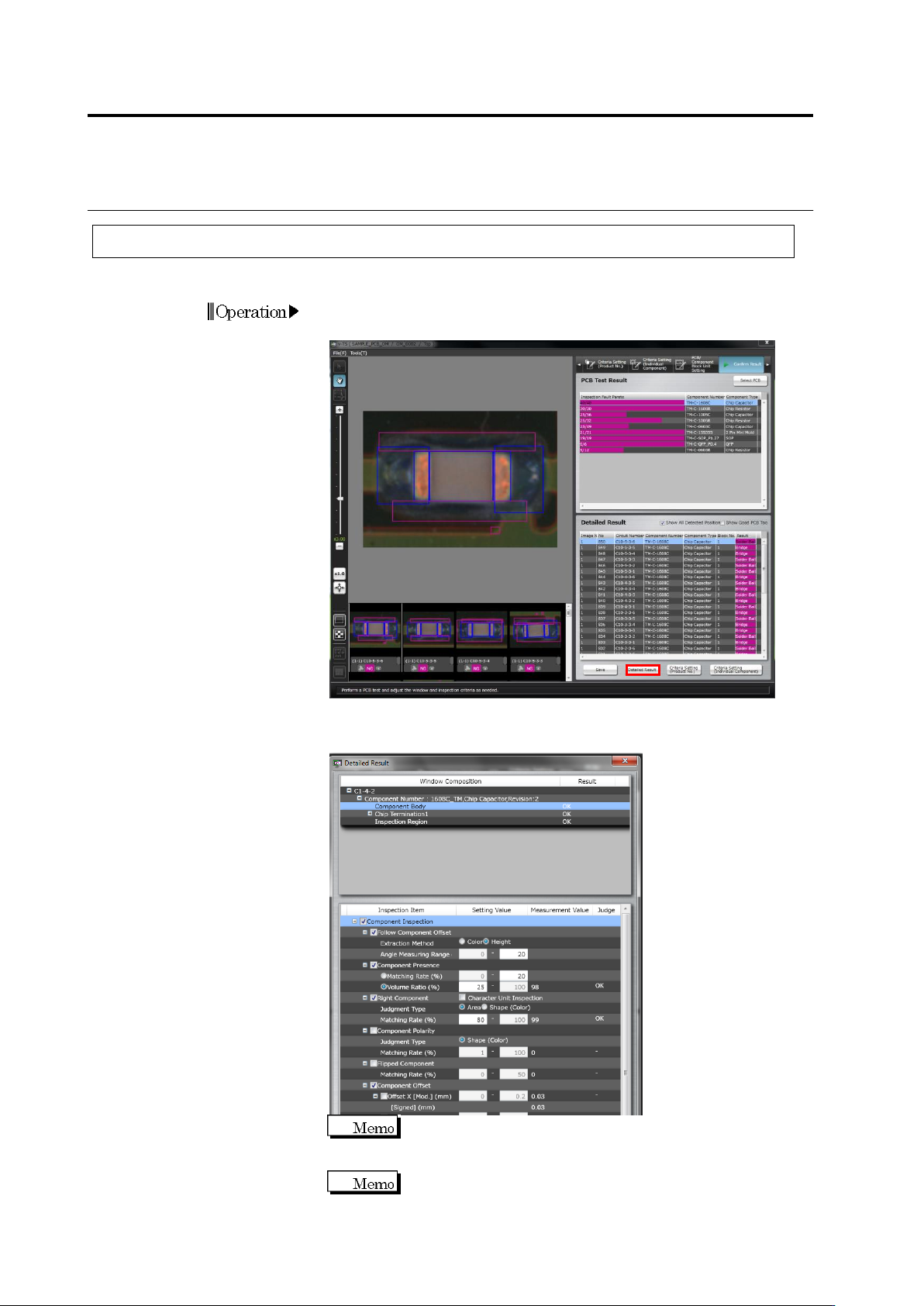
This section shows the procedure to display the detailed result for an individual component.
1.
Select the component to check its detailed result in the Detailed
Result list and click [Detailed Result].
2.
The Detailed Result dialog appears, showing the set value,
measured value and judgment result.
If other component is selected while the dialog is open, the
dialog display is updated with the detailed result for the
selected component.
In the Detailed Result dialog, criterion values can be changed
and inspection values can be set ON/OFF.
Operation