Omron V-TS Teaching Manual.pdf.pdf - 第208页
2.15 M odifying an Inspection Pr ogram 2- 181 9. The confirm ation dialog appears onl y when the check box [Re place all other inspection pro grams in the PCB as well.] is selecte d. Click [OK] if there is no pro blem. 1…
Chapter 2 Inspection Programming
2-180
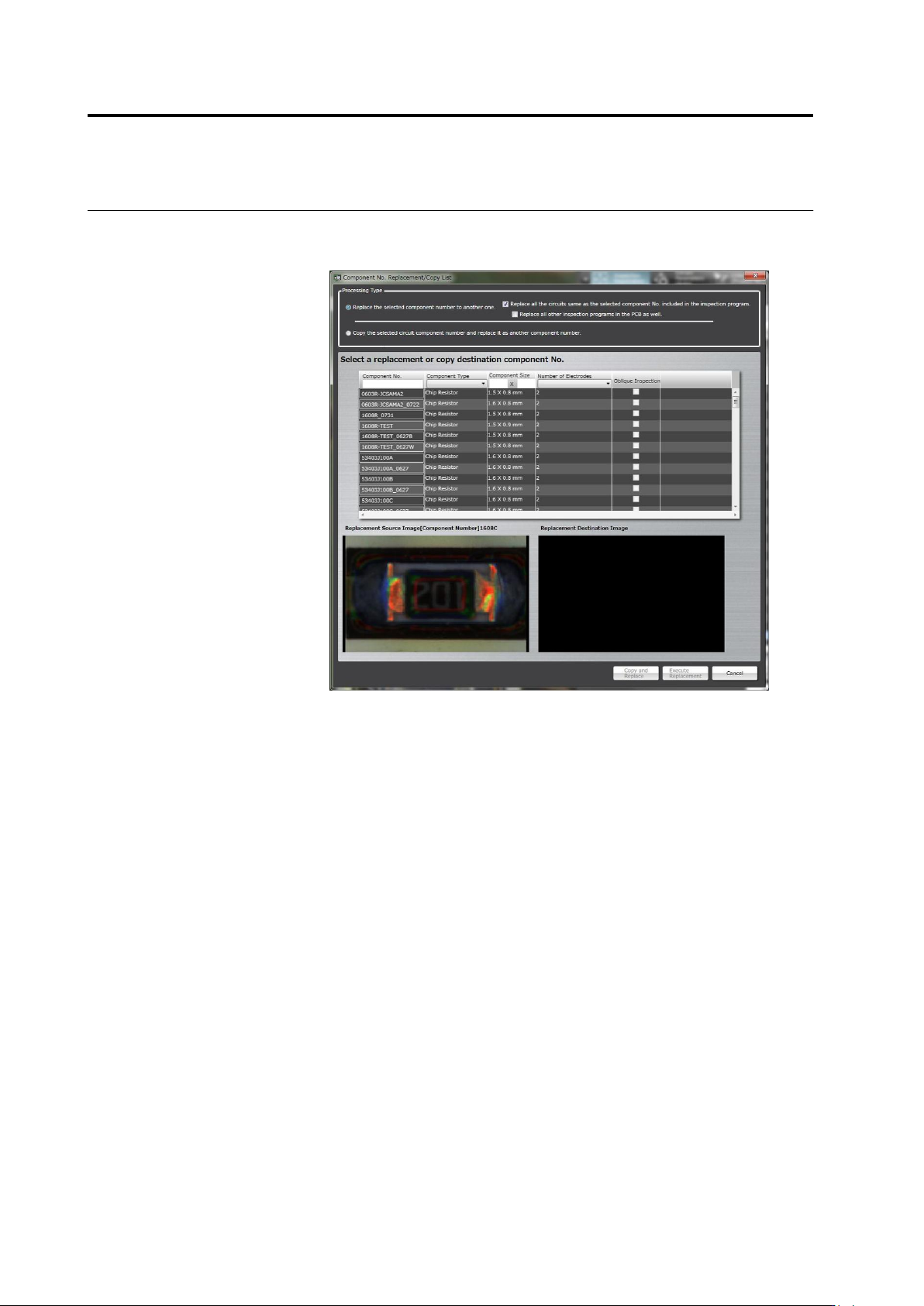
4.
To replace to other component number, go to step 5. To copy the
selected component number to replace as other component number,
go to step 10.
5.
Select [Replace the selected component number to another one.]
radio button.
6.
Select a component number from the component number list as the
replacement target.
7.
When only replacing the selected circuit, clear the check box
[Replace all the circuits same as the selected component No.
included in the inspection program.]. When replacing all other
inspection programs within the PCB, select the check box [Replace
all other inspection programs in the PCB as well.].
8.
Click [Execute Replacement].
2.15 Modifying an Inspection Program
2-181
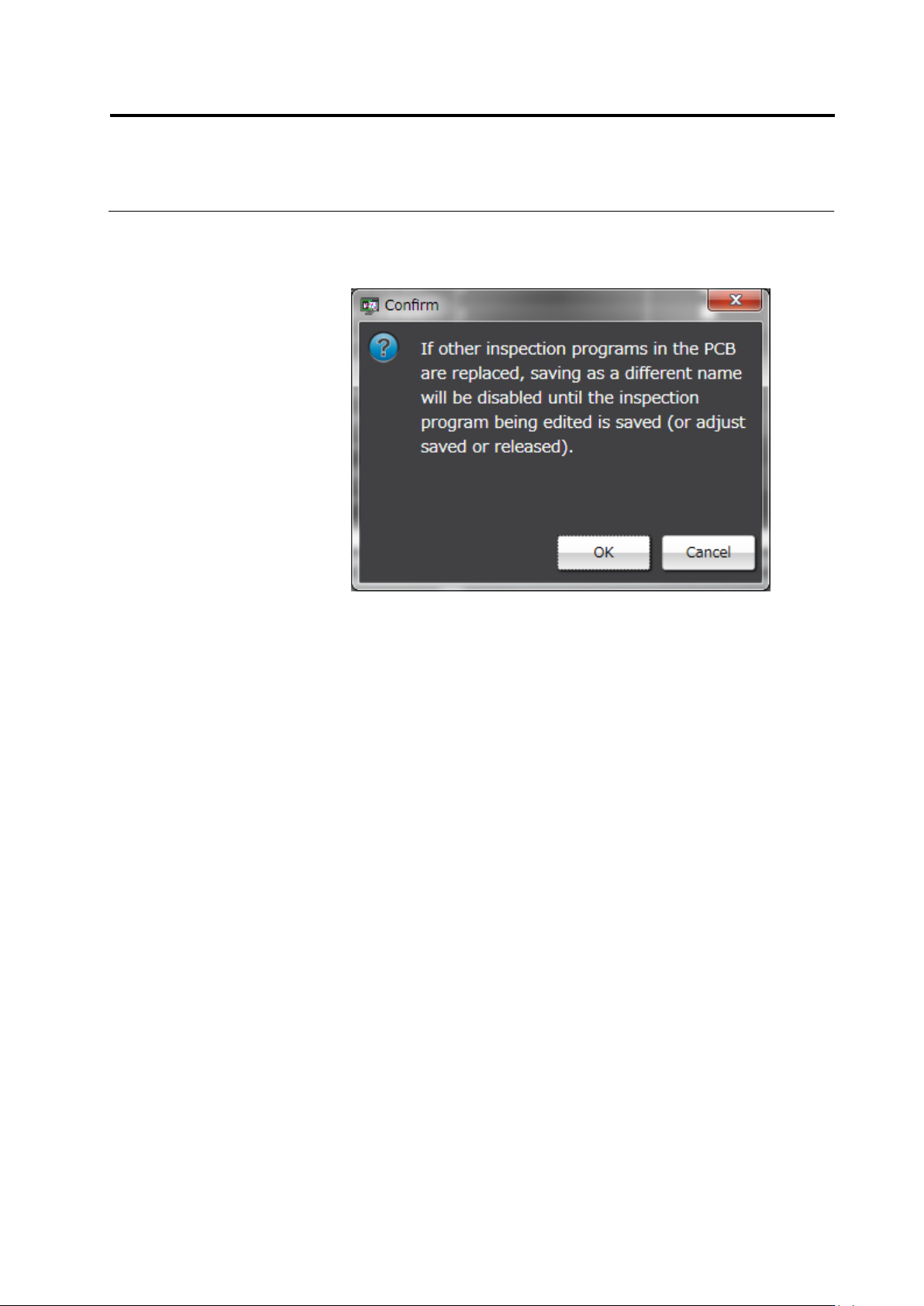
9.
The confirmation dialog appears only when the check box [Replace
all other inspection programs in the PCB as well.] is selected. Click
[OK] if there is no problem.
10.
Select [Copy the selected circuit component number and replace it
as another component number.] radio button.
11.
The component number list shows the component number as
original component number name + COPY.
12.
Change the component number name as you wish if necessary. If
the content has no problem, select a component number and click
[Copy and Replace].
Chapter 2 Inspection Programming
2-182
2.15.7 Changing the Component No. Name
The component number name can be changed.
After the component number has been changed, the lock cannot be unlocked until the
inspection program is saved.
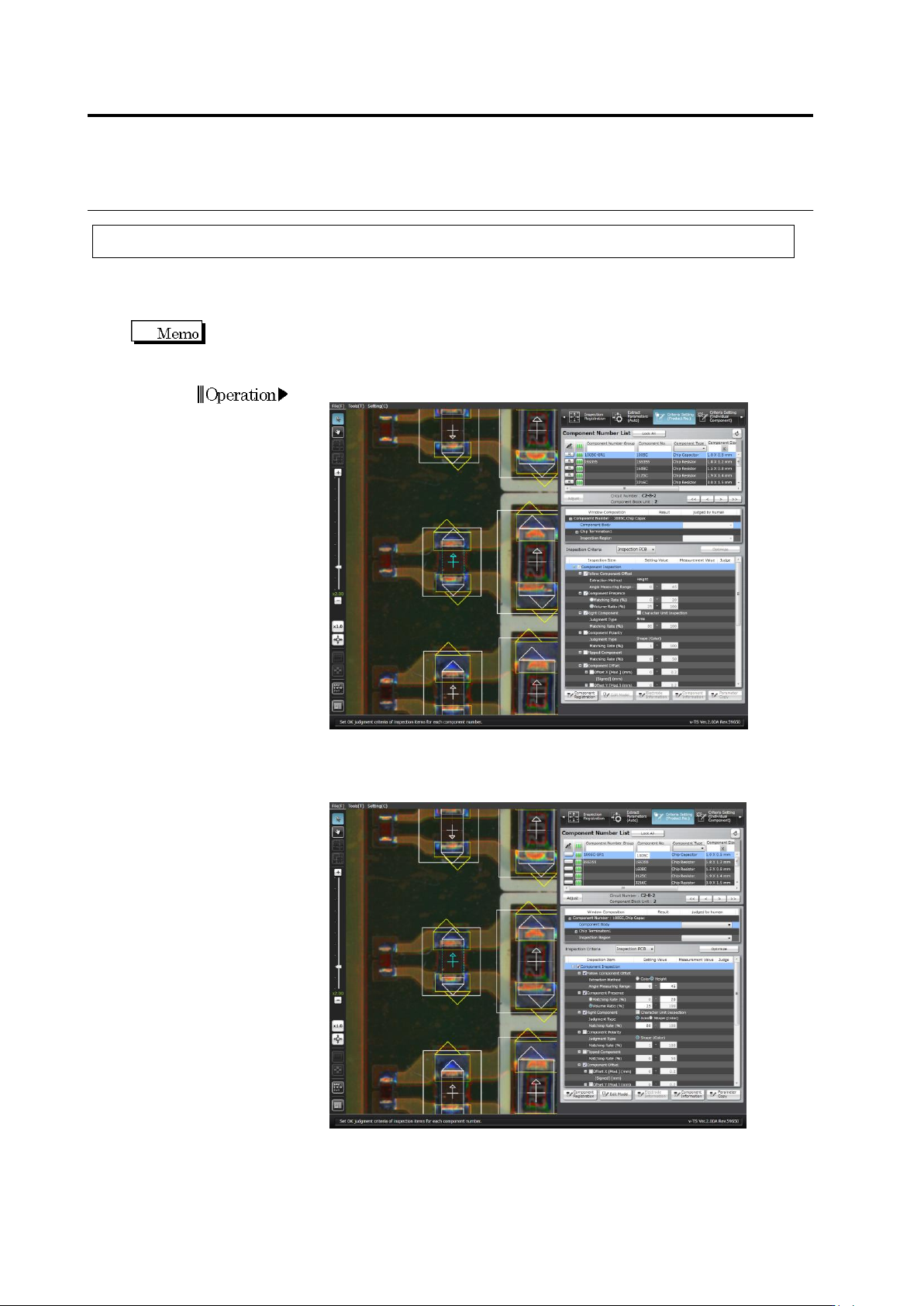
1.
Select the [Criteria Setting (Product No.)] tab.
2.
Double click [Component No.] to which you want to change the
name.